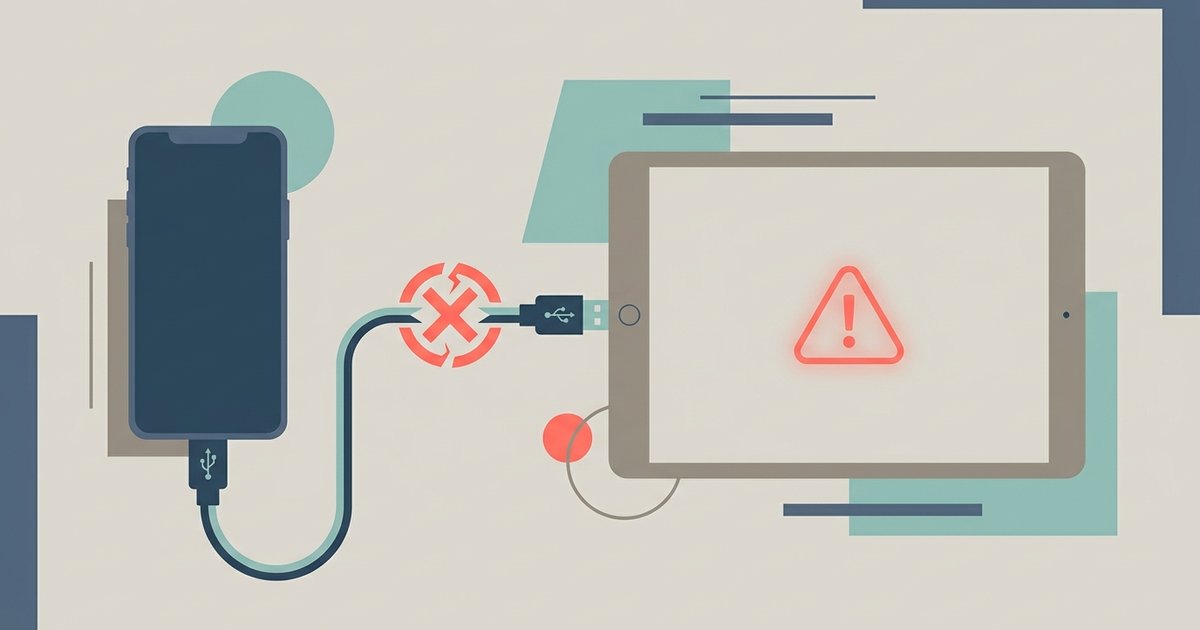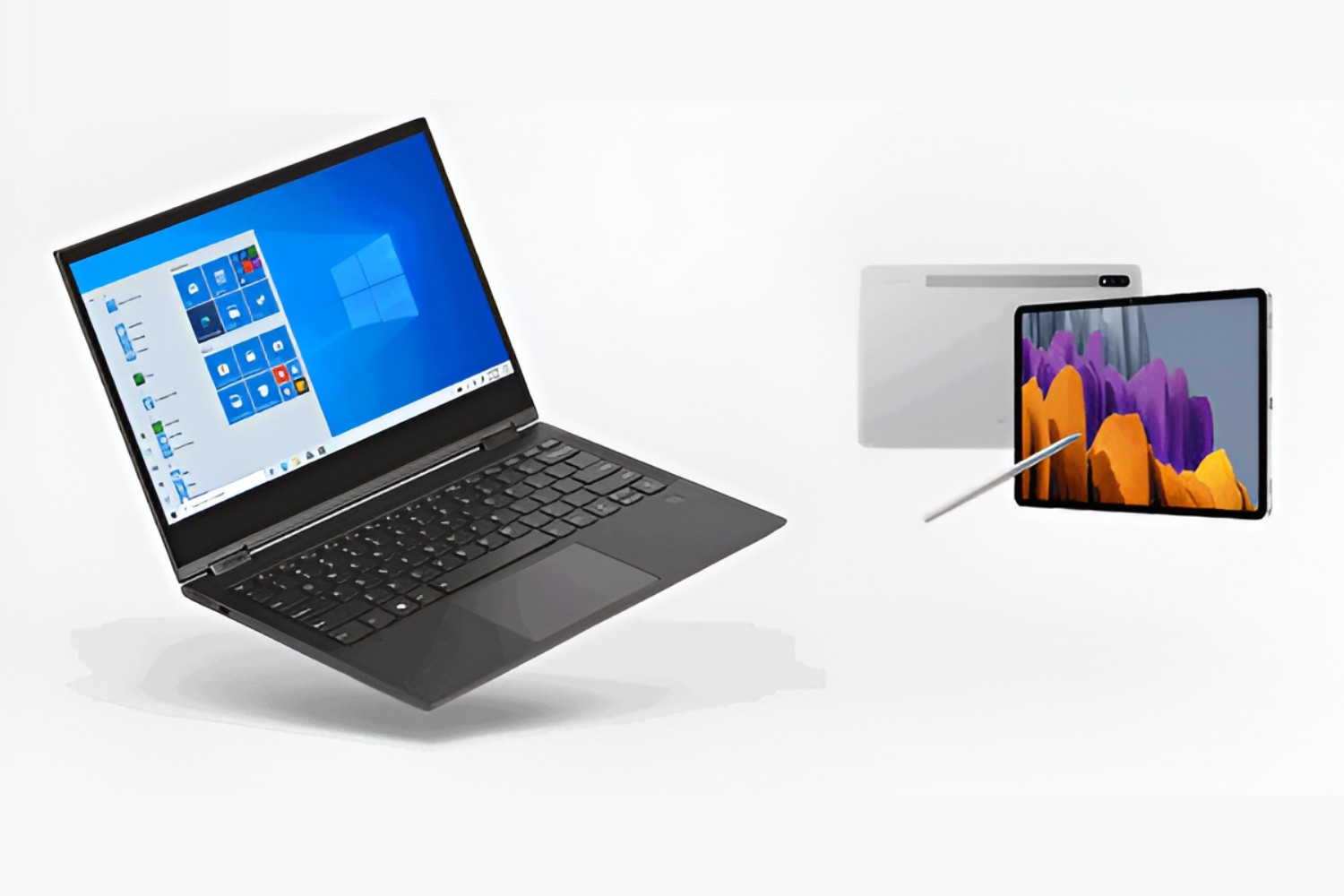
The fastest and most reliable way to transfer files from PC to android tablet is by connecting them with a USB cable. Once connected, you can simply drag and drop files using Windows File Explorer, just like you would with a USB flash drive.
How to transfer files from PC to Android tablet with a USB cable
This is the most direct and reliable method because it creates a physical connection that doesn't rely on Wi-Fi or Bluetooth. To start, unlock your Android tablet and connect it to your PC using a USB cable. On your tablet, tap the "Charging this device via USB" notification and select "File Transfer" (sometimes labeled as MTP). A file transfer window will open on your PC, allowing you to drag and drop files between your computer and tablet using File Explorer. This method works well for large files and doesn't require an internet connection. Once your files are on the tablet, you can also transfer pictures from Android phone to tablet to consolidate your photo library in one place.
How to use quick share for wireless transfers
Quick Share (formerly Nearby Share) is the best wireless method for most users because it's built into Android and now available on Windows. To use it, download and install the Quick Share for Windows app on your PC from the official Android website or Microsoft Store (for Samsung PCs). Log into your Google Account, and ensure Quick Share is enabled on your Android tablet (requires Android 6.0 or later). Both devices must have Bluetooth and Wi-Fi turned on, be connected to the same Wi-Fi network, and be within 16 feet (5 meters) of each other. Once set up, you can send files wirelessly with a few clicks.
How to transfer files with a cloud storage service
Cloud storage services like Google Drive, Dropbox, and OneDrive let you upload files from your PC and then download them to your Android tablet from anywhere with an internet connection. To use this method, upload files from your PC to your chosen service via a web browser or desktop app. Then, open the corresponding app on your Android tablet, sign in with the same account, locate the files, and download them. This is ideal for accessing files remotely, but be aware that free accounts have storage limits (Google Drive offers 15GB, Dropbox offers 2GB) and transfer speed depends on your internet connection.
How to use phone link for Samsung and other Android tablets
Microsoft Phone Link enables seamless wireless file sharing for select Android devices including Samsung, OPPO, HONOR, ASUS, vivo, and Xiaomi running Android 10 or later with a Windows 11 PC. To use it, open the Phone Link app on your PC and the Link to Windows app on your Android tablet, pair them, and then drag and drop files into the Phone Link window on your PC. This method is particularly smooth for supported devices, allowing you to manage files without cables.
How to transfer files using a microsd card
If your Android tablet has a microSD card slot, this is a portable and physical method that doesn't require any software or internet connection. Simply insert the microSD card into your PC (using a card reader if needed), copy the desired files to the card, safely eject it, and then insert it into your tablet. You can then access the files through your tablet's file manager or gallery app. This is especially useful for transferring large media files or when you need to move files between devices without a network.
How to send files over Bluetooth
Bluetooth is a basic wireless method suitable only for very small files due to its slower transfer speeds. To use it, ensure both your PC and Android tablet have Bluetooth enabled and are paired. On your PC, right-click the Bluetooth icon, select "Send a File," choose your tablet, and browse for the files to send. Your tablet will prompt you to accept the incoming file transfer. While convenient for quick transfers of small documents or photos, it's not practical for large files or frequent transfers.
How to connect a phone to a tablet and move files
The methods above that work for PC-to-tablet transfers can also be adapted for moving files between phone and tablet. For example, you can use Quick Share between two Android devices, use cloud storage to sync files across both, or transfer files via a microSD card if both devices have card slots. If you need a dedicated walkthrough for that specific scenario, see how to transfer files from Android phone to tablet. The same principles apply: choose the method that best fits your devices and the size of the files you need to move.