To ping someone on Discord, type the @ symbol followed by their username and select the correct user from the auto-complete list that appears. This sends them a notification that you have mentioned them in a message, which is the most direct way to get their attention.
How to ping someone on Discord with an @mention
The primary method for pinging someone is using an @mention. Start by typing the "@" symbol in your message, then immediately begin typing the person's username or nickname. As you type, Discord will display a list of matching users; select the correct one to auto-complete the mention. Once you send the message, the mentioned user receives a notification. This works in any text channel, direct message, or group chat, though if you need to reach someone privately first, you can dm someone on Discord without being friends. You can also make small text in Discord to add subtle context to your pings without cluttering the chat.
How to ping a Discord role
To notify everyone assigned to a specific role, type "@" followed by the role name, and select it from the suggestion list. For example, typing "@Moderator" will ping every member with that role. Note that you need the proper permissions to ping certain roles; some servers restrict who can use role mentions to prevent spam. Always check server rules before pinging large groups.
How to ping using a User ID or Role ID
For advanced use cases, such as with bots or when a username is unavailable, you can ping using a unique ID. First, enable Developer Mode in your Discord settings. Use the format <@USER_ID> to ping a user, <@&ROLE_ID> for a role, and <#CHANNEL_ID> for a channel. This method ensures the ping reaches the correct target even if the username changes.
Using Mention Suggestions on desktop
On the desktop app, Mention Suggestions can automatically trigger a pop-up of usernames as you type, even without the "@" symbol, allowing you to press TAB to insert the mention. This feature speeds up the process of finding and selecting the right person, especially in busy servers with many members. It works in any text input field across Discord.
Why didn't my ping send a notification?
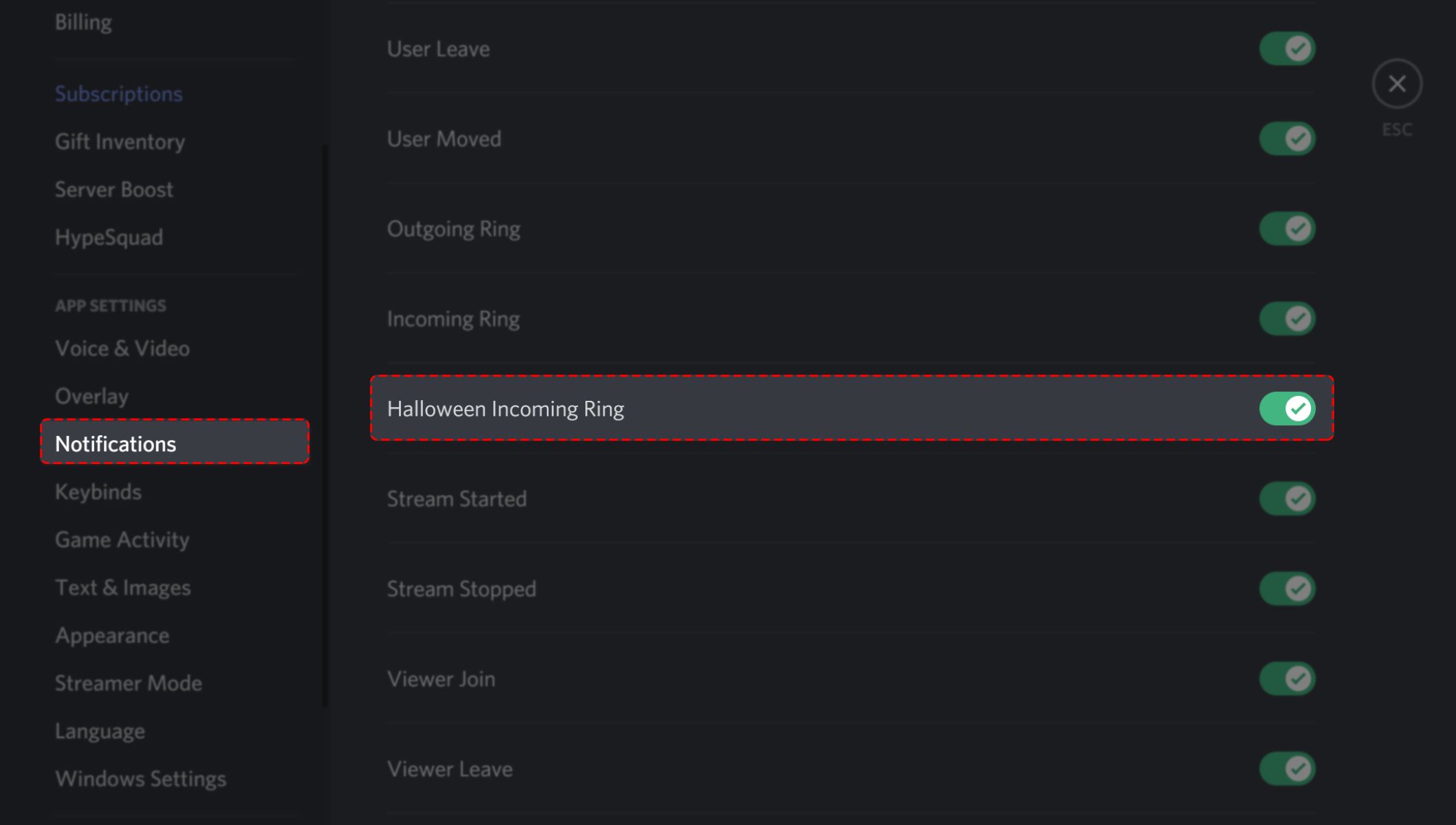
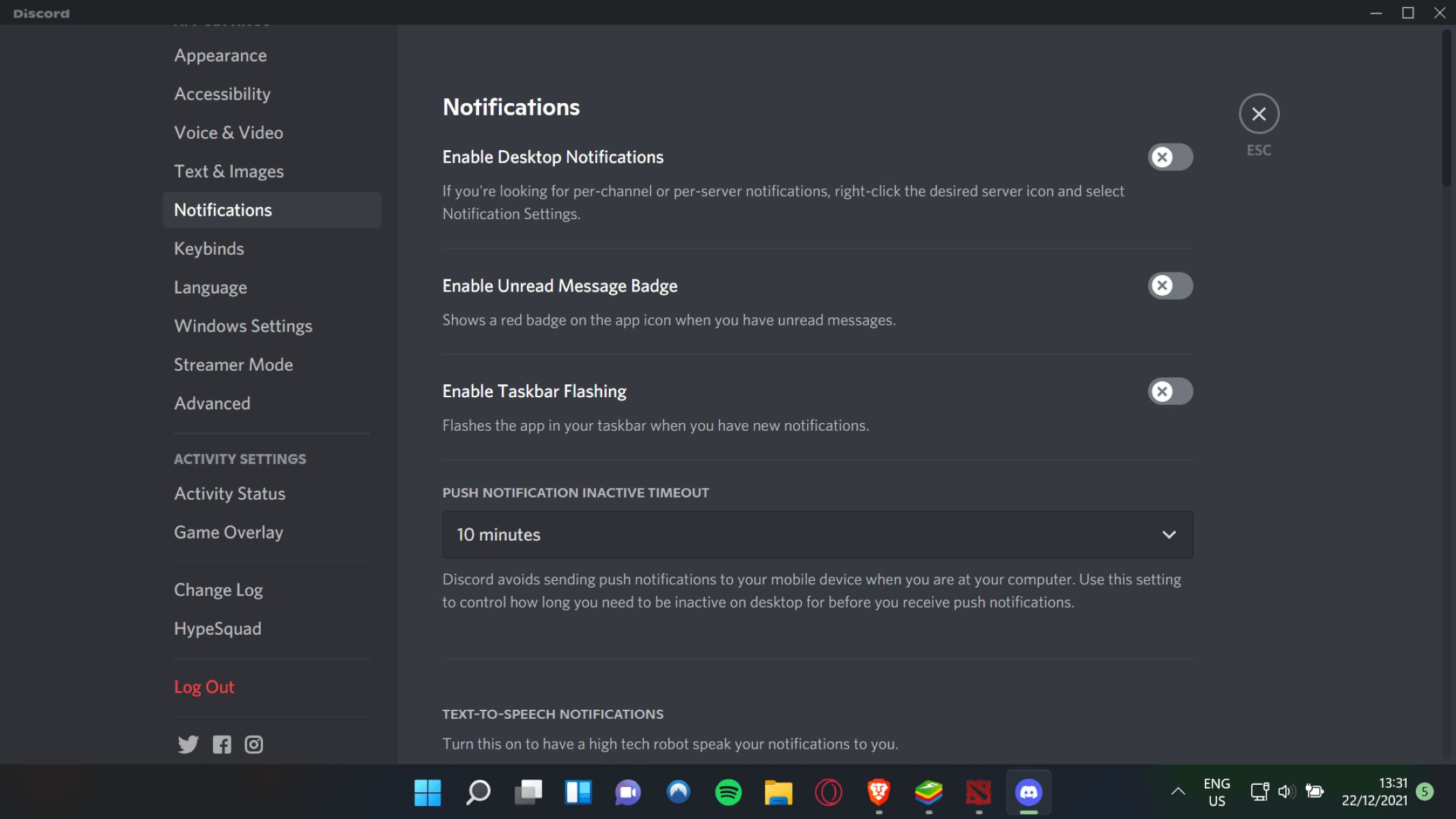
Several factors can prevent a ping from triggering a notification. Users can customize their notification settings globally in User Settings > Notifications, or specifically for individual servers and channels. At both server and channel levels, users can choose to receive pings for "All Messages," "Only @mentions," or "Nothing." Additionally, users can suppress notifications for "@everyone" and "@here" mentions on a per-server basis. Discord will also not send notifications while the app is open and in focus on your device. If you are actively viewing the channel where the ping was sent, you will see the message but receive no separate alert.
Best practices for pinging on Discord
Use pings sparingly to avoid disrupting conversations. Only ping someone when it is essential to get their immediate attention. Be clear and concise in your message so the recipient understands why you pinged them. Respect others' boundaries by not pinging people unnecessarily, especially in large groups. Always check server rules before pinging roles or using @everyone, as many communities have specific guidelines. If you need to have a longer discussion, consider using direct messages instead of pinging in a public channel. Following these practices ensures your pings remain effective and respectful.
For the wider topic, see make a stage in Discord.