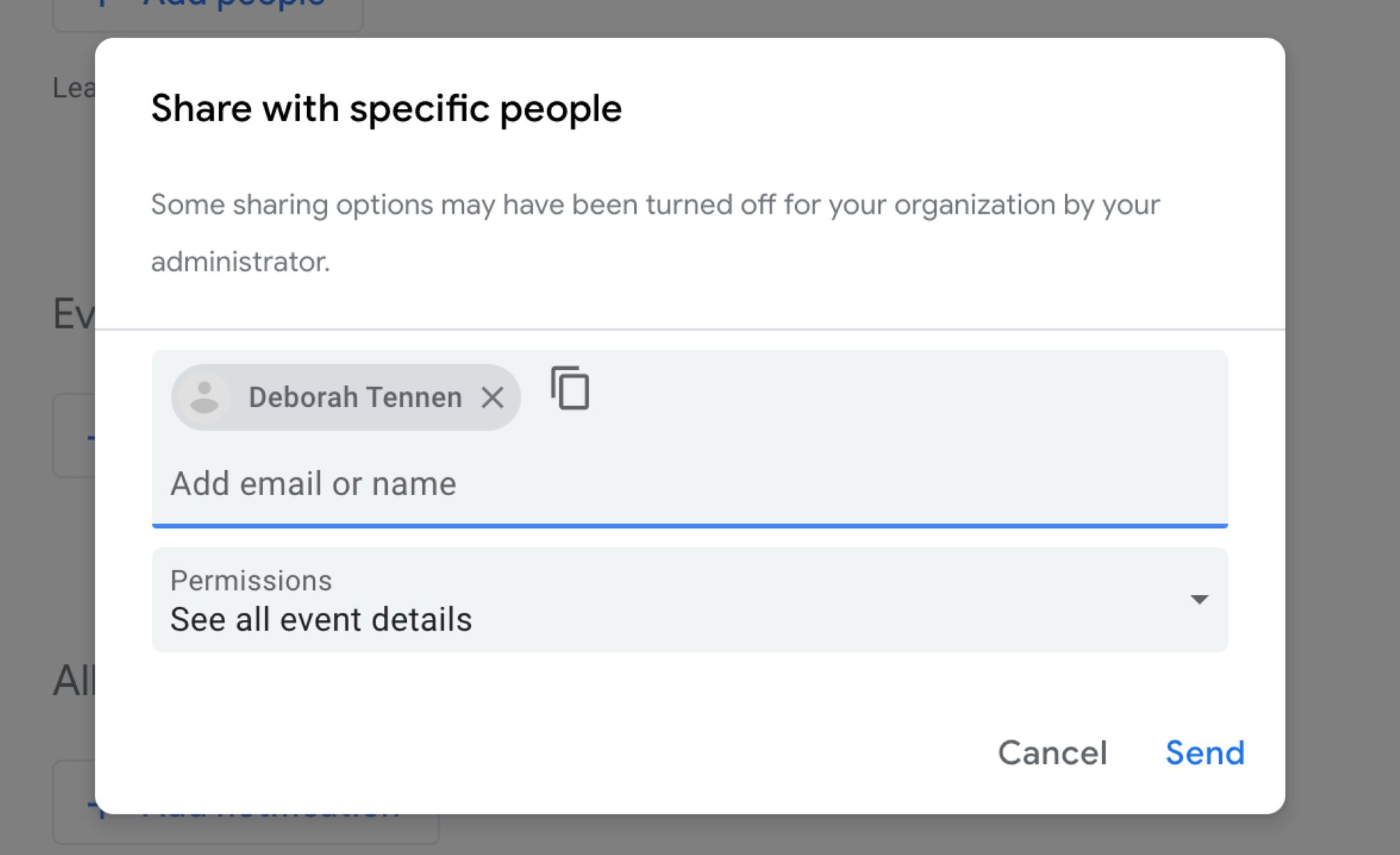
To invite someone to Google Calendar, open an existing event or create a new one, then add their name or email address in the guest field. When you save the event, an email invitation is automatically sent, allowing them to RSVP with Yes, No, or Maybe.
How to invite someone to Google Calendar
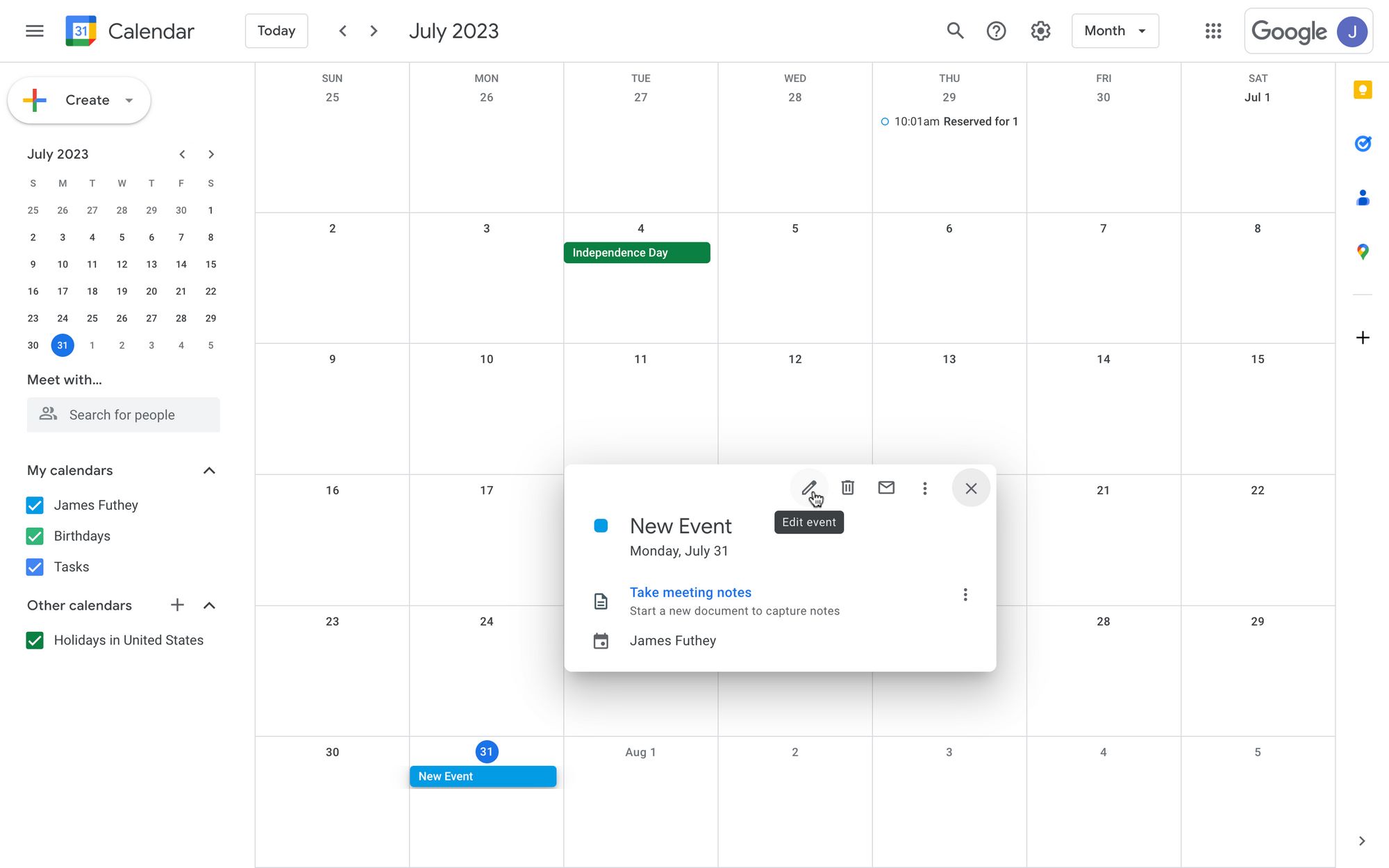
On a computer, open Google Calendar, click the event you want to edit, then click the pencil icon to edit. On the right side under "Guests," type the person's name or email address, choose them from your contacts, or enter the full email. Click "Save" to send the invitation. On an Android phone or tablet, open the Google Calendar app, tap the event, tap the pencil icon, then tap "Add people." Enter the name or email, tap "Done," then tap "Save." If the person doesn't appear in your contacts yet, you can first add someone on Google calendar to make future invitations faster.
How to mark a guest as optional
When adding a guest to an event, click or tap the person icon (a person outline) next to their name and select "Mark optional." This is useful when you want to notify someone about an event without requiring their attendance, such as for FYI attendees who don't need to commit.
How to customize what guests can do
Below the guest list when editing an event, you'll find guest permission settings. From here, you can control whether guests can invite others, see the full guest list, or modify the event itself. Adjust these settings to match your needs, for example, disabling "invite others" prevents guests from adding people without your approval.
How to invite a large group (more than 200 people)
Google Calendar limits direct invitations to 200 guests per event. To invite more, create a Google Group and invite that group to your event instead. A single Google Group can support up to 100,000 guests. Note that Google may throttle your ability to send external invitations if you send too many within a short period, typically limiting between 100-300 external invites.
Troubleshooting: Why can't I add guests to my event?
You cannot add guests to events that are automatically generated from Gmail, birthdays, holidays, or sports calendars. These events are read-only by design. If you need to invite people to one of these, create a new event manually. Non-Google users can still be invited, just enter their email address, and they will receive an email invitation with RSVP options.
If you make a mistake while adding guests, you can undo in Google Calendar by editing the event and removing the guest before saving, or by using the undo option immediately after saving. This quick action helps you avoid sending incorrect invitations.
\nRelated reading: Why Has My Google Calendar Disappeared.