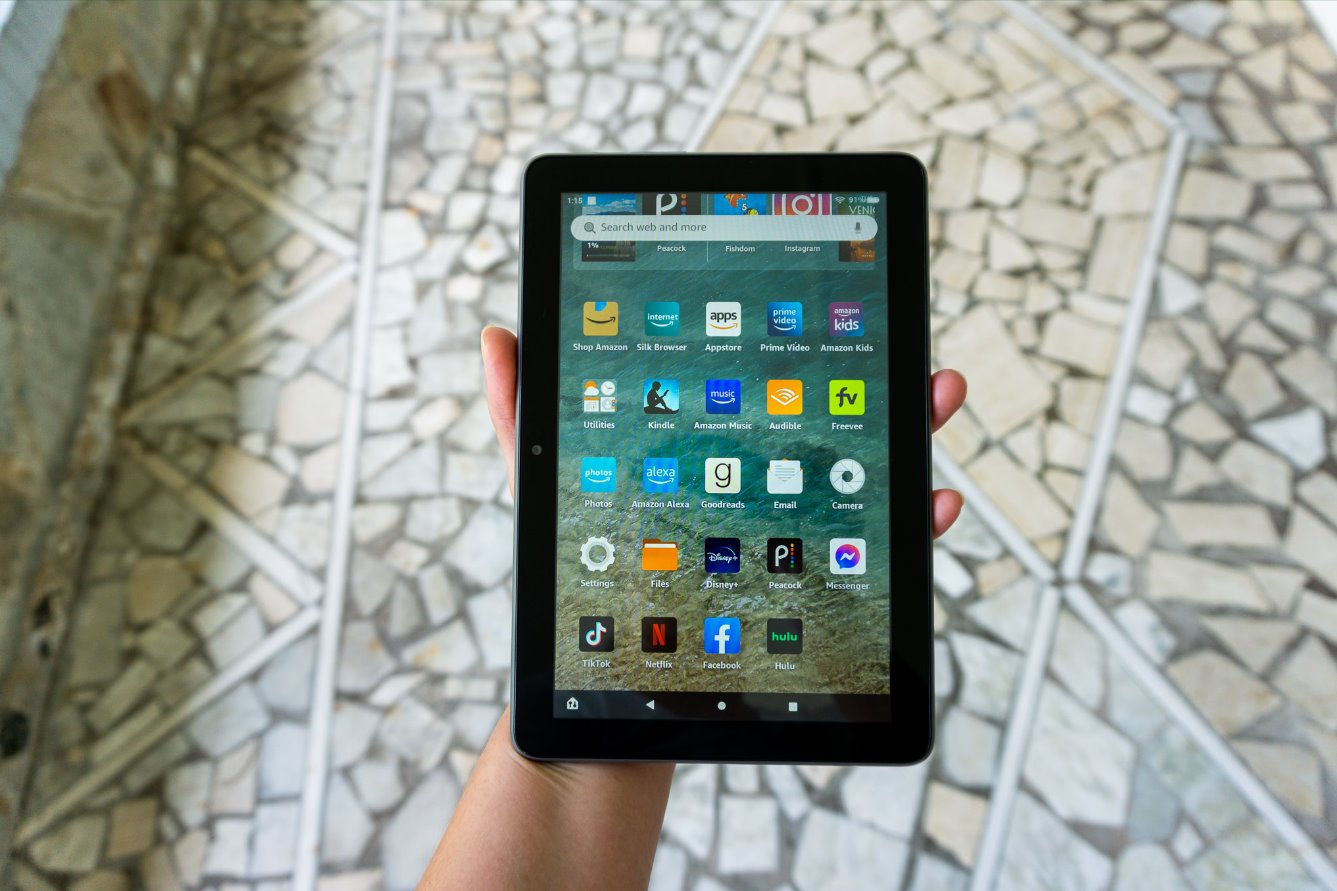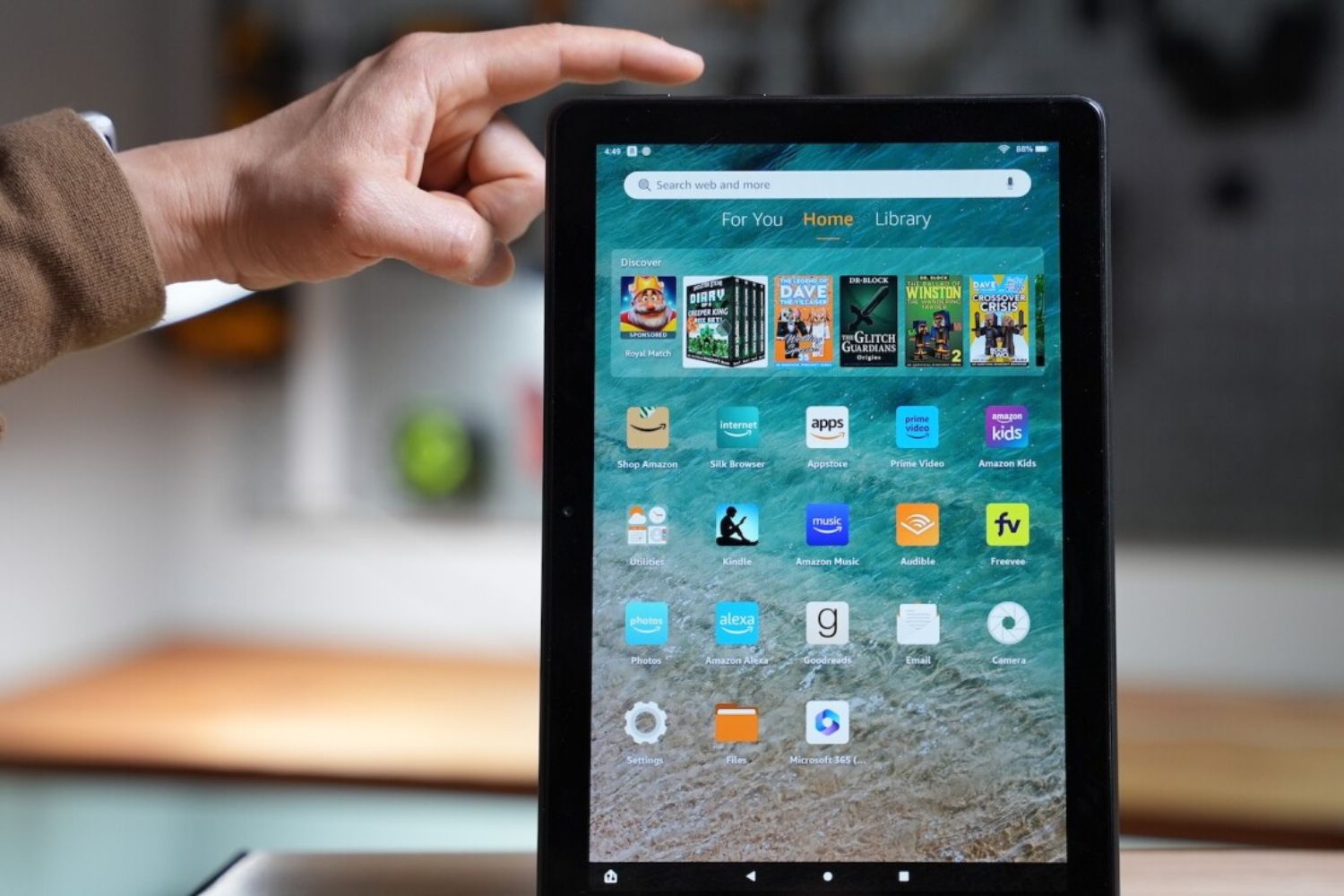
To change language back to English on Amazon Fire tablet, swipe down from the top of the screen and tap the gear icon to get to settings on Amazon Fire tablet. Then follow the visual icon cues described below to navigate even if you cannot read the current language.
Change language back to English on Amazon Fire tablet using icons
When the current language is unreadable, rely on consistent visual symbols rather than text labels. Start by swiping down from the top of the screen to open the Quick Settings panel. Tap the gear icon, this always opens the Settings menu. Inside Settings, look for an entry with three vertical lines or a mixer symbol; that is “Device Options.” Tap it. Tap the globe to enter the language menu. This icon-based navigation works on all Fire tablet models and avoids the need to read any foreign text.
Find the language setting through Device Options or directly in Settings
There are two possible menu paths to reach the language setting, both identified by the globe icon. On most Fire tablets, after opening Settings you will scroll down and tap “Device Options” (three lines or mixer icon), then tap “Keyboard & Language” (globe icon). On some models, “Language & Keyboard” appears directly in the main Settings list, also marked with a globe icon. Tap either globe-labeled entry to proceed. The path you see depends on your tablet’s software version, but the globe icon remains your reliable clue.
Select English and choose your regional variant
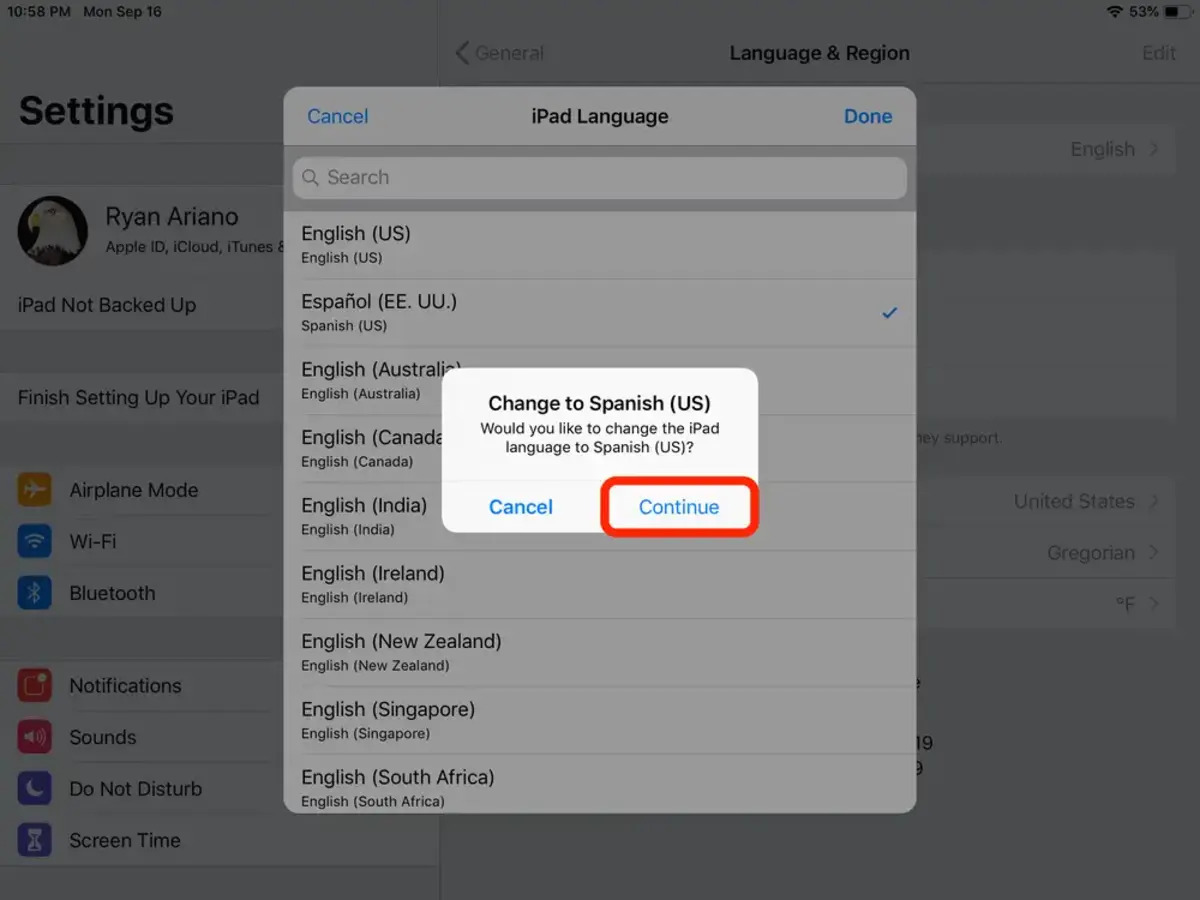
Once inside the language menu, tap the first option, which is usually labeled “Language.” A list of available languages appears. Scroll through the list or use the search function to find “English.” Tap it, and you will see regional variants such as “English (United States)” or “English (UK).” Choose the variant that suits your location. The system updates automatically to English once you make the selection, no confirmation step is needed. The change applies to the entire interface, including menus, notifications, and system apps.
What to do if the language doesn't change or you're on a Kids Edition
If the display does not switch to English immediately, restart your device to fully apply the changes. A simple power cycle often resolves any lingering language display issues. For Fire HD Kids Edition tablets, you must first switch to the adult profile before you can change the language. The Kids profile restricts access to system settings, so tap the profile icon in the top bar and select the adult profile. Then follow the icon-based steps above. If you are switching from Spanish specifically, the visual cues in this change language on tablet from Spanish to english walkthrough can help you identify the correct menus. If you also need to access region-locked apps and content, you may need to change country on Amazon Fire tablet after adjusting the language. As a last resort, if you cannot navigate the settings at all, you can perform a factory reset. This will revert the tablet to its default language (usually English) but will delete all personal data, including apps, accounts, and downloaded content. Use a factory reset only when other methods have failed.