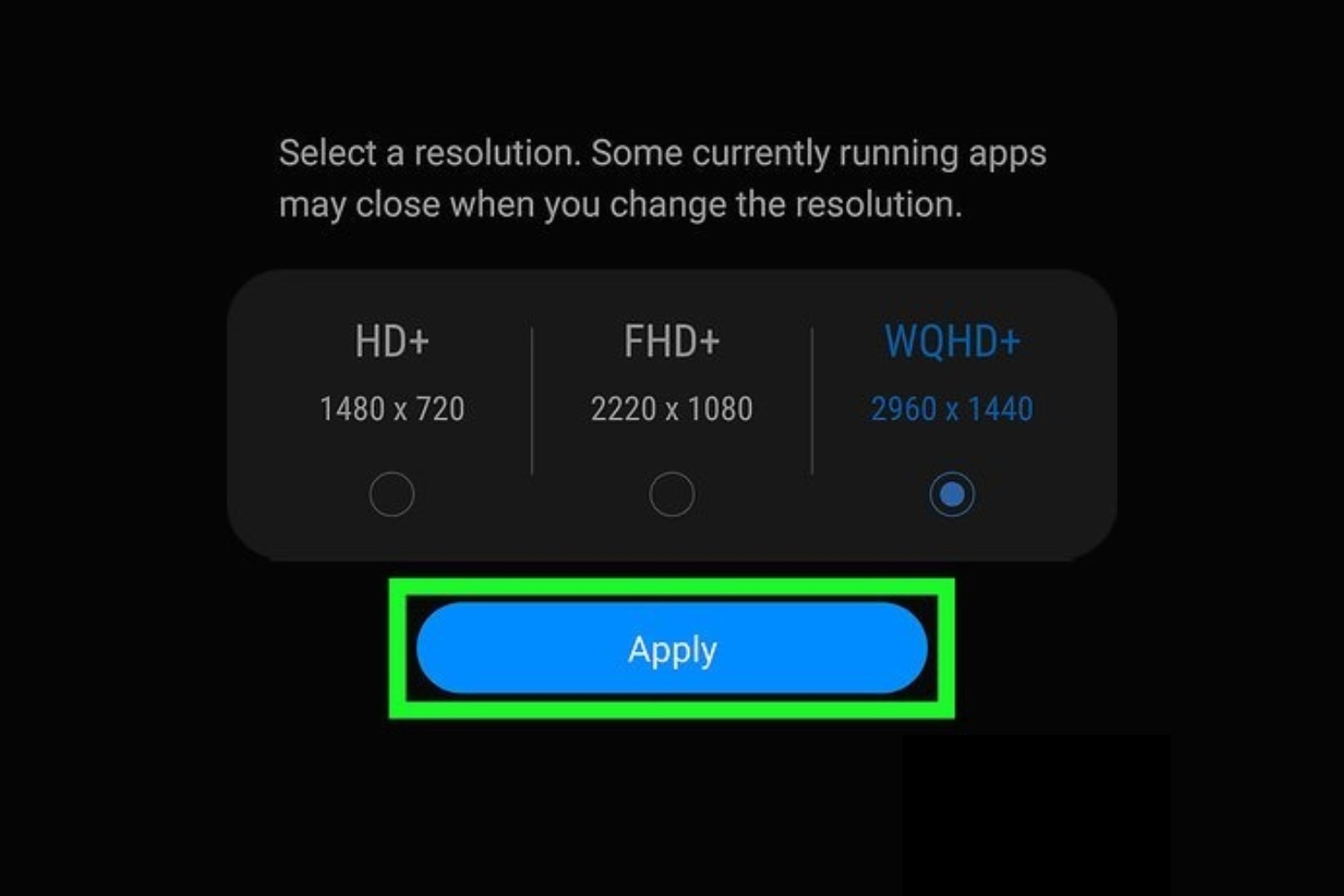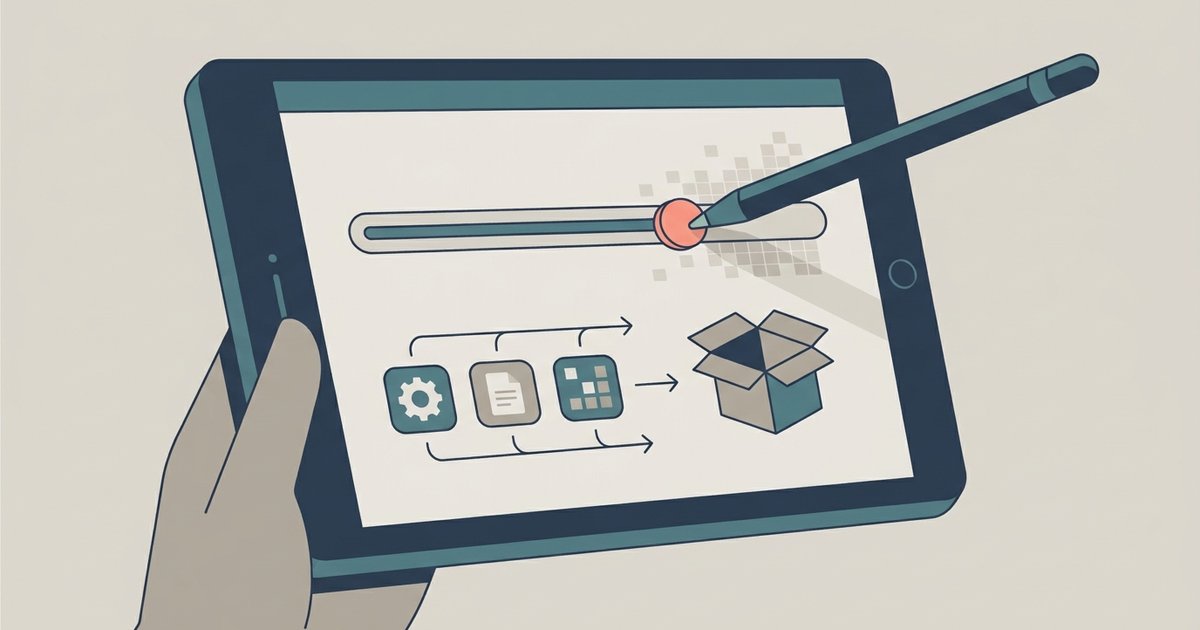
Enable Developer Options, then adjust the 'Smallest width' or 'Minimum width' setting to a higher number (like 800–1000dp) to shrink the interface for a proper tablet layout. If your tablet lacks this setting, use an ADB command like `adb shell wm density 200` from a computer to force a lower DPI value.
Why adjusting DPI on Android tablet fixes big‑screen failures
Sideloaded Android Auto was designed for car dashboards with small, high-density screens. It reads the tablet's DPI bucket to decide its layout. On a typical 10-inch tablet, the default DPI bucket is around 320-400. Auto renders a cramped phone interface. Buttons stretch awkwardly or clip off the edge. Rotating the screen or reinstalling the app won't fix this. The DPI value is baked into how the app interprets display metrics. The root cause is that the tablet reports a pixel concentration too high for Auto's tablet-mode thresholds, forcing it into the phone layout regardless of orientation. If you need a clean foundation before tweaking system-level DPI, you can install Android OS on tablet from PC to start fresh. No other guide will tell you this: Android Auto’s tablet trigger is not a screen-size check but a single hardcoded DPI threshold buried in the car-service APK, and you are about to override it at the system level.
Adjusting minimum width in developer options
Enable Developer Options first. Tap “Build number” seven times under Settings > About tablet. Then open Developer Options and scroll to “Smallest width” (sometimes labeled “Minimum width” on older Android versions). This setting controls the device's density-independent pixel (dp) value. A higher number simulates a smaller, higher-density screen. Start at 800dp for a 10-inch tablet. Use 1000dp for a 12-inch model. Apply it. Android Auto should switch to a tablet layout with properly scaled buttons and readable text. If the interface still looks wrong, increase the number by 50dp increments until it fits your screen's physical size. Note that this setting also affects all other apps, so the system launcher and other icons will appear smaller.
Using ADB when the setting is hidden
Some tablet manufacturers lock the “Smallest width” option behind a hidden menu or remove it entirely. Do not waste time hunting for it. Connect the tablet to a computer with USB debugging enabled, open a terminal, and run `adb shell wm density 200`. This command forces the system to use a DPI of 200, which is low enough to trigger tablet layouts in Android Auto. The screen will shrink instantly. Reboot the tablet if the change doesn't apply. To revert to the original density, run `adb shell wm density reset` or set a specific original value like `adb shell wm density 320`. This method works even on tablets where the Developer Options slider is absent, making it the universal fallback for any device.
Finding the right number without breaking things
For most tablets, a pixel concentration between 180 and 220 (or a “Smallest width” between 800 and 1000dp) provides a usable Android Auto interface without distorting other apps. Never go below 160dp. That can crash the System UI, leaving you with a black screen or unresponsive touch. If that happens, hard-reboot the tablet by holding the power button for ten seconds, then immediately reconnect via ADB and run `adb shell wm density reset` before the system fully boots. Skip any “Smallest width” value above 1200dp on a 10-inch tablet; text becomes too tiny to read. Stick to the range that matches your screen's physical size. Once you find the sweet spot, Android Auto will display a proper landscape dashboard with all buttons accessible. This technique also helps when you install new Android OS on tablet and want consistent DPI across stock and custom ROMs. Similarly, if you ever put Linux on a tablet, the same density commands apply to adjust the X11 or Wayland display. When you install Android OS on tablet from PC via a custom recovery, pre-set the DPI in the build.prop file to avoid post-install tweaks. Finally, if you update old tablet Android to a newer version, the DPI behavior may shift, so revisit these settings after any major update.