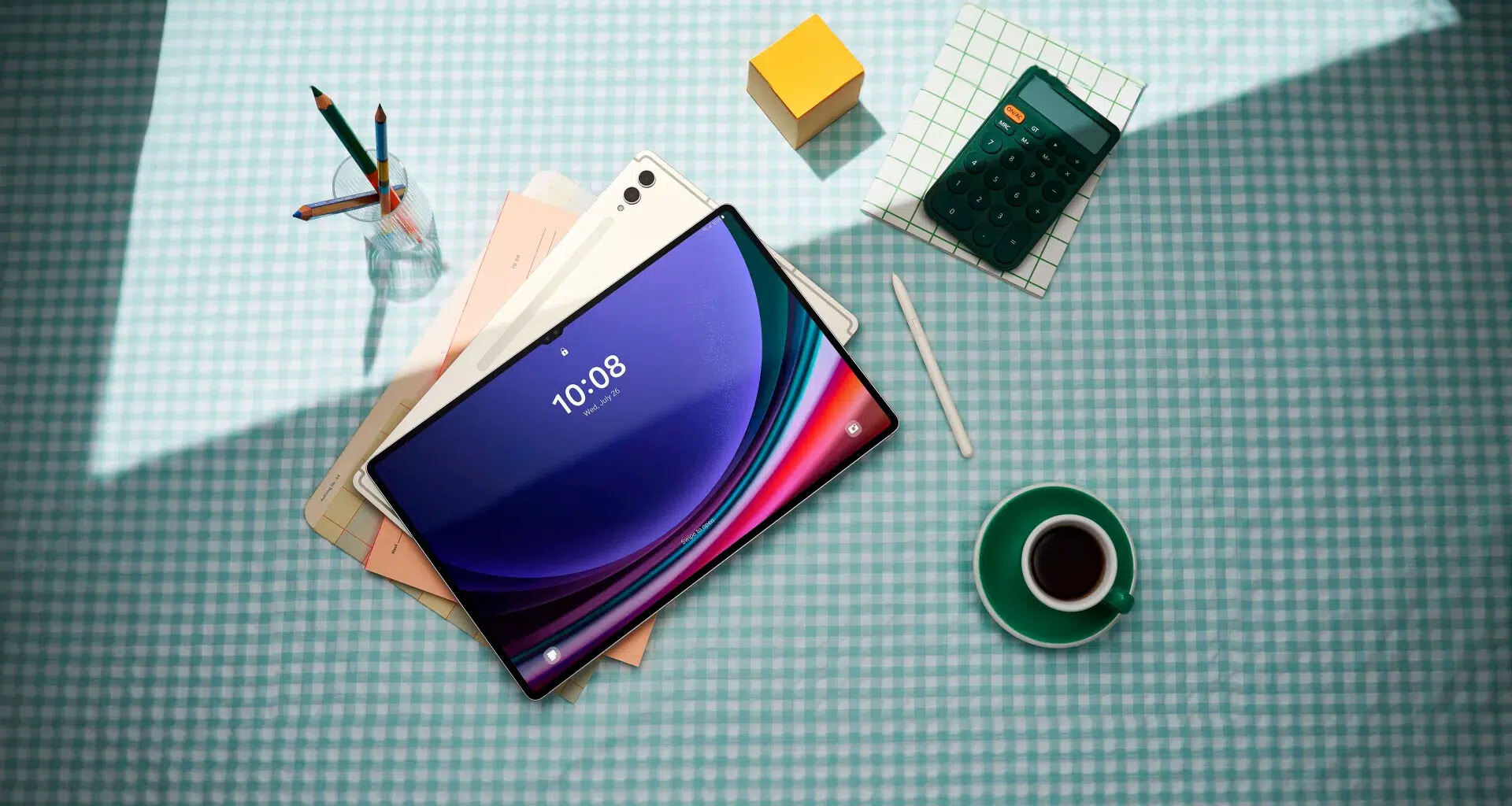
Where is the Samsung tablet clipboard?
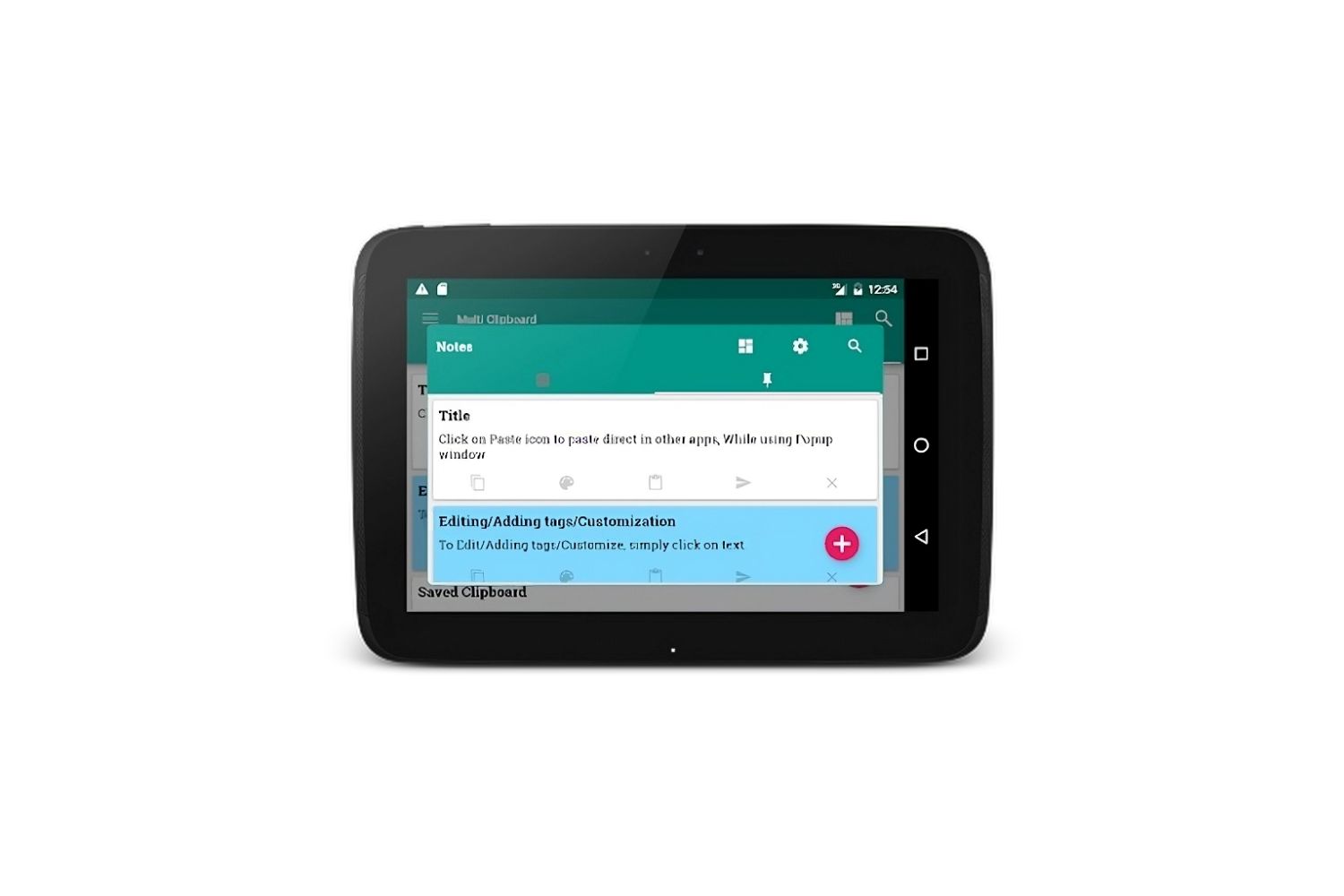
The clipboard on your Samsung tablet isn’t a separate app you open, it’s a hidden panel built into the system, accessed through the Samsung Keyboard toolbar or the Edge Panel. To view your Samsung tablet clipboard, you simply need to tap the right icon in one of these two places, and you’ll see a scrollable history of everything you’ve copied or cut recently. This gives you the ability to retrieve an older item you copied an hour ago, not just the last thing, which is a huge time-saver when you’re juggling multiple pieces of text or images.
Access the clipboard from the Samsung Keyboard
The quickest way to reach your clipboard is right where you type. When you’re in any text field, like a message, email, or search bar, the Samsung Keyboard provides a direct shortcut to your copied history. This is the most convenient method because you don’t have to leave the app you’re working in.
- Open any app that lets you type, such as Messages, Notes, or a web browser, and tap into a text field to bring up the Samsung Keyboard.
- Look at the top row of the keyboard (the toolbar). You’ll see a few small icons. Tap the three-dot menu icon (⋯) on the far right to expand the toolbar if you don’t see the clipboard icon immediately.
- Tap the Clipboard icon, which looks like a small clipboard with a sheet of paper on it. This opens your clipboard history panel.
- Scroll through your recent copies. Tap any item to paste it directly into the text field. You can also long-press an item to pin it, so it stays at the top of your list, or delete it.
This panel shows more than just text. You’ll also see images, links, and even screenshots you’ve copied. The search bar at the top of the clipboard panel lets you quickly find a specific item if you’ve copied a lot of content. To keep a frequently used snippet (like an address or a standard reply) handy, tap the pin icon next to it, pinned items stay put until you unpin them, even if you clear the rest of your history.
Access the clipboard from the Edge Panel
If you prefer not to open the keyboard, the Edge Panel offers a way to reach your clipboard from any screen on your tablet. This is especially useful when you want to copy something from a webpage and paste it into another app, because you can keep the source content visible on the screen while you manage your clipboard. Here’s how to set it up and use it:
- Toggle the switch to turn on Edge panels if they’re not already on.
- Now, close Settings. On the right edge of your screen, you’ll see a small, semi-transparent handle. Swipe inward from that handle to open the Edge Panel.
- Swipe left or right on the panel’s icons to find the Clipboard panel (it looks like a clipboard). Tap it to open your full clipboard history.
- Tap any item to copy it again, or long-press to pin, delete, or share it. You can also tap the trash icon at the top to clear the entire history from this panel.
Once you’ve added the Clipboard panel, it will remember your last copied items even after you restart your tablet. You can also drag the Edge Panel handle to a different spot on the screen if it gets in your way, and you can adjust its size and transparency in the Edge panel settings.
Copy and paste across your Galaxy devices
If you also own a Samsung phone, your tablet’s clipboard can work with it wirelessly. This cross-device feature lets you copy a link, an address, or a verification code on one device and paste it on the other without any extra steps. To use it, you need a few things in place: both devices must be running One UI 3.1 or later, both must be signed into the same Samsung account, connected to the same Wi-Fi network, and have Bluetooth enabled. You also need to turn on the “Continue apps on other devices” feature in Settings > Connected devices on both devices.
Once these conditions are met, copying on one device works exactly as you’d expect, just touch and hold text or an image and tap “Copy.” Then, on your tablet, open the app or text field where you want to paste, touch and hold, and tap “Paste.” The clipboard will automatically offer the item you copied from your phone. This works in both directions, so you can copy from your tablet and paste on your phone. It’s a seamless way to move content between your devices without emailing yourself or using a cloud storage app. Just remember that both devices need to be on the same network and have Bluetooth on for the handoff to work.
Clear your clipboard history
To keep your copied data private and free up storage, you should clear your clipboard history regularly. The only correct way to do this is through the clipboard viewer itself, not by copying a new piece of text over the old one, which only replaces the most recent item but leaves older ones in the history. Open the clipboard panel using either the Samsung Keyboard or the Edge Panel as described above. You’ll see a trash can icon at the top of the panel. Tap it to delete everything at once. If you want to remove only a single item, long-press that item and select “Delete” from the menu that appears. This method ensures that all sensitive information, like passwords, bank account numbers, or personal messages, is fully removed from your tablet’s memory. There is no other way to clear the clipboard on a Samsung tablet, so always use the trash icon inside the clipboard panel for complete control over your data.
\nRelated reading: How Do You Create A New Folder On Samsung Tablet?, Why Does My Tablet Flicker, and Why Is My Tablet Screen Black.