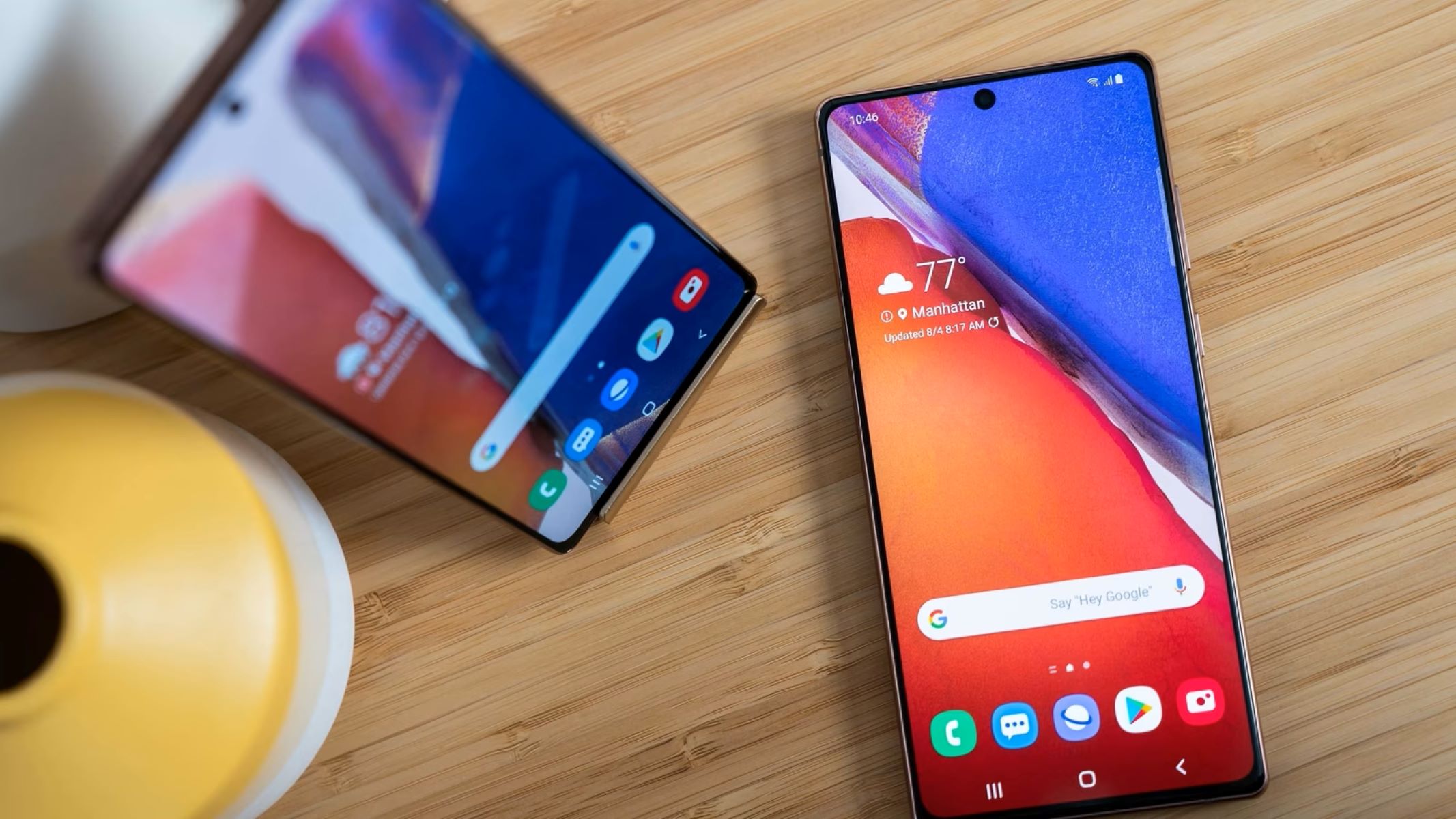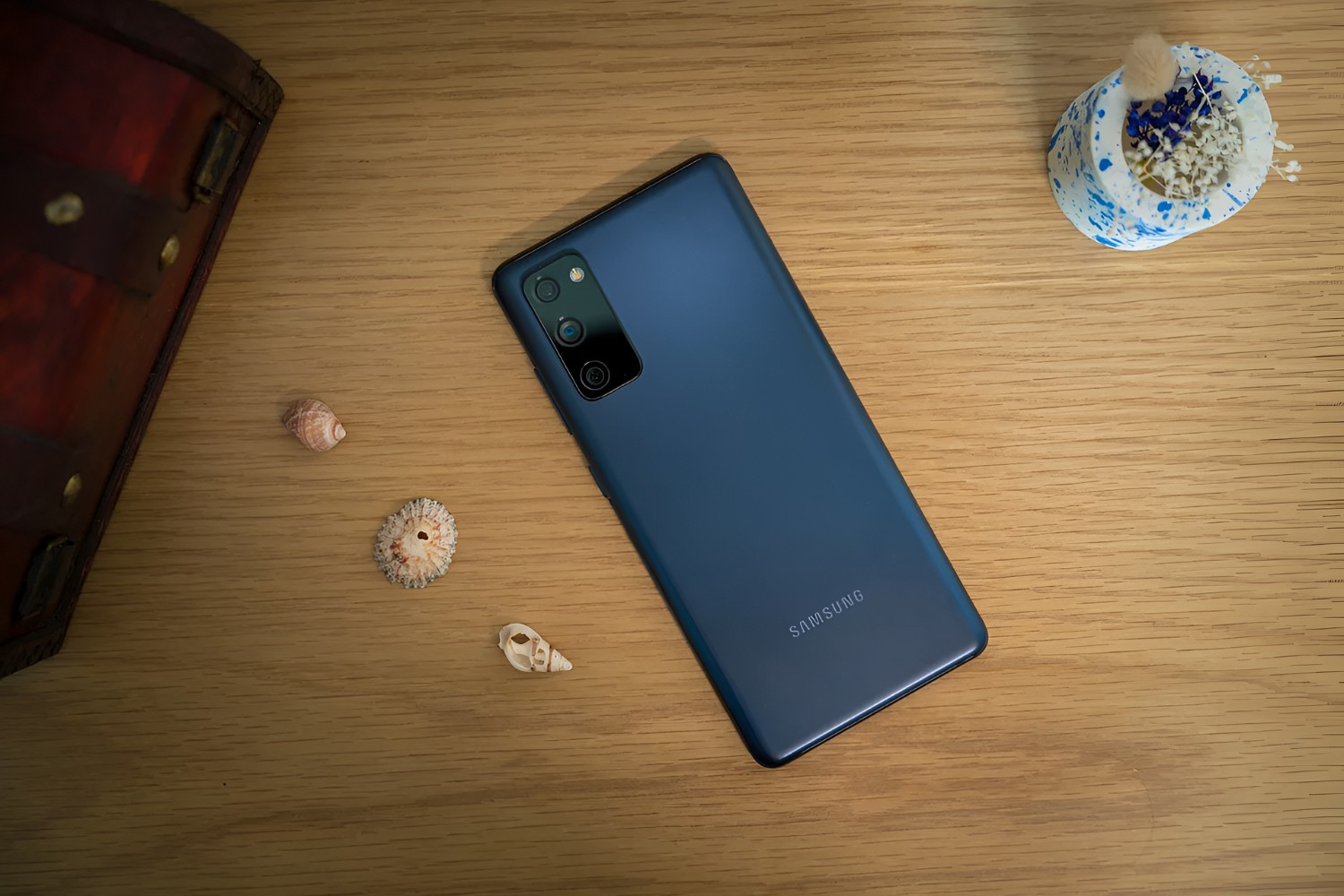
You can check RAM on Samsung S20 FE by opening Settings, tapping Battery and device care, and selecting Memory. The S20 FE comes with either 6GB or 8GB of RAM, and checking your current usage is the first step to diagnosing a slow phone.
Step 1: Open Settings and go to Battery and device care
Unlock your Samsung S20 FE and find the Settings app on the home screen or in the app drawer. The Settings icon looks like a gear or cogwheel. Tap it to open the menu, then scroll down until you see "Battery and device care." On some older versions of the operating system, this section may be labeled simply "Device care." Tap it to continue.
Step 2: Tap on Memory to see your RAM usage
Inside Battery and device care, you'll see several options such as Battery, Storage, and Memory. Tap on "Memory" to open the RAM usage screen. This screen shows you the total RAM your S20 FE has, how much is currently in use, and how much is available. You'll also see a list of apps and system processes that are consuming memory. This breakdown helps you spot memory-intensive apps that might be slowing things down.
Step 3: Free up RAM instantly with Clean now
On the Memory screen, you'll find a button labeled "Clean now." Tapping it stops background apps and releases memory that those apps were holding. This is the correct way to free up RAM on your S20 FE, not by swiping away recent apps from the recent apps menu, which doesn't actually clear memory the same way. After you tap Clean now, the available RAM figure will increase, and your phone should feel more responsive, especially if you were running many apps at once.
Step 4: Stop important apps from being closed
If you have apps you don't want the cleaning process to kill, like a music player, a navigation app, or a messaging service, you can protect them. Within the Memory settings, look for "Excluded apps" and tap it. From there, add the apps you want to keep running in the background. These apps will be skipped the next time you tap Clean now, so they won't be closed while you're using other features.
How to add virtual RAM with the RAM Plus feature
The S20 FE includes a feature called RAM Plus that uses a portion of your phone's internal storage as virtual memory. This can help when you're running many apps at once, because the system can offload some data to this virtual space. To enable or adjust it, go to Device care, tap Memory, then tap RAM Plus. You can select the amount of virtual memory you want to add, up to 8GB of extra RAM, and then restart your phone for the change to take effect. This is a useful way to give your device more headroom without changing any hardware.
Other tips for keeping your S20 FE running fast
Beyond checking and cleaning RAM, regularly restarting your device helps optimize memory usage and keeps performance consistent. A quick reboot clears temporary data, resets background processes, and gives your S20 FE a fresh start, especially if you notice it slowing down after days of heavy use. Make it a habit to restart your phone once a week or whenever performance dips, and you'll keep memory management working smoothly.
\nRelated reading: Set Up Wi-Fi Calling On Samsung S20 FE - Easy Guide and Enabling USB Transfer On Samsung S20 FE: A Step-by-Step Guide.