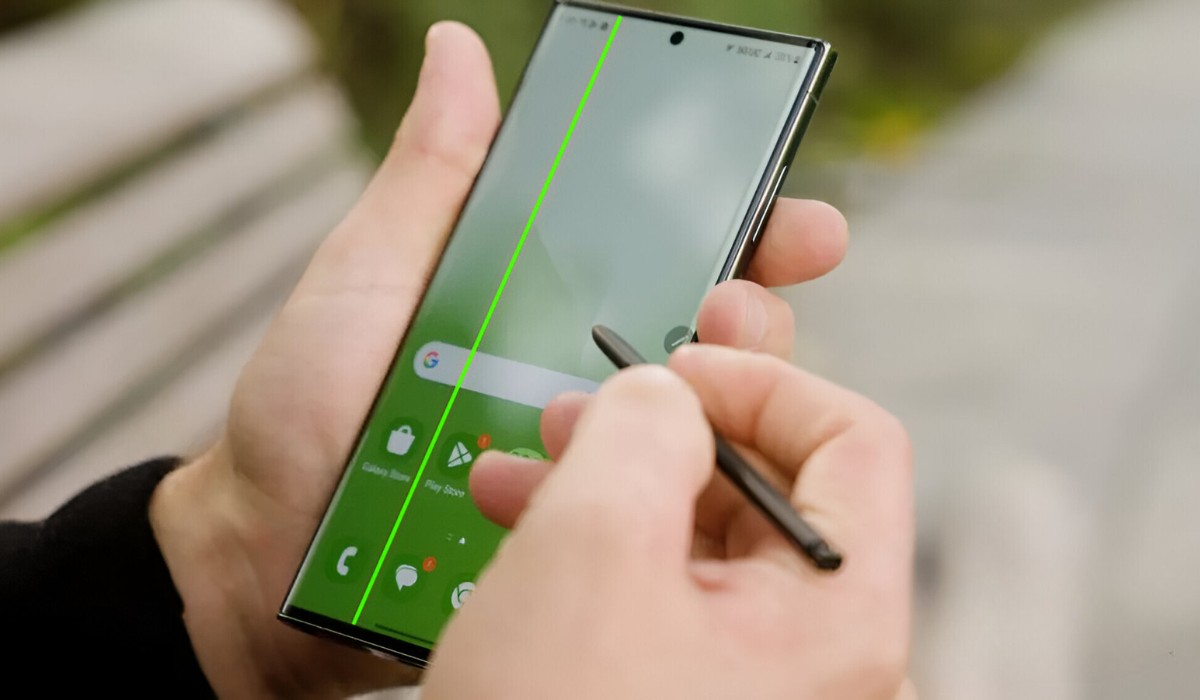
The Samsung s20 plus green line issue is a known hardware fault, typically originating from a defective OLED panel or a loose display connector, and it often appears suddenly after a software update. While the root cause is physical, you should still work through the software checks below first, as they are quick, free, and sometimes resolve the visual glitch. If the line persists after these steps, a professional screen replacement is the only permanent fix.
What causes the Samsung s20 plus green line issue?
This vertical line is a recognized defect on the S20 Plus. It is almost always caused by a hardware failure inside the display assembly, either the flexible connector that attaches the screen to the motherboard has come loose, or the OLED panel itself has developed an internal short. Although software updates do not physically break the screen, they are the most common time users notice the line, leading to the false assumption that the update caused it.
Step 1: Update your device software and apps
Start by ruling out a simple firmware bug. Open Settings and tap Software Update, then tap Check for updates. Follow the on-screen instructions to install any pending system software. Once that is done, open the Google Play Store, tap your profile icon, select Manage apps & device, and tap Update all to refresh every installed app. Keeping the system and apps current ensures that any known display-related bug fixes are applied, though remember that the green line is rarely fixed by this step.
Step 2: Restart your Samsung S20 Plus
A simple restart clears temporary memory glitches that can occasionally cause a static line. Press and hold the side key and volume down key simultaneously for more than 2 seconds. When the power menu appears, tap Restart. If the menu does not appear, press and hold both keys for more than 7 seconds until the device forces a reboot. After the device powers back on, check if the green line has faded or disappeared.
Step 3: Boot into Safe Mode and check apps
Third-party apps can sometimes interfere with the display driver. To test this, power off the phone, then press and hold the side key until the Samsung logo appears. Immediately press and hold the volume down key and continue holding it until the home screen loads with “Safe Mode” in the bottom-left corner. In Safe Mode, all third-party apps are disabled. If the green line vanishes in Safe Mode, the issue is software-related. Uninstall recently installed apps one by one, restarting the phone after each removal, until you identify the culprit. If the line remains in Safe Mode, the hardware is the likely cause.
Step 4: Run a diagnostic with Samsung Members
Before concluding a hardware fault, use Samsung’s own diagnostic tool. Open the Samsung Members app, tap Diagnostics or Support, then select Phone diagnostics. Choose Touch screen and follow the on-screen instructions to test the display’s touch response and pixel behavior. While this tool primarily checks touch input, it also runs a full display test that may reveal if the line is a pixel fault or a deeper panel issue. This official assessment provides a clear answer for your next step.
Step 5: Perform a factory reset as a last resort
If you have exhausted all software fixes and the line is still present, a factory reset will confirm whether any deep-rooted software corruption is responsible. Back up all data first, photos, contacts, messages, and files, because this wipes the device completely. Then go to Settings > General management > Reset > Factory data reset. Follow the prompts to confirm. After the reset, set up the phone as new (do not restore from backup yet) and check the screen. If the green line persists on a clean system, it is definitively a hardware failure.
Step 6: Contact Samsung Support for a screen replacement
If the green line remains after all troubleshooting, the OLED panel or its connector is damaged. The S20 Plus is no longer eligible for security updates, but Samsung still offers paid repair services. Visit an authorized Samsung service center for a hardware evaluation. Certified technicians will inspect the display connector and, if necessary, replace the entire screen assembly. Attempting a DIY repair is not recommended, as the S20 Plus uses a flexible OLED panel that is fragile and easy to damage further. A professional replacement is the only reliable way to eliminate the line and restore the phone’s display to full clarity.
\nRelated reading: Checking RAM On Samsung S20 FE: Step-by-Step Guide, Enabling USB Transfer On Samsung S20 FE: A Step-by-Step Guide, and Set Up Wi-Fi Calling On Samsung S20 FE - Easy Guide.