The only internet tricks you actually need to know are the ones that save you time, protect your data, and fix common problems in seconds, no fluff, no deep dives, just high-impact moves you can use immediately. These are the practical, browser-and-security-focused shortcuts and habits that make a real difference in how you work, watch, and browse online, from instantly recovering a lost tab to locking down your accounts against breaches. If you want to get more done and stay safer with less effort, this is the list to keep handy, and these habits are your first step toward building a smarter, safer, and faster internet for everyone.
Reopen closed tabs and other internet tricks
We’ve all been there: you close the wrong tab, and suddenly that research, article, or video is gone. Instead of digging through your history or retracing your steps, press Ctrl + Shift + T on Windows or Command + Shift + T on Mac to bring the last closed tab right back. This works in all major browsers, and you can press it repeatedly to restore multiple tabs in the order they were closed. It’s the fastest way to undo a mistake, and once you make it muscle memory, you’ll never lose a tab again.
Master tab management with these shortcuts
If you’re still clicking the plus button or reaching for the mouse to close a tab, you’re wasting time. Use Ctrl + T (Windows) or Command + T (Mac) to open a new tab instantly, and Ctrl + W (Windows) or Command + W (Mac) to close the current one. These two shortcuts alone will speed up your browsing dramatically, especially when you’re juggling multiple tasks or researching a topic. Combined with the reopen shortcut above, you’ll have full control over your tabs without ever lifting your hands from the keyboard.
Go incognito the right way
Private browsing, called Incognito in Chrome and Edge, and Private Mode in Firefox and Safari, is a useful tool, but only if you understand what it actually does. When you open a private window, your browser won’t save your local browsing history, cookies, site data, or information you type into forms. That means someone who uses your device afterward won’t see where you’ve been or what you searched. However, it does not make you anonymous online: your internet service provider, employer, or the websites you visit can still see your activity. Use incognito for shared computers, checking email on a friend’s device, or researching a surprise gift, but don’t rely on it for true privacy or security.
Secure any account in seconds with two-factor authentication
The single most impactful security move you can make is turning on two-factor authentication (2FA) for every online account that supports it. 2FA adds a second verification step beyond your password, so even if someone steals your login credentials, they can’t get in without the second factor. When you set it up, prioritize authenticator apps like Google Authenticator or Authy over SMS codes, apps are more secure and reliable because they don’t depend on your phone number being secure or your carrier’s network. Go through your email, banking, social media, and any other important accounts now and enable 2FA where available. It takes seconds per account, and it’s the strongest defense you have against account takeover. This matters more than ever because cybersecurity is important for a modern day society, and individual habits are the first line of defense.
The first thing to try when your internet is down
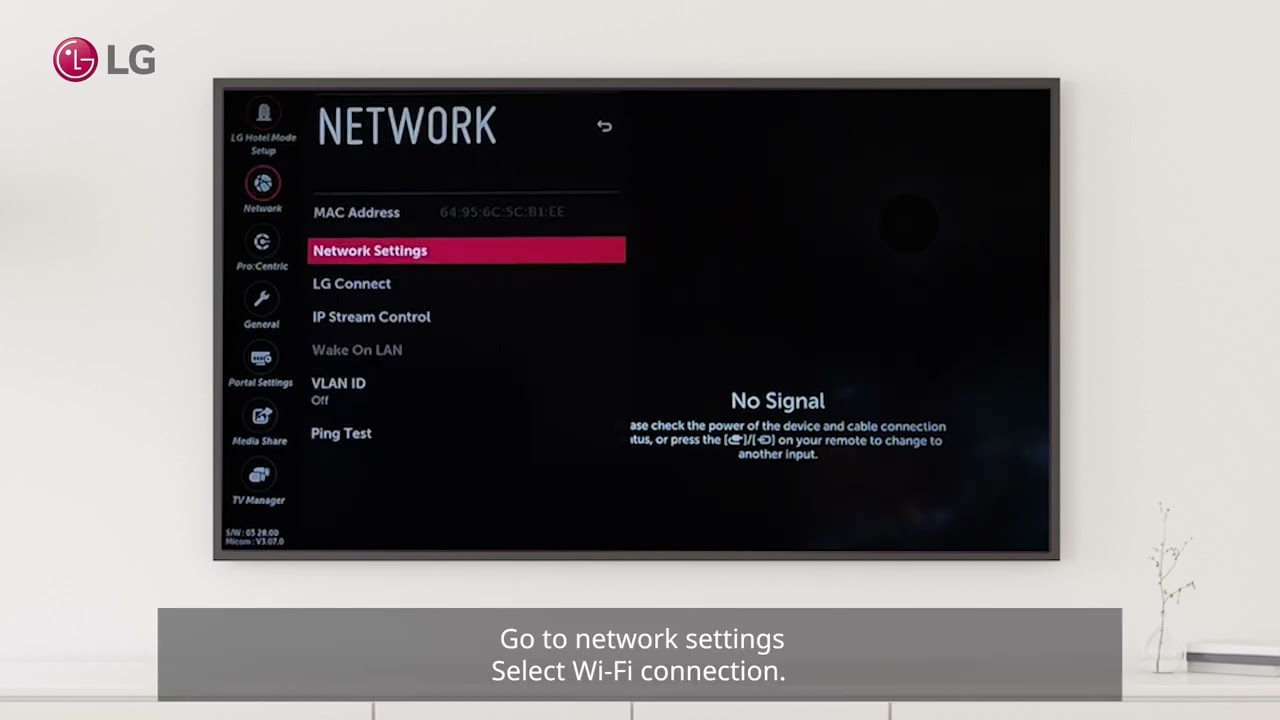
Before you call your provider or panic, check the basics: ensure all physical cables are firmly connected to your modem and router, then restart both devices. Unplug the power from the modem and router, wait a few seconds, plug the modem back in, wait for it to fully boot, then do the same for the router. This simple reset clears temporary glitches and re-establishes your connection, resolving the majority of common outages. It’s the fastest, cheapest fix you’ll ever use, and it works whether you’re on cable, fiber, or DSL. If the problem persists after that, then it’s time to contact support, but in most cases, this trick gets you back online in under a minute.
For the wider topic, see watch fs1.