Messenger lets you save individual photos and videos you receive to your device, and in end-to-end encrypted chats it can download incoming photos automatically. Everything shared in a conversation is gathered in one place under View media, files and links, which is where to start when you are hunting for something from months ago. The exception is media set to disappear, which is designed not to be kept.
Save one photo or video on your phone
- Open the chat and tap the photo or video so it fills the screen.
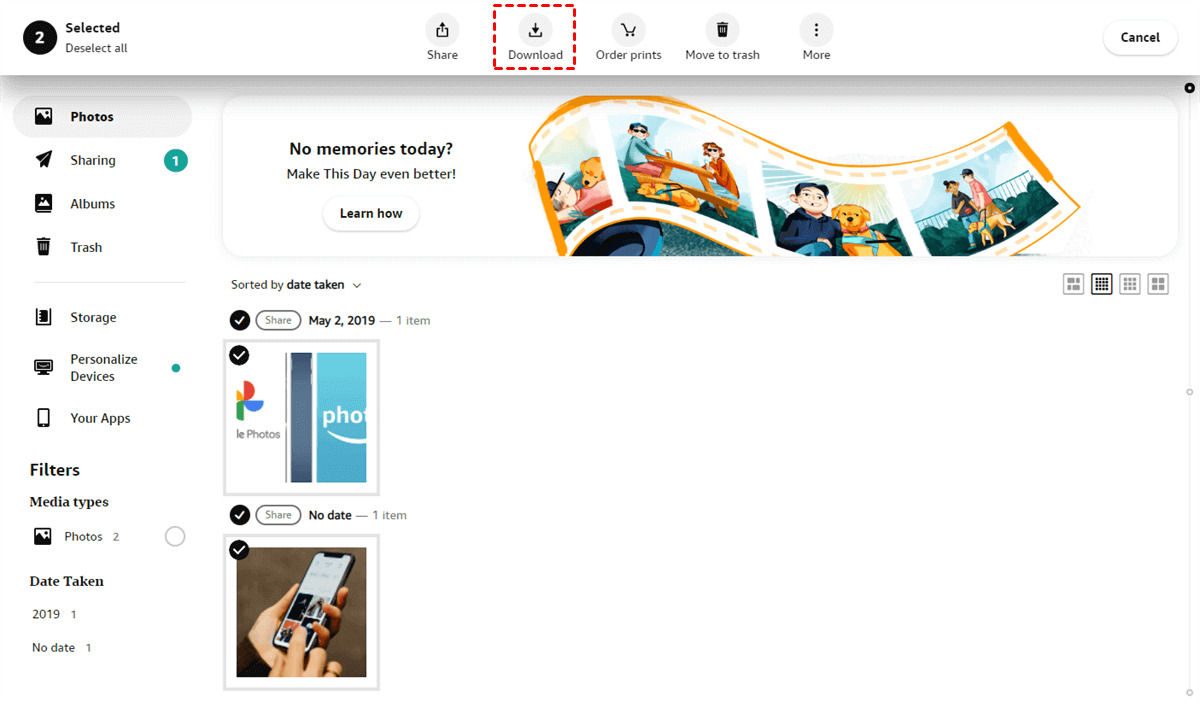
- Look for the save or download control on the image viewer. Depending on your app version it is a downward arrow, a tray icon, or an option behind the three-dot menu in a corner.
- Tap it once and wait for the confirmation. The file lands in your camera roll on iPhone, or in your gallery or downloads folder on Android.
If nothing happens, the usual cause is permissions. Messenger needs access to photos or storage to write a file, and on both iPhone and Android that permission is granted in the device's own settings under the Messenger app entry, not inside Messenger.
Turn on auto-save in encrypted chats
In end-to-end encrypted chats you can have photos download as they arrive instead of saving them one at a time. Meta's steps are:
- From your inbox, open an end-to-end encrypted chat.
- Tap the chat name at the top.
- Tap Auto-save, below More actions.
- Tap the toggle next to Save photos you receive to turn auto-save off, and tap it again to turn it back on.
Meta notes that if you do not see Auto-save, it is probably because your message sharing permissions are off. Auto-save is only available when those permissions are on. Be deliberate about switching this on in busy group chats, because it will fill your camera roll with other people's pictures.
Find everything a chat has ever shared
Rather than scrolling for an hour, open the conversation, tap the name at the top of the chat, and tap View media, files and links. That screen collects the photos, videos, files and links from that conversation in one list, and you can open any item and save it from there.
This is also the fastest way to check whether something still exists. If a file is not in that list, it was either deleted, sent in a chat with a disappearing timer, or sent so long ago that the other person has since removed it on their side.
Saving on a computer
The Messenger desktop app for Mac and Windows is no longer available, so the desktop version is a browser. Sign in at facebook.com/messages, or at messenger.com if your Facebook profile is deactivated, and open the conversation. Click the image to enlarge it, then use the download control in the viewer. Right-clicking an image and choosing to save it also works in most browsers.
Videos are the part that trips people up on desktop. A video playing inline will often not offer a right-click save, so open it in the viewer first and use the download control there. If you only need the soundtrack from something you have already downloaded, you can convert the video to MP3 rather than keeping the whole file.
Chats versus stories
Saving from a chat and saving from a story are different problems. A photo sent to you in a chat stays in that conversation until someone deletes it, so you can come back to it. A story is built to expire: photos and videos you share to your story are available in the Stories section for 24 hours.
Your own stories can be kept. Facebook's story archive saves stories automatically as they expire, and only you can see that archive, so turning it on before you post is the way to hold on to your own material. There is no equivalent feature for saving someone else's story, and no supported way to download one from inside the app.
What you cannot save
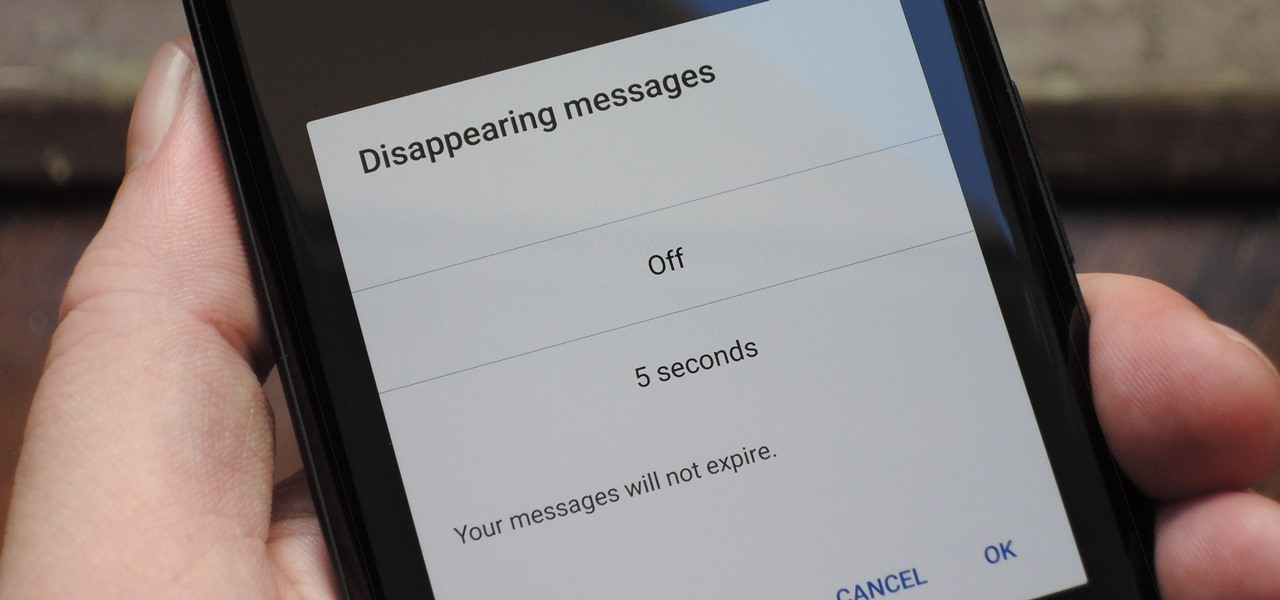
Disappearing messages are the hard limit. In an end-to-end encrypted chat, anyone can set a timer so messages vanish after they have been seen, and an unread message disappears on its own after 14 days. Vanish mode, the older version of the same idea, is no longer supported.
Meta is honest that a timer does not make content impossible to keep. Its help center says it is possible for someone to forward or screenshot a disappearing message before it goes, copy and save content from it, or photograph the screen with another device. It also says that if it detects a screenshot or screen recording of an end-to-end encrypted chat, everyone in the chat is notified, while warning that it may not detect every screenshot or screen recording.
The plain reading of that: you can technically capture disappearing media, the other person will usually be told, and the sender chose the timer for a reason.
Ask before you keep it
Consent is the part no setting handles for you. Someone sending a photo into a private chat has agreed to you seeing it, not to you storing it, posting it or passing it on. That gap is where most Messenger arguments start.
The practical version is short. Ask before you save anything of another person, ask again before it leaves your device, and treat a disappearing timer as an explicit no. If media involves anyone else's children, or was sent to a group rather than to you, assume the answer is no until someone says otherwise.
Get a bulk copy instead
When you want an entire history rather than a handful of files, use Meta's Export your information tool in Accounts Center. It builds a downloadable archive of your Messenger data, attachments included. It is slower than saving files by hand and it only contains what is still in your account, so anything already deleted will not appear.
Common failure cases
The save option is missing. Check whether the chat has a disappearing timer, and check whether message sharing permissions are on, since Auto-save depends on them.
The photo will not load. Very old media can fail to load on a weak connection before it fails for any other reason. Try again on Wi-Fi before assuming it is gone.
The saved file looks worse than the original. Messenger compresses media on the way through. Saving the version in your chat gives you the compressed copy, so for anything that matters, ask the sender to share the original file another way.
Nothing saves and there is no error. Free some storage and check the app's photo permission, in that order. A full device fails quietly on both platforms.
If you are moving to a new phone, do the bulk export first and the individual saves second. Exports take time to build and the individual saves are easy to redo, so starting the slow job first is the only part of this worth planning.
\nRelated reading: How To Stop Sharing Photos With Google Photos.