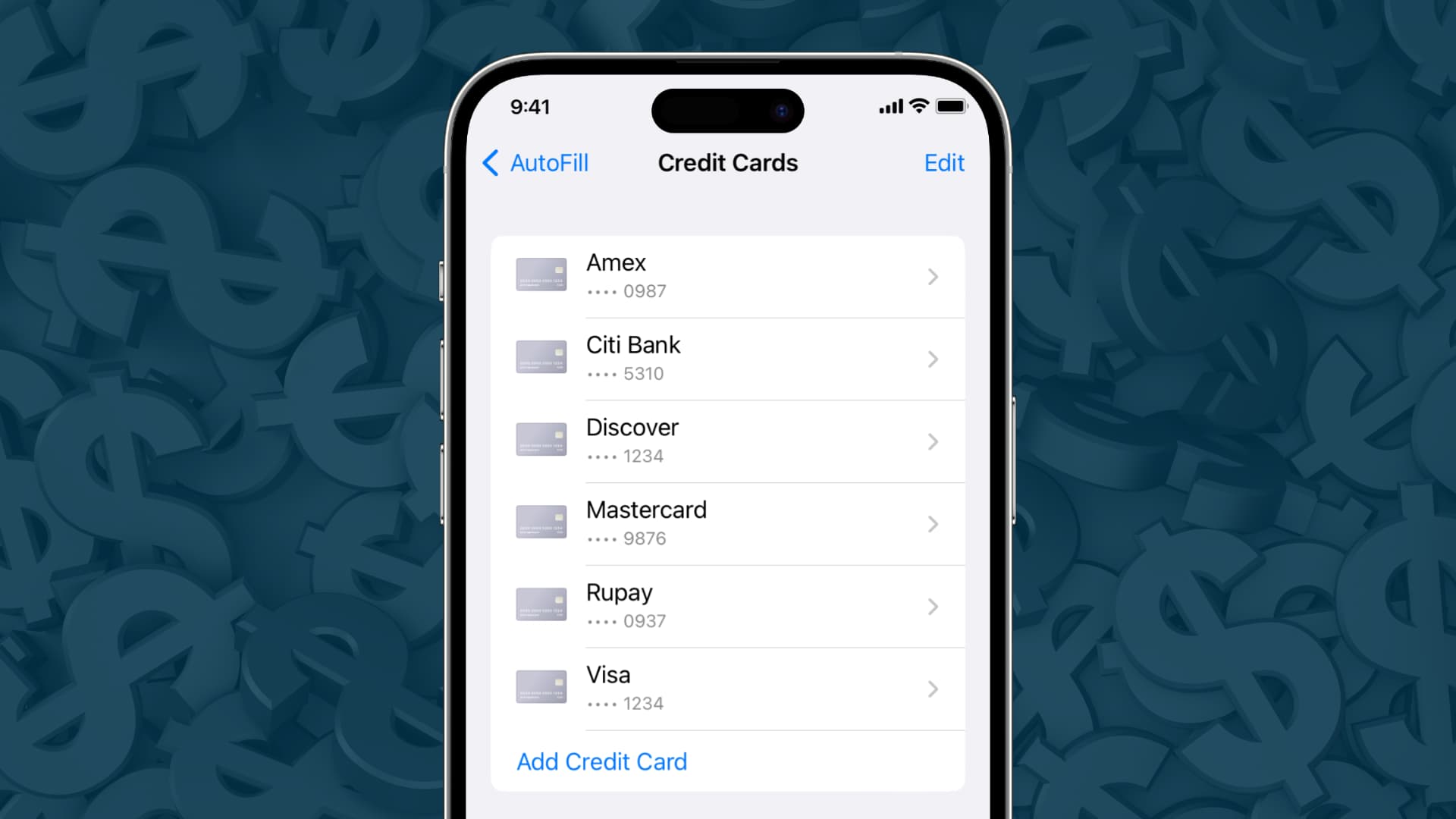
To view stored credit cards in Safari on your iPhone, iPad, or Mac, you need to access the browser's AutoFill settings where your payment information is securely saved. This allows you to quickly check, verify, or manage the credit card details you have stored for faster online checkout.
How to view stored credit cards in Safari on Mac
On a Mac, the process begins in the Safari app itself. The menu label you look for depends on your macOS version, but the steps are otherwise identical.
- Open the Safari app on your Mac.
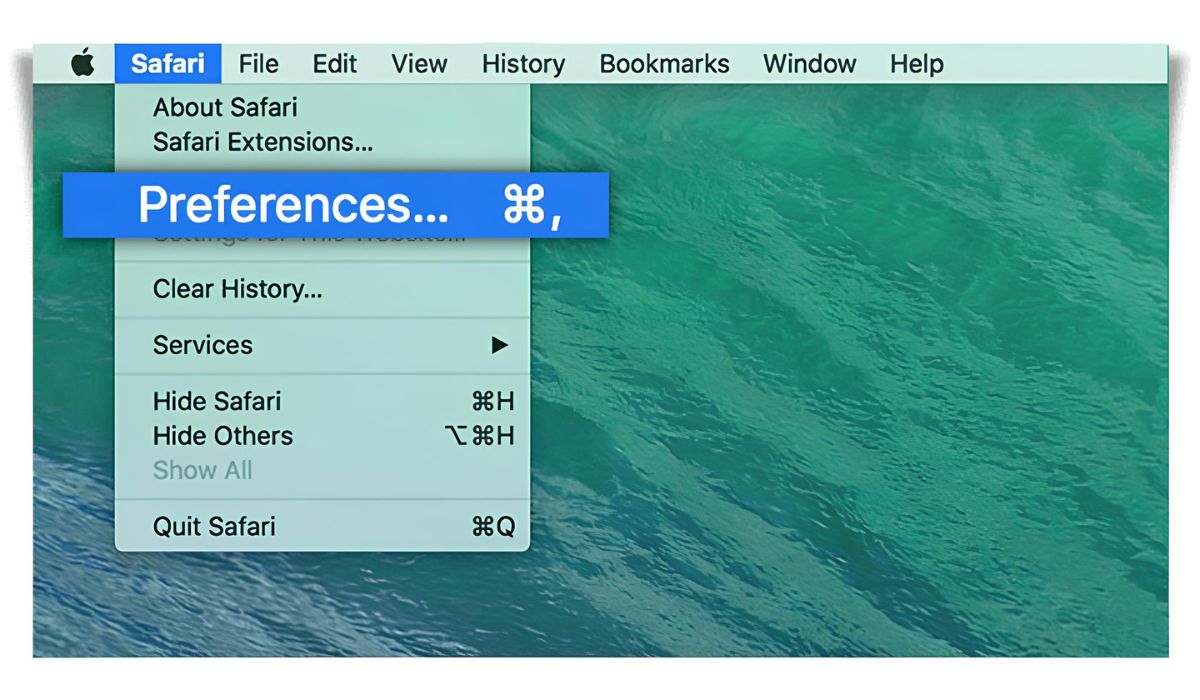
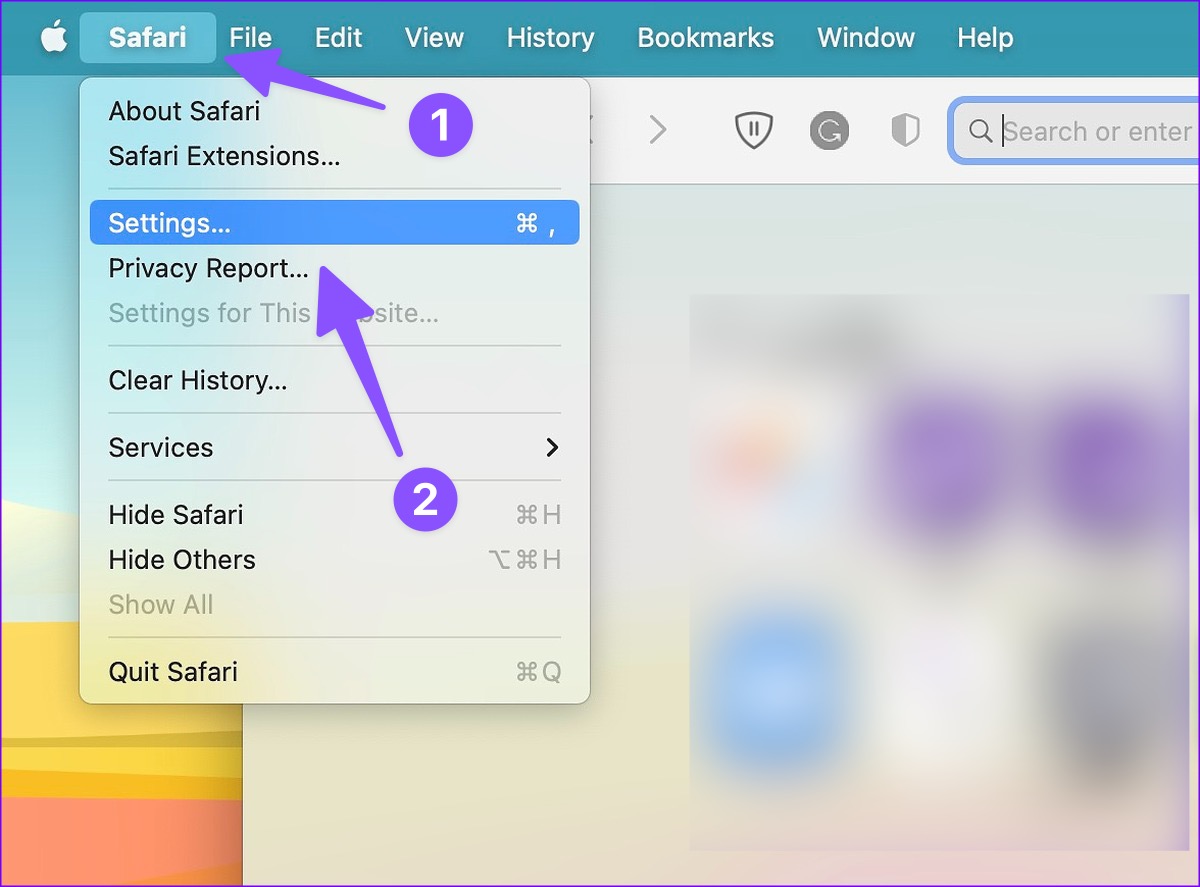
- From the menu bar at the top of the screen, click Safari and then choose Settings (or Preferences on older macOS versions).
- Click the AutoFill tab in the window that appears.
- Make sure the Credit cards checkbox is ticked so the feature is active.
- Click the Edit button located next to the "Credit cards" option.
A window will open displaying all the credit cards you have saved. You can see the cardholder name, the card number, and the expiration date for each entry. This gives you a clear overview of your stored payment methods.
How to view stored credit cards in Safari on iPhone and iPad
On an iPhone or iPad, the settings are managed through the device's main Settings app rather than inside Safari itself.
- Open the Settings app on your iPhone or iPad.
- Scroll down the list and tap Safari.
- Scroll down again and tap AutoFill.
- Ensure the Credit Cards toggle is switched on so that saved cards are available for use.
- Tap Saved Credit Cards. You may need to authenticate with Face ID, Touch ID, or your device passcode to proceed.
You will now see a list of your stored credit cards. Each entry shows the card type and the last four digits of the card number, making it easy to identify which card you are looking at without exposing the full number.
Managing your stored credit cards
Beyond just viewing your cards, the same settings screens let you manage your payment information. New credit cards can be added manually or by using the device's camera to scan the card within the AutoFill settings. This saves you from typing out long numbers and expiration dates by hand. If you prefer not to use this feature at all, the AutoFill feature for credit cards can be completely disabled in Safari settings by turning off the "Credit Cards" toggle on iPhone and iPad, or unchecking the "Credit cards" box on Mac.
Understanding iCloud Keychain and security
Stored credit card information is securely held within iCloud Keychain, which automatically syncs this data across all your approved Apple devices. This means a card you save on your iPhone will be available on your Mac and iPad as long as you are signed into the same Apple ID. A key security detail to understand is the handling of the card's security code. While older systems required you to enter this code manually for every transaction, iCloud Keychain can now store credit card information, including security codes. This makes the checkout process even faster while keeping your data encrypted and protected.
\nRelated reading: How To Find Settings In Safari, How To Turn Off Safe Search On Safari, and Where Is Safari Preferences.