To automatically open tabs in Chrome, you need to change a single setting in the browser's preferences. Choose between restoring your previous session or specifying a fixed set of websites that load every time you start Chrome.
How to Automatically Open Tabs in Chrome on Startup
Chrome offers two primary ways to control which tabs appear when you launch the browser. The first is "Continue where you left off", which restores all tabs from your last browsing session. The second is "Open a specific page or set of pages", which loads a fixed list of websites you define. These options are different from the homepage, which is the page that appears when you click the Home button, you can even make msn my homepage in Google Chrome for quick access to news. The startup page is what appears when you first launch Chrome, while the homepage is a separate navigation shortcut you can populate by learning how to add webpages to Google Chrome homepage. Understanding this distinction helps you decide which method fits your workflow.
Access Chrome's Startup Settings
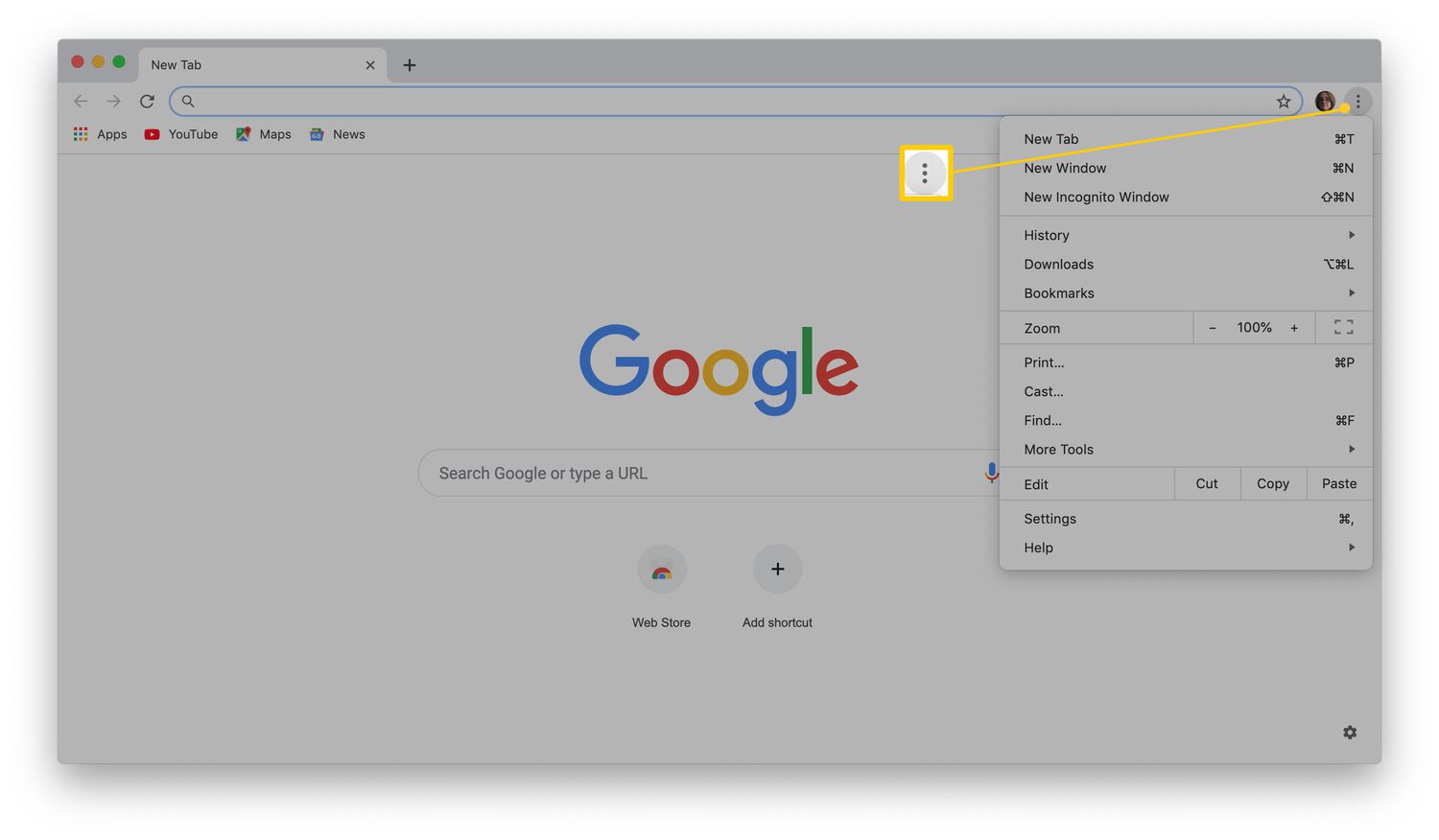
To change how Chrome behaves on startup, you need to open the browser and access its settings menu.
- Open Google Chrome on your computer.
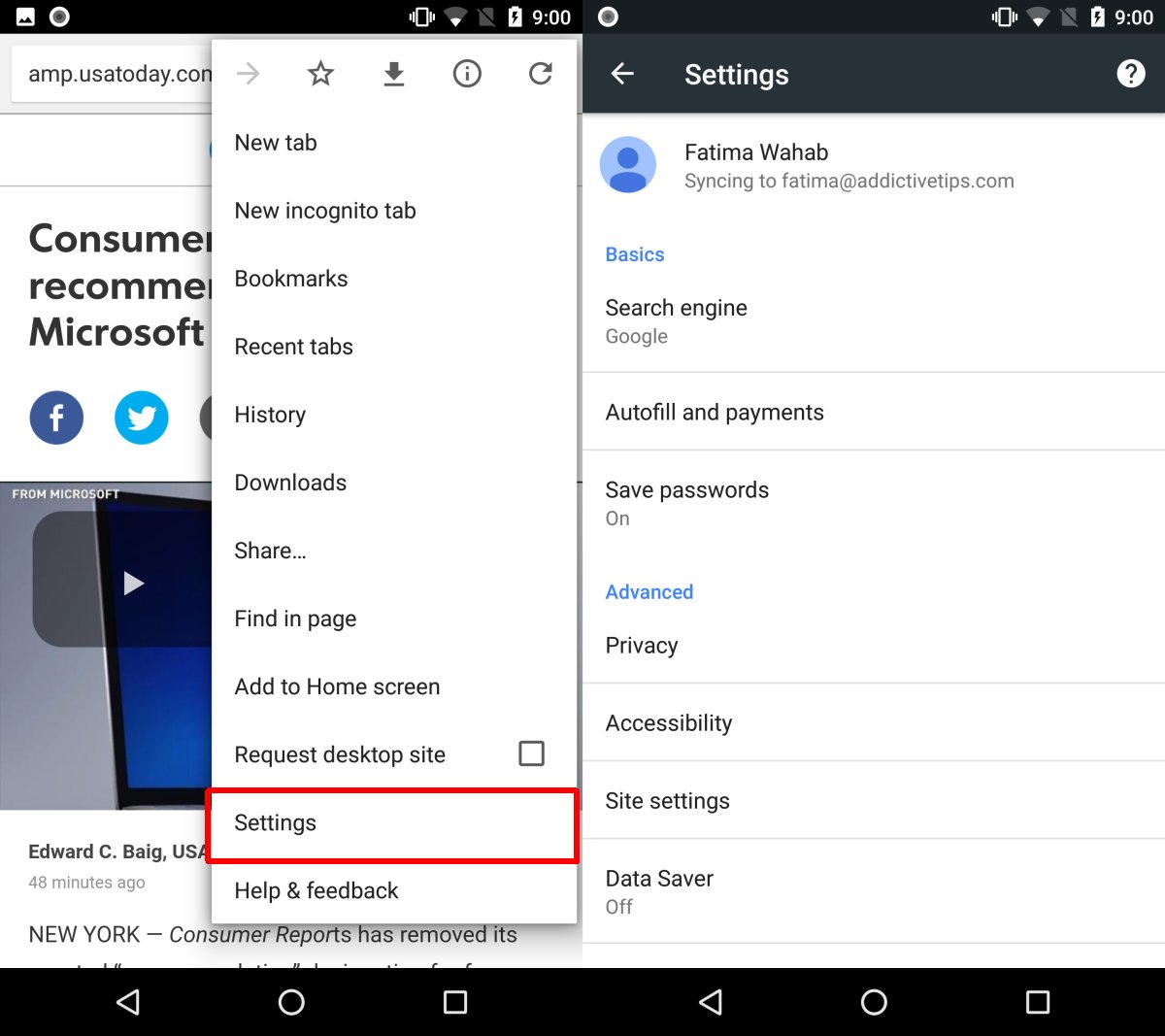
- Click the three vertical dots (More options) in the top-right corner of the browser window.
- Select "Settings" from the dropdown menu.
- In the left-hand navigation panel, click "On startup".
You will now see the startup options that control which tabs open automatically when Chrome launches.
Option 1: Reopen Your Previous Session
If you want Chrome to restore all tabs from your last browsing session, select the "Continue where you left off" option under "On startup". This is ideal when you are working on a project with multiple tabs and need to pick up exactly where you stopped. Chrome will remember every tab that was open when you closed the browser, including the pages you had scrolled to and any form data you had entered. This option works best if you regularly use the same set of tabs and want to resume your workflow without manually reopening each one.
Option 2: Set Specific Pages to Open Automatically
For a fixed set of websites that load every time you start Chrome, select "Open a specific page or set of pages" under "On startup". This is the most flexible option because you control exactly which tabs appear, regardless of what you were doing in your previous session. This is particularly useful for daily routines like checking email, reading news, or opening work applications.
Use Current Pages as Your Startup Tabs
If you already have the websites you want open in your current Chrome window, you can use them directly.
- Open all the websites you want to appear on startup in separate tabs.
- Go to Settings > On startup.
- Select "Open a specific page or set of pages".
- Click "Use current pages". Chrome will automatically populate the list with the URLs of all your open tabs.
Manually Add a New Page
If you need to add a website that is not currently open, you can enter its URL manually.
- Under "Open a specific page or set of pages", click "Add a new page".
- Enter the full URL of the website you want to open in a new tab (e.g., https://example.com).
- Click "Add" to save the page to your startup list.
You can repeat this process to add multiple websites. Each URL will open in a separate tab when you launch Chrome.
Remove Unwanted Pages from the List
To delete a page from your startup tabs, locate the URL in the list under "Open a specific page or set of pages". Click the three vertical dots next to the URL and select "Remove". The page will no longer open automatically on startup. This is useful when you no longer need a particular website or if you accidentally added the wrong URL.
Troubleshooting Unwanted Tabs Opening in Chrome
If Chrome keeps opening tabs you did not set, there are several possible causes. First, check your "On startup" settings to ensure no suspicious pages are listed under "Open a specific set of pages". Remove any URLs you do not recognise. Unwanted tabs can also be caused by sites with notification permissions, installed programs outside Chrome, or a modified Chrome shortcut. To prevent external programs from opening Chrome, disable the setting that allows background apps to run when Chrome is closed. Go to Settings > System and turn off "Continue running background apps when Google Chrome is closed". This stops background processes from triggering new tabs. Additionally, review your site notification permissions by going to Settings > Privacy and security > Site settings > Notifications and blocking any sites that are not essential. Finally, check your Chrome shortcut properties to ensure no extra URLs have been appended to the target field, which can cause unwanted tabs to open on launch. By systematically checking these areas, you can stop unwanted tabs and keep your startup experience clean.
For further control over your browsing experience, consider customising the Chrome homepage and shortcuts to match your daily workflow. This allows you to organise frequently used websites in a way that complements your startup tabs, giving you quick access to everything you need without cluttering your browser.