To remove the puzzle piece from Safari, you need to uninstall or disable the browser extension it represents. The puzzle piece icon in Safari’s toolbar signals that one or more extensions are active, and removing them can resolve performance issues or unwanted behavior like slowdowns or website compatibility problems.
What the puzzle piece in Safari actually is
The puzzle piece icon represents Safari extensions, small software add-ons that add features such as ad blocking, password management, or language translation. They appear automatically in the toolbar when installed. Common reasons users want to remove them include browser slowdowns, interference with website loading, or unexpected changes to browsing behavior. Extensions may also be bundled with Mac apps, making them harder to remove if you only want to disable the browser component.
How to remove the puzzle piece extension on Mac
- Open Safari.
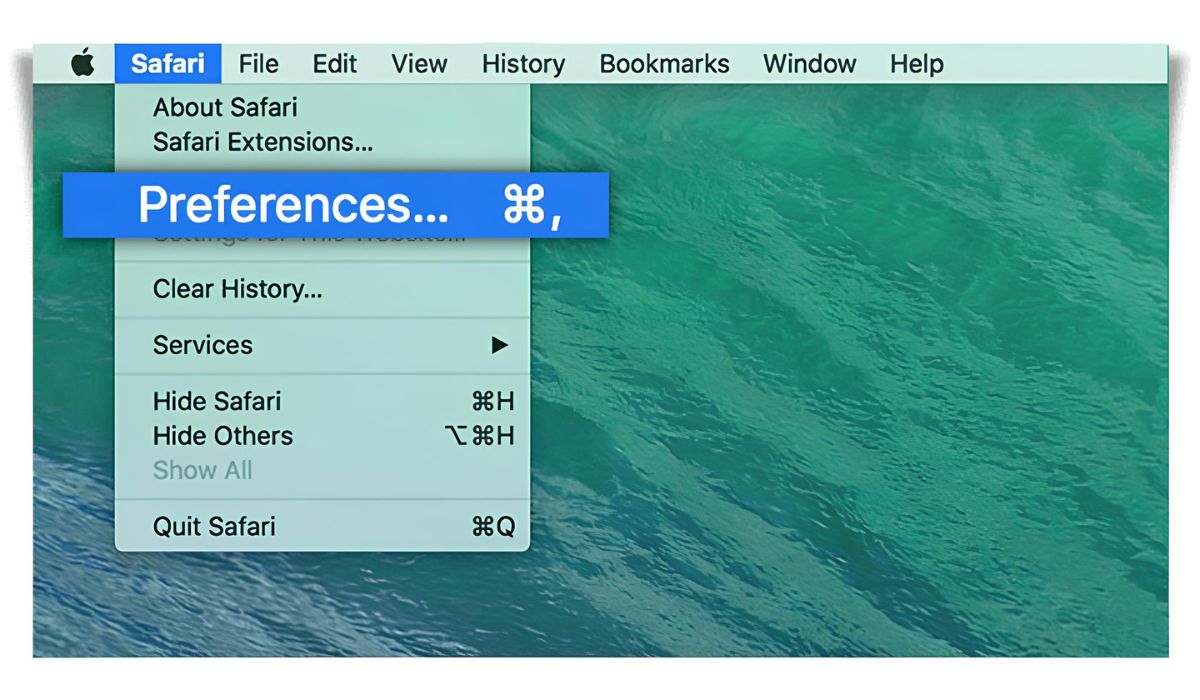
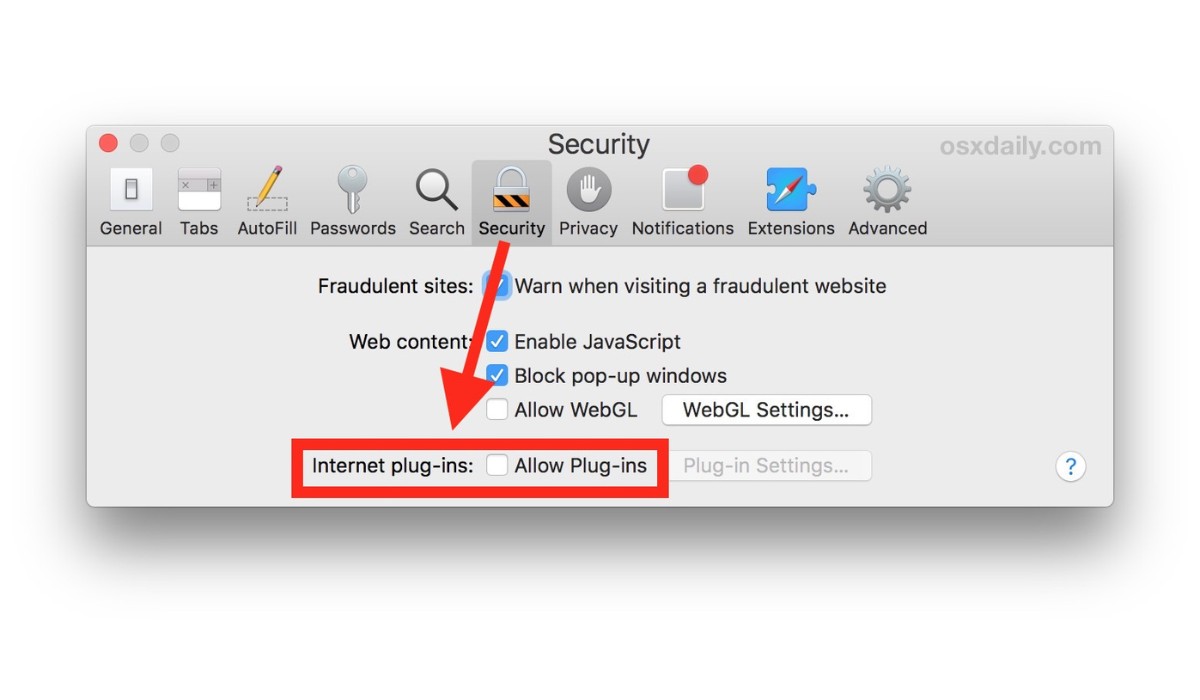
- From the Safari menu in the menu bar, choose Settings (or Preferences on older macOS versions).
- Click Extensions.
- Select the extension you want to remove from the list on the left.
- Click the Uninstall button.
If the Uninstall button is unavailable, the extension may have been installed as part of another Mac app. In this case, you may need to delete the associated app from your Applications folder and then restart Safari. Safari extensions update automatically with their associated apps, so removing the parent app is the only way to fully delete the extension.
How to disable an extension without deleting it
You can turn off an extension temporarily by opening Safari Settings, clicking Extensions, selecting the extension, and unchecking the box next to its name. This keeps the extension installed but stops it from running, useful if you want to test performance or troubleshoot issues. When using Safari profiles, extensions for the default profile are managed in the main Extensions tab of Safari settings. Extensions for other profiles can be managed independently in the Profiles tab, which has its own Extensions tab for each profile. By default, extensions are turned off for each new profile.
How to remove Safari extensions on iPhone and iPad
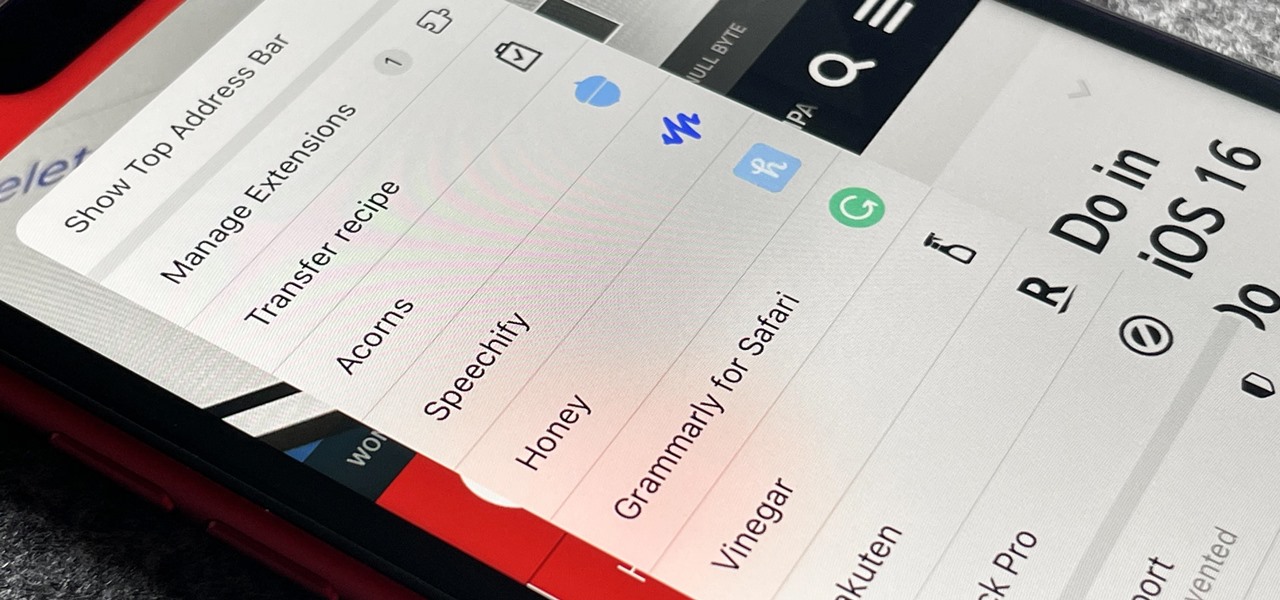
To remove a Safari extension on iPhone or iPad, you need to delete the app that provided it. To delete the app, swipe down on the Home Screen to bring up Search, then find the extension’s app icon. Search for the extension’s app icon. Touch and hold the extension icon, then tap Delete app, and follow the onscreen instructions. You can also manage extensions by going to the Settings app on your iPhone or iPad. Tap Apps, then tap Safari. Tap Extensions, then tap an extension to view its settings. If you only want to disable a specific extension like Grammarly, you can remove Grammarly extension from Safari without deleting its main app. To disable an extension without removing the app, you can turn off Allow Extension in its settings.
Extensions and private browsing in Safari
When browsing in a private window in macOS Sonoma 14 or later, all extensions that require website access are turned off by default. To use an extension in private browsing, choose Safari > Settings, click Extensions, select the extension in the sidebar, then select Allow in Private Browsing on the right. This setting gives you control over which extensions can access your activity in private windows, balancing functionality with privacy.
\nRelated reading: How To Remove Duckduckgo From Safari and How To Uninstall Firefox Completely.