When Google Chrome freezes or shows "Not Responding" the moment you hit Ctrl+P, the culprit is almost always one of four things: corrupted cache data, a buggy extension, hardware acceleration, or Chrome's own print preview feature. This guide walks you through each fix in order of likelihood, so you can get back to printing without the hang.
Why is Chrome not responding when printing?
The "chrome not responding when printing" error typically stems from a conflict between the browser and your system's printing pipeline. The most common triggers are a bloated cache that confuses the print preview, extensions that inject code into every page (including the print dialog), hardware acceleration forcing the GPU to render a preview it can't handle, and a print preview bug that gets stuck querying offline or "ghost" printers. Below, we tackle each cause directly.
Clear Chrome's cache and cookies
Corrupted cached images and cookies are frequent offenders when print preview hangs. Clearing them forces Chrome to rebuild its data from scratch, which often resolves the freeze.
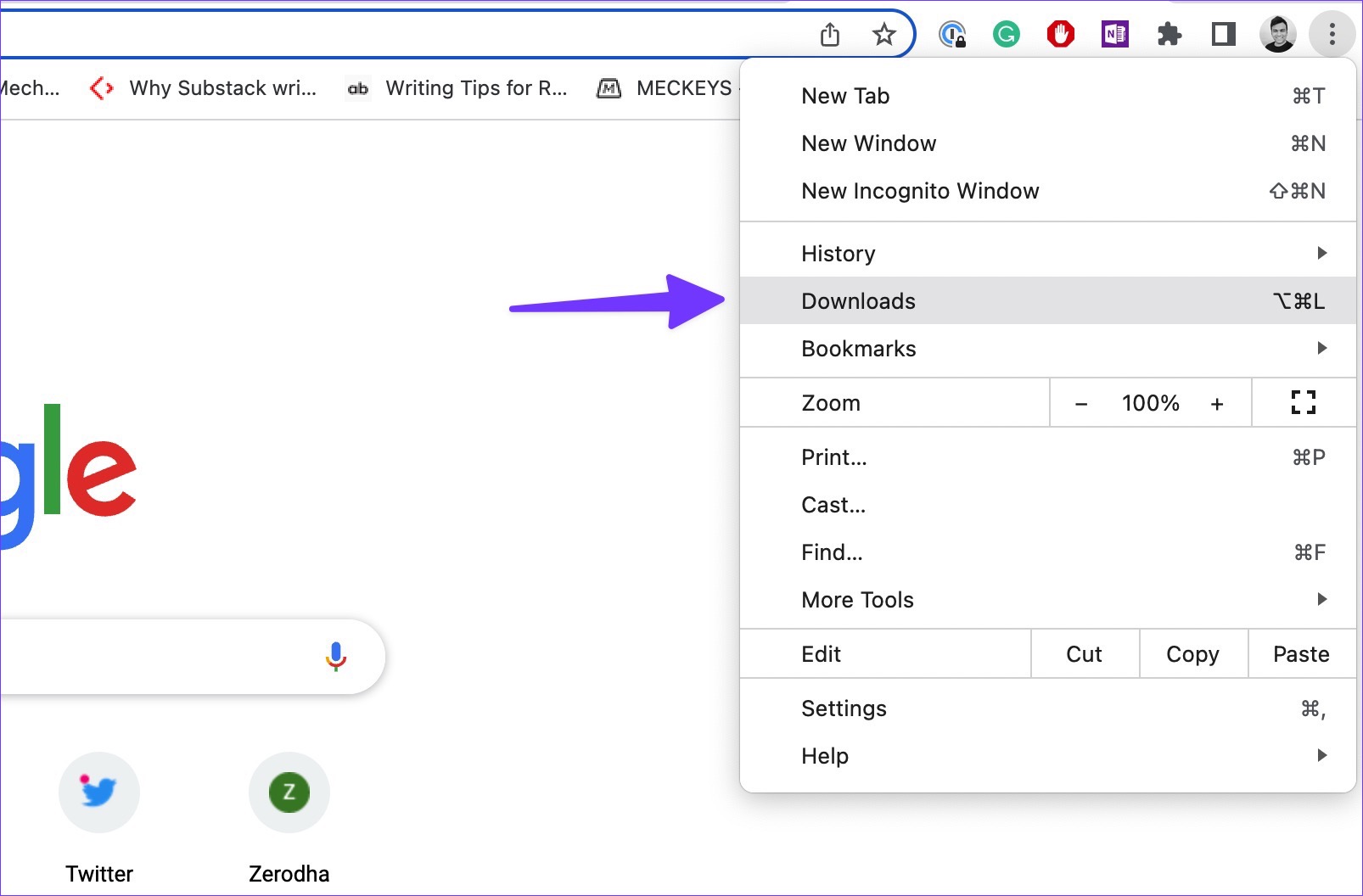
- Click the three-dot menu in the top-right corner of Chrome.
- Select Settings > Privacy and security > Clear browsing data.
- Choose a time range of All time.
- Check the boxes for Cookies and other site data and Cached images and files.
- Click Clear data.
After clearing, restart Chrome and try printing again. This fixes most data-corruption-related hangs.
Test printing in an Incognito window
An Incognito window (Ctrl+Shift+N on Windows/Linux, Command+Shift+N on Mac) runs without extensions and uses a fresh temporary profile. If printing works there, the problem is tied to your regular profile or an extension.
- Open a new Incognito window.
- Navigate to the page you want to print.
- Press Ctrl+P (or Command+P on Mac) and see if the print dialog responds.
If it works in Incognito, move to the next step to isolate the extension.
Disable conflicting browser extensions
Extensions that modify page content or manage downloads often interfere with print preview. Disable them one by one to find the culprit.
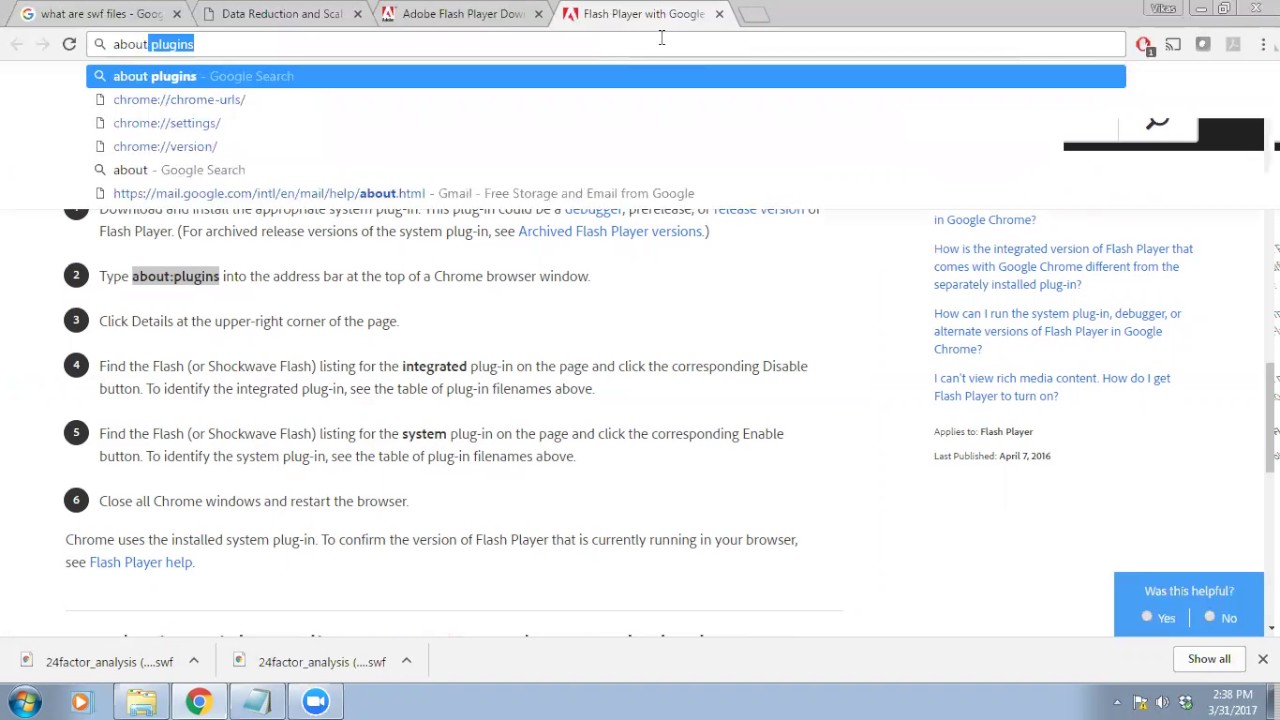
- Type
chrome://extensions/in the address bar and press Enter. - Toggle off the first extension in the list.
- Try printing (Ctrl+P). If it works, that extension was the problem.
- If not, re-enable it and toggle off the next one. Repeat until you find the offender.
Once identified, remove the extension or keep it disabled permanently.
Turn off hardware acceleration
Hardware acceleration offloads rendering to your GPU, but some graphics drivers cause Chrome's print preview to crash or freeze. Disabling it forces Chrome to use software rendering, which is more stable for printing.
- Go to Settings > System.
- Toggle off Use hardware acceleration when available.
- Click Relaunch to restart Chrome.
After relaunch, attempt to print again. This resolves many print preview crashes related to GPU rendering.
Bypass Chrome's print preview
If Chrome's built-in preview is the source of the hang, you can skip it entirely and use your operating system's native print dialog. This is a quick workaround that often gets the job done.
- Press Ctrl+Shift+P on Windows/Linux, or Option+Command+P on Mac.
- The system print dialog will open directly, bypassing Chrome's preview.
Note that you lose the ability to adjust margins or scaling within Chrome, but you can still do that in the system dialog.
Restart the Windows Print Spooler
The Print Spooler manages all print jobs on Windows. If it's stuck with a corrupt job, Chrome will hang when trying to communicate with it. Restarting the service clears the backlog.
- Press Win + R, type
services.msc, and press Enter. - Scroll down to Print Spooler in the list.
- Right-click it and select Stop.
- Navigate to
C:\Windows\System32\spool\PRINTERSand delete all files in that folder. - Go back to the Services window, right-click Print Spooler, and select Start.
This clears any stuck print jobs and gives Chrome a clean slate to send new ones.
Remove offline or duplicate printers
Chrome's print preview can hang if it tries to query a printer that's offline or a duplicate that no longer exists. Cleaning up your printer list removes these "ghost" devices.
- Open Windows Settings > Bluetooth & devices > Printers & scanners (or Devices and Printers on older Windows).
- Look for any printer showing an Error state or with a grayed-out icon.
- Click on it and select Remove device.
After removing offline or duplicate printers, restart Chrome and try printing again.
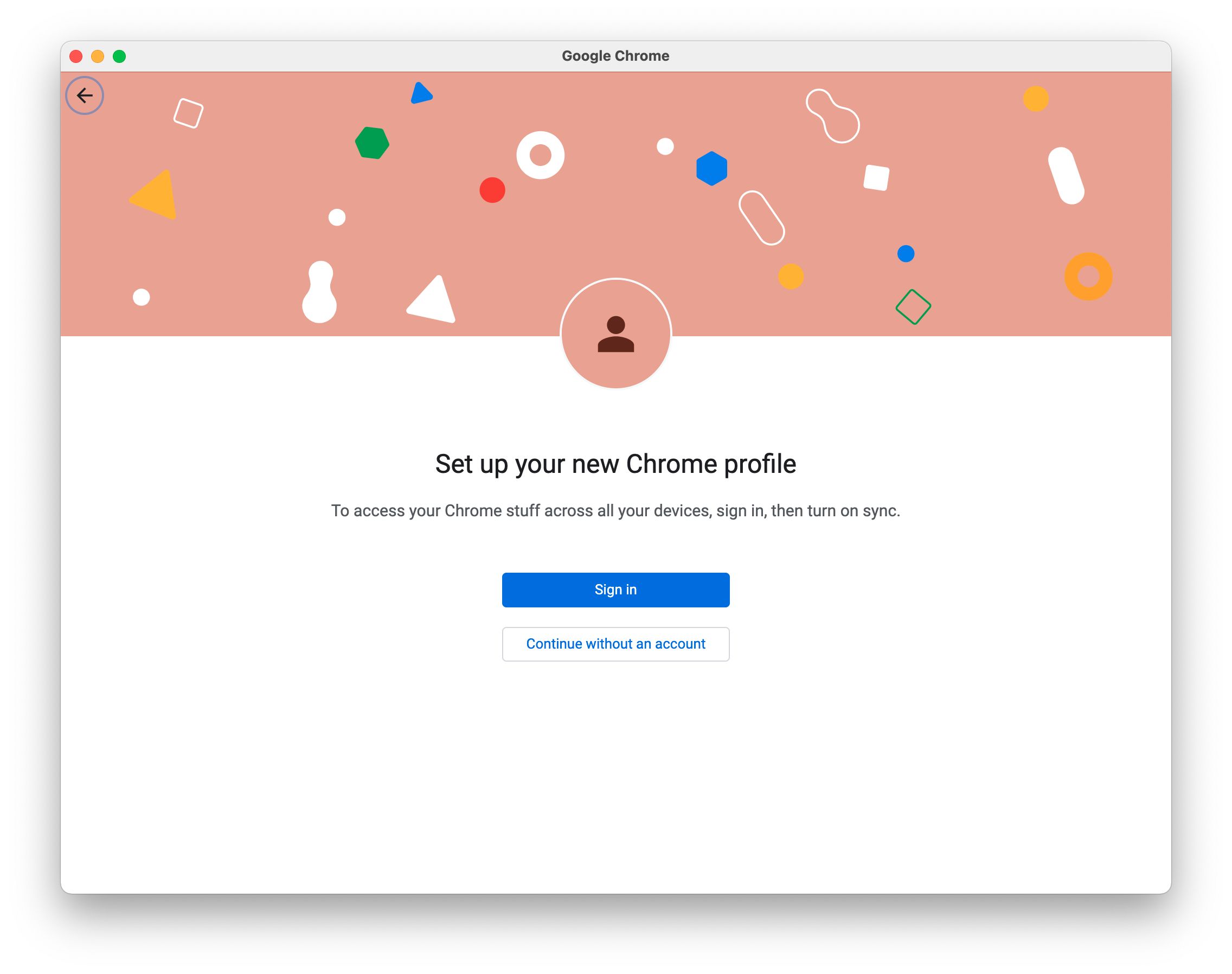
Create a new Chrome user profile
If your current profile is corrupted, it can cause printing issues even after clearing cache. A fresh profile isolates the problem.
- Click your profile picture in the top-right corner of Chrome.
- Select Add (or Manage profiles > Add profile).
- Choose a name and an icon, then click Create.
- Chrome will open a new window with the fresh profile. Try printing from there.
If printing works in the new profile, your original profile was corrupted. You can migrate bookmarks and passwords via the profile menu, but keep the old profile disabled to avoid the hang.
Enable Out-of-Process Print Drivers flag
For Chrome 120 and later, the Out-of-Process Print Drivers flag moves printing interactions to a separate process, so a crash in the print driver won't freeze the whole browser.
- Type
chrome://flags/#enable-oop-print-driversin the address bar and press Enter. - Click the dropdown next to the flag and select Enabled.
- Click Relaunch at the bottom of the page.
After relaunch, try printing again. This flag improves stability and responsiveness of the print preview, especially with problematic printer drivers.
Reset or reinstall Chrome as a last resort
If none of the above works, a full reset or reinstall is your final option. Resetting keeps your bookmarks and passwords but restores default settings, which can clear hidden misconfigurations.
- Go to Settings > Reset settings > Restore settings to their original defaults.
- Click Reset settings to confirm.
If the problem persists after a reset, completely uninstall Chrome:
- Close Chrome and go to Windows Settings > Apps > Installed apps.
- Find Google Chrome, click the three-dot menu, and select Uninstall.
- After uninstalling, download the latest installer from Google.com/chrome and reinstall it.
This wipes out any deep-seated corruption in the browser's installation files. If you're still stuck after a fresh install, the issue is likely with your printer driver itself, visit your printer manufacturer's website to download the latest driver.
\nRelated reading: How To Merge Google Chrome Profiles and How To Rotate Screen In Chrome.