No, the 'Touch UI Layout' flag (chrome://flags/#top-chrome-touch-ui) no longer exists in current Chrome versions in 2024. Any guide still recommending this flag is outdated, and you must use the newer 'Chrome Refresh 2023' flags or adjust the system default zoom instead.
Why the chrome touch UI layout flag disappeared
The 'Touch UI Layout' flag was never intended as a permanent user setting. It was a temporary development switch. Google engineers used it to test a hybrid tablet mode. In that mode, the browser's top chrome, the address bar, tab strip, and toolbars would expand automatically when Chrome detected a touchscreen device. Once Google adopted the "Chrome Refresh" design language, the old flag became redundant and incompatible with the new codebase. The Chrome Refresh redesign unified the touch and desktop interfaces. This eliminated the need for a separate flag to toggle between them. Consequently, the flag was removed. No amount of searching in chrome://flags will bring it back on any current version of Chrome.
The mistake people make when the flag is missing
The most common failure case occurs when users paste the exact flag name, "Touch UI Layout", into the chrome://flags search bar and find nothing. They then waste time enabling similarly named but unrelated flags. For example, enabling "Touch Events" only controls how Chrome processes finger taps. "UI Layout for the browser's top chrome" adjusts the arrangement of buttons but does nothing to tab dimensions. Another frequent error involves typing "top-chrome-touch-ui" directly into the address bar, which simply returns an "Invalid URL" error. Because the flag no longer exists, any attempt to locate it or enable it via older tutorials will produce zero visible change. Users who do find a flag with a similar name often enable it, see no difference in tab size, and conclude that their Chrome installation is broken. In reality, the flag they need is simply gone.
What actually controls tab size now
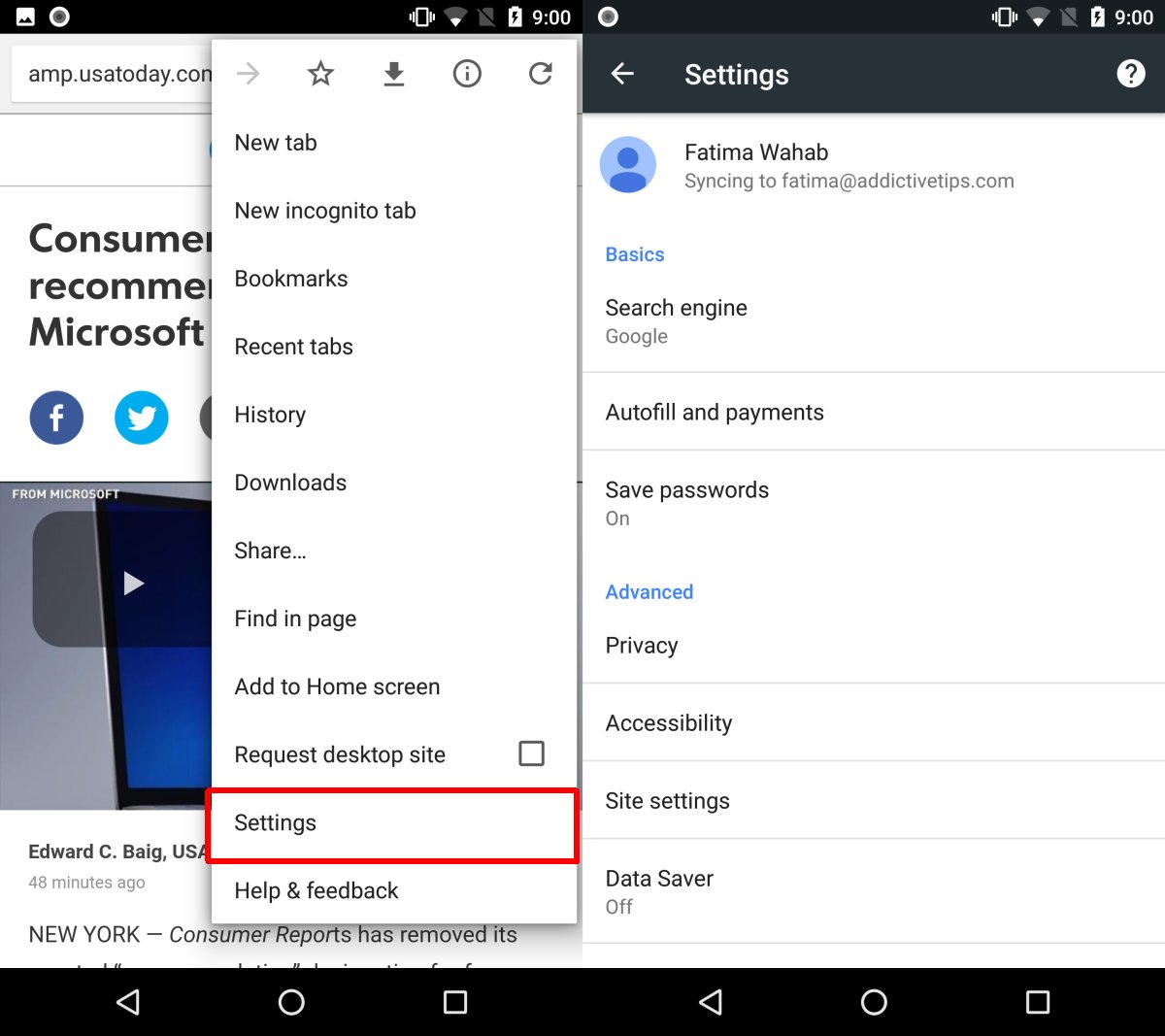
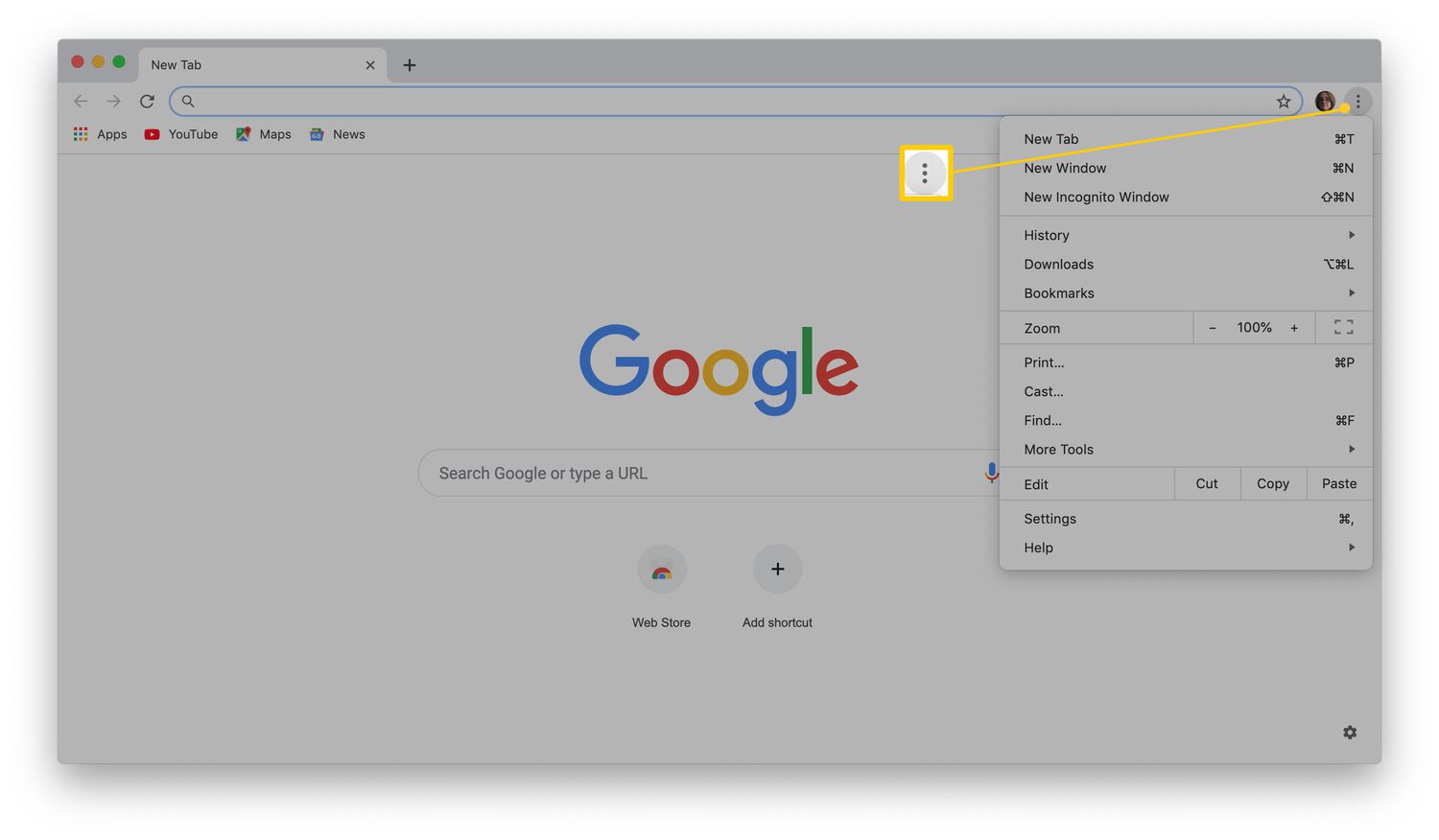
Non-extension methods to increase tab strip dimensions in 2024 include the "Chrome Refresh 2023" flag and the system-level page zoom setting. To use the Chrome Refresh flag, navigate to chrome://flags, search for the relevant flag, enable it, and relaunch the browser. This flag may activate a modern design that affects the overall top chrome, including tabs. However, the effect is modest. It does not produce the dramatic widening that the old Touch UI Layout flag created. For a more significant change, you can increase tab size in Google Chrome by adjusting the system default zoom. Go to Chrome's Settings > Appearance, and set the "Page zoom" to 125% or 150%. This enlarges every UI element, including tabs, though it also scales all website content. If you prefer to adjust browser window size separately, use the window controls or drag the edge of the Chrome window rather than relying on flags. For finer control over text alone, you can adjust font size through Chrome's Settings > Appearance. This does not affect tab width. Finally, if your goal is simply to make my tabs bigger in Google Chrome without changing zoom or enabling experimental flags, consider installing a tab management extension from the Chrome Web Store. Extensions like "Tab Resize" or "Tab Wrangler" can override default tab dimensions.
No flag named "Touch UI Layout" will ever work again, so these are your only reliable paths forward in 2024. For a complete guide on resizing Chrome windows, tabs and fonts, explore the broader topic of How to Resize Chrome Windows, Tabs and Fonts.