

This tag collects articles that help you take control of the web browser on your computer, tablet, or phone. It is written for everyday consumers who want to adjust a setting, fix an annoyance, or change how their browser behaves, without needing any technical background. The guides are short, practical, and focused on the specific screens and menus you will actually see in Chrome, Safari, Edge, and Firefox.
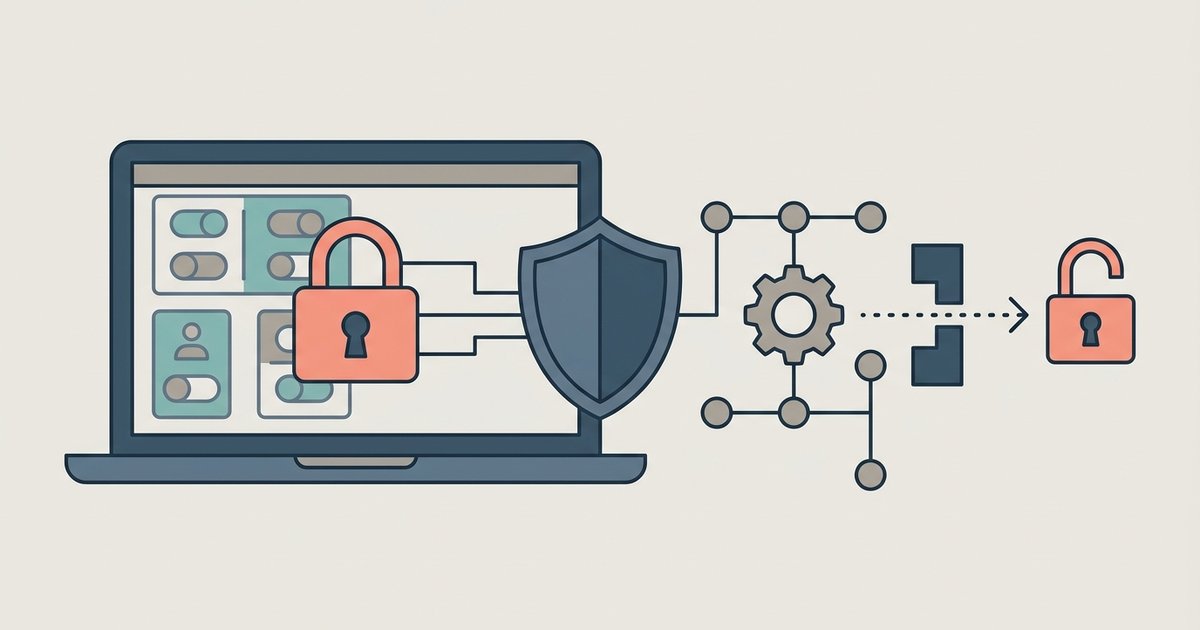
The problems covered here fall into three clear themes. First, there are privacy and search adjustments, such as turning off incognito mode on YouTube, removing DuckDuckGo from Safari or Chrome, and stopping trending searches in Google Chrome. Second, there are customization and interface fixes, including making tabs bigger, setting MSN as your homepage in Firefox or Chrome, and adding webpages to the Chrome homepage. Third, there are permission and download controls, like enabling camera or location permissions, stopping PDFs from opening after download, and changing the default download file type.
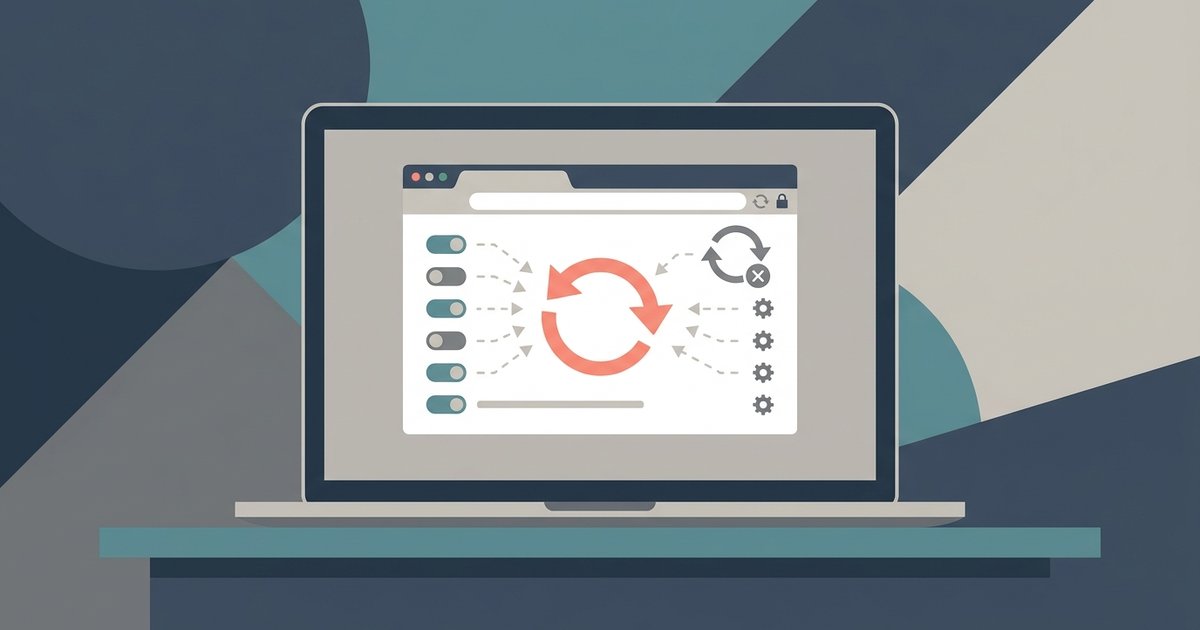
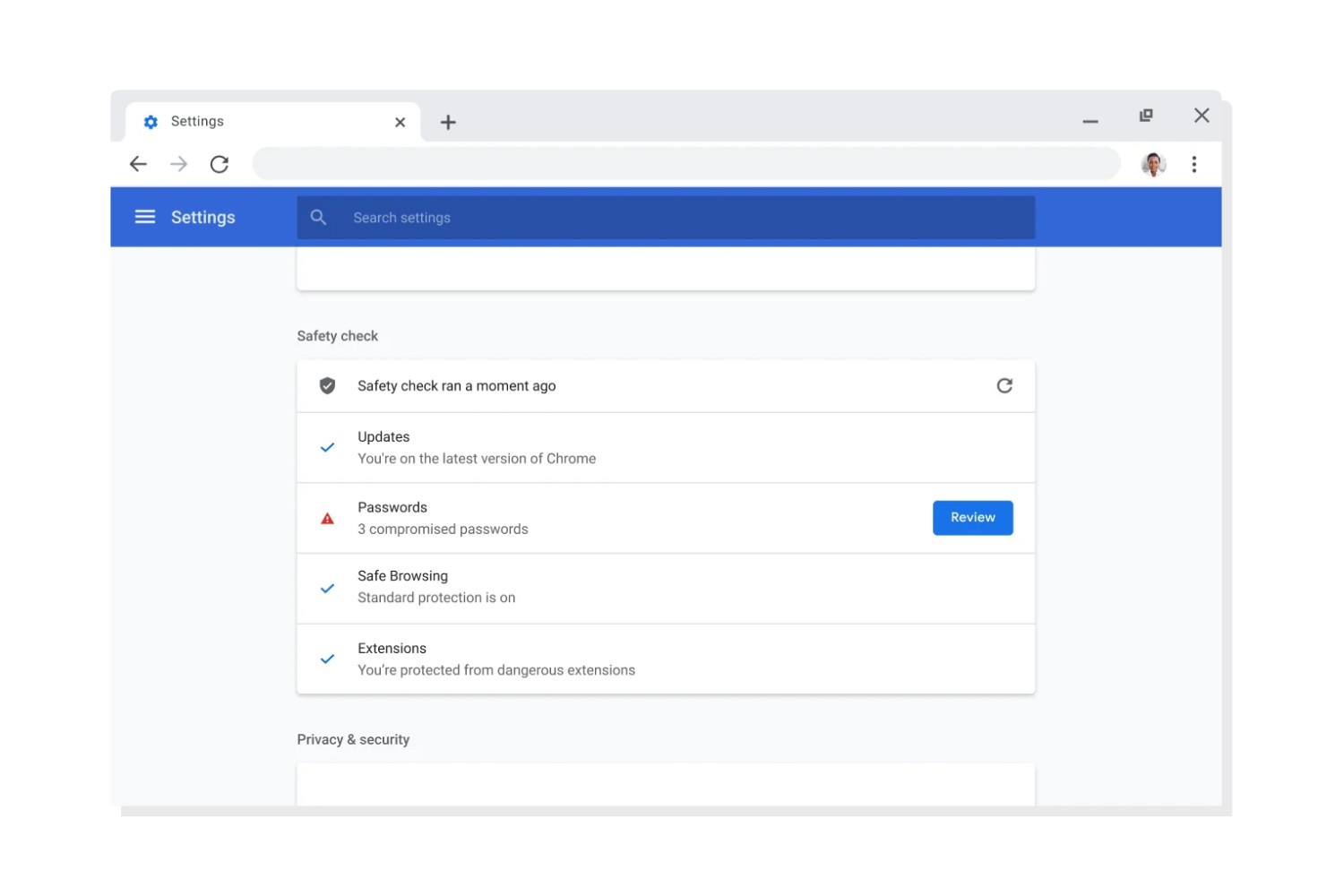
Several articles also address security and legitimate workarounds. For example, the guide on accessing blocked websites at school is framed around safe, school-approved alternatives rather than bypassing network rules. Similarly, articles about screen recording on HBO Max, enabling WebGL on Safari, and allowing Chrome to share your screen focus on legitimate uses of those features. The tag also covers resetting Edge to default, checking browser settings, and managing Chrome extensions and developer mode, all aimed at helping you keep your browser clean, predictable, and suited to how you actually like to work.