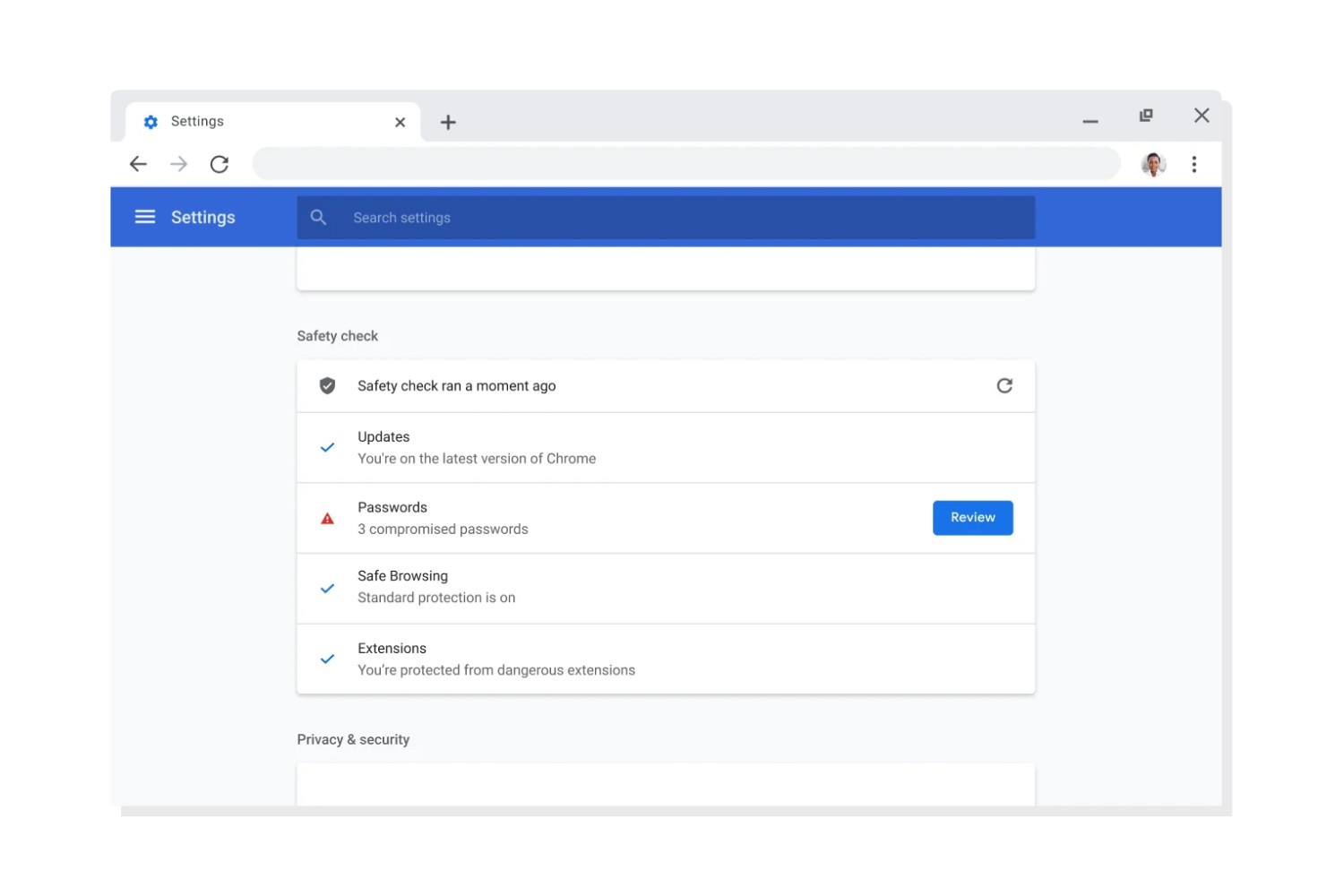
To check browser settings in Google Chrome, click the three-dot menu in the top-right corner and select "Settings," or type chrome://settings into the address bar and press Enter. This opens a central panel where you can manage everything from your privacy and security to how the browser looks and behaves.
How to check browser settings in Google Chrome
This section controls how Chrome syncs to your Google account, allowing you to access bookmarks, passwords, and open tabs across devices. You can also manage multiple profiles here, keeping work and personal browsing separate, and import bookmarks and settings from other browsers like Firefox or Safari.
Autofill
In the Autofill section, you can check and manage saved passwords, payment methods, and addresses. This is useful for speeding up online forms, but you should review it regularly to remove outdated or incorrect entries and ensure your stored data is secure.
Privacy and Security
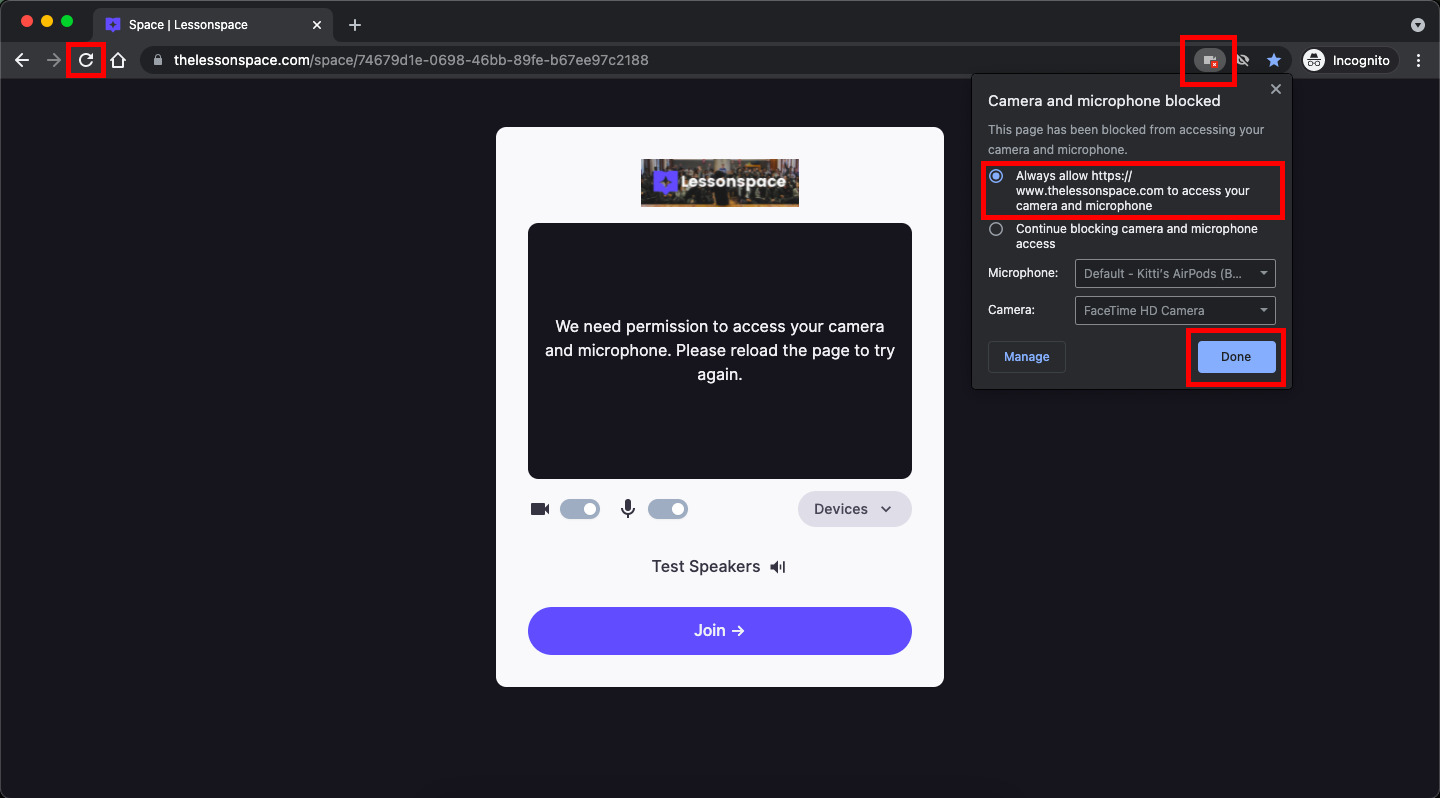
This is the most critical area for controlling your data. Here you can clear browsing data, such as history and cookies, with a few clicks. You can also manage site permission settings for cookies, location, camera, microphone, and notifications, deciding which sites can access what. Additionally, Safe Browsing lets you choose a protection level against dangerous sites and downloads.
Appearance
To change how Chrome looks, go to Appearance. You can switch the browser's theme, adjust the default font and page zoom, and toggle the home button and bookmarks bar on or off. These settings help you create a browsing environment that is comfortable and easy to navigate.
Search engine, on startup, and performance
Under Search engine, you can change Chrome's default search engine from Google to another provider like Bing or DuckDuckGo. The On Startup settings let you decide what pages open when you launch Chrome, such as a specific set of tabs or the new tab page. Performance settings include options for hardware acceleration and battery saver, which can help Chrome run more smoothly on your device or extend laptop battery life.
Downloads, extensions, and resetting settings
In Downloads, you can set the default download folder and manage how Chrome handles files you save. To view, enable, or disable installed tools, open the Extensions page; this is also where you can manage Chrome extensions and developer mode if you need to load unpacked extensions for testing. If you ever need to restore Chrome to its original defaults, use the Reset settings option, which clears customizations without removing your bookmarks or saved passwords. If a crash or stubborn issue keeps Chrome from launching normally, start Chrome in safe mode to isolate the cause.
\nRelated reading: How To Merge Google Chrome Profiles.