To start Chrome in safe mode, use Incognito mode instead. Chrome does not have an official Safe Mode, but Incognito mode disables all extensions by default, making it the correct tool for troubleshooting browser problems caused by add-ons.
How to start Chrome in safe mode: the real story
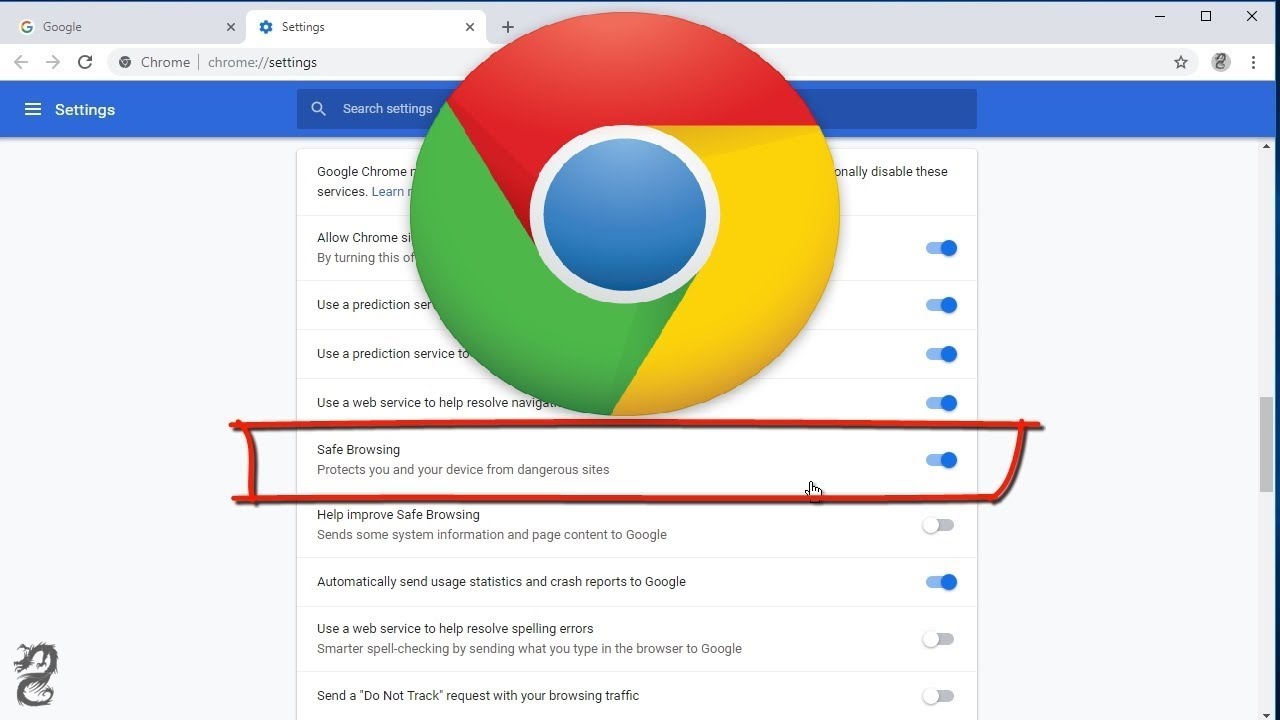
Many users search for a way to start Chrome in safe mode, expecting a feature similar to Windows Safe Mode. However, Chrome lacks an official "Safe Mode" toggle. The closest equivalent is Incognito mode, which runs Chrome without any extensions or plugins. This directly addresses your core troubleshooting intent: isolating whether an extension is causing crashes, slowdowns, or other issues. If a recent update triggered the problem, you can also revert Chrome update to restore stability. Incognito mode is not the same as Safe Browsing or SafeSearch, which are separate security features.
Why you'd want a safe mode for Chrome
Your goal is to isolate issues caused by extensions. Extensions can interfere with page loading, cause unresponsive tabs, or lead to frequent crashes. By running Chrome in a clean environment where no extensions are active, you can determine if an extension is the culprit. This is exactly what Incognito mode does, it disables all extensions automatically, giving you a controlled space to test the browser's performance without disabling them manually one by one.
How to use incognito mode as a troubleshooting tool
Opening an Incognito window is quick and requires no special commands. Follow these steps:
- Open Chrome on your desktop.
- Press Ctrl+Shift+N (Windows) or Command+Shift+N (Mac) on your keyboard. Alternatively, click the three-dot menu in the top-right corner of Chrome and select "New incognito window."
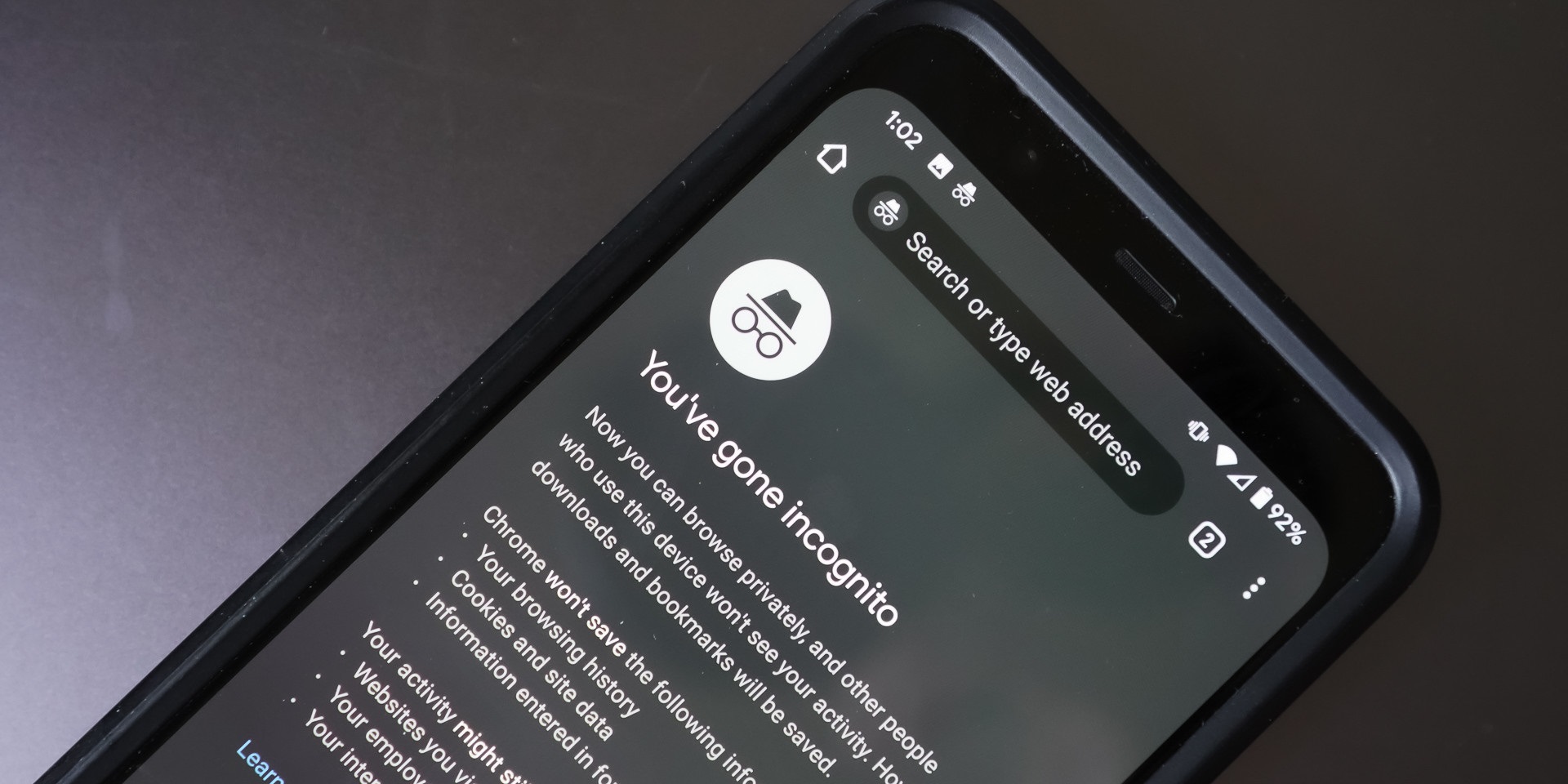
- A new window will appear with a dark theme and an Incognito icon. Use this window to browse normally and test if the problem you were experiencing, such as crashes, slow loading, or strange behavior, still occurs.
If the issue disappears in the Incognito window, an extension is likely the cause. If the problem persists, the issue may be related to Chrome itself, your browser settings, or something outside of extensions.
What incognito mode does and doesn't do
Incognito mode disables extensions and prevents Chrome from saving your browsing history, cookies, and form data to your device. However, it does not make you anonymous to websites, your Internet Service Provider (ISP), or network administrators. Any files you download or bookmarks you create while in Incognito mode will still be saved to your device. Additionally, "Chrome Safe Mode" should not be confused with "Safe Browsing" or "SafeSearch," which are distinct, official security features within Chrome that protect against malicious websites and filter explicit content.
Next steps if incognito mode fixes your issue
If the problem stops in Incognito mode, you need to find which extension is causing it. Return to your normal Chrome window and disable extensions one at a time. Open Chrome's menu, go to More tools, then Extensions. Toggle off each extension, test the browser after each disable, and re-enable it if the problem returns. When you find the troublesome extension, remove it or check for updates. If the browser itself won't my Chrome open at all, you'll need a different troubleshooting path. You can also enable Developer Mode in the Extensions menu to inspect extension details if needed.