You cannot directly merge Google Chrome profiles, but you can consolidate them using a sync-based workaround. If you’re looking to merge Google chrome profiles because you have separate work and personal data scattered across multiple accounts, the only viable method is to use Chrome’s sync feature to combine everything into one primary profile. This process is not a one-click merge, but it achieves the same result by moving your bookmarks, passwords, and history into a single destination.
Can you merge Google Chrome profiles?
No, there is no built-in merge button in Chrome that will combine two profiles into one. Google has never offered a direct “merge profiles” feature, and any source that claims otherwise is inaccurate. The only way to consolidate your data is to use a sync-based workaround, which leverages your Google account to transfer data from one profile to another. This works because Chrome sync stores your bookmarks, passwords, and history in the cloud, allowing you to pull that data into a different profile by signing in. While it’s not a true merge, it’s the only method that actually works for combining data from multiple profiles.
The Chrome sync workaround to consolidate data
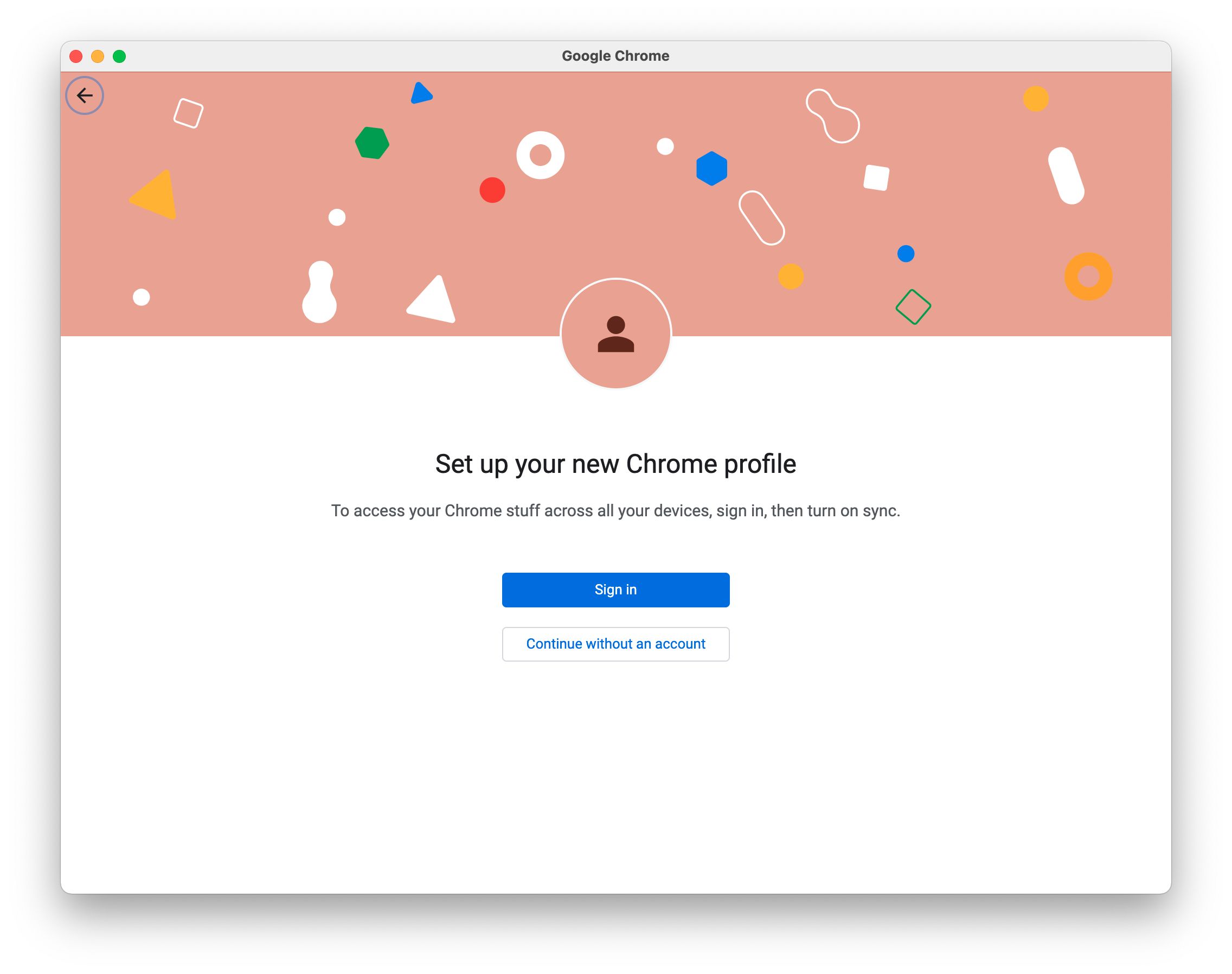
This workaround requires you to carefully control which profile has sync enabled and which profile you sign into last. The key is to turn off sync on the profile you want to remove, then sign into that same account from your primary profile. When Chrome detects that you’ve previously synced data to that account, it will offer to merge that data into your current profile. Here are the exact steps to follow:
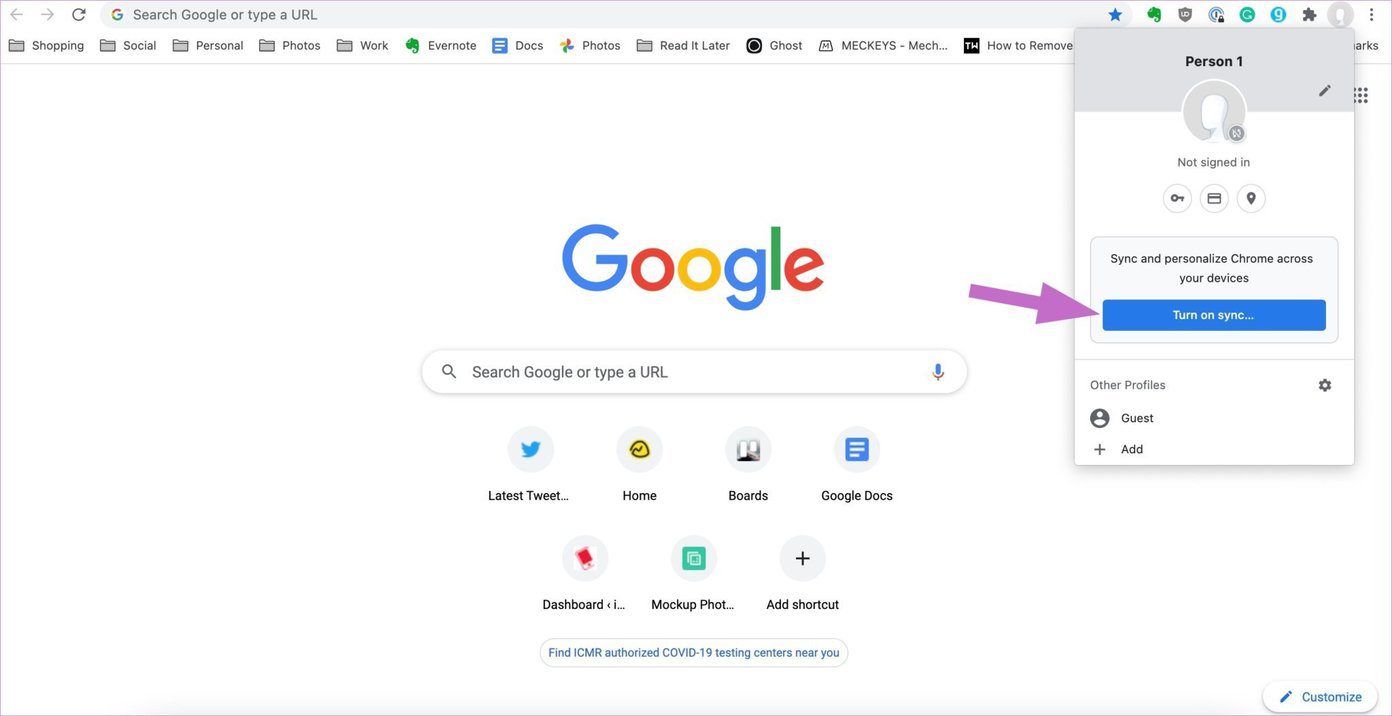
- Open Chrome and click on your account icon in the top-right corner of the address bar. This opens a dropdown menu.
- In the unwanted profile (the one you want to remove), click the “Sync is on” button to open sync settings, then turn off sync entirely. This disconnects the profile from your Google account without deleting any cloud data.
- Click on your account icon again, and this time select the “good” profile (the one you want to keep as your primary profile).
- From the “good” profile, click on your account icon once more and sign in to the same Google account that was previously synced to the unwanted profile.
- Chrome will detect that this account has existing sync data and will prompt you to merge that data into your current profile. Accept the prompt, and your bookmarks, passwords, and history will be imported.
This process works because when you turn off sync on the unwanted profile, you’re not deleting the cloud data, you’re just disconnecting it. When you then sign into that same account from your primary profile, Chrome sees the cloud data and offers to combine it with the local data. This is the only verified way to consolidate data from two profiles, and it’s the method recommended by Chrome support forums.
What to do after merging your Chrome data
Once you’ve completed the sync workaround, you need to verify that everything transferred correctly. Check your bookmarks bar, bookmark manager, and password manager to confirm that items from the old profile are now present in your primary profile. Also, review your browsing history to ensure that your recently visited sites are there. After confirming the data has transferred, you can safely delete the now-empty secondary profile. This removes the profile from your browser without affecting the cloud data or the primary profile.
Limitations on mobile devices
On Android, iPhone, and iPad, you can only have one Chrome profile active at a time. Unlike desktop, there is no way to keep multiple profiles open simultaneously or switch between them without signing out. To switch profiles on mobile, you must sign out of the current account and then sign into the new one. This means the merge workaround is not possible on mobile devices, you cannot have two profiles sync to the same account at once, and attempting to do so will simply sign you out of one account and into another. If you need to consolidate data on mobile, you’ll need to do it on a desktop computer using the steps above, then sign into your consolidated account on your phone. This limitation applies to all mobile versions of Chrome, so plan your merge accordingly.
\nRelated reading: How To Check Browser Settings In Google Chrome, Why Is My Google Account Paused When I Open Chrome, and Google Chrome Not Responding When Trying To Print.