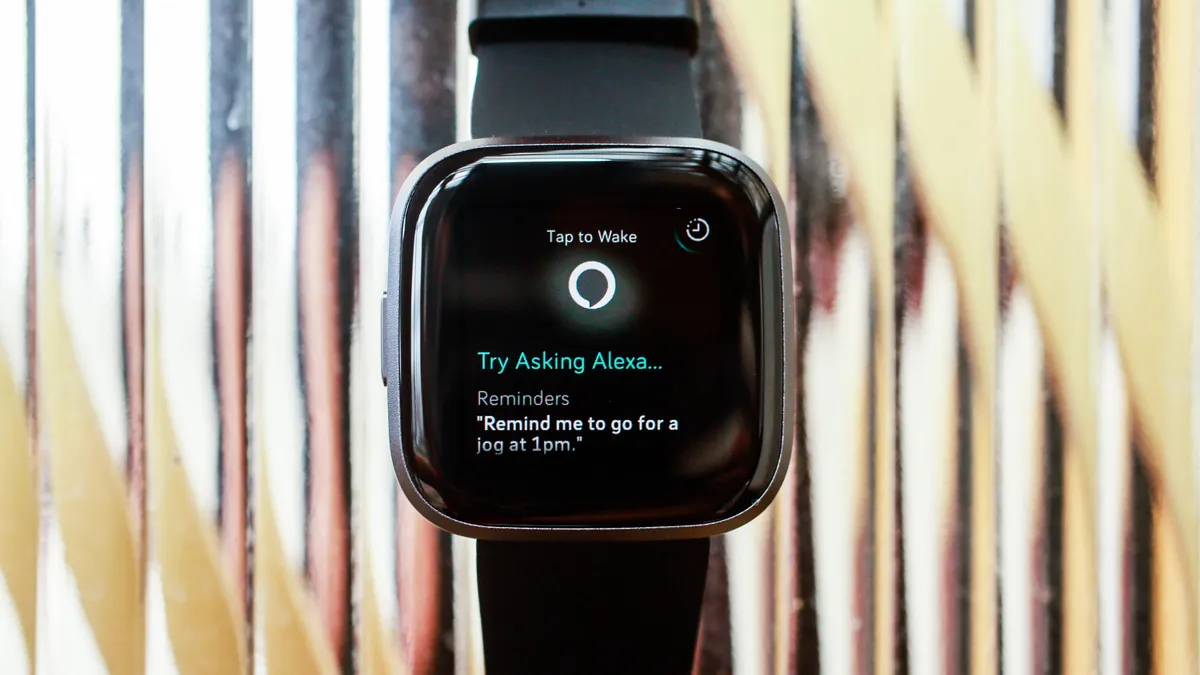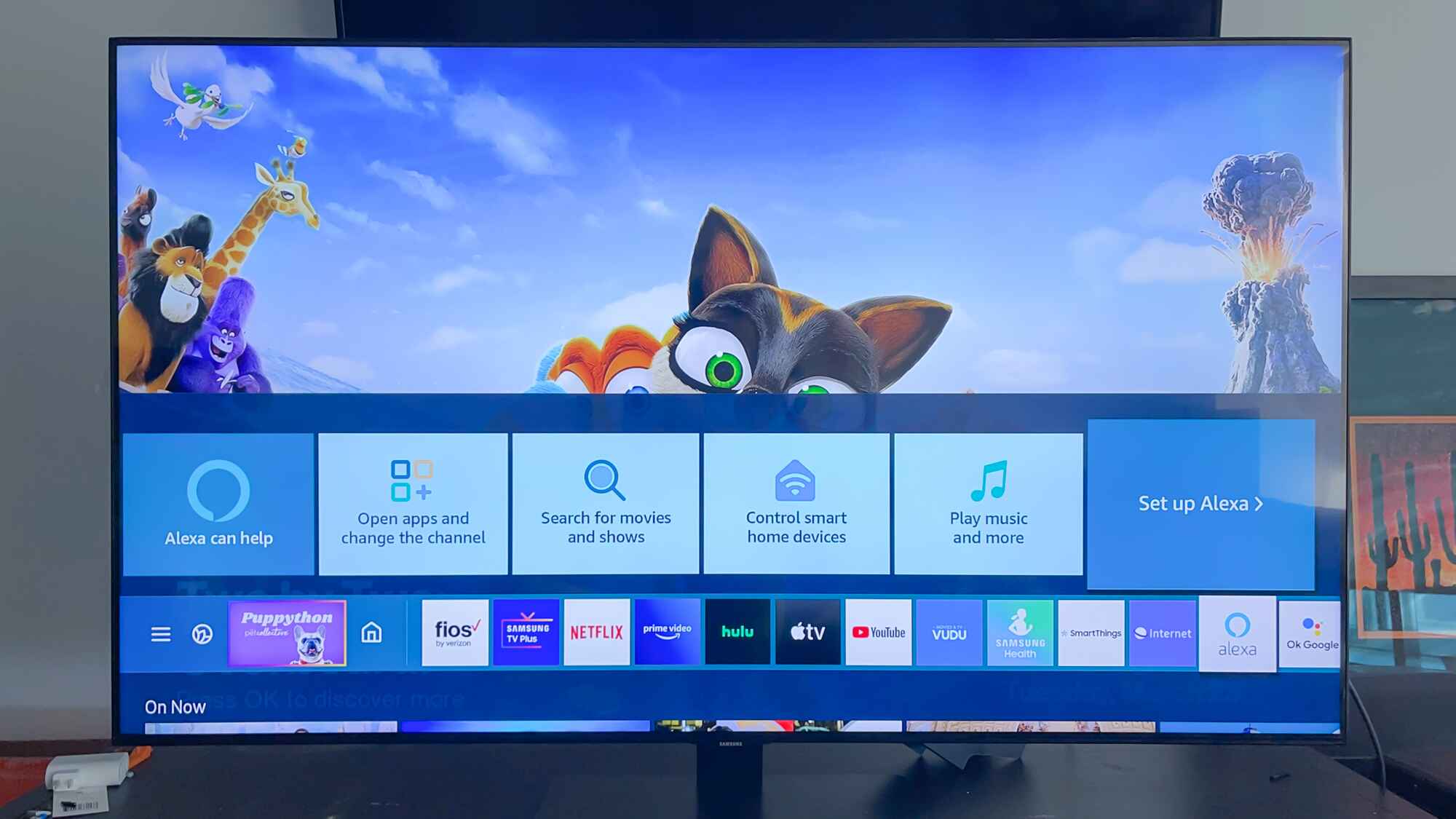
To use Alexa on a Fire tablet, you can either hold down the Home button or, on newer models, say "Alexa" hands-free. This guide covers everything from checking compatibility and setting up Alexa to using Show Mode and fixing common issues, ensuring you get the most out of your device. You can also program Alexa to use my surround sound system for richer audio from your tablet.
How to use Alexa on Fire tablet: prerequisites
Before you can start using Alexa, you need to confirm your tablet supports it. Alexa is not supported on 3rd-generation or older Fire tablets. Tablets from the fourth generation or later support Amazon's voice assistant, and all Fire tablets from 2017 and after have hands-free Alexa support. To find your tablet's generation, go to Settings, then Device Options, and look under "Device Model".
You also need to ensure Parental Controls are turned off. Alexa functionality is disabled if parental controls are active; there is no granular setting to make it available within parental controls. To disable them, swipe down from the top of the screen, tap the settings icon, under "Personal" tap "Parental Controls", and enter your password. If you want to enable Alexa on a child's profile, use the Parent Dashboard to add or remove content by selecting the settings icon next to the child's profile, selecting "Add Content", and toggling specific Alexa skills on or off.
Finally, ensure your system is updated. If the Alexa option is missing from your settings, check for and install system updates via Settings > Device Options > System Updates > Check Now.
How to set up Alexa on your Fire tablet
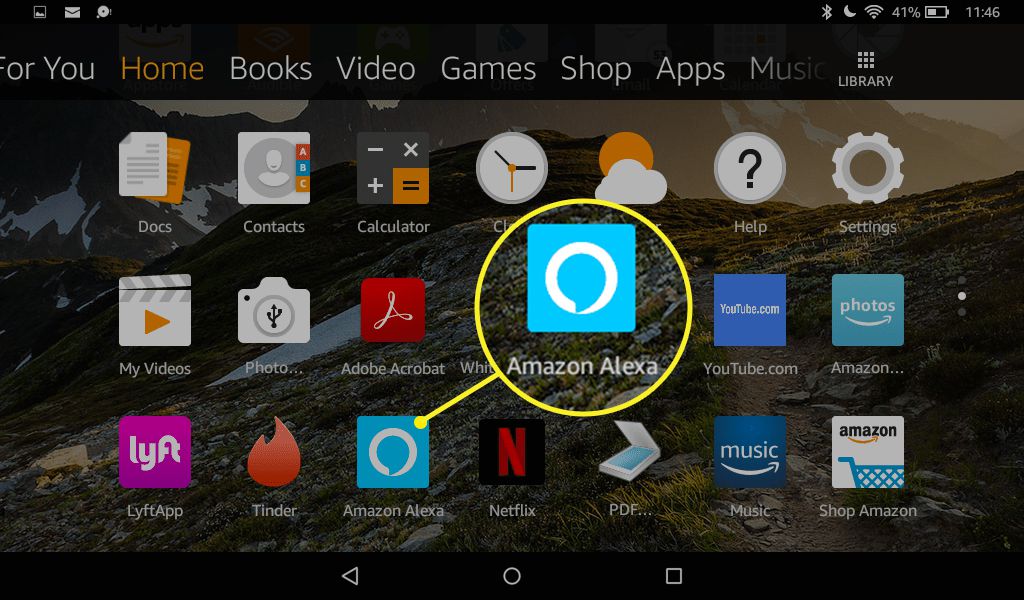
Once the prerequisites are met, setting up Alexa is straightforward. Follow the on-screen prompts to sign in to your Amazon account and agree to the terms. If your Fire tablet doesn't come with the Alexa app, you can download it manually by swiping right on your Home screen to the "Apps" page, typing "Alexa" into the search bar, and downloading the "Amazon Alexa" app. After installation, tap the app, type your name, press "Continue", optionally enter your phone number for verification, and follow the brief tutorial.
When setting up Alexa, you will choose whether to use hands-free mode or only activate it by touch. To enable hands-free mode, navigate to Device Options, open "Alexa", and enable the toggle next to "Hands-Free Mode".
How to activate Alexa by touch or voice
You have two ways to summon Alexa on your Fire tablet. To activate by touch, swipe up from the bottom of your screen to reveal the navigation bar, then long-press the Home button. When a glowing blue line appears, Alexa is ready to hear your command. This method works on all Fire tablets that support Alexa, including those produced before 2017.
For voice activation, simply say "Alexa". Hands-free Alexa (voice activation by saying "Alexa") is available on 7th generation Fire 7 and Fire HD 8 tablets (2017 and later) and Fire HD 10 tablets (2017 and later). For Fire 7 and Fire HD 8 tablets, hands-free Alexa typically requires the device to be plugged into a power source or have the screen on and in use. When hands-free Alexa is active, you may need to unlock your tablet with a passcode to access personal information like calendar events.
Using Show Mode for a smart display experience
Fire tablets can utilize Show Mode, transforming the tablet into a smart display with full-screen visual responses for Alexa commands, similar to an Echo Show. Show Mode can be activated by swiping down from the home screen and tapping the Show Mode toggle, or by saying "Alexa, switch to Show Mode". If you prefer a hands-free, always-listening experience without touching the screen, you can use Amazon Alexa smart speaker mode instead. This mode enhances Alexa with visual information, showing weather forecasts, song lyrics, and more directly on your screen.
Key Alexa features on Fire tablets
Alexa on Fire tablets can "show and tell," meaning it provides visual information on the screen in addition to verbal responses. For example, asking for the weather will show a forecast card. Alexa can answer questions, set timers, provide news and weather with visual displays, make voice and video calls, and control smart home devices. You can also use voice commands to open apps on your Fire tablet.
For music, you can ask Alexa to play from various services. For example, you can say "Alexa, play my Spotify playlist" or "Alexa, play my Amazon Music playlist". With the Voice Cast feature, you can pair your Fire tablet with an Echo device to show information related to what's happening on your Echo, such as a now-playing song. To enable Voicecast, open the Alexa app, tap Menu > Settings > Voicecast.
Newer Fire 7, Fire HD 8, and Fire HD 10 tablets released after 2019 offer "Tap to Alexa," an accessibility feature for touch-based shortcuts to Alexa commands. You can also change the Alexa wake word to "Amazon" but cannot set a custom wake word. There is no monthly fee for Alexa.
Troubleshooting Alexa on your Fire tablet
If Alexa is not working as expected, start by confirming you have completed the prerequisites. First, ensure you have turned off parental controls.
If the Alexa option is still missing after updating, you can manually download the Alexa app. If multiple Alexa devices are nearby, Echo Spatial Perception (ESP) ensures that only the closest device (including your Fire tablet) responds to your voice command, so move closer to your tablet if another device is responding instead.