If your Jabra mic not working during calls or meetings, the problem is usually a simple setting, connection, or firmware issue rather than a hardware failure. Start by checking the most common causes below, working through each step until your microphone picks up your voice clearly.
Why is my Jabra mic not working?
Jabra headset microphone failures typically fall into four categories: no sound pickup at all, muffled or robotic audio, intermittent functionality where the mic cuts in and out, or very low volume that makes it hard for others to hear you, symptoms that often share root causes with rig headset mic woes like hardware muting or driver conflicts. Identifying which symptom you're experiencing helps you target the right fix faster.
Quick physical checks for your Jabra headset
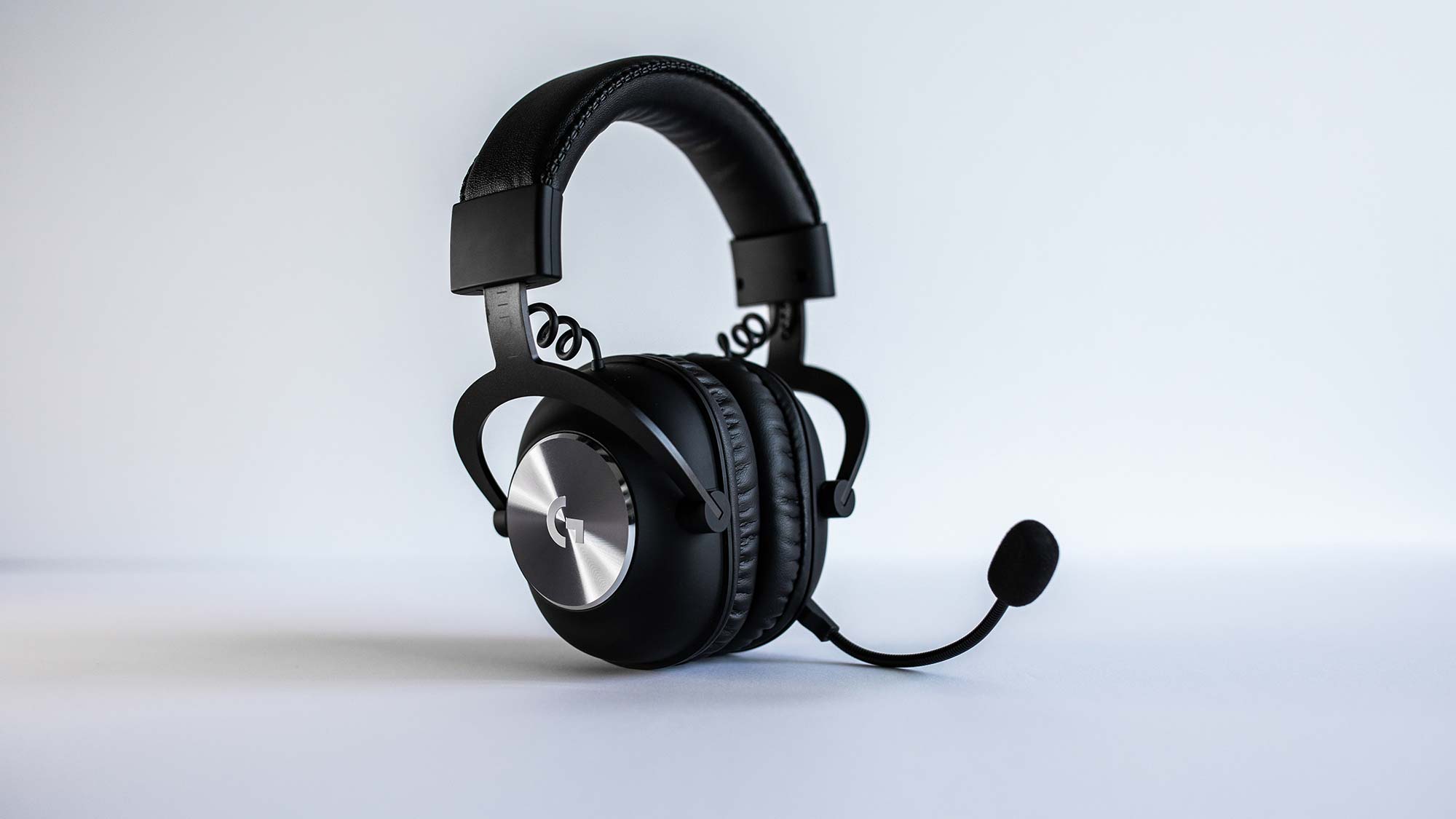
- Ensure the microphone boom arm is fully lowered into its active position, as this often activates the microphone on Jabra headsets.
- Check that the mute button on the headset is not engaged; an accidental mute is a common reason the other person can't hear you.
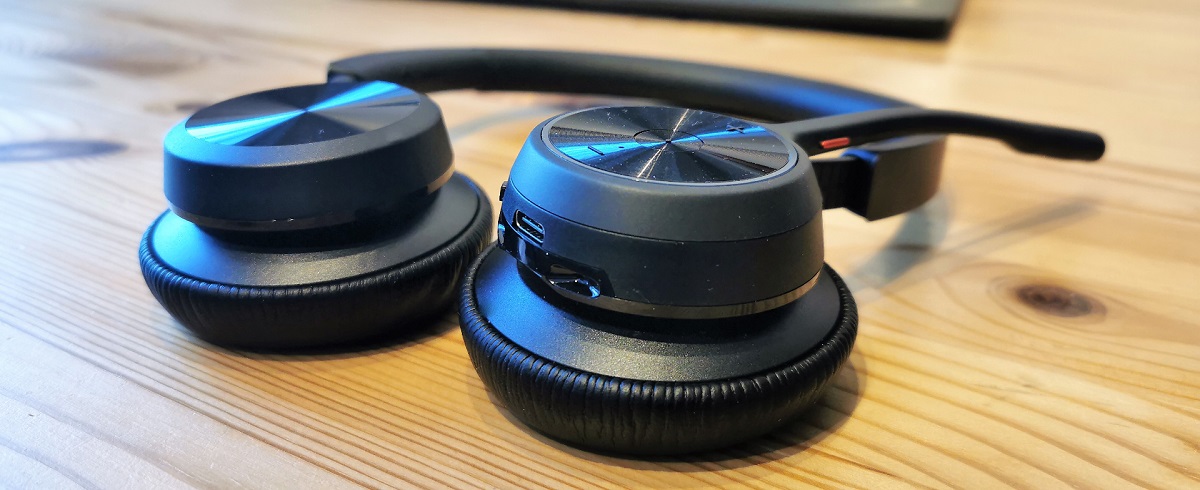
- Verify the headset's battery level, as a low battery can lead to connectivity problems and microphone malfunctions.
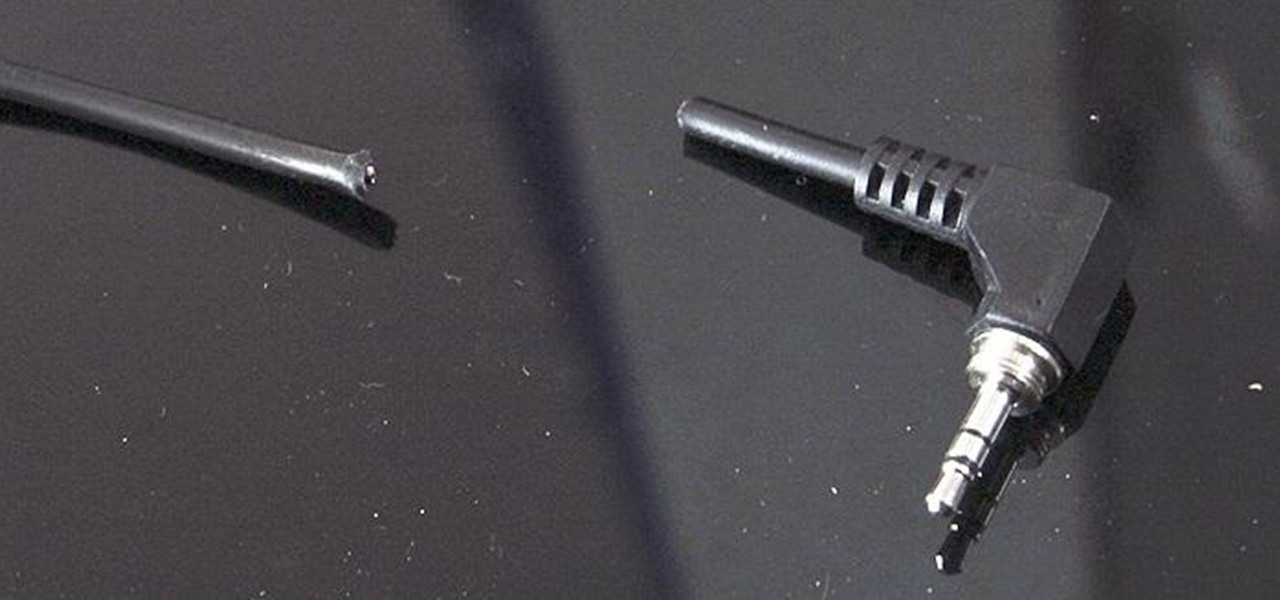
- Inspect the headset for any physical damage, such as broken cables or loose components, which could be causing microphone issues.
Restarting your Jabra headset and the connected computer or device can resolve many common microphone problems right after these physical checks.
Check your device's connection and default mic
When using a wireless Jabra headset with a computer, prioritize connecting via the supplied Jabra Link USB adapter and disconnect any direct Bluetooth pairing to the computer to avoid duplicate connections and ensure optimal performance. Confirm that your Jabra headset is selected as the default input (microphone) device in your operating system's sound settings (e.g., Windows System Settings > Sound, macOS System Preferences > Sound) and within any communication applications like Microsoft Teams or Zoom. Test the Jabra headset on a second computer or device to determine if the microphone issue lies with the headset itself or with the original device's configuration.
Adjust Windows microphone privacy and driver settings
- For Windows users, check Microphone Privacy settings by navigating to Windows Settings > Privacy & security > Microphone, ensuring "Microphone access" and "Let apps access your microphone" are turned On, and that specific applications like Microsoft Teams are allowed access.
- If your microphone disappears, disconnects, or stops responding on a Windows PC, try disabling "Intel Smart Sound Technology" in Device Manager under "Sound, video and game controllers."
- Ensure Jabra Direct is installed and correctly configured for your softphone; within Jabra Direct, navigate to "Softphones" and confirm your communication client (e.g., Microsoft Teams) is detected and selected.
Fine-tune audio in your calling apps
Review and potentially adjust noise suppression settings within communication applications like Microsoft Teams or Zoom; if your voice sounds muffled or robotic, setting noise suppression to "Off" or a lower level can help, as Jabra headsets often have built-in noise cancellation. Adjust the Sidetone level in Jabra Direct or the Jabra Sound+ app if you hear too much or too little of your own voice during calls; in Jabra Direct, find this under Device settings > Headset, and in Jabra Sound+, it's under Headset settings > Call experience.
Update firmware and reset your Jabra headset
Update your headset's firmware using the Jabra Direct desktop software, as outdated firmware is a frequent cause of microphone issues and updates can improve compatibility and audio processing. Perform a manual headset reset, which can clear saved pairings and customized settings, by holding the Answer/End Call button and the Volume Up button simultaneously for approximately three seconds on many Jabra models. If you need to look up the exact reset method for your specific device, start by identifying your Jabra headset model via the Jabra Direct software or the label on the headset itself.
Still having Jabra mic troubles?
If you've worked through all the steps above and your microphone still isn't working, the issue may require advanced diagnostics or a replacement. Contact Jabra Support through their official website or support hotline for further assistance.