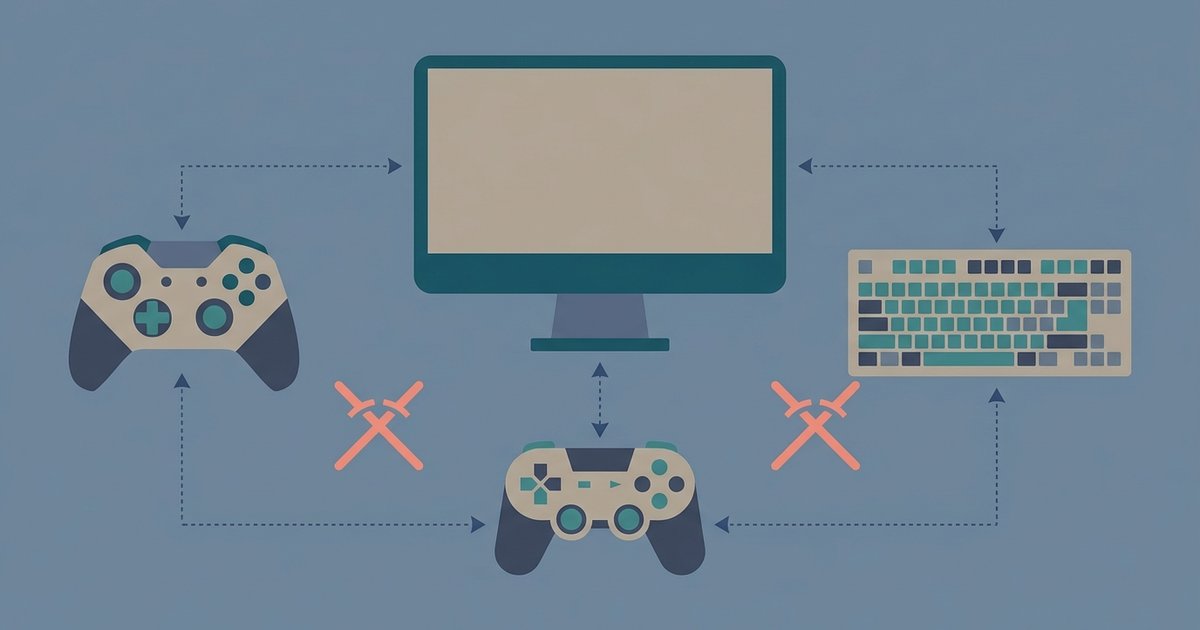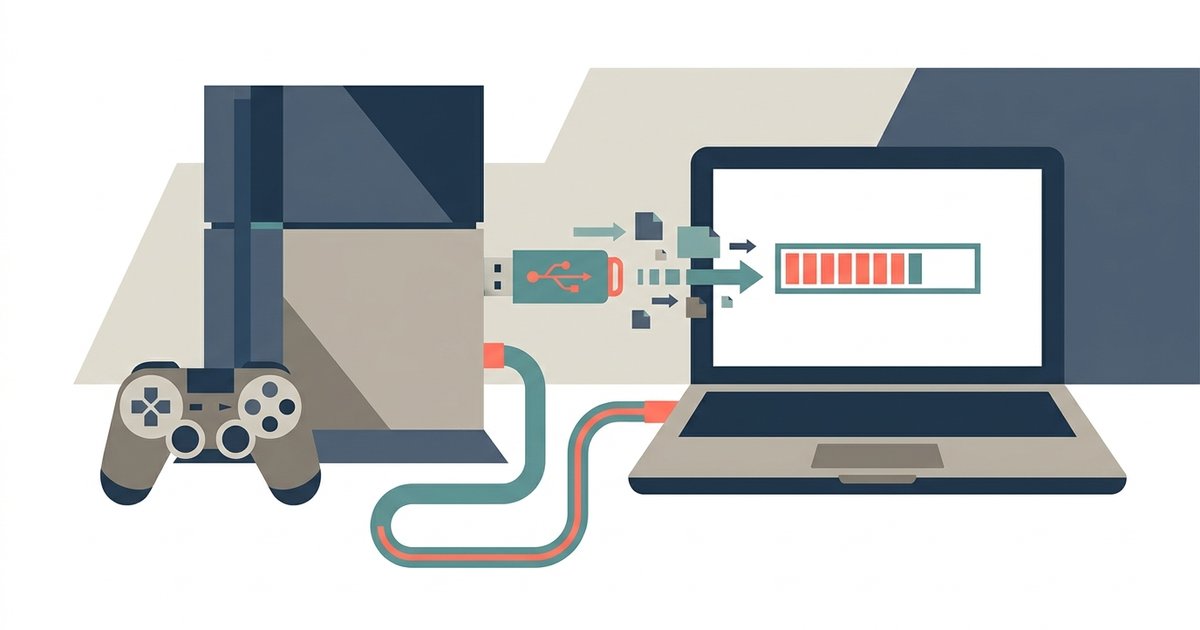
A GTA 5 story transfer from any console to PC was never supported. Rockstar shut down the old-gen console character transfer service for GTA Online in 2017; Story Mode transfers from console to PC were never supported. There is no official method to move that progress now. If you finished the story years ago on your Xbox 360, that save is permanently locked to that console. You will have to start fresh on your new PC unless you use a community workaround.
Why GTA 5 story transfers no longer work
Rockstar Games permanently disabled the GTA Online character transfer feature for Xbox 360 and PlayStation 3 in March 2017; Story Mode save transfers from these consoles to PC were never available. This decision aligned with the end of support for the old-generation consoles. It pushed players toward the enhanced versions on Xbox One, PlayStation 4, and PC. If you try to use any in-game GTA Online character transfer option on your Xbox 360 today, you will see an error message stating that the service is no longer available. The shutdown was not a temporary glitch. Rockstar explicitly announced it as a permanent closure. Any story mode progress still sitting on your old hard drive cannot be officially transferred to PC. There is no hidden menu, no Rockstar support ticket, and no backward-compatible trick that can resurrect a console-to-PC Story Mode transfer path, as it never existed.
What you can actually move to PC
The only progress ever eligible for cross-platform transfer was GTA Online character data. That window closed years ago for old-gen accounts. Players could move their GTA Online character, money, level, and properties from Xbox 360 or PS3 to PC, Xbox One, or PS4. That one-time transfer was limited to a single migration per account. Rockstar ended the service for old-gen consoles in March 2017. If you never performed that transfer during the available period, your GTA Online character is also stranded. For story mode, there was never any official cross-platform transfer option between different console families or from console to PC. Each platform’s save file is encrypted differently and cannot be read by the PC version of the game. So if you want to keep your old-gen story progress, you cannot move it; you can only rebuild it.
How to quickly rebuild your story progress on PC
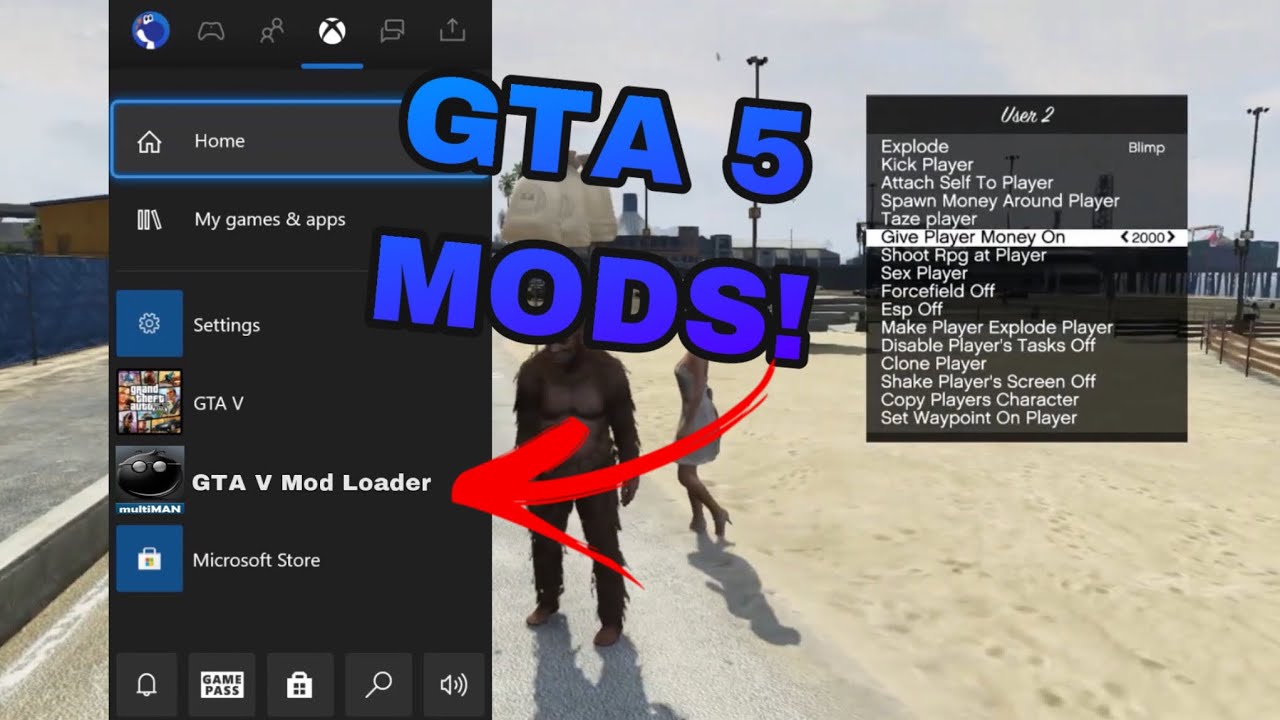
Since an official transfer is impossible, the fastest way to resume your old progress is to download a 100% complete save file from the community. Websites like Nexus Mods and GTAForums host verified save files that match the PC version’s format. These let you skip straight to any chapter or post-game state. To use one, you first need to install the game, so you must download GTA 5 from the Rockstar Games Launcher or Steam. Then copy the downloaded save into the `%USERPROFILE%\Documents\Rockstar Games\GTA V\Profiles` folder. If you prefer to recreate your exact milestones, you can use a mod menu such as Menyoo or Simple Trainer to manually set your money, access all weapons and vehicles, and skip to any mission checkpoint. For players interested in the multiplayer side, you can also download GTA 5 RP on PC to join roleplay servers that offer a fresh start with custom progression systems. If you are coming from a mobile device, note that there is no official mobile version of GTA 5. You can download GTA 5 on mobile via streaming apps like Xbox Cloud Gaming or GeForce Now, though you cannot import old saves there either. Finally, if you are looking for a free copy, you should not download GTA 5 for PC free full version from unofficial sources. Those are almost always scams or malware. Instead, wait for a legitimate sale on Steam or the Rockstar Store. Once you have a save file or mod tools in place, you can load the game and pick up right where you left off, without replaying every mission from the beginning.