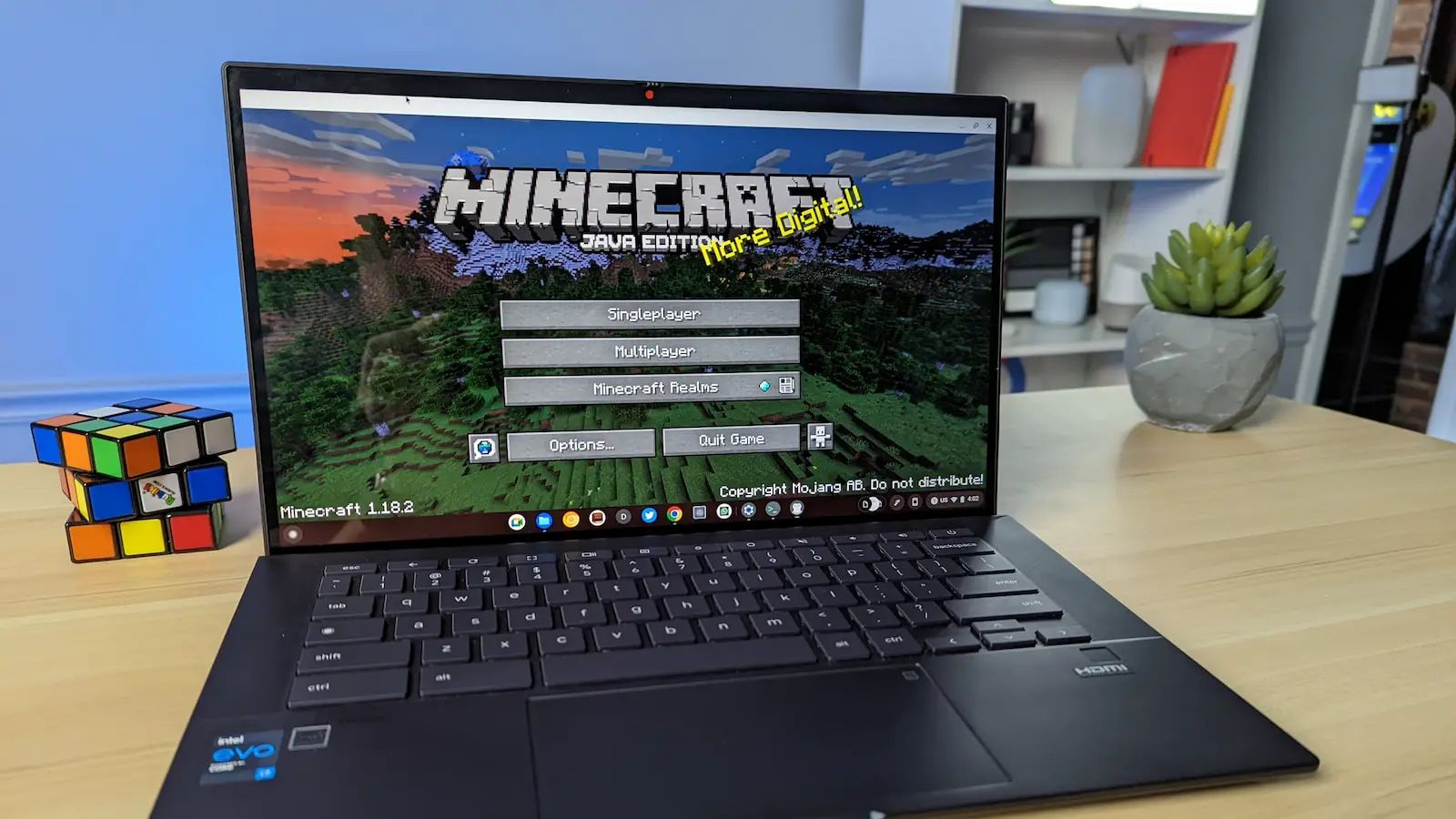
Yes, you can play Minecraft on a school Chromebook without downloading anything by using browser-based versions that run directly in Chrome. These options require no installation, launcher, Java runtime, or administrator permissions, making them ideal for locked-down school devices.
Can you play Minecraft on a school Chromebook without downloading?
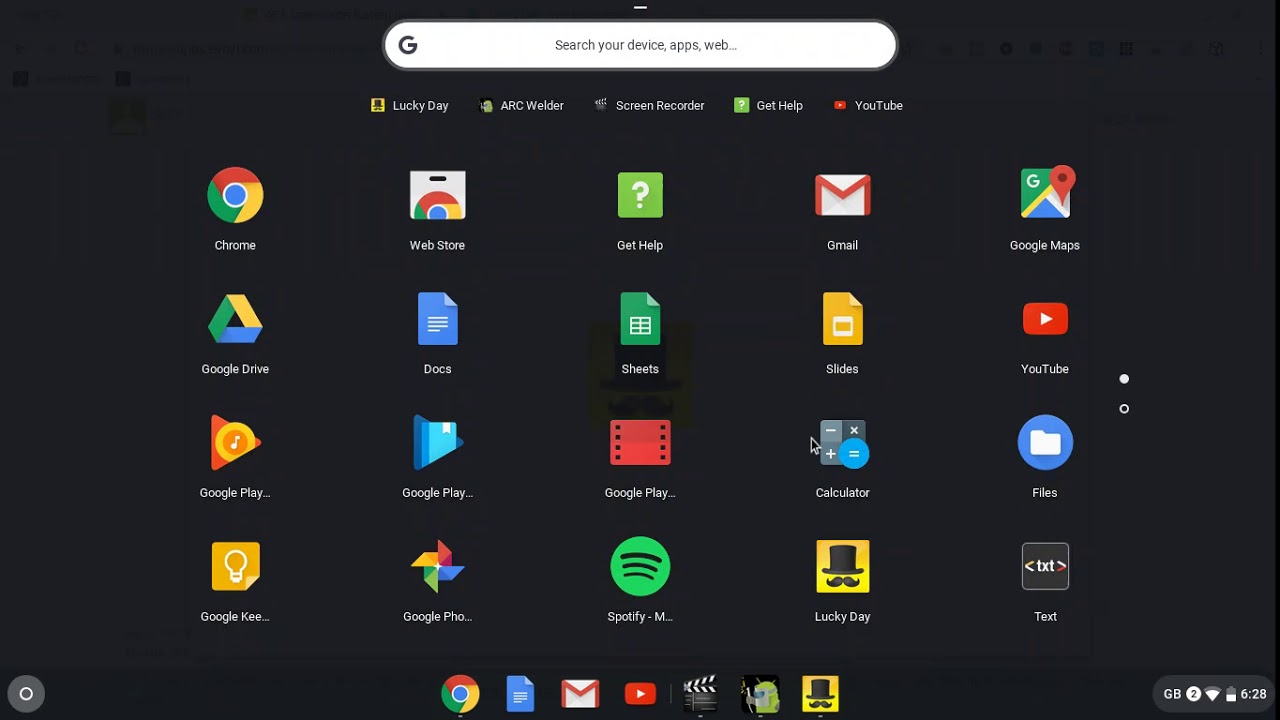
School Chromebooks are typically locked down with strict restrictions that prevent installing apps from the Google Play Store or running executable files. This makes standard methods of playing Minecraft impossible for most students. However, browser-based Minecraft versions bypass these restrictions entirely because they run inside a web browser with WebGL support. No download, no installation, and no admin rights are needed, just a working internet connection and a compatible browser.
Why Minecraft: Education Edition and Bedrock Edition won't work
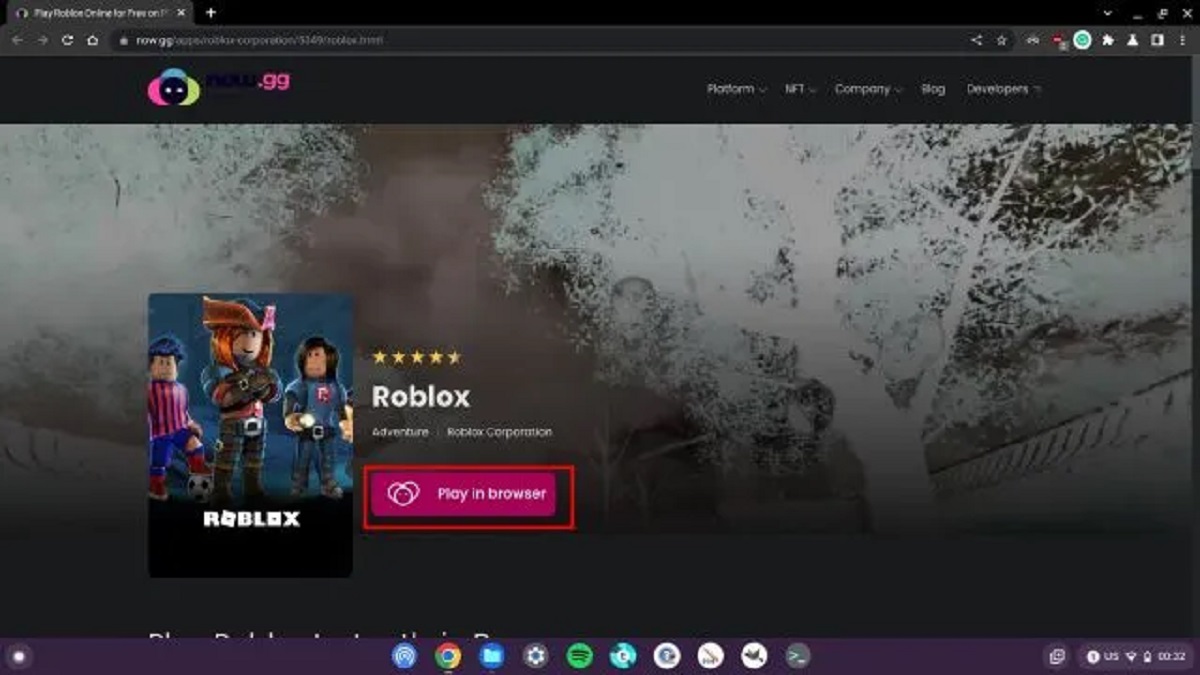
Minecraft: Education Edition is available for Chromebooks but requires downloading the app from the Google Play Store, which violates the "without download" requirement. Additionally, it typically requires a school-administered Microsoft 365 Education account for full access, meaning most students cannot use it without school-provided credentials. Minecraft: Bedrock Edition is also officially available for Chromebooks via the Google Play Store, but it too requires downloading the application. Neither option works for students who cannot install software or log in with a school account, though if the Play Store itself is blocked, you can still access blocked websites at school without VPN to reach it, and a similar workaround lets you download Roblox on Chromebook without play store.
Option 1: Play Minecraft with Eaglercraft in your browser
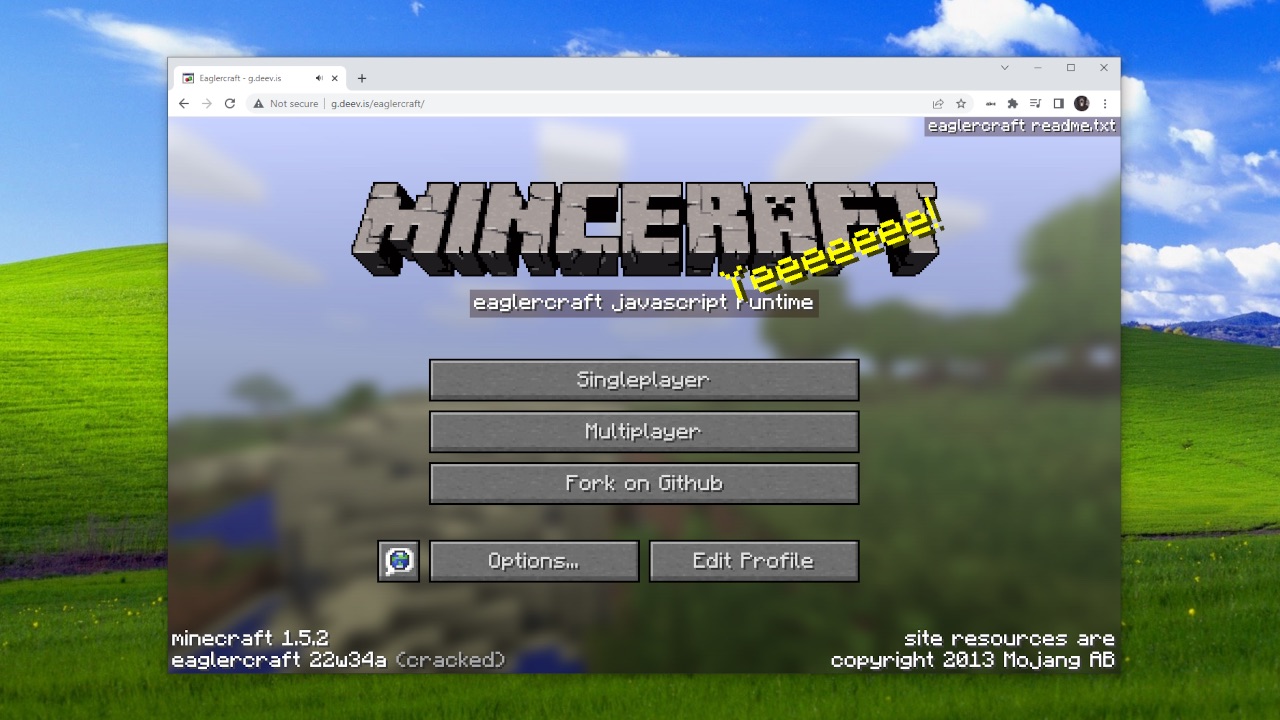
Eaglercraft is a full browser-based port of Minecraft Java 1.8 and 1.12.2 that runs entirely in your browser without any installation, launcher, or Java runtime. It requires only a web browser with WebGL support, which nearly all modern Chromebooks have. This means you can play a near-complete version of Minecraft directly in Chrome, including survival mode, creative mode, and multiplayer functionality. Eaglercraft is the most feature-rich option available for playing Minecraft on a school Chromebook without a download.
Option 2: Try alternative browser-based Minecraft versions
If your school's network filters or firewalls block access to Eaglercraft, you have backup options. Websites like mineplay.io offer browser-based Minecraft experiences that also require no download or installation. Minecraft Classic, the original free browser version, provides a simplified experience but still lets you explore, build, and mine in a blocky world. These alternatives are useful when your primary choice is blocked, though they offer fewer features than Eaglercraft.
Step-by-step: How to start playing in your browser
- Open the Chrome browser on your school Chromebook and ensure you have a stable internet connection.
- Navigate to a trusted website that hosts a browser-based Minecraft version, such as Eaglercraft or mineplay.io.
- If the site requires an account, create a free one by providing a username and password, no email may be needed for some sites.
- Click the play button or start option to launch the game directly in your browser window.
- Use basic controls: WASD or arrow keys to move, spacebar to jump, mouse to look around, left-click to mine or attack, and right-click to place blocks.
- Select a game mode (Survival or Creative) and begin exploring, gathering resources, and building structures.
What to do if your school blocks gaming websites
School network filters or firewalls may still block access to specific websites, including browser-based Minecraft games. If you cannot reach Eaglercraft or similar sites, first check with your school's IT department or administrator to see if gaming sites are permitted. If they are not, try alternative browser-based sites that might not be on the block list. Remember that no amount of troubleshooting can bypass a school's network policy if it is strictly enforced, so always follow your school's rules.
For the wider topic, see get sims 4 on Chromebook.