To allow download over cellular on your iPhone or Android phone, you need to flip one key setting in the App Store or Play Store, and then optionally fine-tune per-app permissions. The exact steps differ by platform, but the core idea is the same: change the download preference from “Wi-Fi only” to “any network” or “over cellular.”
Allow download over cellular on iOS
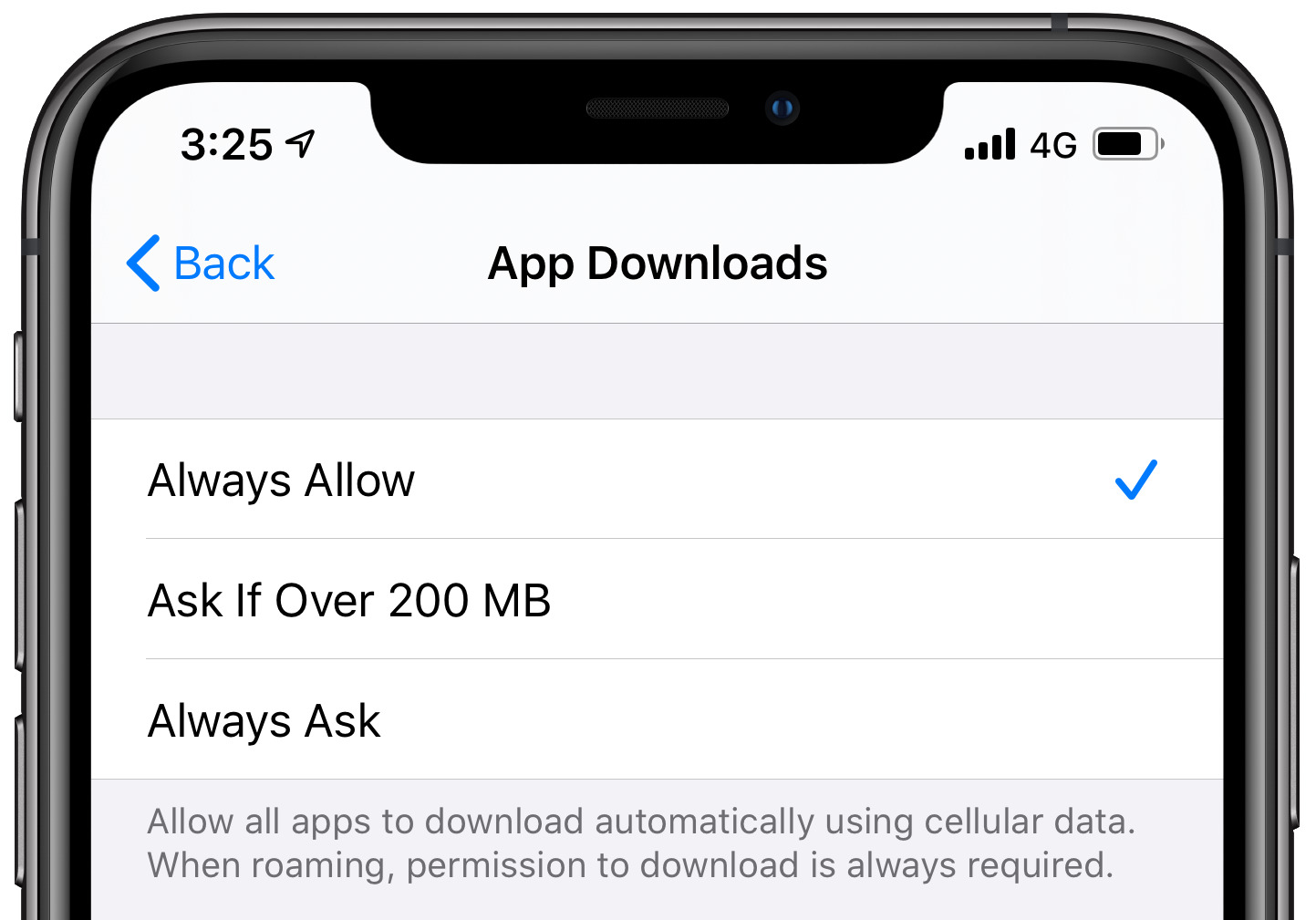
On an iPhone or iPad, the main toggle for app downloads lives in the Settings app, not inside the App Store. Open Settings, then tap “Cellular” (or “Mobile Data” in some regions). Scroll down to the section labeled “App Store.” Here you’ll see a switch called “App Downloads.” To allow download over cellular, turn this switch ON. If it’s already on, you’re done, apps will download over cellular without asking. If it’s off, the App Store will block downloads until you connect to Wi‑Fi, which is often the cause of a failed download when you’re away from home. If you need to lift the 200 MB size limit that still blocks larger apps, you can change download settings from Wi-Fi to mobile data in the same menu.
Beyond the master switch, iOS also gives you per‑app cellular permissions. In the same Settings > Cellular screen, scroll further down to the “Use Cellular Data For” list. Every installed app appears here with its own toggle. If an app’s toggle is off, that app cannot use cellular data for any download or background refresh. To allow a specific app, like a podcast player or a cloud storage app, to download over cellular, flip its individual switch to ON. This is useful when you want the App Store to use cellular but prefer to keep other apps on Wi‑Fi only.
One note: iOS does not offer a size‑limit slider for cellular downloads. Instead, the App Store automatically prompts you when an app or update is larger than 200 MB. You can tap “Continue” to proceed over cellular, or “Cancel” to wait for Wi‑Fi.
Allow download over cellular on Android
Android’s main control is inside the Google Play Store app, not the system Settings. To allow download over cellular, select “Over any network” in the download preferences. This applies to new app installs and app updates.
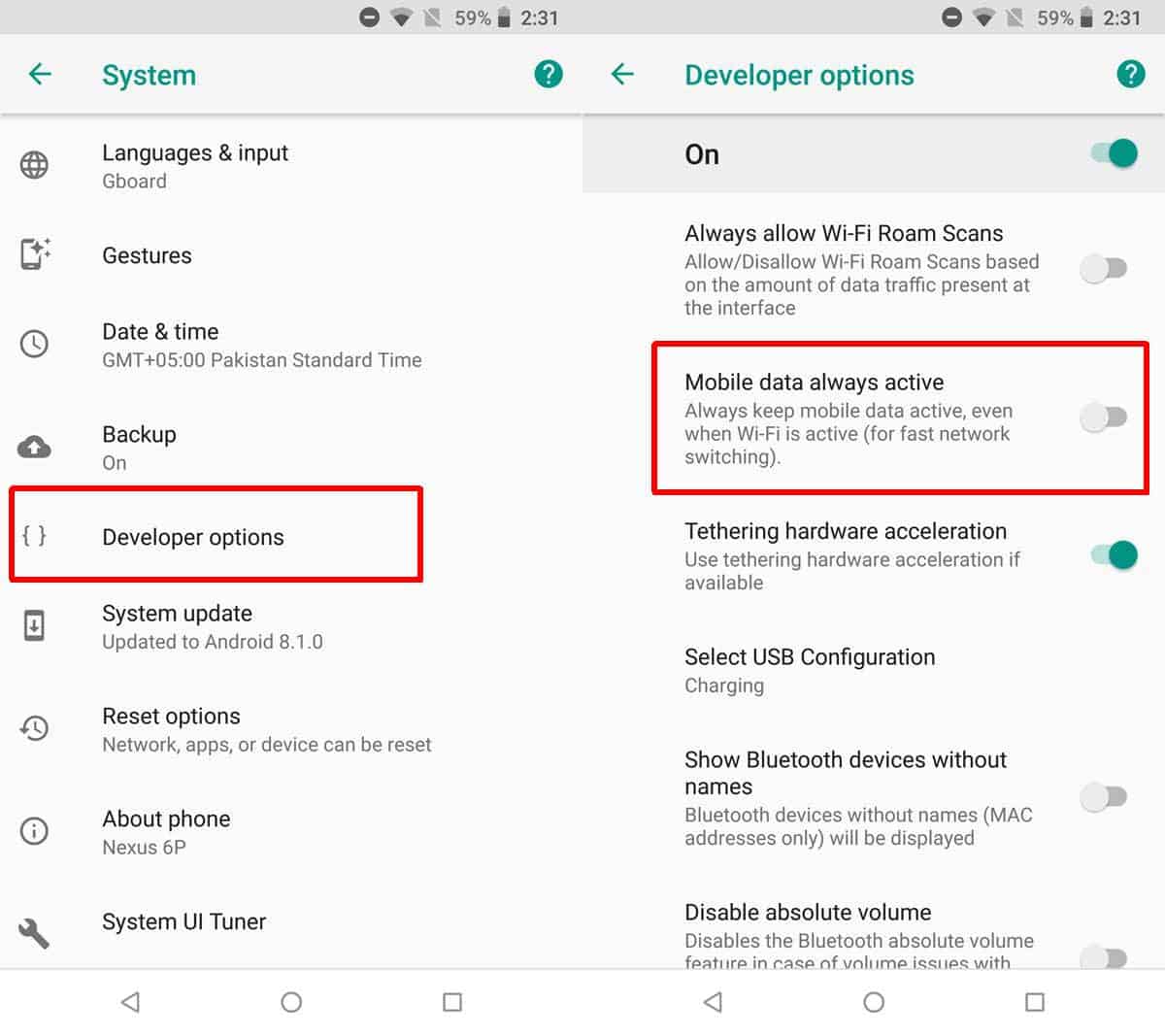
Turning off background data for a specific app prevents it from downloading content in the background over cellular, while still allowing manual downloads when you open the app. This is the Android equivalent of iOS’s per‑app list, but it’s more granular, you can separate foreground from background usage.
Set automatic downloads to use cellular data
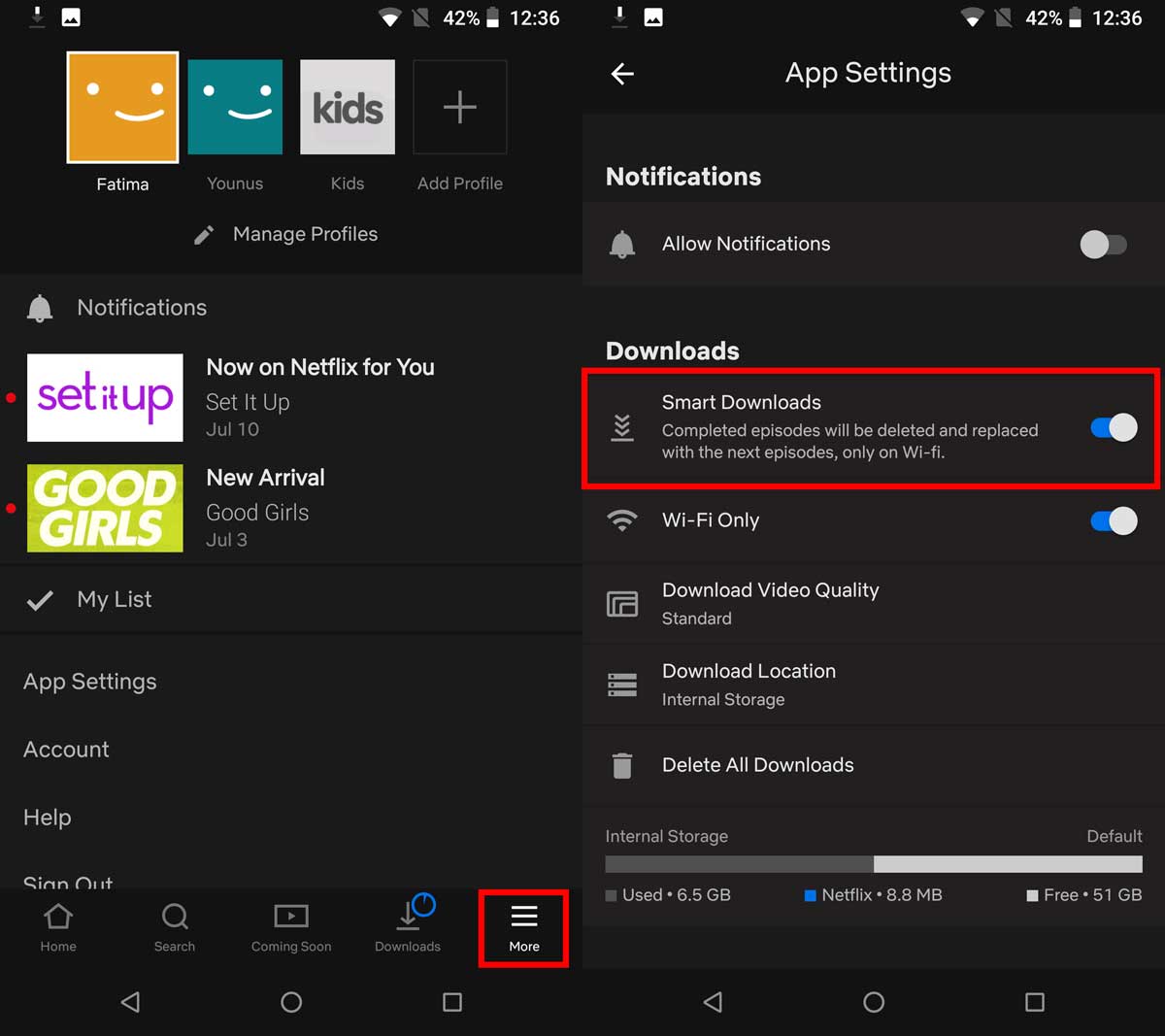
If you want apps, music, or books to update themselves without your input, you can enable automatic downloads over cellular. On iOS, go to Settings > App Store (or Settings > Apple ID > Media & Purchases, then “Automatic Downloads”). Toggle ON “App Updates,” “Music,” “Books,” and “Podcasts” as desired. When these are ON, your device will download new content over cellular as soon as it’s available, no Wi‑Fi needed. For media, open the individual app’s settings, e.g., Spotify’s “Download over cellular” toggle or Netflix’s “Download over cellular” option, and enable it. Be cautious here: automatic updates can eat through your data plan quickly, especially if you have many apps or subscribe to large podcasts. If your plan has a low cap, consider leaving auto‑updates on Wi‑Fi only and manually triggering downloads when you’re on a cellular connection.
Control cellular downloads per app
Granular control is the best way to balance convenience and data usage. On iOS, the Settings > Cellular screen lists every app with a toggle. Flip OFF any app you don’t want to use cellular data, this stops both downloads and background refresh. Flip ON only the apps that absolutely need to download over cellular, like a navigation app that pulls map updates or a messaging app that fetches attachments. On Android, the per‑app data usage screen (Settings > Network & internet > Data usage > App data usage) lets you restrict background data for individual apps. You can also use “Data saver” mode, which blocks background data for all apps by default; then you can whitelist specific apps by tapping “Unrestricted data access” in their app info page. This way, only the apps you choose can download over cellular, and everything else waits for Wi‑Fi.
Avoid large downloads eating your data plan
Even with the right toggles, large files can drain your monthly allowance in minutes. On iOS, the App Store’s 200 MB prompt is your built‑in guardrail; you can’t change the threshold, but you can always tap “Cancel” and wait for Wi‑Fi. For media apps, check their internal download settings, most podcast apps, music services, and video platforms have a “download over cellular” toggle that you can turn OFF to prevent large files from downloading automatically. A practical habit: if you’re about to download a large file (a game, a movie, a big update), check your data usage in Settings first. On Android, go to Settings > Network & internet > Data usage and see the current cycle’s total. If you’re near your cap, switch the download to Wi‑Fi, or wait until you’re on a free network.
\nRelated reading: How To Connect Hotspot To Tablet and Connecting Hotspot From iPhone To Android: User Guide.