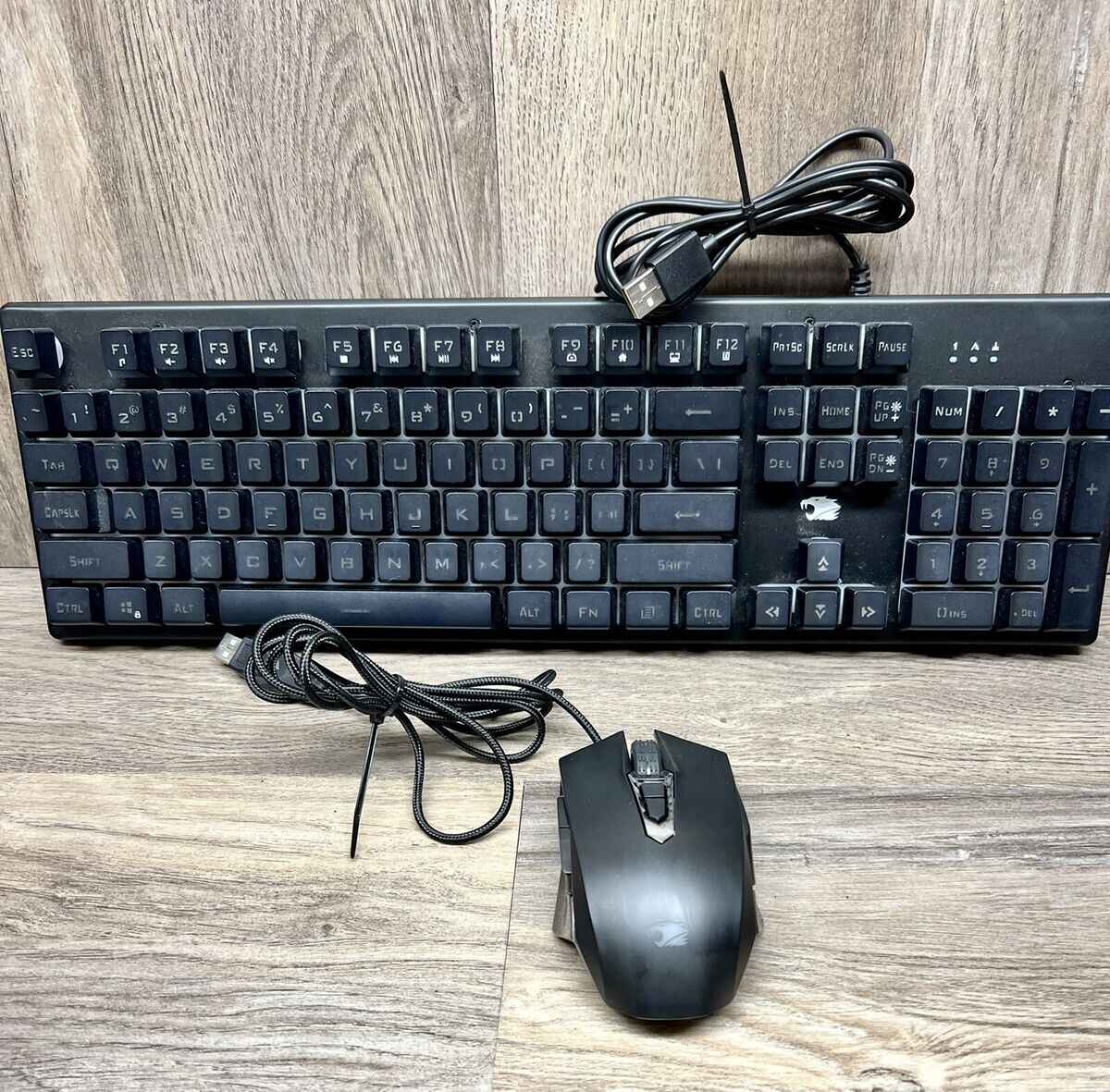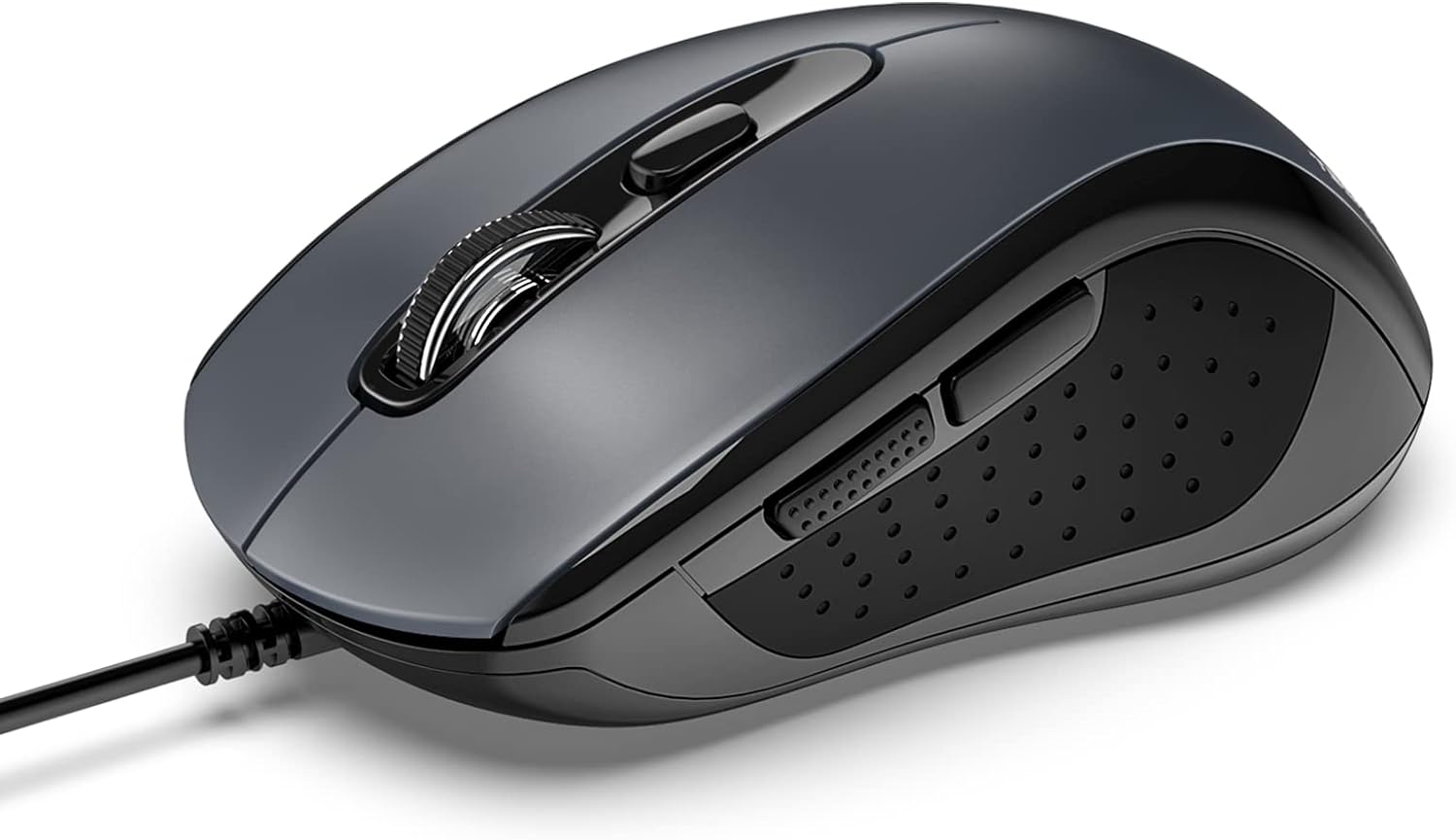
To program tecknet gaming mouse buttons, you must download and install the official Tecknet driver software, which allows you to remap each button and create custom macros for your games. If your device lacks dedicated software, you can often configure zelotes gaming mouse models using the same universal methods, and you can apply a similar approach to set up macros on ibuypower standard gaming mouse for complex command sequences. This process is essential for unlocking the full potential of your mouse, turning it into a personalized tool that executes complex commands with a single click.
Before you start: is your Tecknet mouse programmable?
Before investing time in software, you must confirm your specific Tecknet model supports button programming. This is a critical first check that can save you significant time and frustration. Not all Tecknet gaming mice are programmable; some models, like the TECKNET Ergonomic Wireless 4800 DPI Gaming Mouse and the TeckNet WM289, are explicitly plug-and-play devices with non-programmable buttons. If you own one of these models, you will not be able to remap any buttons or create macros. For all other models, proceed to the steps below.
How to program tecknet gaming mouse buttons
The goal is straightforward: download the official driver software, remap your mouse buttons to new commands or keyboard keys, and create complex macros for repetitive in-game actions. This entire process is handled through the dedicated software, giving you full control over your mouse's behavior for gaming and productivity. Understanding how to program tecknet gaming mouse buttons is the key to programming gaming mouse buttons and macros that give you a competitive edge.
Downloading and installing the Tecknet driver software
- First, connect your Tecknet gaming mouse to your PC via USB.
- Navigate to the official Tecknet website (tecknet.com or tecknet.co.uk) or check the user manual that came with your mouse for a direct download link.
- Find the correct driver for your specific mouse model. The software is typically an executable file, such as "TECKNETM009.exe" or "EstCfgEx3.exe".
- Download the file and run it to begin the installation process. Follow the on-screen prompts to install the software on your computer.
Launching the software and selecting a button to program
- After installation, launch the software. You can usually find it through a desktop shortcut or by searching for "Run TeckNet M009 Driver" in your Start menu.
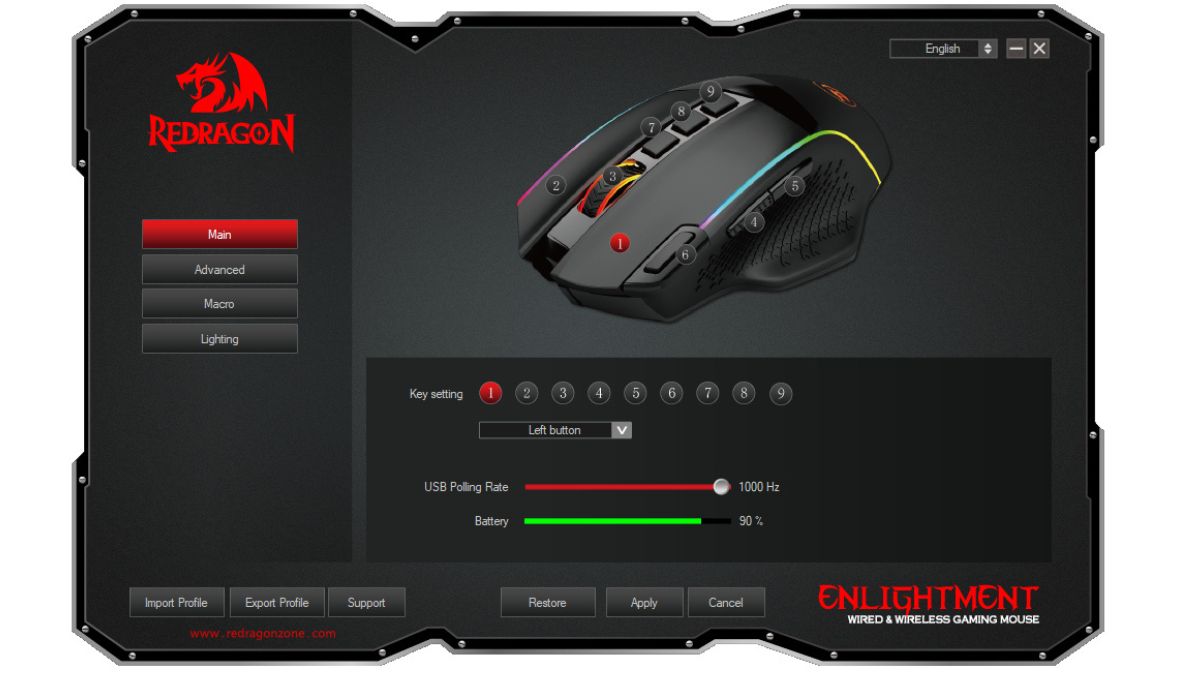
- The main control panel will display a visual representation of your mouse. Click on the specific button you wish to program. A drop-down menu or pop-up window will appear, presenting various command options for that button.
Assigning a new command or keyboard key to a button
- From the command options, you can choose from categories like "Basic Commands," "Multimedia Commands," or "Additional Commands" to assign a predefined function.
- To assign a specific keyboard key, select the "Assign Keyboard Key" option. A pop-up window will appear where you can input a single key or a key combination (like Ctrl+C or Shift+W).
- After making your selection, the button will be assigned that command or keystroke.
Creating and recording a macro for complex actions
- For complex sequences of actions, navigate to the "Macro setting" option in the software.
- Click "New" to create a new macro. Then, click "Start Recording" to begin capturing your keystrokes.
- Input the exact sequence of keys you want the macro to perform. When finished, click "Stop Recording."
- You can adjust advanced options like "Loops Timer" and "Rec Time" to set delays and repetitions for your macro sequence.
- Click "OK" to save the macro. You can then assign this macro to any programmable button on your mouse.
Saving your custom profile and settings
- This is the crucial final step. Before exiting the software, you must click "Save" or "Apply" to ensure all your button assignments and macros are retained by the mouse.
- The software typically allows you to create and save multiple custom profiles. You can name each profile for different games or applications, enabling quick switching between your preferred configurations.