Why Your Xbox Audio Is Crackling
Xbox crackling audio is almost always a fixable issue caused by loose connections, wireless interference, or incorrect audio settings on your console, TV, or headset. Before assuming your hardware is failing, work through the troubleshooting steps below in order, most users resolve the static by reseating an HDMI cable or adjusting a single setting in the Xbox menu.
Restart and Update Your Xbox Console
The simplest first step is a full restart, which clears temporary glitches that often cause audio crackling. Press and hold the Xbox button on your controller, select "Restart console," then "Restart." After the console powers back on, check for system updates by navigating to "Profile & system" > "Settings" > "System" > "Updates." Installing the latest firmware can resolve known audio bugs, especially if the crackling started after a recent update or accessory connection.
Check Your HDMI and TV Connections
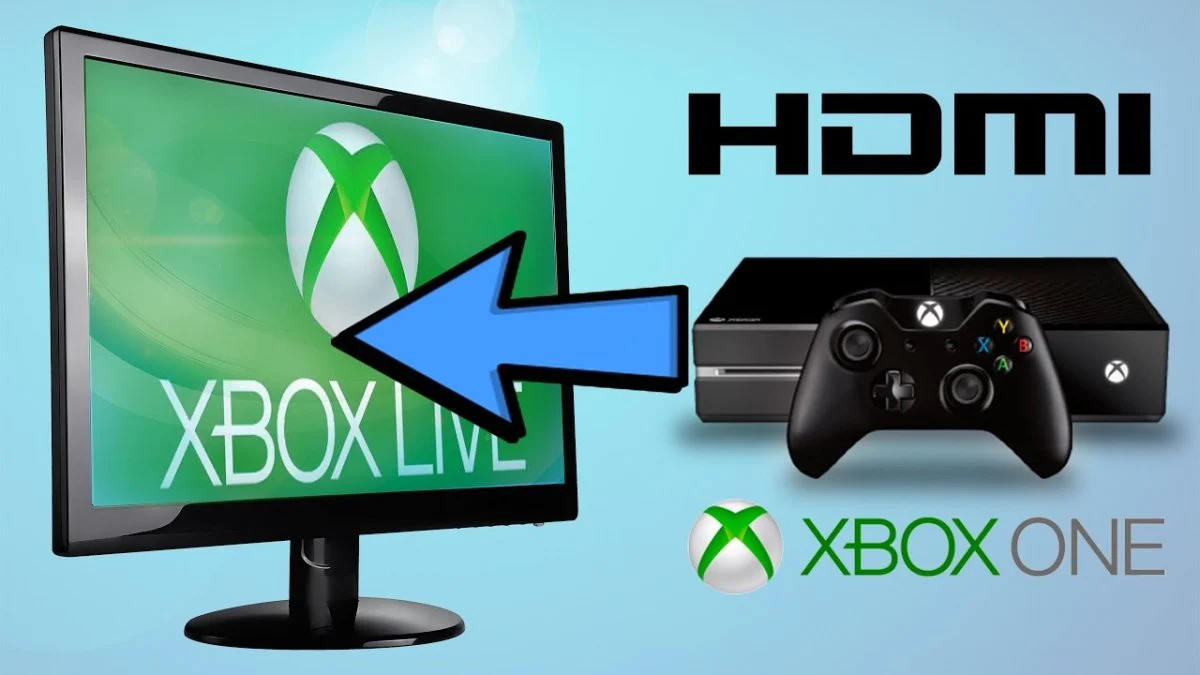
Loose or damaged HDMI cables are the most common physical cause of Xbox crackling audio. Inspect the cable running from your console to the TV for fraying, bent pins, or kinks, if you see any damage, replace it. Reseat the cable firmly at both ends, then use compressed air to blow out dust from the HDMI ports on the TV and console. Also verify the TV's display setting is correct: press the Xbox button, go to "Profile & system" > "Settings" > "General" > "TV & display options" > "Video fidelity & overscan," and confirm "HDMI" is selected under "Display." If your TV has multiple HDMI inputs, try a different port to rule out a faulty jack.
Run the Xbox Audio Setup Tool
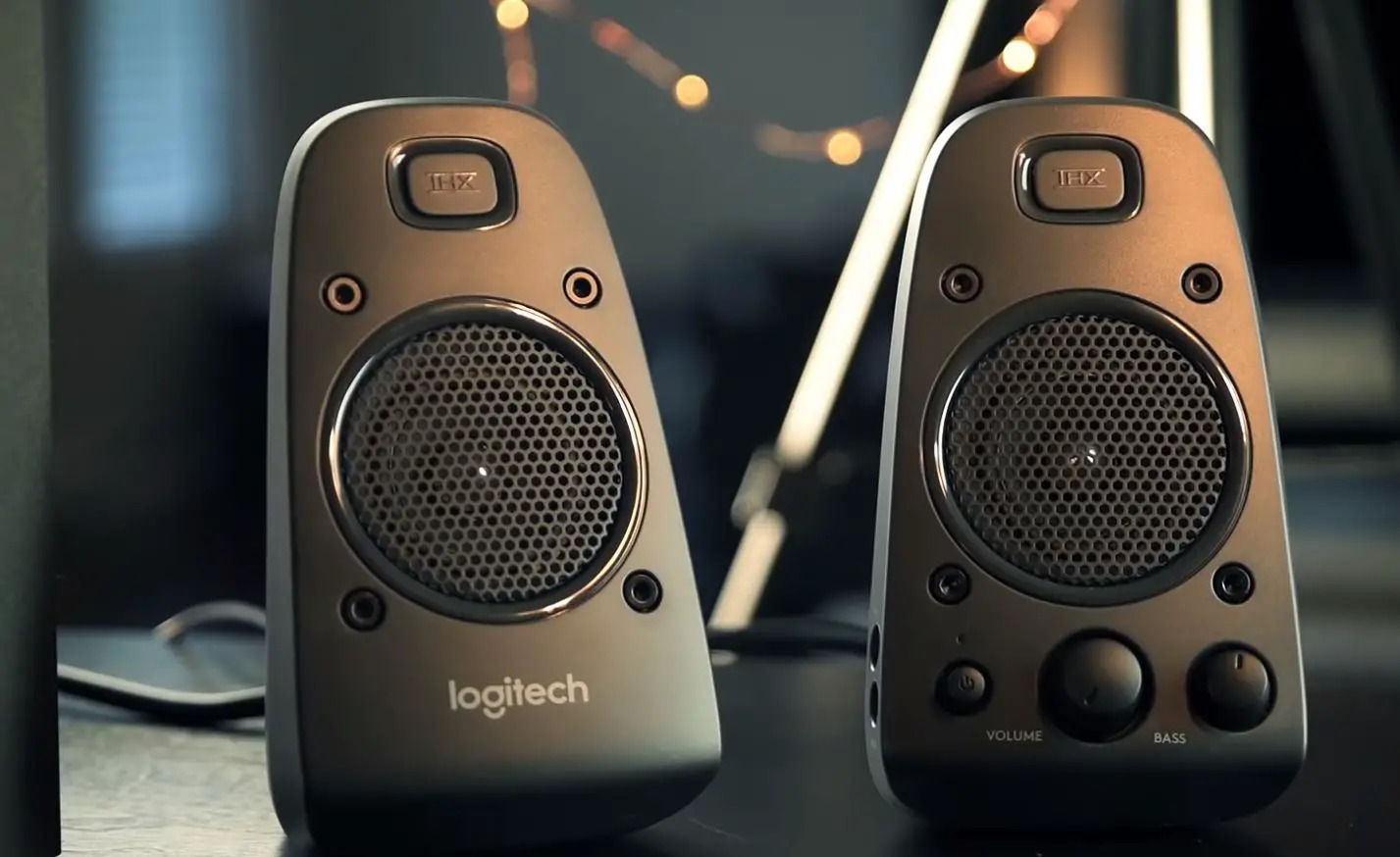
For surround sound speakers or wireless soundbars, the console's automatic audio configuration can eliminate crackling caused by mismatched formats. Navigate to "Profile & system" > "Settings" > "General" > "Volume & audio output," then select "Audio setup" under the "Advanced" column on the right. The tool will test your speaker configuration and apply the optimal settings for your soundbar or surround system. This step is especially useful if you recently changed your TV or receiver, as the Xbox may still be sending an incompatible audio signal.
Fix Crackling in Party Chat with the Chat Mixer
If the static only appears during voice chat while game audio plays in the background, the chat mixer is likely the culprit. Open the guide by pressing the Xbox button, then go to "Profile & system" > "Settings" > "General" > "Volume & audio output" > "Advanced" > "Additional options" > "Chat mixer." Reduce other sounds by 50% or 80% to lower the game volume relative to chat, this eliminates the audio clipping and interference that produces crackling in party chat. You can also test different mixer presets to find the balance that clears up the static.
Inspect Wired Headsets and Controller Jacks
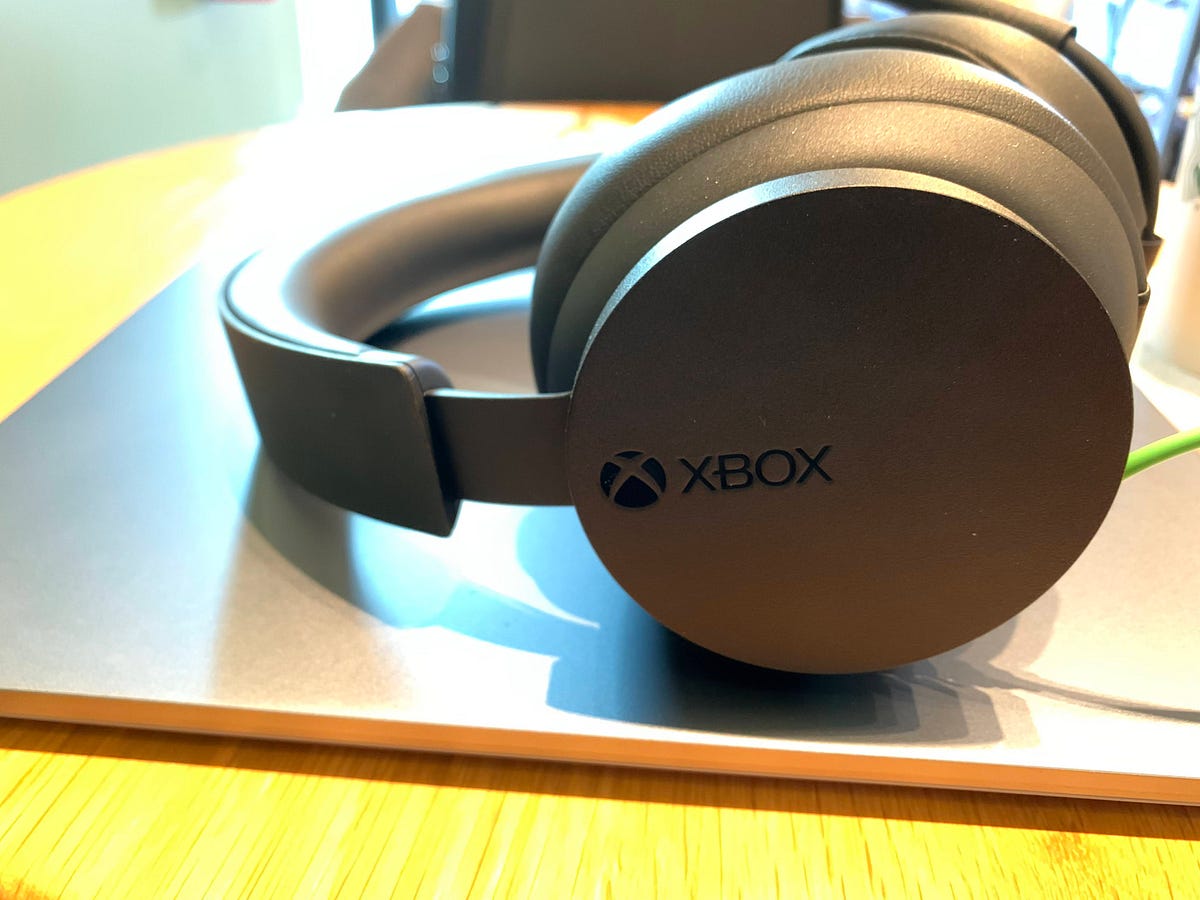
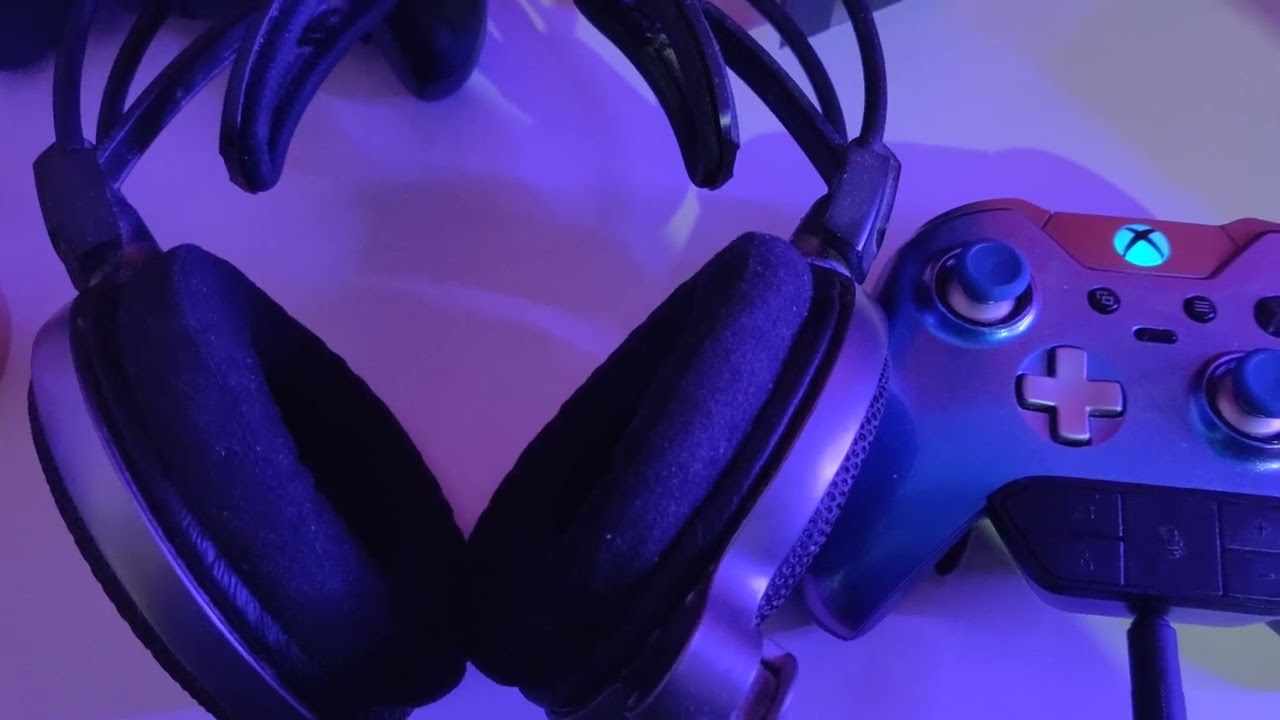
For wired headphones connected to your controller, the problem often lies in the physical connection. Disconnect the audio cord and inspect it end-to-end for fraying, exposed wires, or a bent plug, if you see any damage, replace the cable. Use compressed air to blow out the controller's 3.5mm jack, removing dust or debris that can cause intermittent contact and crackling. While the cable is unplugged, check the controller's port for bent pins or obstructions. If the headset uses a detachable cable, try swapping in a different one to isolate whether the issue is the cord or the headset itself.
Test with Different Cables and Devices
Isolating the problem is the fastest way to determine whether your Xbox, TV, or accessories are at fault. Swap the HDMI cable with a known-good one, if the crackling disappears, the original cable was defective. Next, plug your headset or soundbar into a different device like a phone or PC; if the audio is clean there, the accessory is fine and the issue lies elsewhere. Conversely, if the crackling persists on another device, the headset or soundbar may need repair or replacement. This step also helps rule out the TV's internal speakers or audio processing as the source of the static.
When to Contact Xbox Support
If the crackling persists after completing all the steps above, it may indicate a failing internal component such as the HDMI port, audio chip, or wireless module, at this point, you should contact official Xbox support. Reach out through the Xbox Support website or app, and be prepared to describe when the crackling occurs (during games, in menus, or across all apps) and which troubleshooting steps you've already tried. The support team can run remote diagnostics, and if they determine the console has a hardware fault, they'll arrange a repair or replacement under warranty. Do not attempt to open the console yourself, as this voids your warranty and risks further damage.
\nRelated reading: PS5 Audio Hiccups: Fixing Cutting Out Issues, Xbox Audio Boost: Making Your Headset Louder, and Rig Headset Mic Woes: Troubleshooting And Fixes.