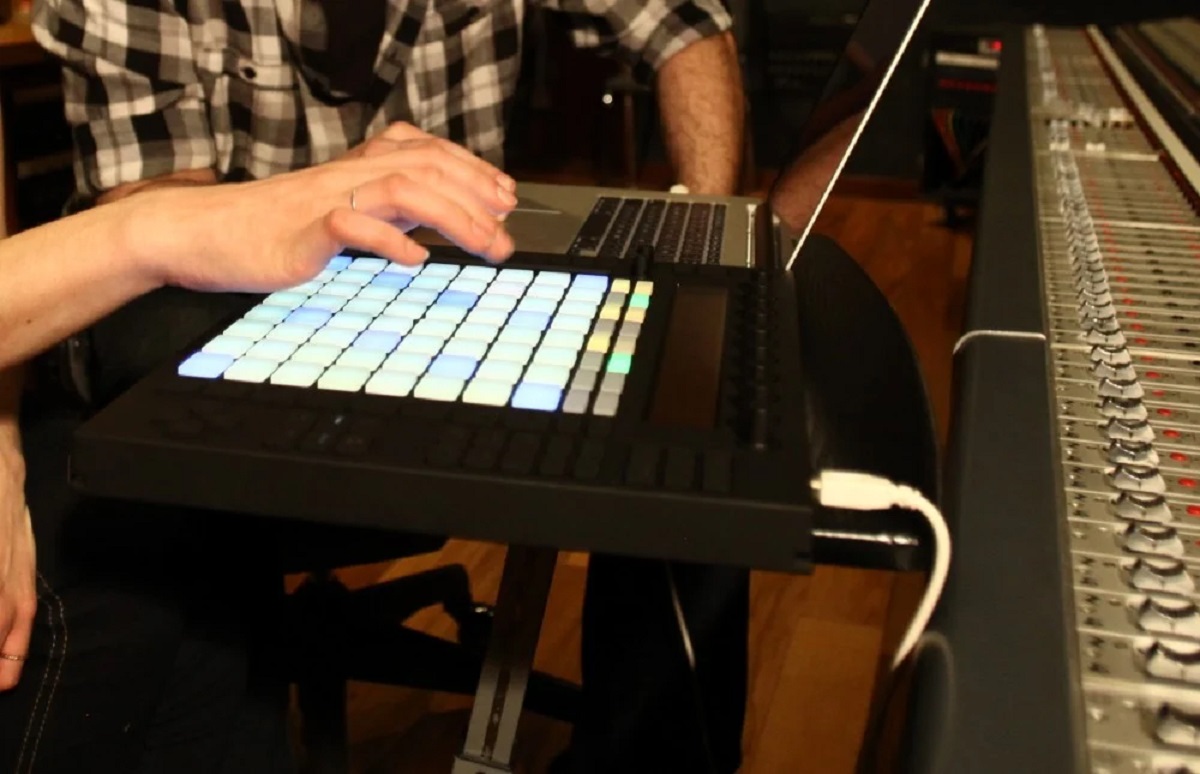
To change the octave of Ableton Live's built-in computer MIDI keyboard, press the **Z** key on your QWERTY keyboard to shift the pitch down by one octave, or press the **X** key to shift it up by one octave. This is the core of the ableton computer MIDI keyboard octave control, letting you instantly reach higher or lower notes without touching your mouse.
What is Ableton's computer MIDI keyboard?
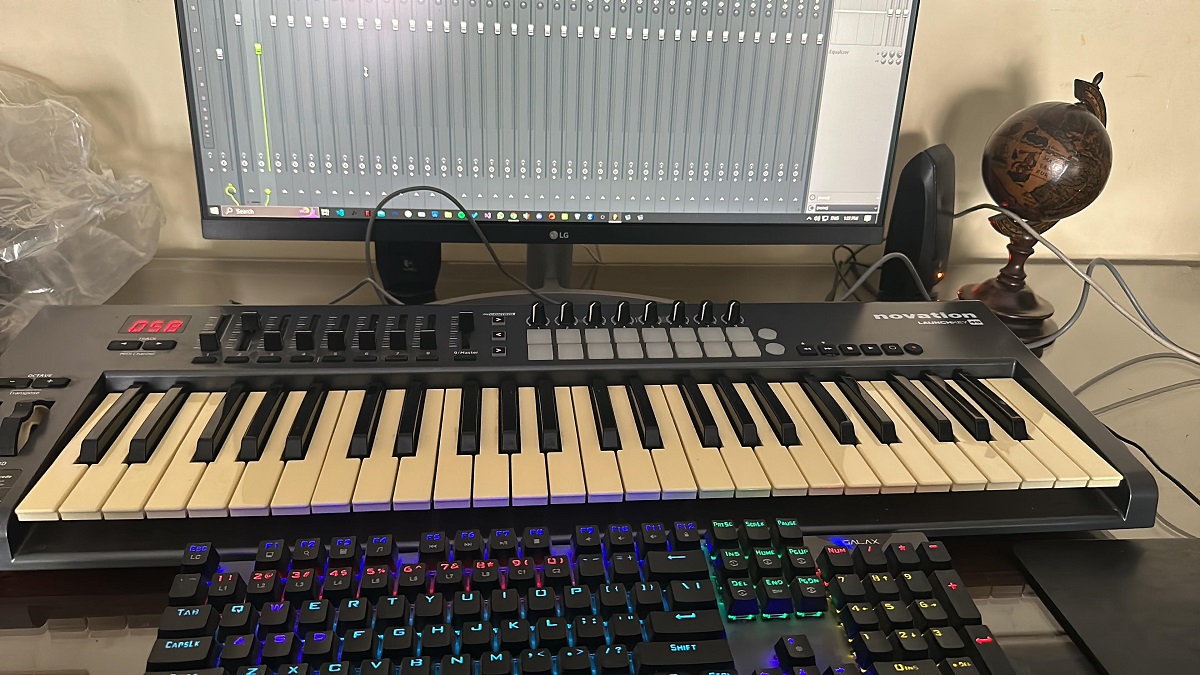
Ableton Live includes a feature that turns your computer's QWERTY keyboard into a musical instrument. When activated, the rows of keys on your computer keyboard map to piano notes, allowing you to play melodies, basslines, and chords directly into a MIDI track. To turn it on, click the keyboard symbol in the top right corner of the Live interface, or press the **M** key on your computer keyboard. Once active, the keys on your QWERTY keyboard act as a playable instrument, and you can record those notes into a MIDI clip just like you would with a hardware controller.
How to change octaves with your computer keyboard
Once the computer MIDI keyboard is active, the **Z** and **X** keys are your primary controls for shifting octaves. Pressing **Z** lowers the octave of all notes you play, while pressing **X** raises it. This works in real time, so you can play a bassline in a low register, then hit **X** a few times to play the same pattern two octaves higher for a lead part. Some older tutorials or forum posts mention the **Y** key for lowering the octave, but that is incorrect for the standard Ableton Live computer keyboard, the verified and consistent shortcut is **Z** for down and **X** for up. If you are using a non-English keyboard layout, the physical position of these keys may vary, but the function remains tied to the **Z** and **X** keys on your specific layout.
Adjusting velocity from your keyboard
Beyond octave shifts, the computer MIDI keyboard also lets you control the velocity of the notes you play. Pressing the **C** key decreases the input velocity of MIDI notes by 20 units, while pressing the **V** key increases it by the same amount. This is useful for adding dynamics to your performance, play a soft verse with low velocity, then hit **V** a few times to build intensity for a louder chorus. The velocity value is shown in the status bar at the bottom of Live's interface, so you always know what level you're playing at. This gives you expressive control without needing a separate MIDI controller, and it's a handy way to make your computer keyboard performances feel more human.
Transposing MIDI notes inside a clip
If you've already recorded a MIDI performance and want to change the octave of the notes after the fact, you can do that directly in the MIDI Note Editor. Open the Clip View for your MIDI clip, then select the notes you want to shift. Hold down the **Shift** key while pressing the **Up** or **Down** arrow keys on your computer keyboard to transpose those notes by whole octaves. This is a non-destructive edit, you can always undo it or select a different group of notes to shift them separately. The note ruler on the left side of the editor displays octaves from C-2 to C8, and you can scroll up and down in this ruler to change which octaves are visible, making it easy to see and edit notes across a wide range.
Limitations and advanced customization
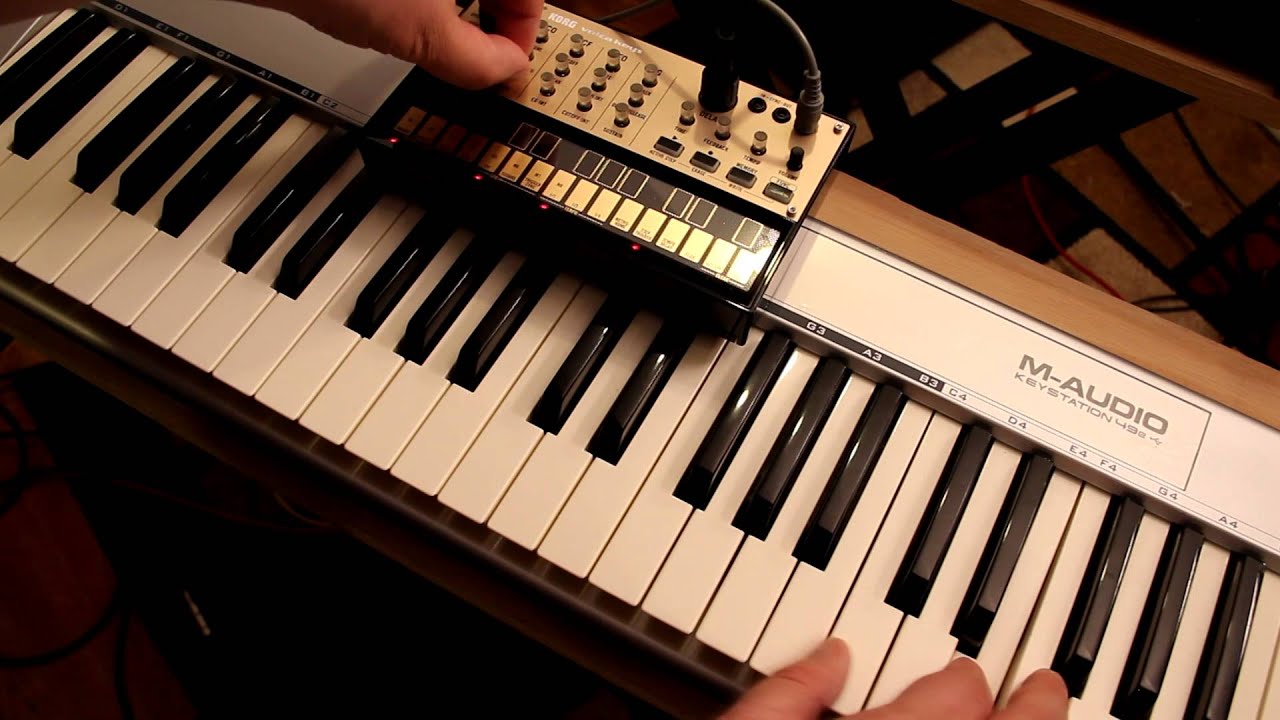
The standard computer MIDI keyboard is a quick and functional tool, but it has limitations. It lacks flexibility for setting up different scales or custom starting note pitches, so if you want to play in a specific mode like Dorian or Phrygian, you'll have to work around the fixed chromatic layout. For deeper control, you can use the **Extended Computer Keyboard** Max for Live device, which allows you to map specific MIDI note pitches to individual keys on your QWERTY keyboard. This device requires Max for Live, which is included with Ableton Live Suite or can be purchased as an add-on for Ableton Live Standard, but it is not available for Live Lite or Live Intro. With this tool, you can build a custom layout that matches your playing style, whether that means assigning a scale, setting up a drum rack, or creating a custom performance controller. For those who want to go even further, the same principles that apply to the computer keyboard also apply when you use a MIDI keyboard with korg volca, where octave and pitch control are essential for integrating external gear into your setup. If you're interested in a more tactile approach, you can also build your own MIDI keyboard, which gives you full control over the layout and octave behavior. For a complete reference on all the default shortcuts and their functions, the Ableton manual's keyboard keys explained section is a great place to start, but the **Z**, **X**, **C**, and **V** keys remain the core controls for octave and velocity on the built-in computer MIDI keyboard.