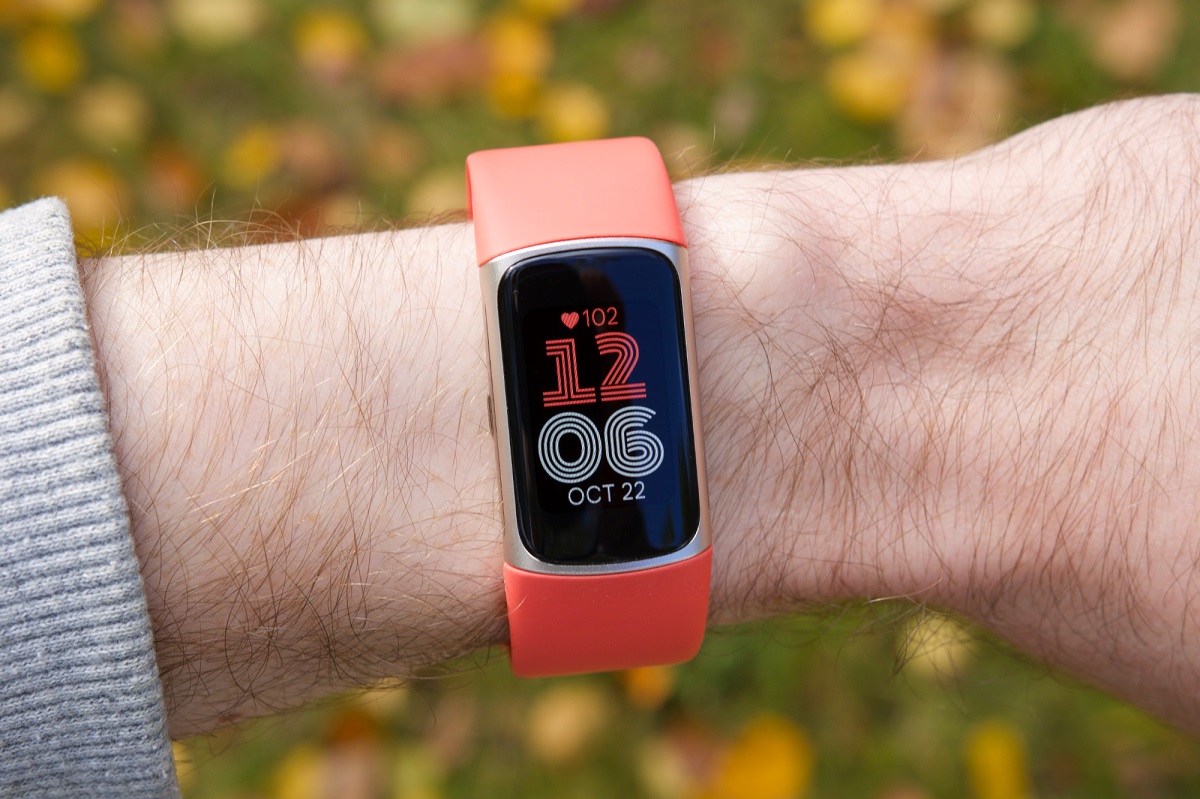
A Fitbit swap lets you replace an old device with a new one on your existing account, typically after an upgrade or a replacement.
How a Fitbit swap works
Swapping your Fitbit usually means upgrading to a newer model or replacing a defective or worn-out device. Alternatively, you can manually delete the old device from your account and then add the new one independently, a process that begins with removing a Fitbit device from your account to ensure no sync conflicts arise. Understanding these options helps you choose the method that best fits your situation, whether you're moving to a different model or simply refreshing your wearable.
Before you start: what to know
Before beginning your Fitbit swap, ensure the new device is fully charged to avoid interruptions during setup. Update the Fitbit app to the latest version to guarantee compatibility with the newest features. Have your account credentials ready, as you'll need to log in during the process. Most importantly, unpair the old Fitbit from your phone's Bluetooth settings to prevent interference with the new device's connection. If you're managing devices for multiple users, a proper Fitbit family account setup keeps each person's data and progress separate. Skipping this step can cause syncing conflicts that delay the swap.
Method 1: Use 'Replace Device' (recommended)
This method is the fastest and most streamlined way to perform a Fitbit swap, as it handles both deletion and addition automatically.
- Select the old device you want to replace from the list of connected devices.
- Tap the trash can or replace icon (depending on your app version).
- Follow the on-screen prompts to set up your new tracker, including pairing via Bluetooth and completing the initial sync.
Once finished, the old device is removed from your account, and the new one is ready for use with all your historical data preserved.
Method 2: Manually delete the old device
Use this method if you want to remove a device without immediately adding a new one, such as when you're waiting for a replacement to arrive.
- Open the Fitbit app and tap your profile icon.
- Select the old device from the list.
- Scroll to the bottom of the device settings screen and tap the trash can icon.
- Confirm the removal when prompted.
Note that this action does not factory reset the device; it only disconnects it from your account. The old Fitbit can still be used with a different account if desired.
Method 3: Add a new device without removing the old one
Fitbit supports multiple devices on one account, so you can keep both trackers active if you prefer. This is useful if you want to use a new Fitbit for daily wear while keeping an older model for specialized activities.
- Scroll down and tap 'Add a Device'.
- Select your new Fitbit model from the list.
- Follow the on-screen instructions to pair and set up the additional tracker.
Both devices will sync to your account, but note that only one can be worn at a time for accurate step and heart rate tracking. For a smooth Fitbit setup and syncing experience, ensure each device is charged and within range during the addition process.
Troubleshooting common swap problems
New device not found during setup
If the app cannot detect your new Fitbit, check that Bluetooth is enabled on your phone and that the device is fully charged. Move the tracker closer to your phone, within a few feet, and restart both devices if the issue persists. Ensure no other Bluetooth connections are active that might interfere.
Old device still showing after removal
If the old Fitbit continues to appear in your account after deletion, log out of the Fitbit app and log back in. This forces a refresh of your device list and typically resolves the display error. If the problem continues, close the app completely and reopen it.
Syncing conflicts between multiple devices
When using more than one Fitbit on a single account, syncing conflicts can arise if both devices are worn simultaneously. To avoid this, wear only one tracker at a time and ensure the app is syncing with the correct device. If data appears duplicated or inaccurate, remove the device you no longer intend to use from the account settings.