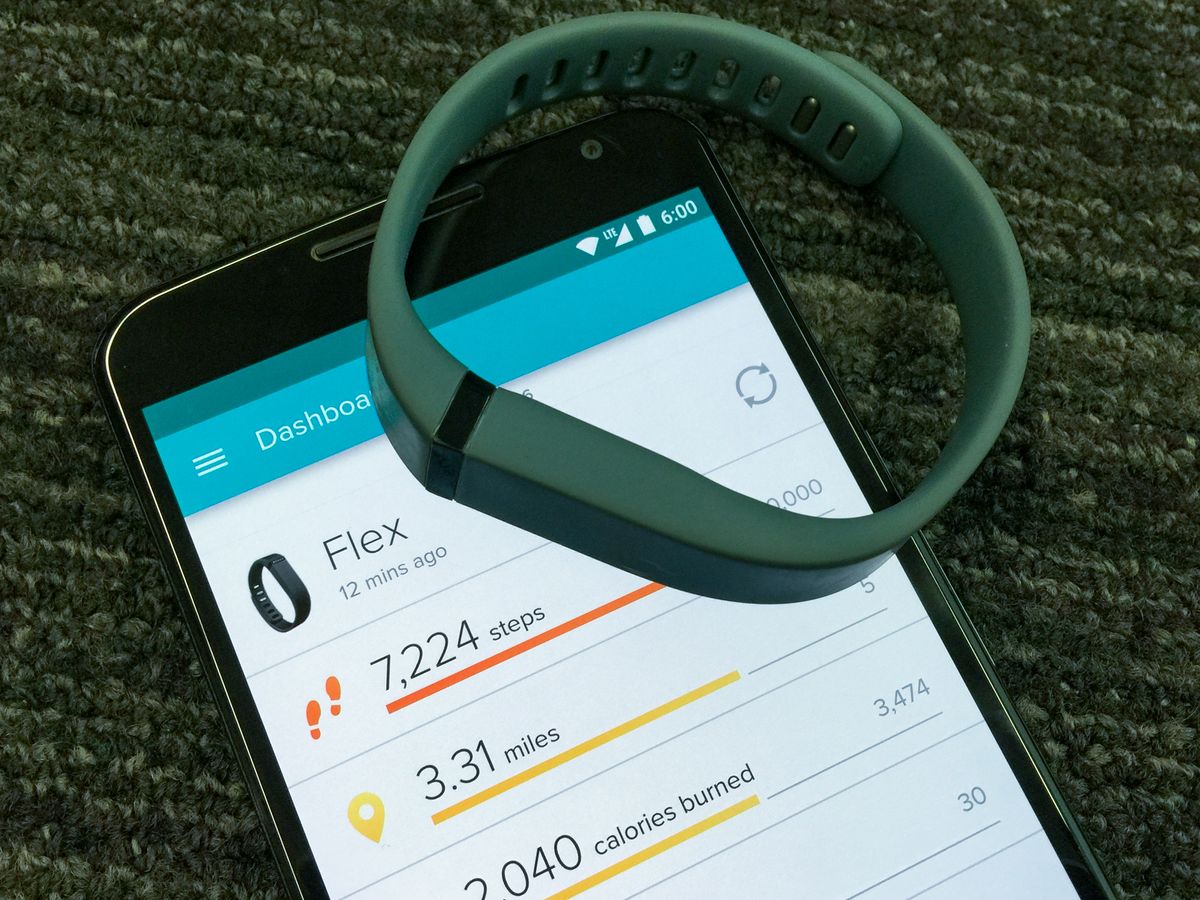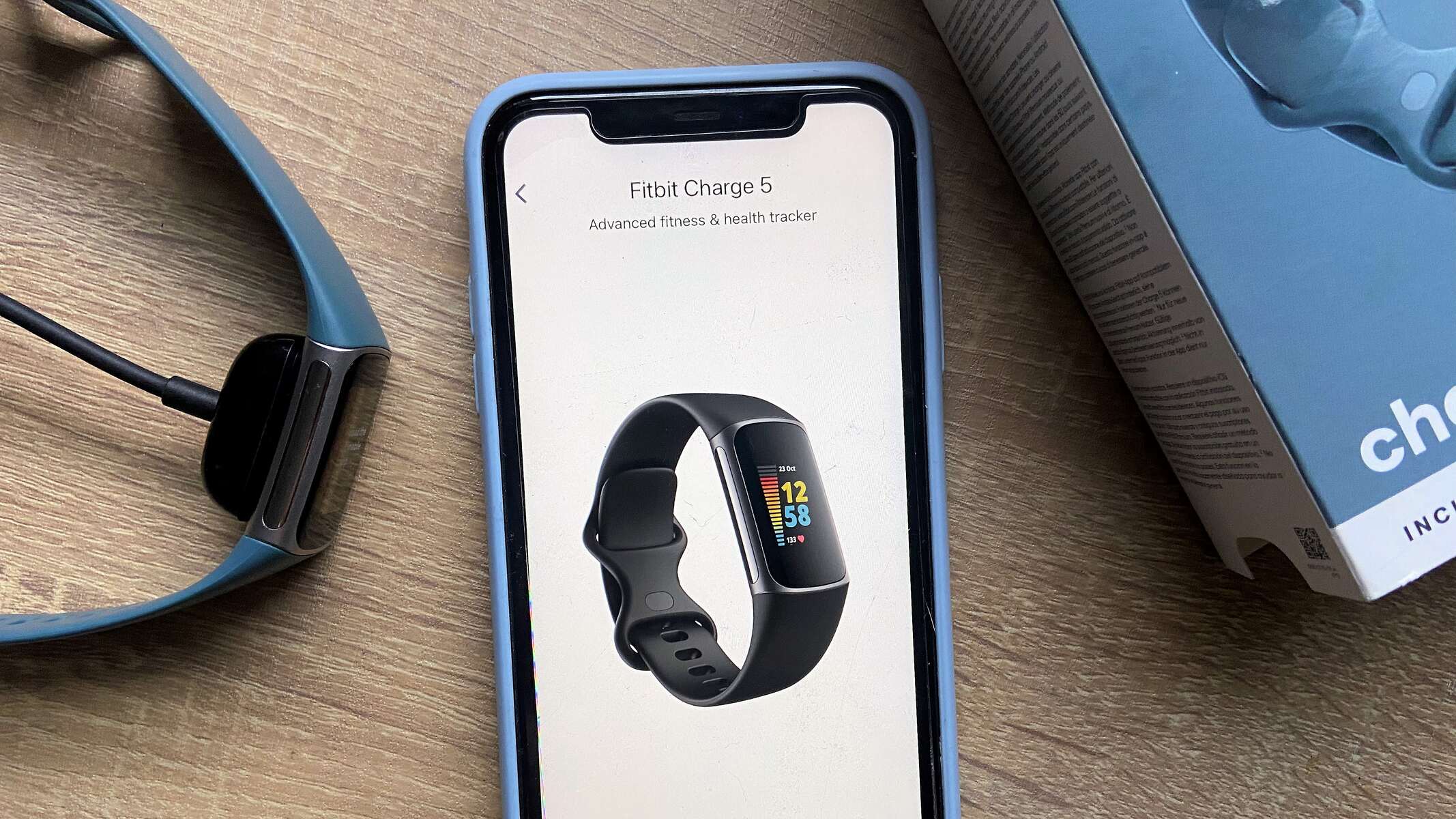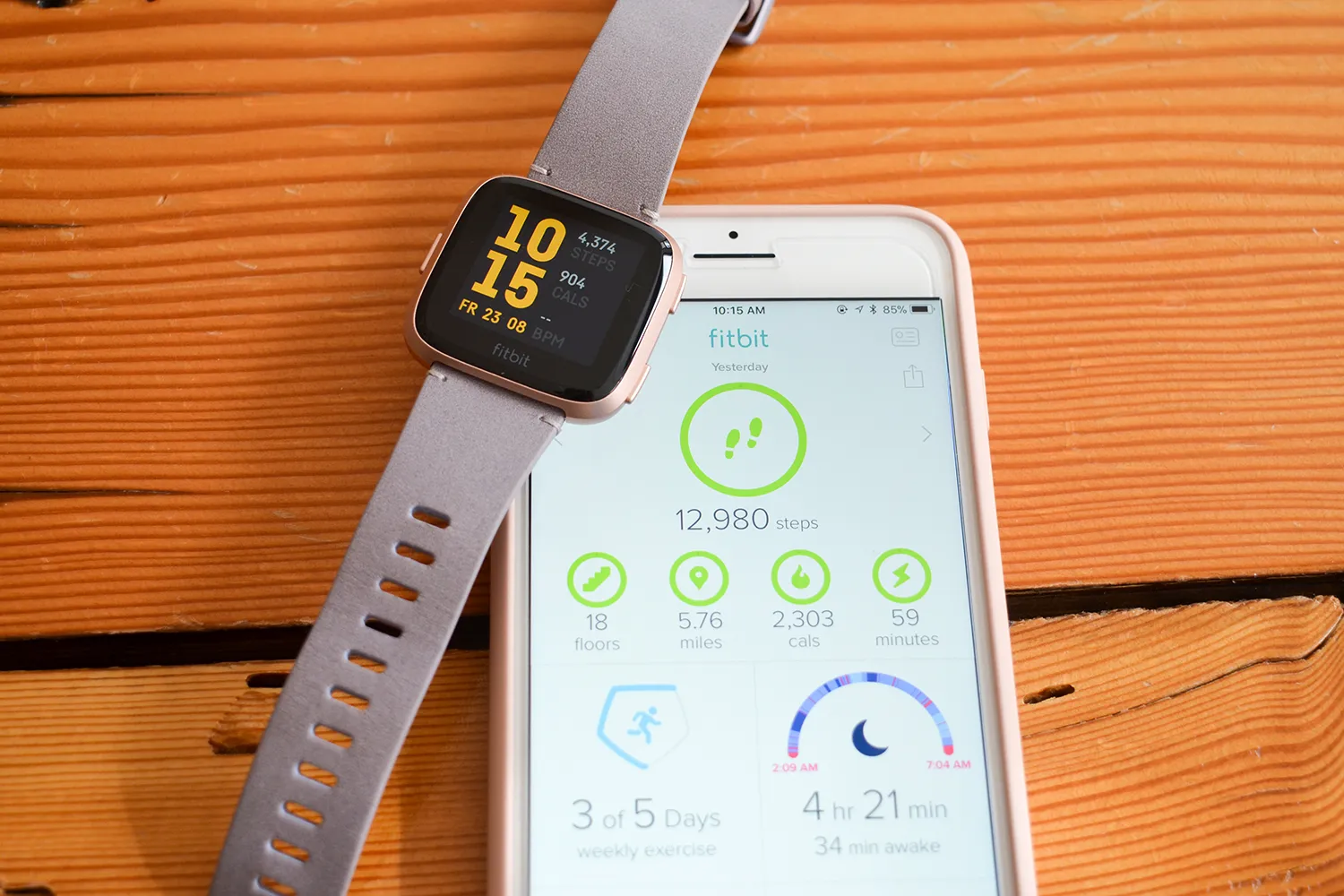
The Fitbit app displays your daily step count on the "Today" tab, which serves as your main dashboard for viewing activity metrics. This is the primary location for displaying steps on the Fitbit app, giving you immediate access to your progress at a glance.
Where are steps displayed on the Fitbit app?
Your step count appears on the "Today" tab, the central hub of the Fitbit app. This dashboard aggregates your key fitness data, including steps, active minutes, and heart rate, in one convenient view. Note that the Fitbit app has been rebranded as Google Health, but the functionality for tracking steps remains the same within the "Today" tab.
How to view your steps on the Today tab
- Open the Fitbit app on your smartphone.
- Navigate to the dashboard, which is the default screen you see upon launching the app.
- Tap the "Today" tab, which is the default screen you see upon launching the app.
- Your main step count will be displayed prominently on the dashboard, often as a tile showing your total steps for the current day.
This straightforward process ensures you can quickly check your step count whenever you need a motivational boost or want to monitor your activity level.
How to customize your step display
You can personalize the "Today" tab to prioritize the information that matters most to you. To customize your step display, tap the pencil icon located in the top right corner of the screen. This opens the editing mode for your dashboard tiles.
To rearrange the steps tile or any other tile, press and hold it, then drag it up or down to your preferred position. This allows you to place your step count at the top of the dashboard for quick access. To remove a tile you don't need, tap the minus (, ) icon or the "X" button next to it. This declutters your view and keeps your focus on the metrics you use most.
How to check historical step data
To see your step count beyond the current day, tap the "Steps" tile on the "Today" tab. This action opens a detailed view of your step history, where you can compare your activity to previous days, weeks, months, or years. This feature is useful for tracking trends, identifying patterns in your activity levels, and celebrating long-term progress.
How to track steps without a Fitbit device
You can use the Fitbit app to track steps on your phone even without a Fitbit device by enabling the MobileTrack feature. This is ideal for users who want to start tracking their activity before purchasing a device or who prefer to use their phone's built-in sensors.
- Open the Fitbit app and tap your profile photo.
- Select "Set up a device" from the menu.
- Choose "Phone" or "MobileTrack" from the list of available devices.
- Follow the on-screen instructions to complete the setup.
For iPhone users, enabling MobileTrack requires granting the Fitbit app permission to access your "Motion & Fitness" data in your phone's settings. Without this permission, the app cannot record steps from your phone's sensors. It's also important to note that manually logging a walk or run in the Fitbit app does not automatically count toward your daily step totals unless MobileTrack is enabled to track steps via your phone.
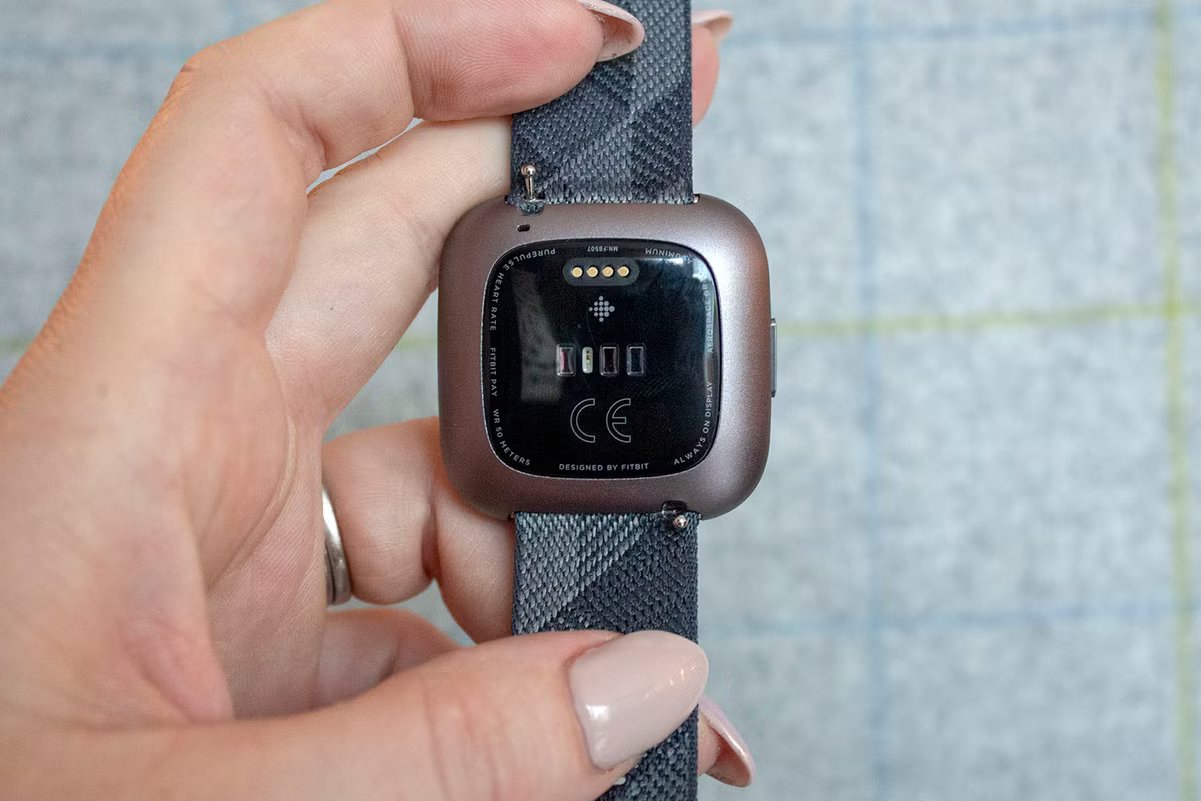
Fitbit devices calculate steps using finely-tuned algorithms, and vigorous or non-rhythmic wrist movements may affect the accuracy of step counting. For the most reliable step data, ensure your device is properly positioned and that you have completed your Fitbit setup and syncing correctly. Proper setup ensures that your step data flows seamlessly from your device or phone to the app, giving you an accurate picture of your daily activity.