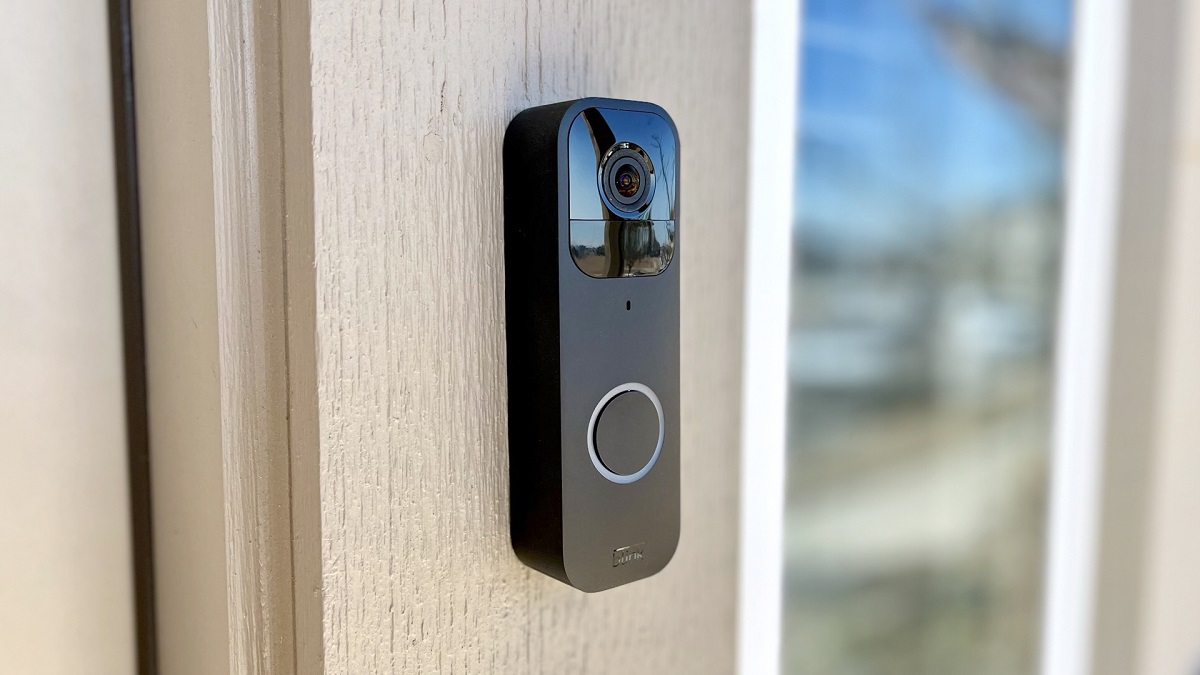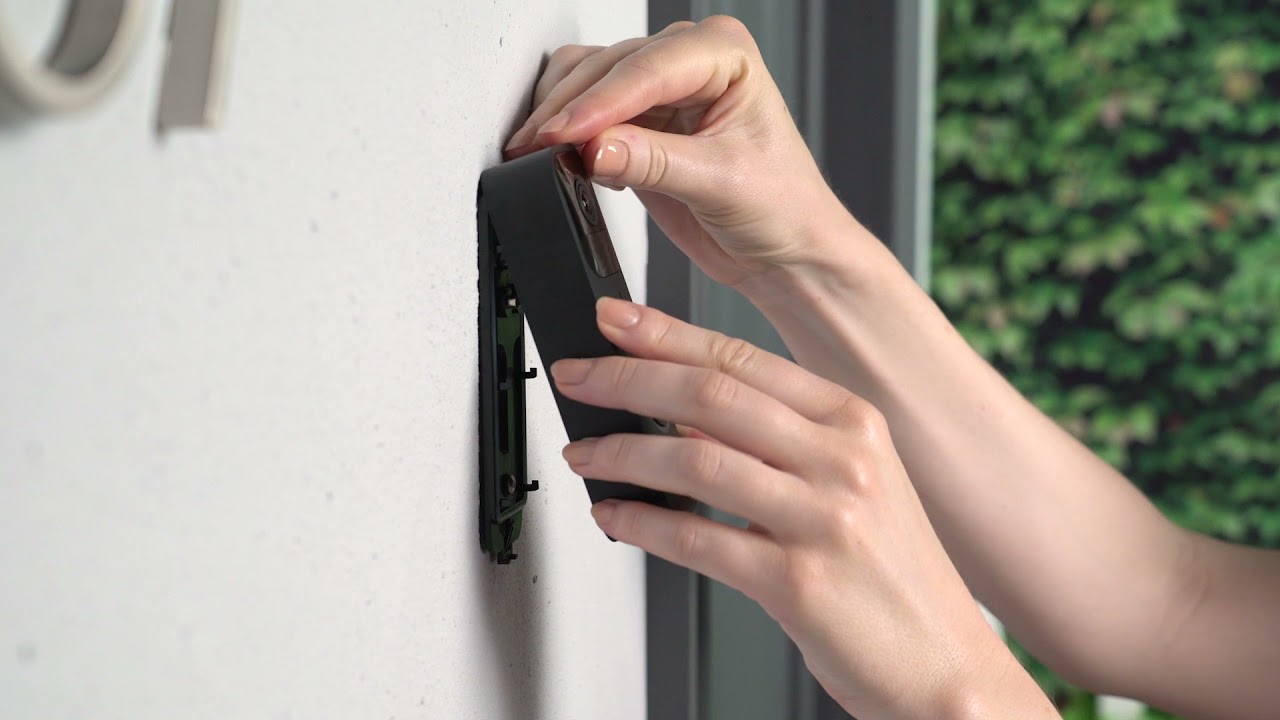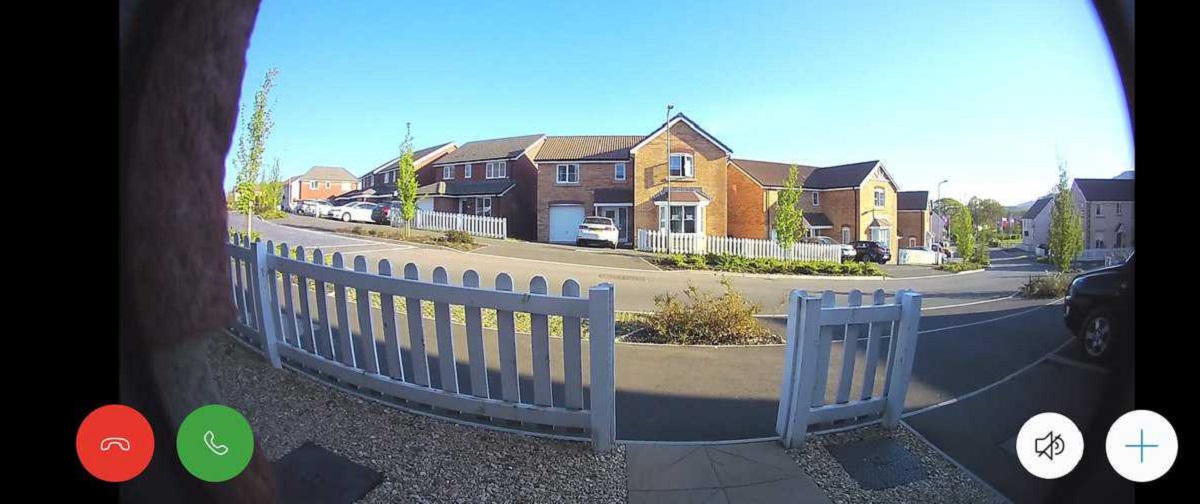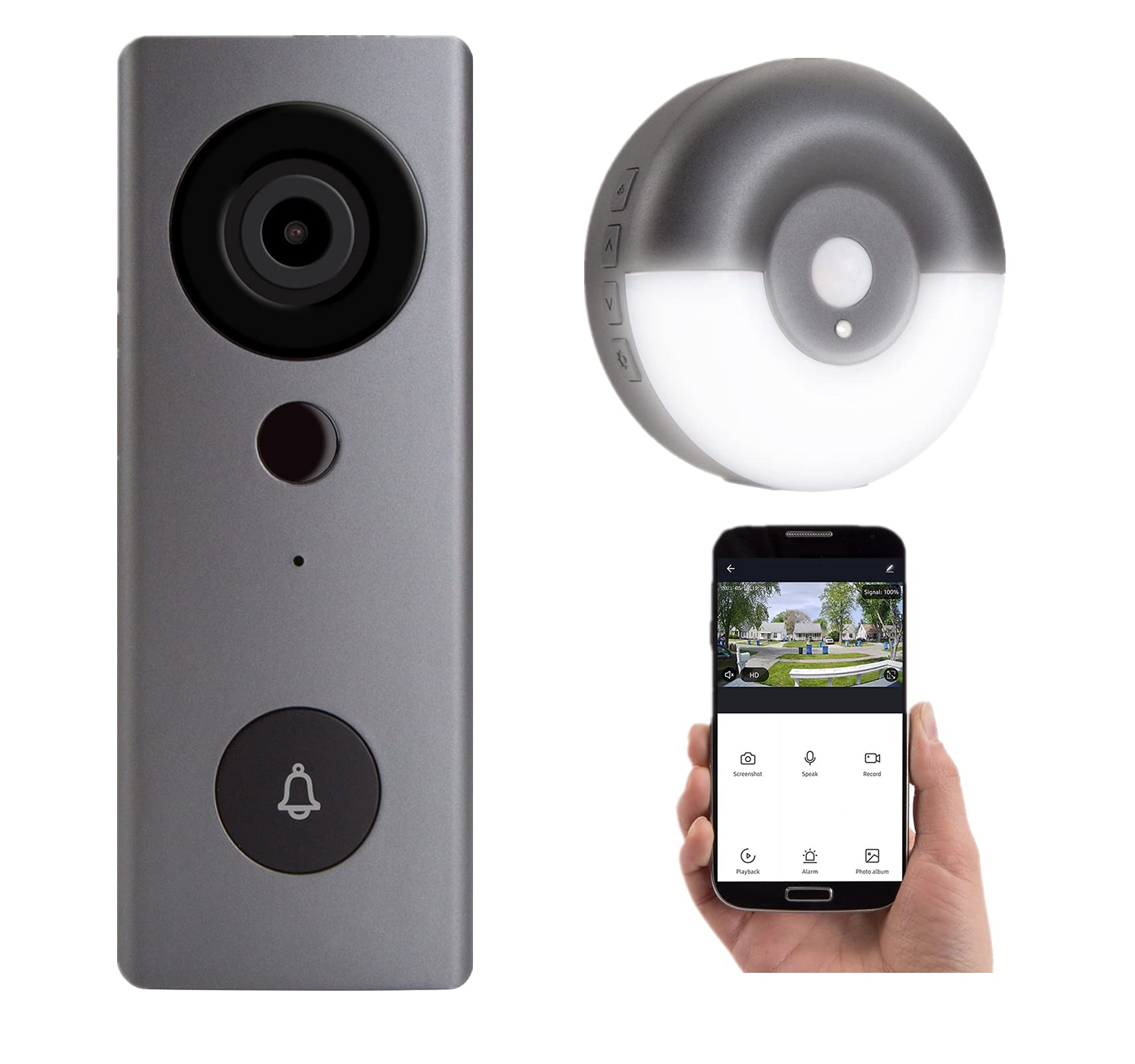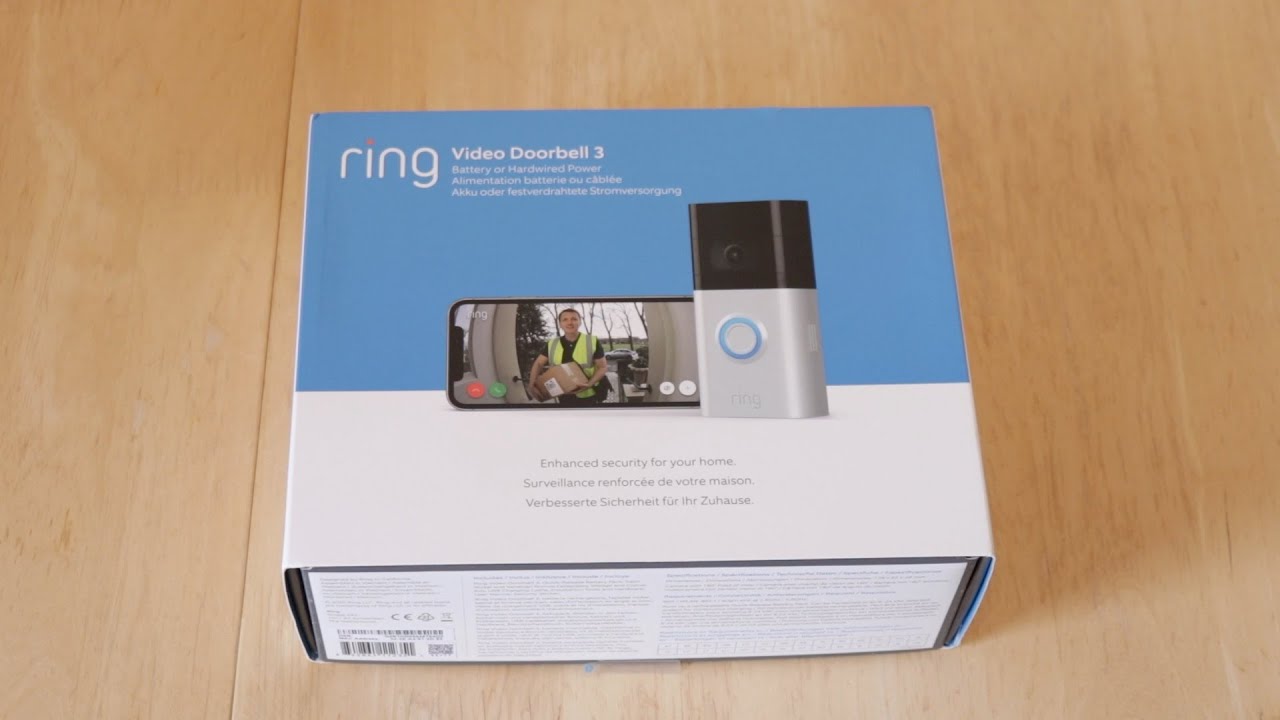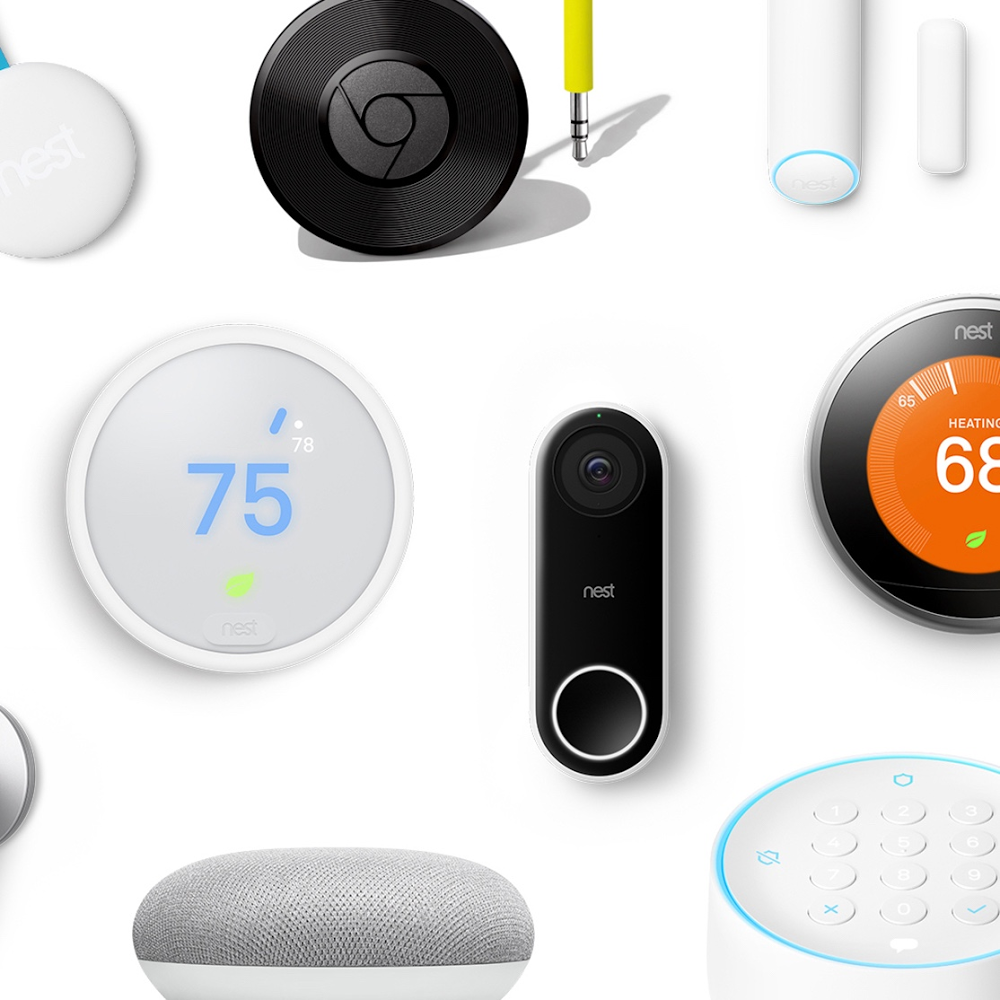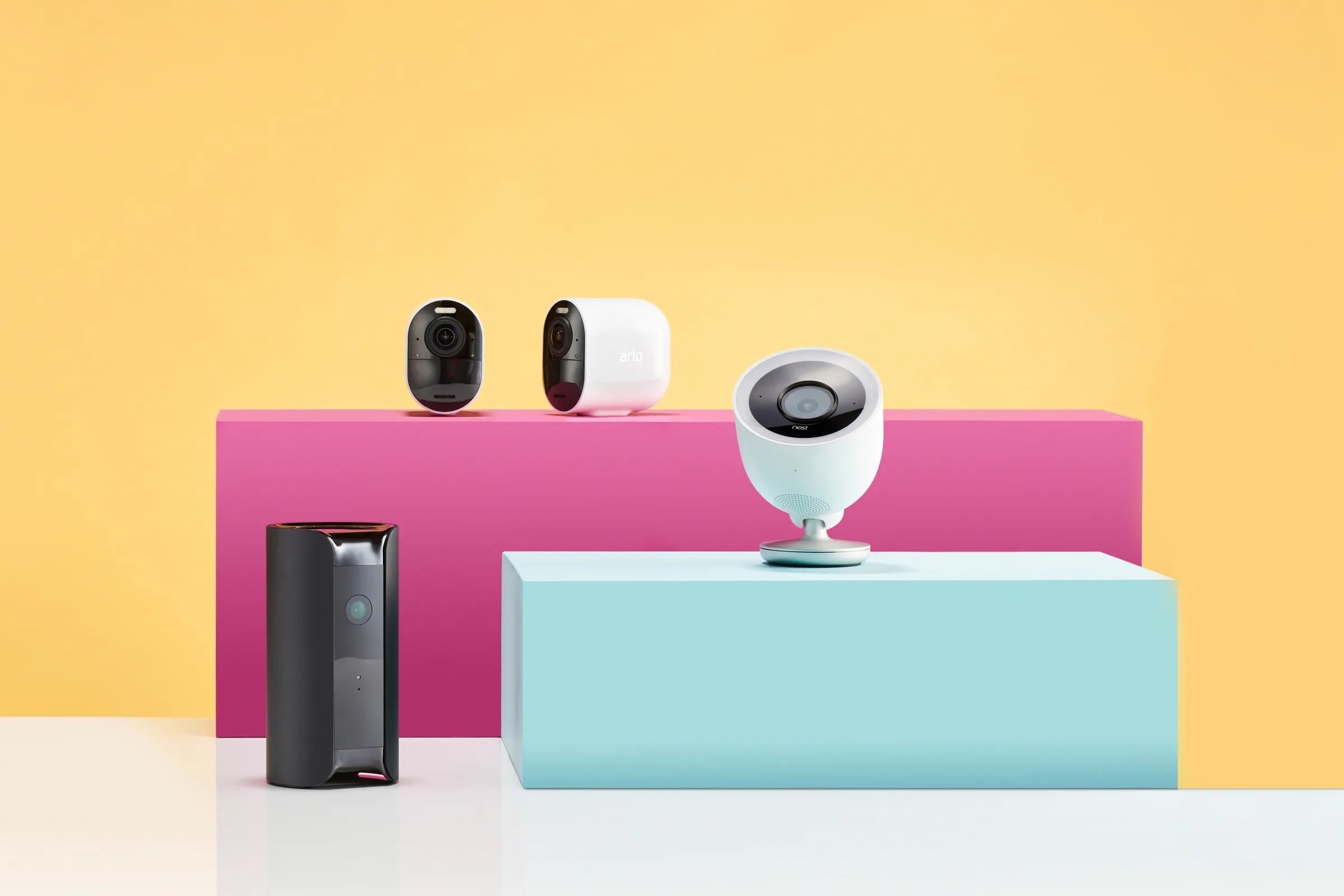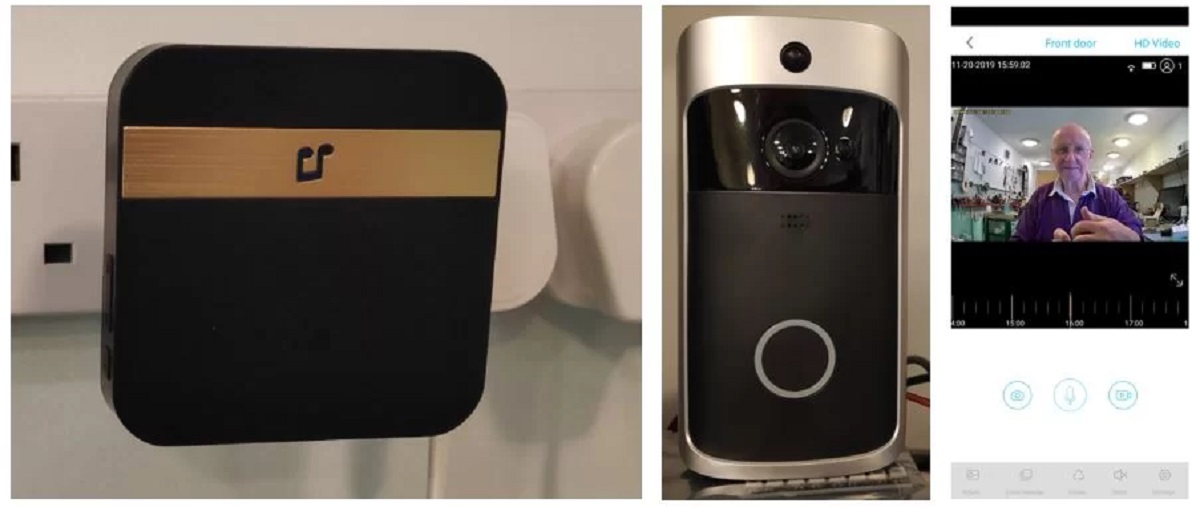
Using your video doorbell with a different app lets you control it through your preferred smart home platform, like Alexa or Google Home, instead of being stuck with the manufacturer's app. This unified control means you can view your doorbell's feed on your smart displays, get announcements on your speakers, and create automations that tie your doorbell into your whole smart home system.
Why use your video doorbell with a different app?
The main reason to use a different app is to stop juggling multiple apps for your smart home devices. Instead of opening the Ring app to see who is at the door and then the Alexa app to check your lights, you can see everything in one place. This unified experience makes your smart home more convenient and allows you to create powerful automations, like having your lights turn on when your doorbell detects motion.
Which apps work with your video doorbell?
Most major video doorbell brands work with the three big smart home platforms: Amazon Alexa, Google Home, and Apple HomeKit. For example, Arlo Video Doorbells are compatible with Amazon Alexa, Apple Home, Google Home Assistant, IFTTT, and Samsung SmartThings. Google Nest Doorbells integrate with the Google Home App and Google Assistant, allowing live camera views on Nest Hubs and announcements on Google speakers. Ring also offers a "Ring Appstore" for connecting to third-party developer applications, which may require a Ring Protect subscription and the user to be the primary account owner.
How to connect your doorbell to Amazon Alexa
To connect your video doorbell to Amazon Alexa, you first need to enable the doorbell's skill in the Alexa app. After that, you can discover new devices and view the live feed on Echo Show devices.
- Open the Alexa app on your phone.
- Go to the Skills & Games section and search for your doorbell brand's skill (e.g., Ring, Arlo).
- Enable the skill and sign in with your doorbell account credentials.
How to add your doorbell to Google Home
Integrating your doorbell with the Google Home app lets you see the feed on Nest Hubs and hear announcements on Google speakers. Some Google Nest devices, including the wired Nest Doorbell, must first be set up in the Nest app before they can be added to the Google Home app.
- If you have a Nest Doorbell, first set it up in the Nest app if required.
- Open the Google Home app on your phone.
- Link your doorbell account and follow the prompts to complete setup.
How to set up your doorbell with Apple HomeKit
HomeKit-compatible video doorbells can be added to the Apple Home app for control with Siri and other HomeKit devices. The process requires scanning the setup code that came with your doorbell.
- Scan the HomeKit setup code on your doorbell or its packaging.
- Follow the on-screen instructions to name the doorbell and assign it to a room.
- You can now ask Siri to show the doorbell feed on a HomePod or Apple TV.
Troubleshooting common integration issues
If your device is not discovered during setup, ensure it is powered on and connected to the same Wi-Fi network as your phone. For feeds not loading, check that your doorbell has a strong internet connection and that any required subscription (like Ring Protect for certain features) is active. If you are having trouble with a specific brand, remember that how a Ring Video Doorbell is powered can affect its connectivity, wired models generally have a more stable connection than battery-powered ones. For sharing access, you may need to know how to connect ring video doorbell to multiple phones, which is typically done through the Ring app's Shared Users feature. If you own a Blink doorbell, the steps to connect blink video doorbell to Alexa involve enabling the Blink SmartHome skill in the Alexa app, then discovering the device. If your doorbell still fails to appear, restart your router and the doorbell, then try the discovery process again.