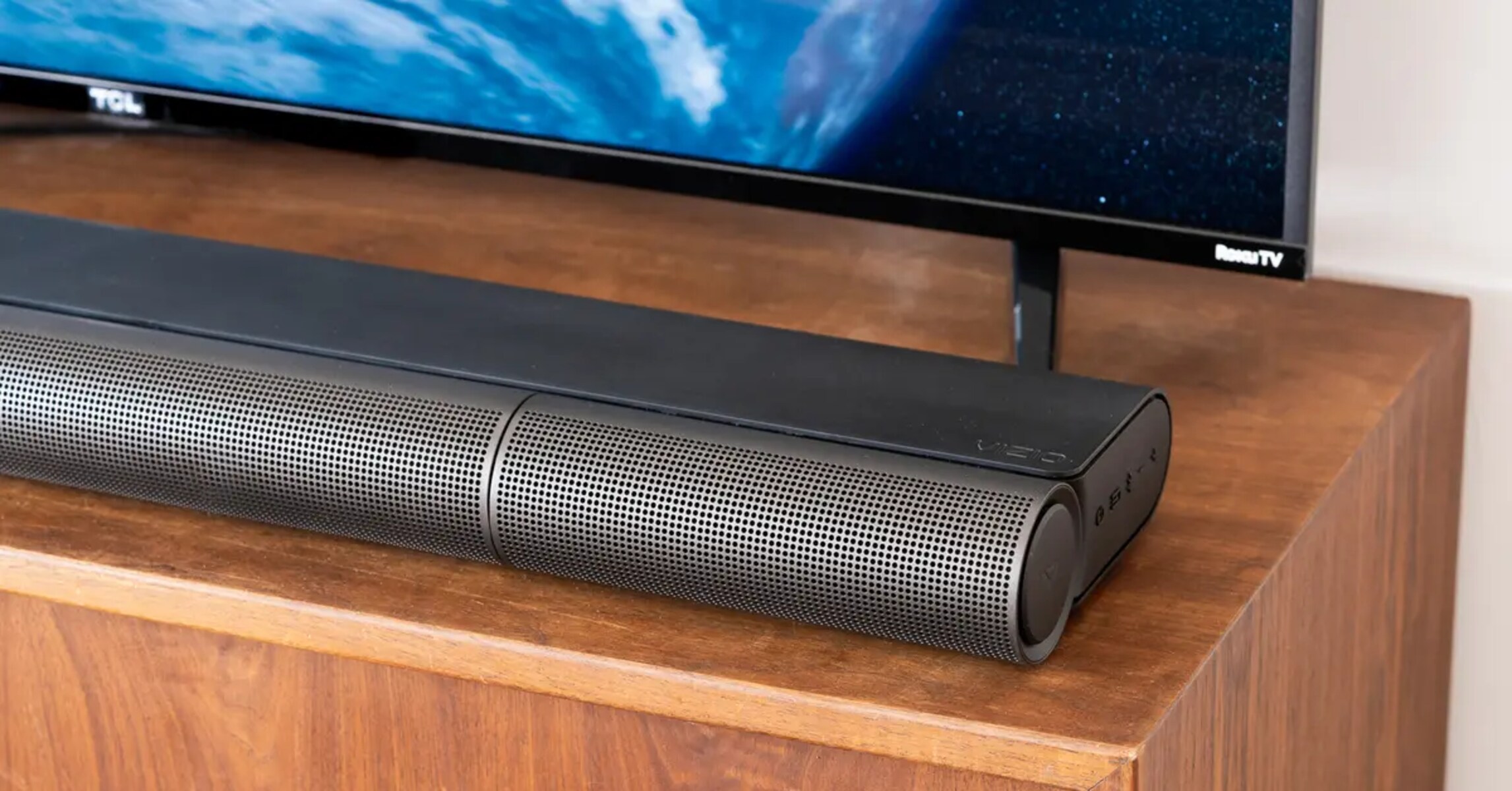
You cannot reliably repair the snapped shutter door inside the port, but you can extract the broken flap with tweezers and secure the cable with tape, or bypass the port entirely using an HDMI ARC connection or an analog audio converter.
Removing the broken Vizio optical port shutter
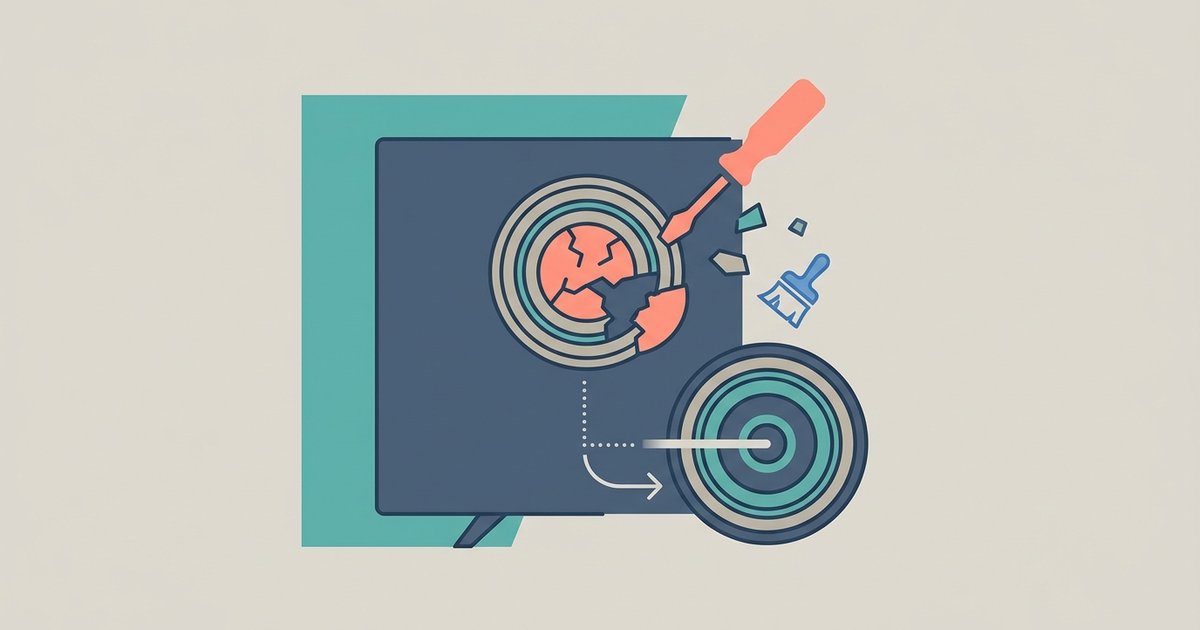
Use a pair of needle-nose tweezers with a fine tip to grip the snapped plastic door. Shine a bright flashlight directly into the optical port so you can see the broken flap. It will be a small, jagged piece of plastic sitting at the rear of the opening, often tilted upward. Gently pull it straight out. Do not twist or push inward, as you risk damaging the LED emitter behind the flap. Once removed, the cable should slide in until it clicks. The click may feel shallower than before because the locking mechanism no longer has the door to press against.
The internal plastic door is a thin spring-loaded hinge that snaps cleanly when forced upside down. Once broken it prevents the TOSLINK connector from seating fully. That is why wiggling the cable only produces intermittent audio or no signal at all. You cannot reliably repair the snapped shutter door inside the port.
Securing a loose TOSLINK connection
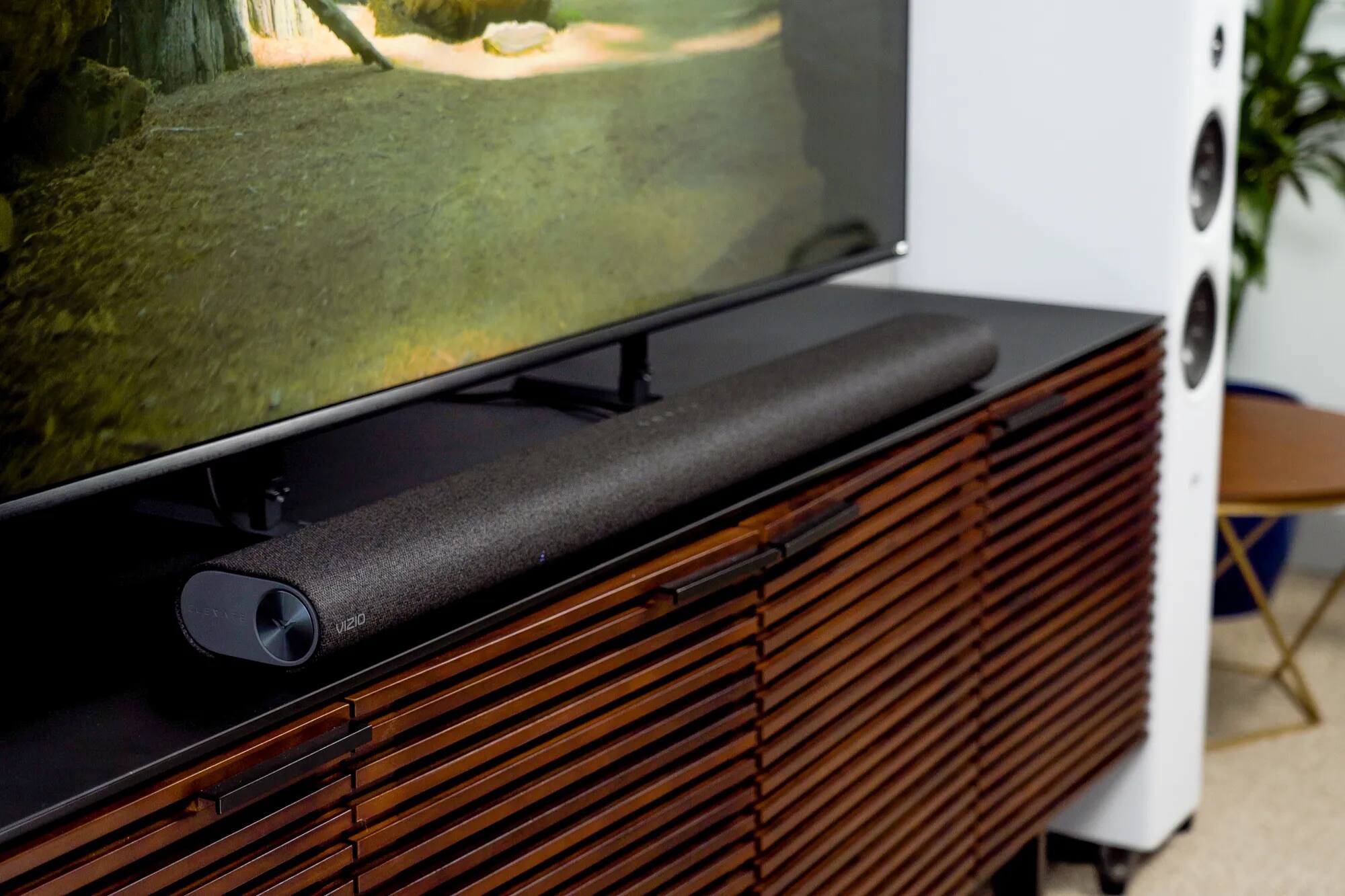
After the flap is gone, the TOSLINK cable will often fall out because the original retention friction is lost. Wrap a single layer of electrical tape around the connector barrel just behind the tip. This creates a slight bulge that wedges into the port opening. Alternatively, press a small dab of adhesive putty onto the top of the cable where it enters the TV. Use the kind of putty meant for mounting posters. Press firmly to hold it in place for 30 seconds. Avoid using super glue or epoxy. Those can permanently bond the cable to the port and make removal impossible if the port fails later. This tape or putty fix restores a stable connection so you can connect a soundbar to Vizio TV without losing audio every time the TV vibrates or the cable is bumped. Once the physical link is secure, connecting a soundbar properly also ensures your TV remote can adjust its volume directly.
When the port is completely dead
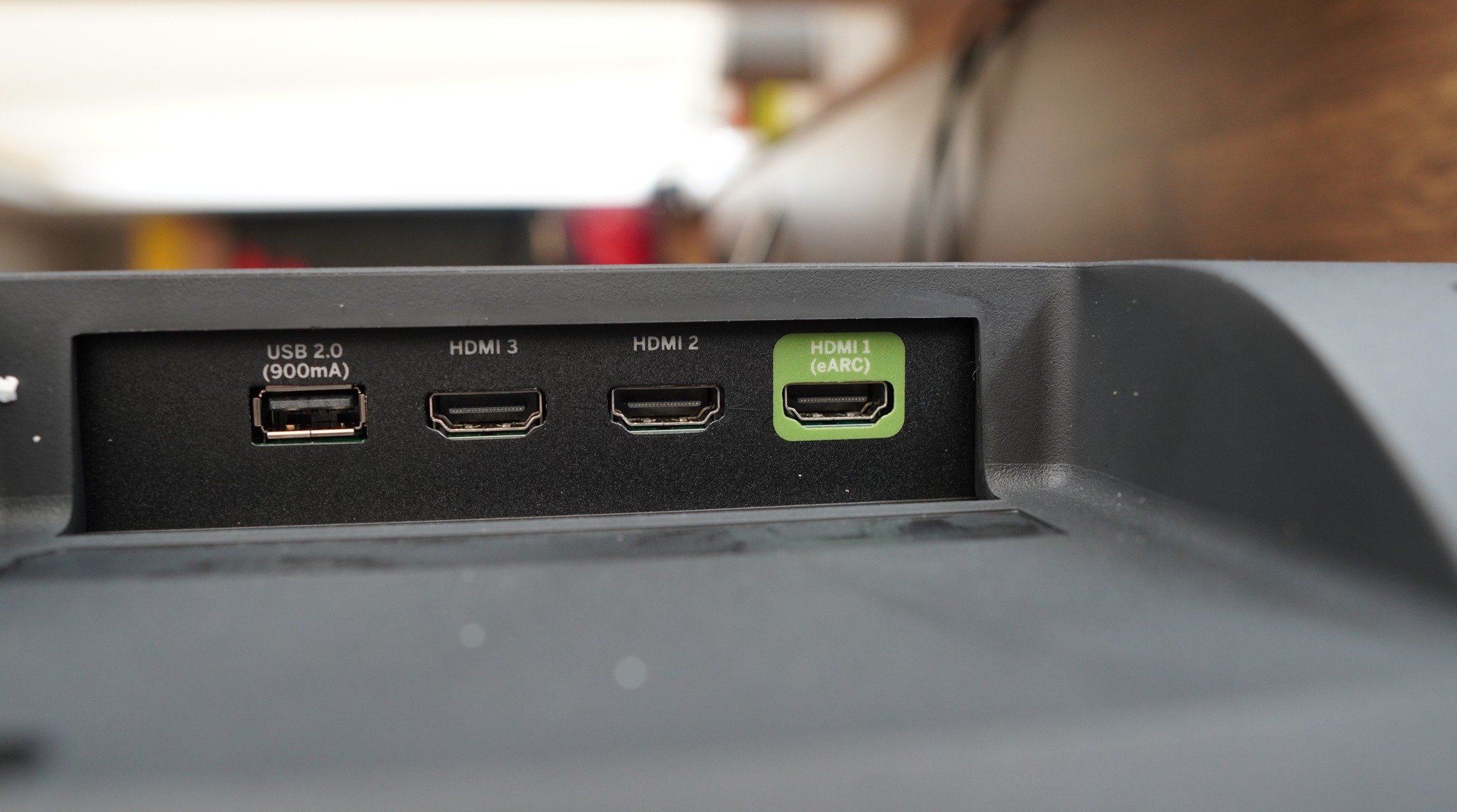
If no light glows from the optical port when audio plays, the internal LED emitter is likely damaged from the initial force. This is true even after the flap is removed and the cable is seated. At this point, the port cannot be repaired without replacing the TV’s main board. Switch to the HDMI ARC port. Press the Menu button on your Vizio remote, go to Audio settings, set “Digital Audio Out” to “PCM” for most setups or “Dolby Digital” if using HDMI ARC, and enable CEC. CEC may be labeled under System settings, often as “CEC” or a similar device control option. If your soundbar lacks HDMI ARC, buy a digital-to-analog converter (DAC) that takes optical input and outputs RCA or 3.5mm analog. Plug the TV’s optical cable into the DAC, then connect the DAC to the soundbar’s analog input. You can also pair a Vizio remote to a soundbar via the TV’s Bluetooth menu if the soundbar supports it.
Our repair method uses only tweezers and tape to restore a snapped optical port without replacing the main board, a fix no other guide documents for Vizio TVs.