To connect a Bluetooth speaker, turn on the speaker and put it in pairing mode, then enable Bluetooth on your phone, tablet, or computer and select the speaker from the list of available devices. This process lets you wirelessly play music, podcasts, and other audio from your device through the speaker.
Before you start: what you need to connect a Bluetooth speaker
Make sure your Bluetooth speaker is charged or plugged into power. Know how to put it in pairing mode, this is often done by pressing and holding a dedicated Bluetooth button or the power button until a light flashes or you hear a tone. Have your phone, tablet, or computer ready with Bluetooth enabled.
How to connect a Bluetooth speaker on Windows 11
- Go to Start > Settings > Bluetooth & devices and ensure Bluetooth is toggled On.
- Click Add device and select Bluetooth.
- Choose your speaker from the list of available devices to initiate pairing.
How to connect a Bluetooth speaker on a Mac
- Choose Apple menu > System Settings, then click Bluetooth in the sidebar and confirm Bluetooth is enabled.
- Select your speaker from the Devices list and click Connect.
- To ensure audio output, go to System Settings > Sound > Output and choose your Bluetooth speaker.
How to connect a Bluetooth speaker on iPhone or iPad
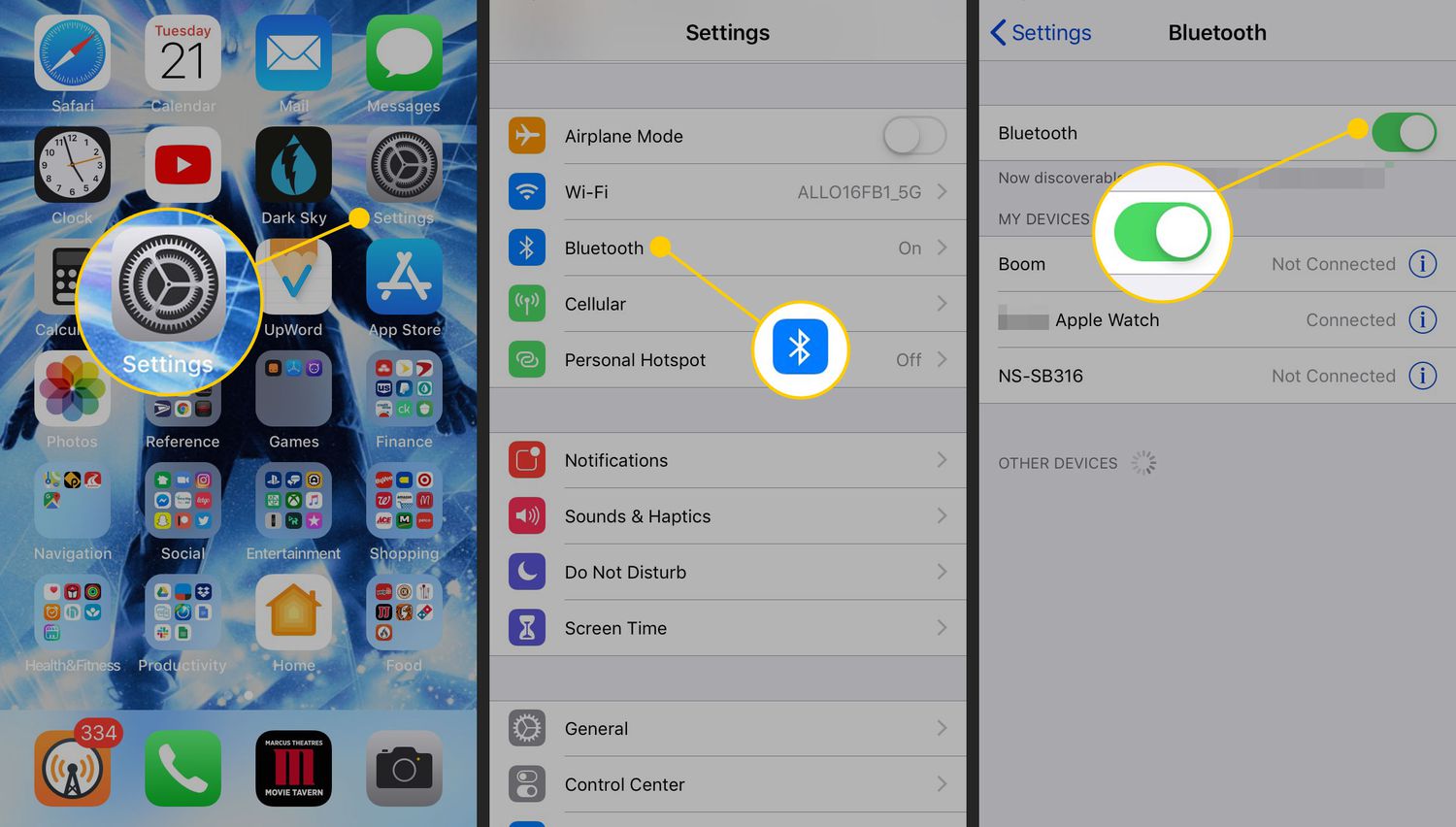
- Open Settings > Bluetooth and toggle Bluetooth on.
- Tap the speaker name to pair.
- After pairing, open Control Center, press and hold the audio playback panel, and select your Bluetooth speaker for audio output.
How to connect a Bluetooth speaker on Android
- Go to Settings > Connections > Bluetooth and toggle Bluetooth on.
- Tap the speaker from the available devices list to connect.
How to play audio through your Bluetooth speaker
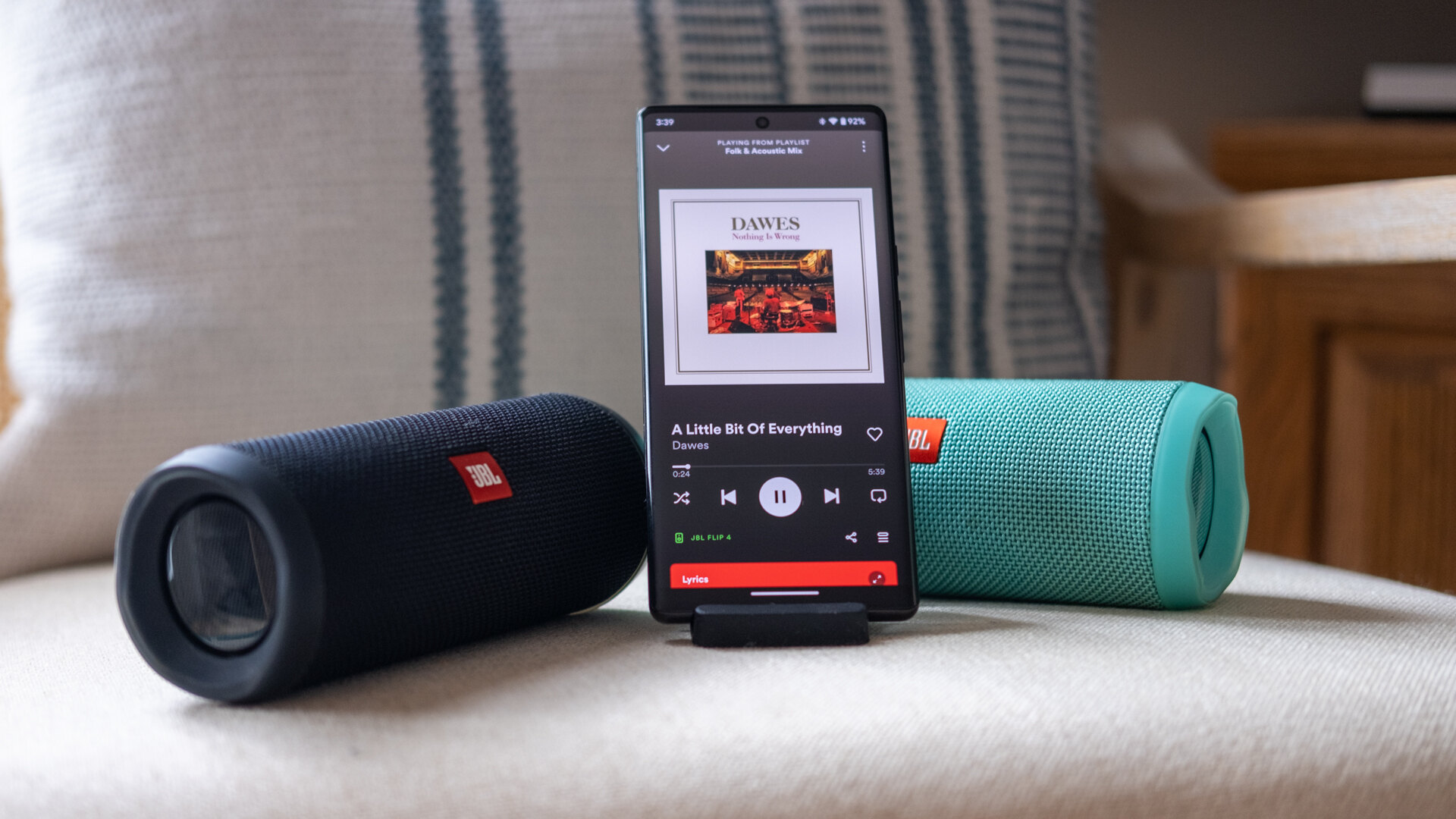
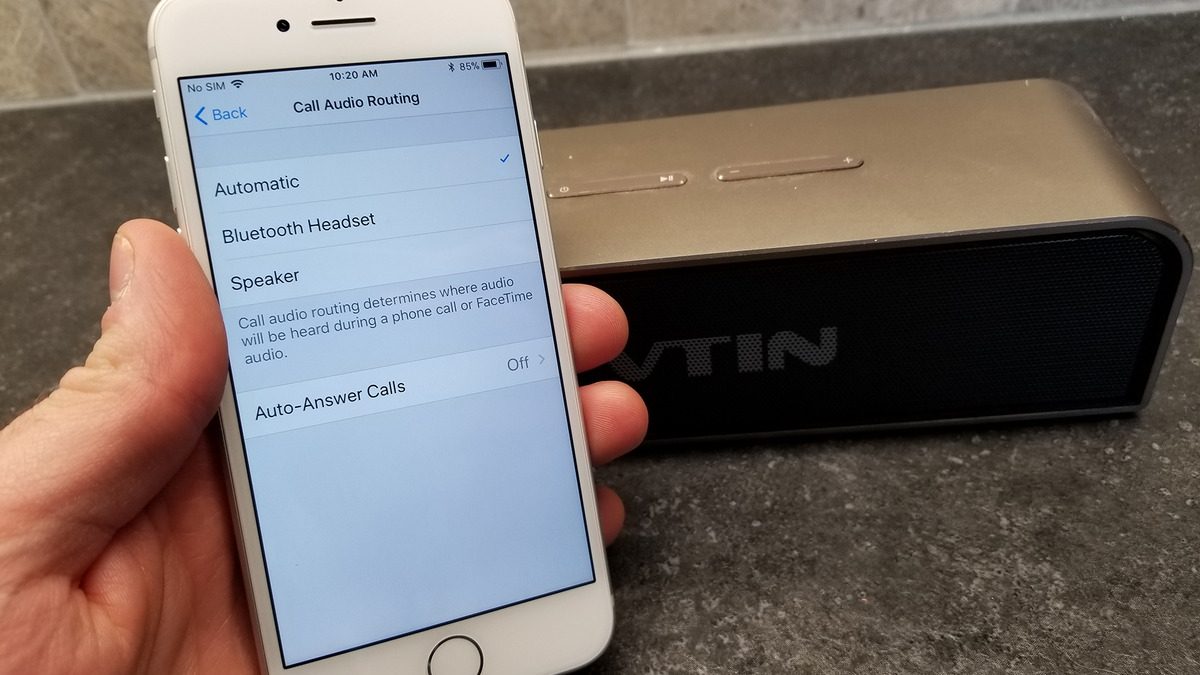
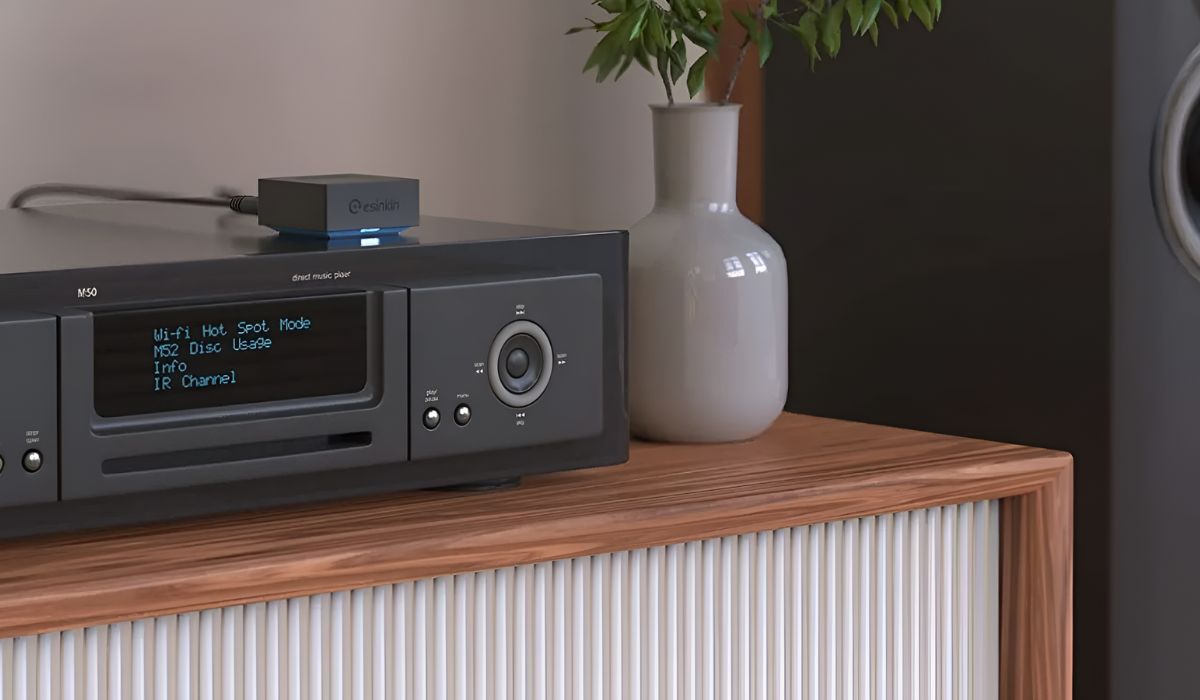
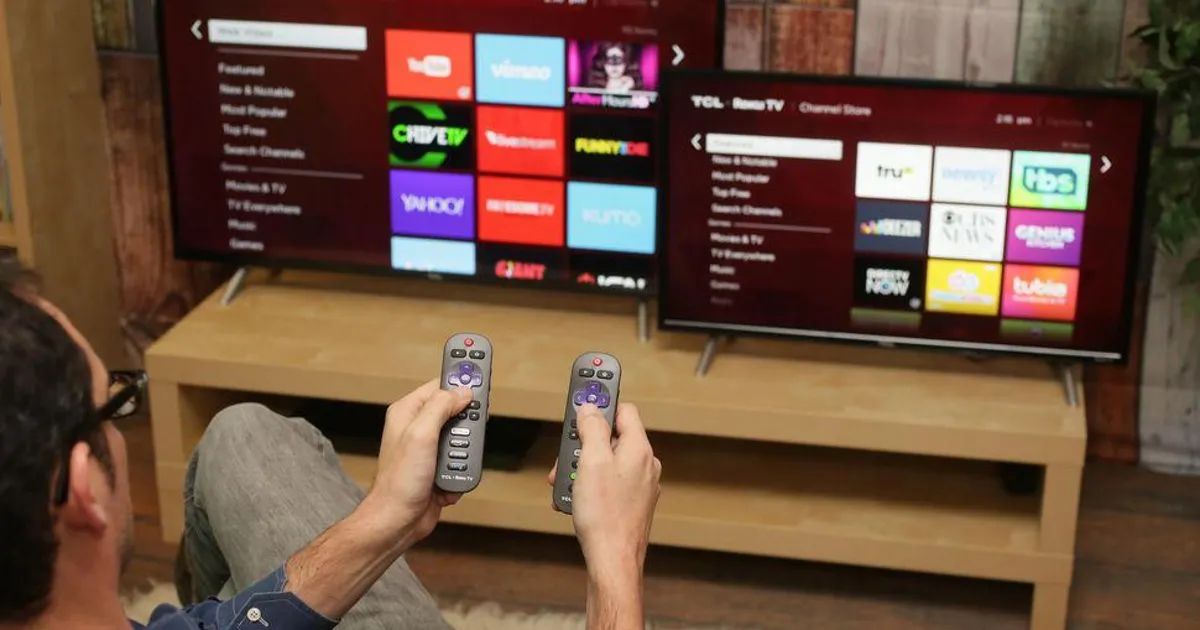
Adjust the volume using your device or the speaker's controls. You can also use the speaker for hands-free calls or watching videos. If you're interested in connecting Bluetooth audio to a TV, check the TV's Bluetooth settings or use a Bluetooth transmitter.
Bluetooth speaker not showing up? Try these fixes
- Toggle Bluetooth off and then back on on your device.
- Restart both the device and the speaker.
- If the speaker was previously connected, forget or unpair it from your device's Bluetooth settings, then attempt to pair again.
Bluetooth speaker connected but no sound?
Check that the speaker is selected as the audio output device in your system or app settings. Verify volume levels on both the device and the speaker. Some apps have their own audio output settings, ensure those are set to the speaker. Make sure the speaker's volume is turned up and that no other device is connected to it.