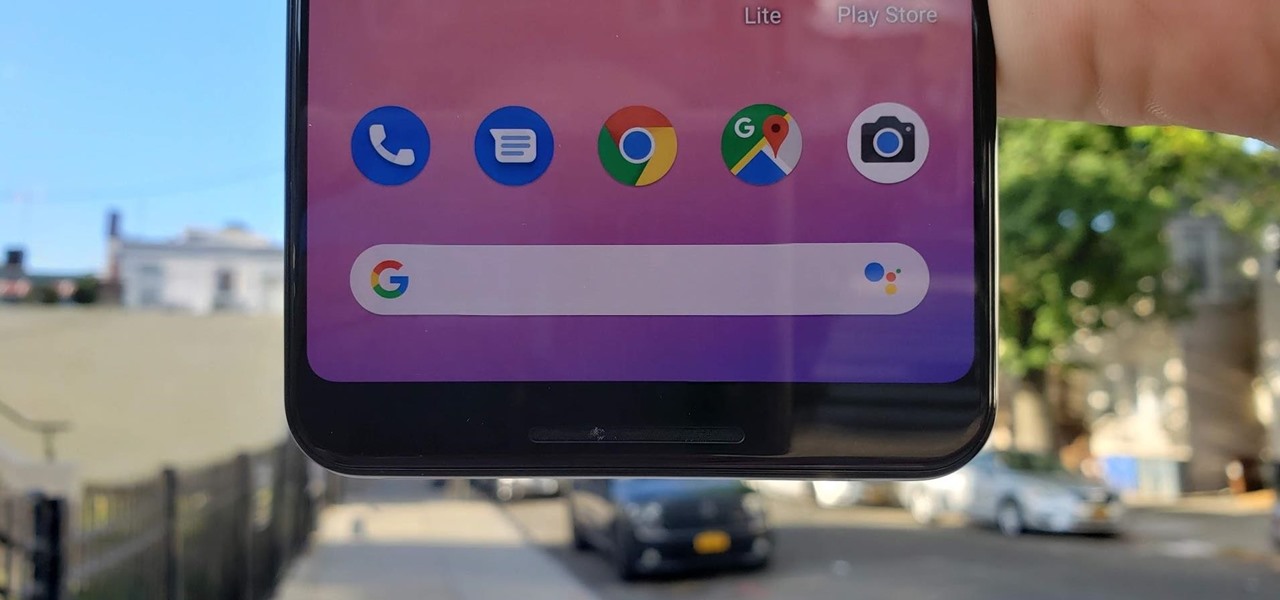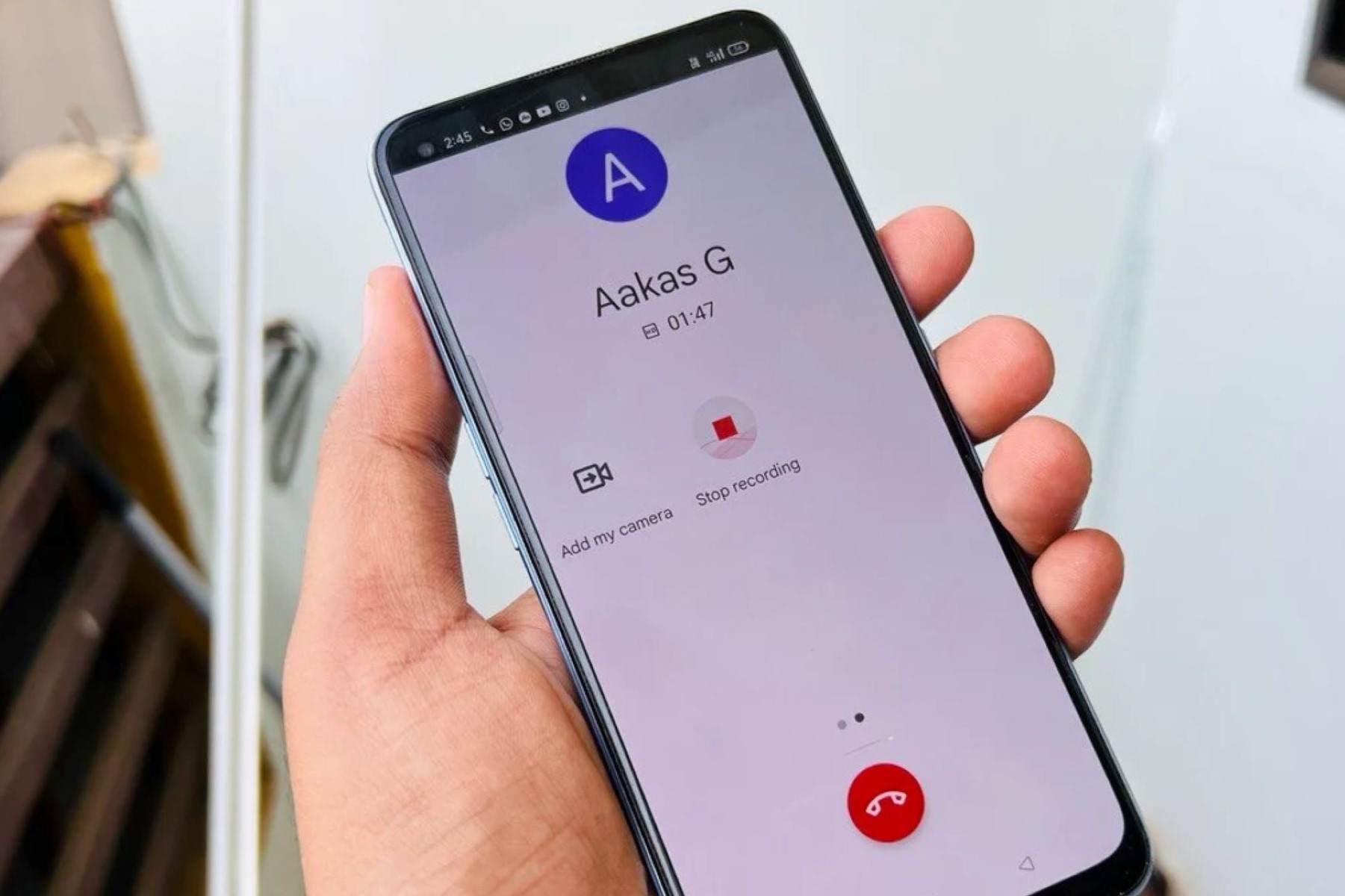
To find call recordings on Realme, open the Google Phone app (the default dialer on most modern Realme devices) and tap the “Recents” or “Home” tab. From there, select the contact or number you recorded, and if it’s not the most recent call, tap “History” to see the full list of calls and choose the recording you need.
Where to find call recordings on Realme
Call recordings on Realme phones that use the Google Phone app are stored inside the Phone app itself, not in the File Manager. This is the fastest and most reliable way to access them, because the app organizes recordings by contact and date, so you don’t have to hunt through folders. To get started, open the Phone app, go to “Recents” or “Home,” and tap the contact or number whose call you recorded. If the recording isn’t from the most recent call, tap “History” after selecting the contact, then pick the specific call from the list. Each entry shows the caller’s name or number, the date, and the call duration, making it easy to identify the right recording.
How to play and share your recordings
Once you’ve selected a recording in the Phone app, you’ll see playback and sharing options right on the screen. Tap “Play” to listen to the call, or tap “Share” to send the recording to other apps like email or messaging services. This is particularly useful when you need to forward a conversation to a colleague, save it to cloud storage, or keep a copy on another device. The Share option works with any app that accepts audio files, so you can send recordings via WhatsApp, Gmail, Google Drive, or any other supported service without leaving the Phone app.
Why recordings aren’t in your file manager
If you’ve looked in the File Manager and found no trace of your call recordings, that’s normal. The Google Phone app stores recordings in a restricted system directory (/data/user/0/com.google.android.dialer/files/callrecording) that standard file managers cannot access. This is a deliberate privacy measure: call recordings contain sensitive conversations, so Android keeps them locked away from general storage. The only way to reach recordings is through the Phone app itself, which has the necessary permissions to read that protected directory.
What happens if you delete a call from history
Deleting a call log entry from the Phone app permanently removes the associated recording, there’s no separate trash or recovery folder. To avoid losing important conversations, share or back up any recording you need before clearing your call history. For example, you can share a recording to Google Drive or email it to yourself right after the call ends, so you have a copy outside the Phone app. Since recordings are stored privately on your device and are not automatically backed up off-device, manual sharing is the only way to preserve them.
Regional restrictions on call recording
Call recording may be restricted or entirely unavailable in certain regions due to privacy policies and local laws. If you don’t see a recording option in the Phone app, or if recordings aren’t saved after a call, your device may be configured to disable the feature in your country. This is not a malfunction, it’s a legal compliance measure. Before relying on call recording, check your local regulations to ensure you’re allowed to record conversations, and be aware that some regions require consent from all parties involved. If recording is blocked on your Realme, you won’t be able to enable it through settings or third-party apps, as the restriction is enforced at the system level.
\nRelated reading: Unlocking Pattern Lock On Realme - Detailed Guide, Cleaning Up: Removing App Market From Your Realme Device, and Identifying Redmi Models: A Step-by-Step Guide.