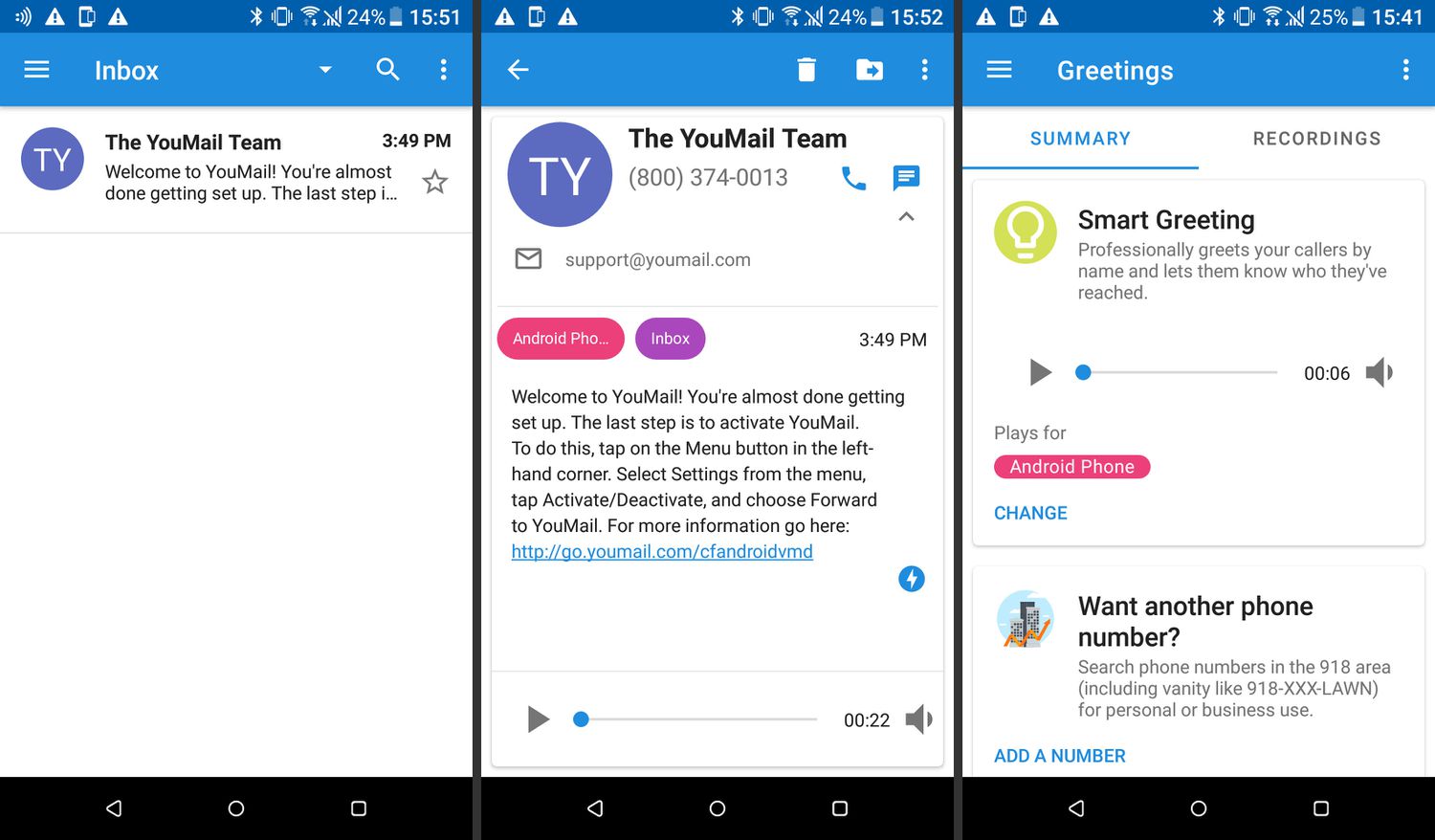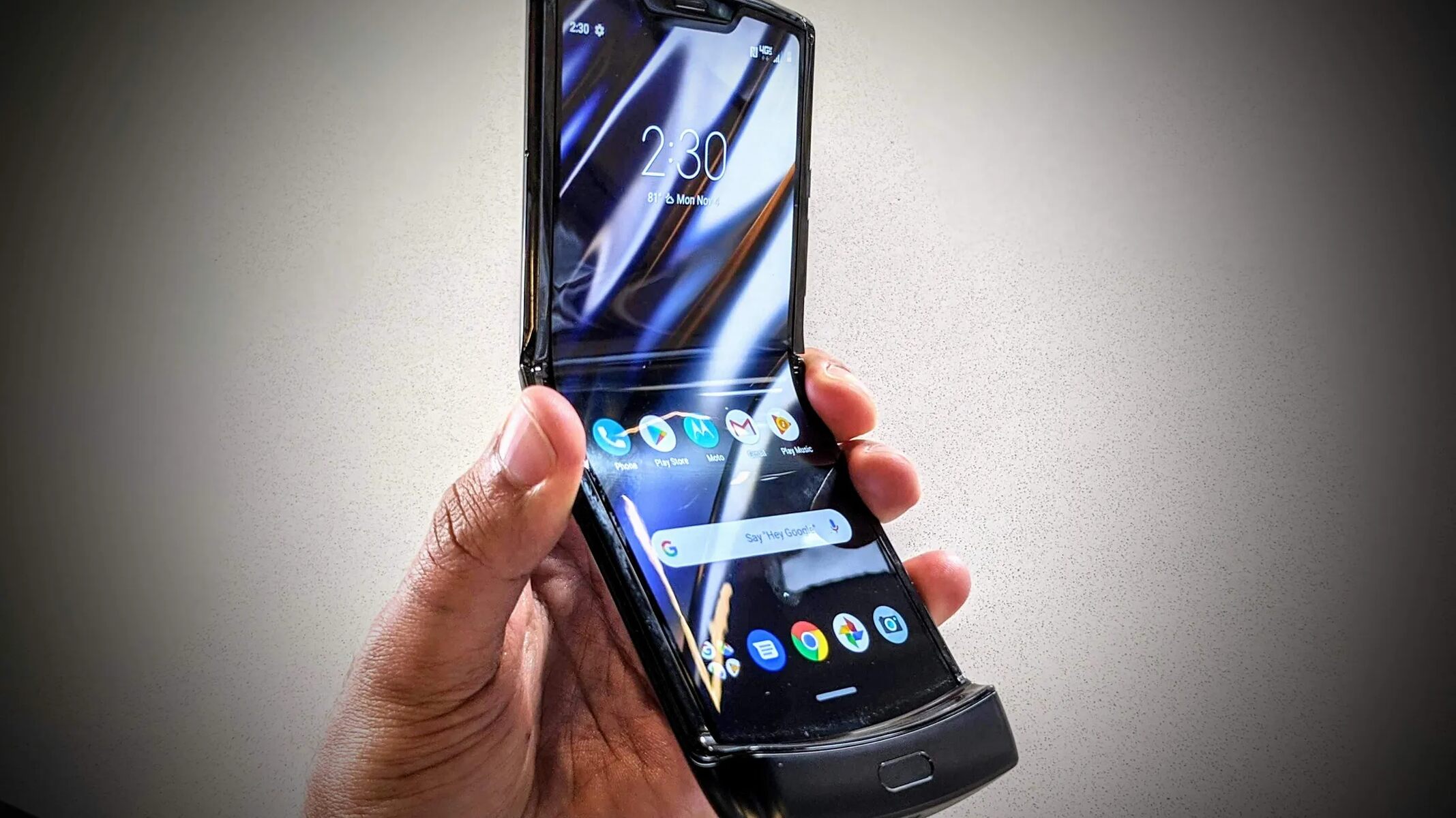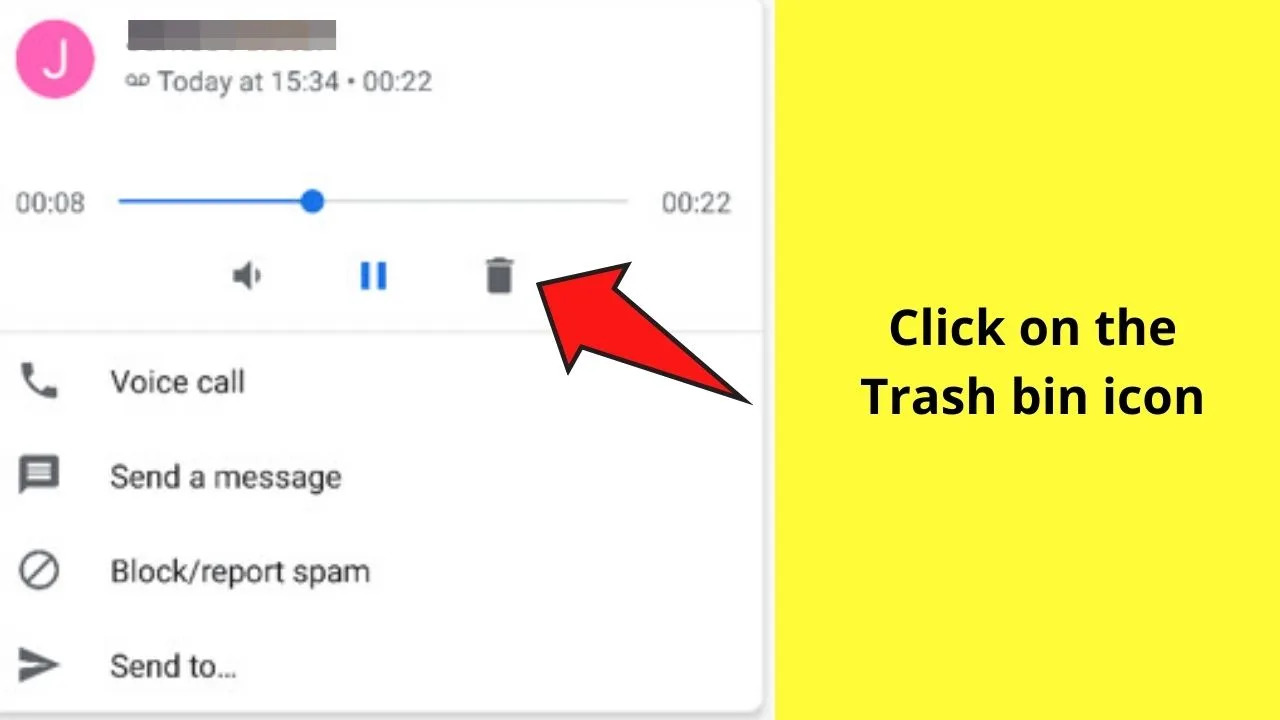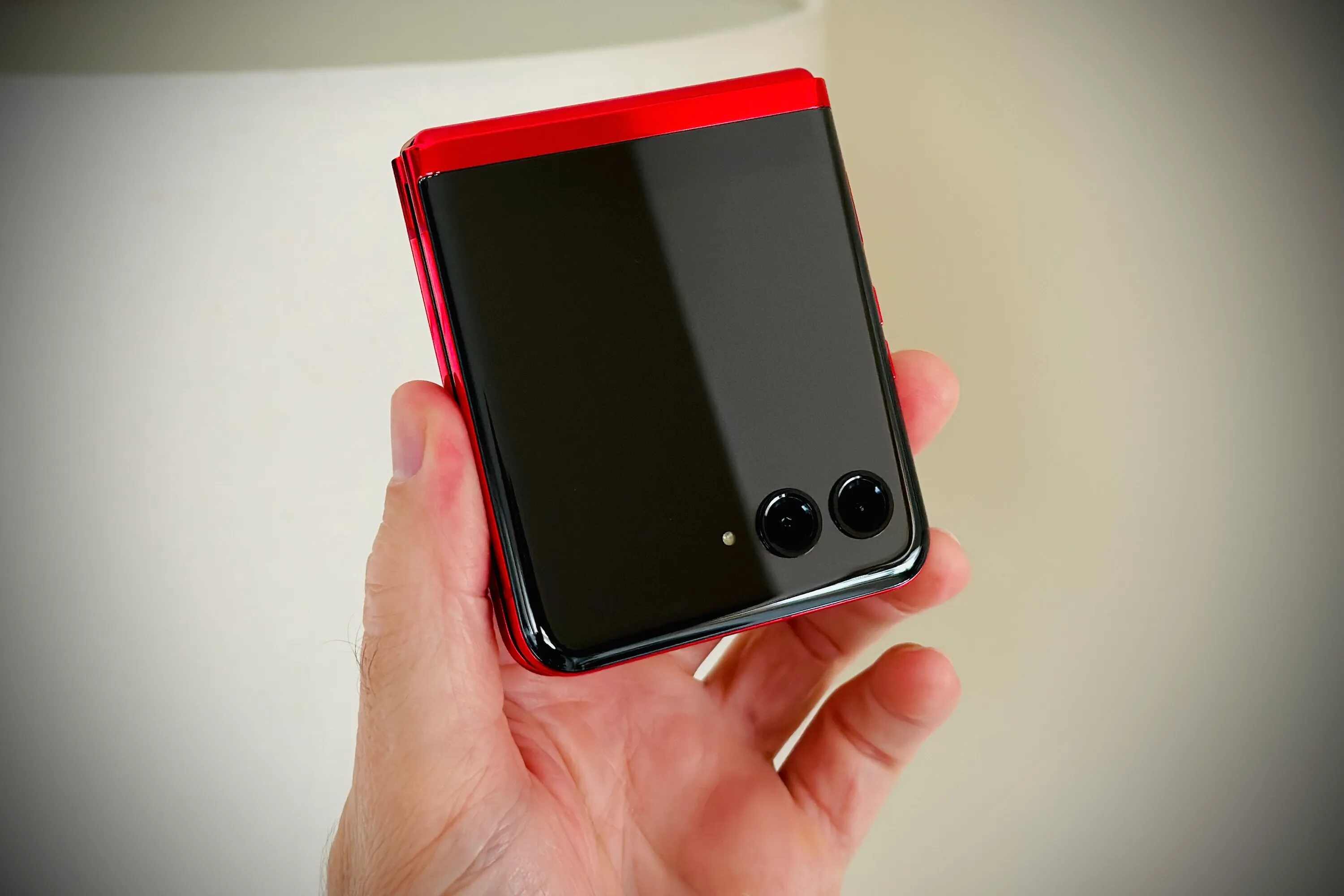
To set up your carrier voicemail on a Motorola Razr, the quickest method is to open the Phone app, tap the Keypad icon, then touch and hold the '1' key to call your carrier's voicemail system. This Motorola razr voicemail setup process connects you directly to your carrier's automated prompts, which will guide you through the initial configuration. Once your inbox is active, you can easily delete voicemails on Android to keep it from filling up, or you can set up visual voicemail on Android to read transcripts and manage messages without dialing in.
Motorola razr voicemail setup: the quick way
For first-time setup, begin by opening the Phone app on your Motorola Razr. Tap the Keypad icon to bring up the dialer. Touch and hold the '1' key on the dial pad until the call starts. This action dials your carrier's voicemail system, where you will hear spoken prompts to complete the setup.
Recording your voicemail greeting
After connecting to your carrier's voicemail system, follow the spoken prompts to record a personalized greeting. The prompts will also guide you through choosing a password or PIN to secure your voicemail. This ensures callers hear a message you have created, and only you can access your messages.
Changing your voicemail settings
To adjust voicemail options after initial setup, open the Phone app and tap the Menu icon (three dots). Tap Settings, then tap Voicemail. If you are using two SIMs, select the SIM for the account you wish to change. From here, you can modify the voicemail service or the access number. To change the voicemail service, tap Advanced Settings, then tap Service. To change the number dialed to access voicemail, tap Advanced Settings, then tap Setup, followed by Voicemail number.
Troubleshooting common voicemail issues
If a voicemail notification persists after you have listened to all messages, force-stop the Phone app. Touch and hold the Phone app icon, tap App info, then tap Force stop. This clears the notification. For issues related to setting or recovering your voicemail password or PIN, contact your carrier directly, as they manage the voicemail service on your device.