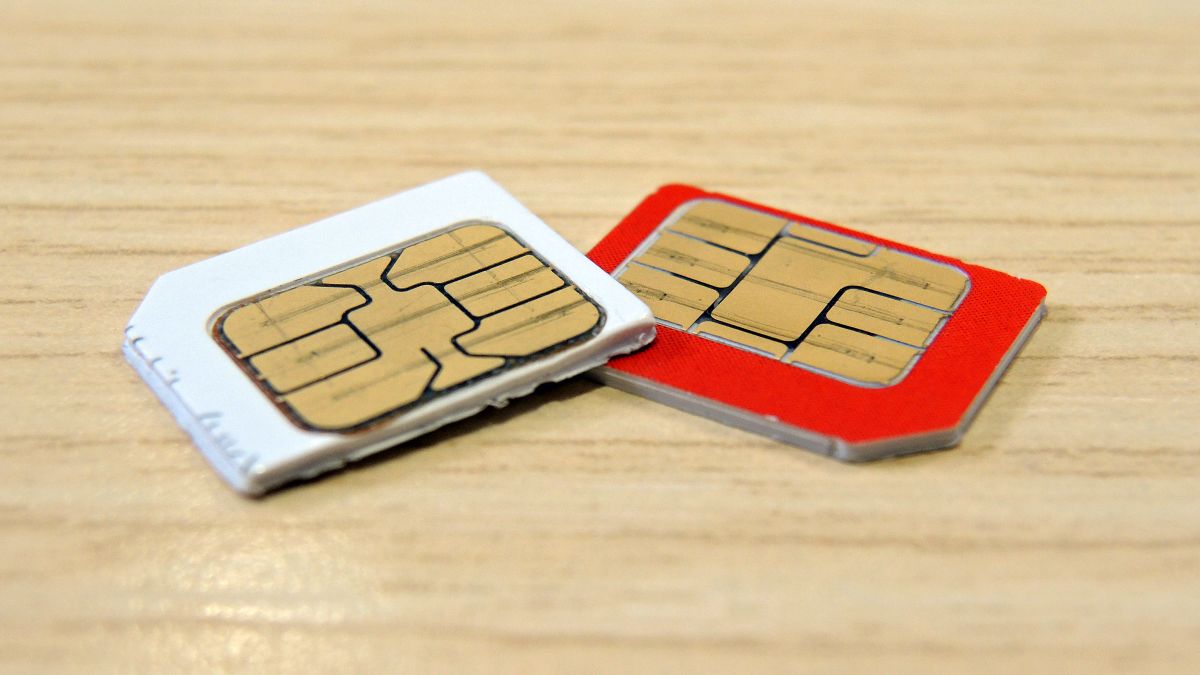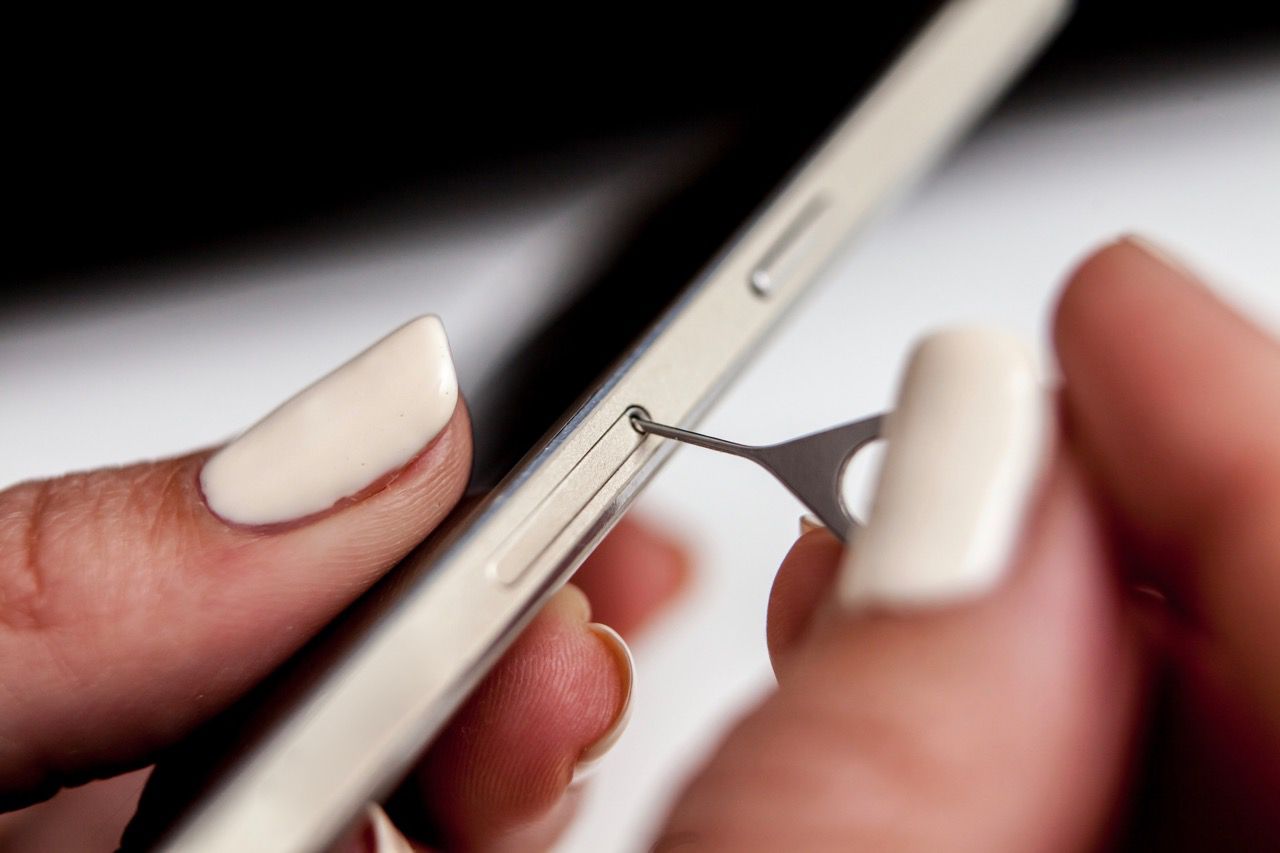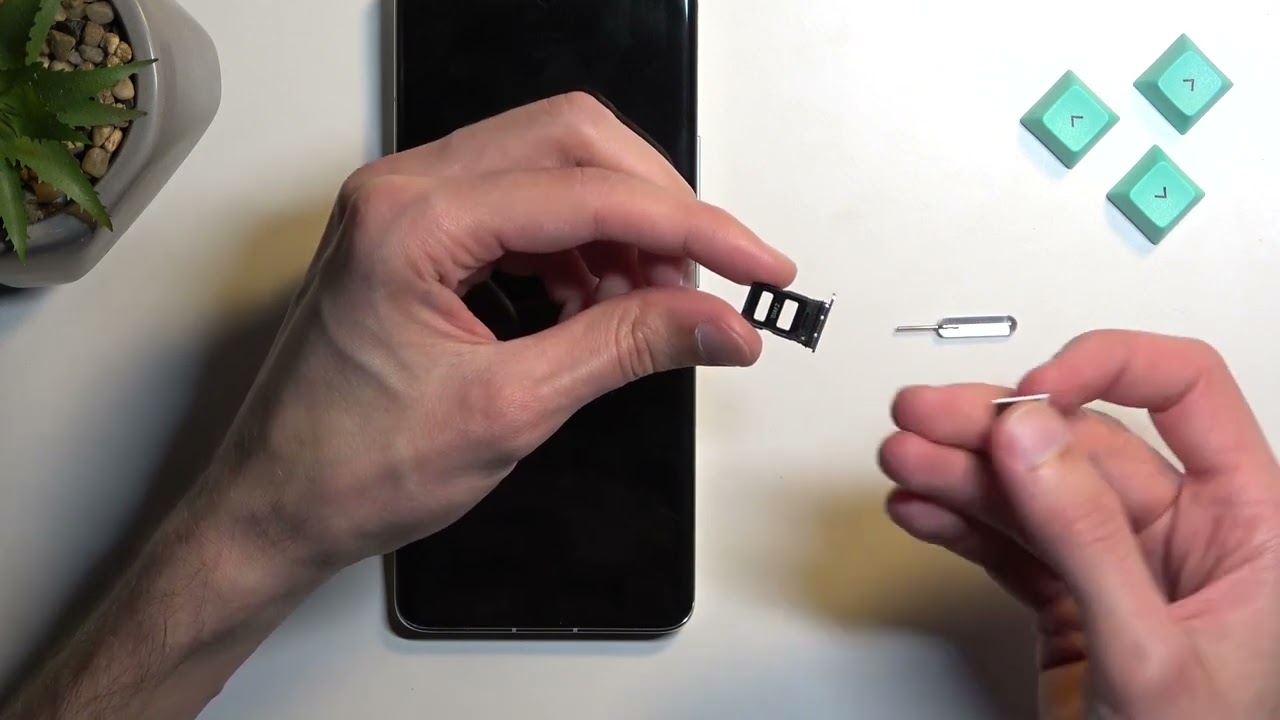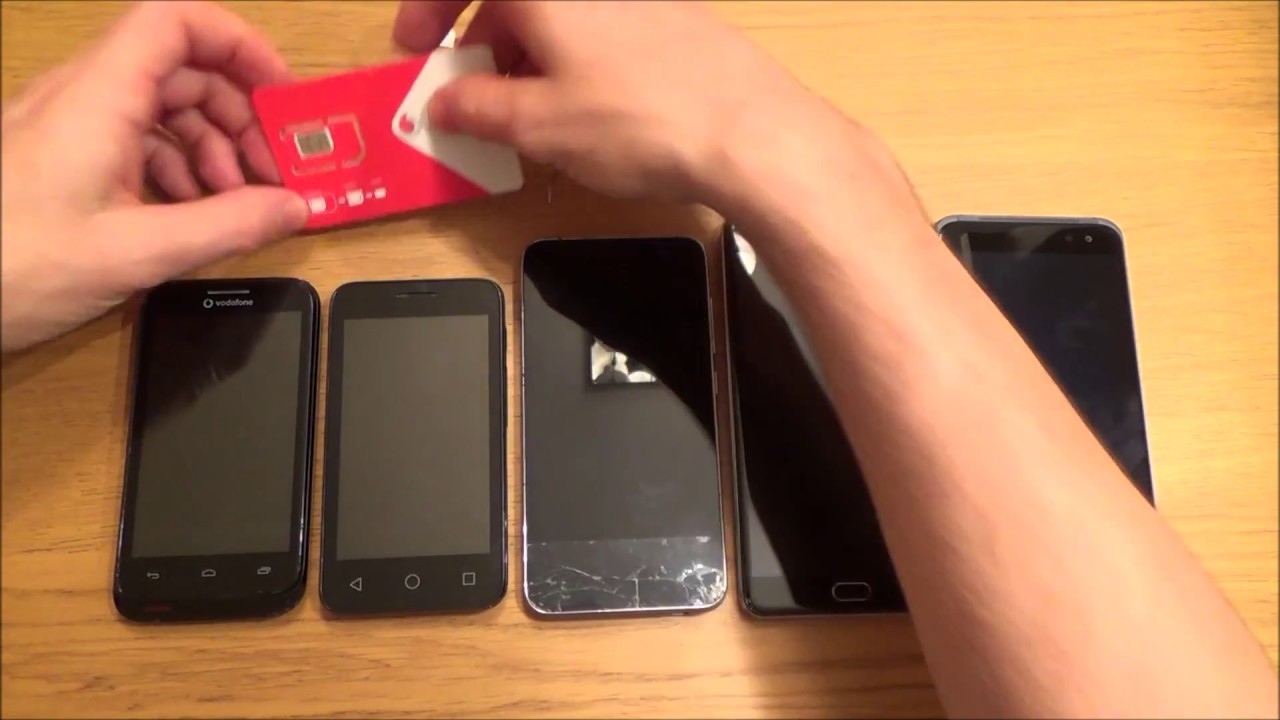
Locating the SIM card on android phones is straightforward for most modern devices: the physical SIM card slot is typically found in an external tray on the phone's edge. This tray is accessed through a small pinhole and holds the nano SIM card that connects your device to your mobile network.
Where is the SIM Card Slot on Your Android Phone?
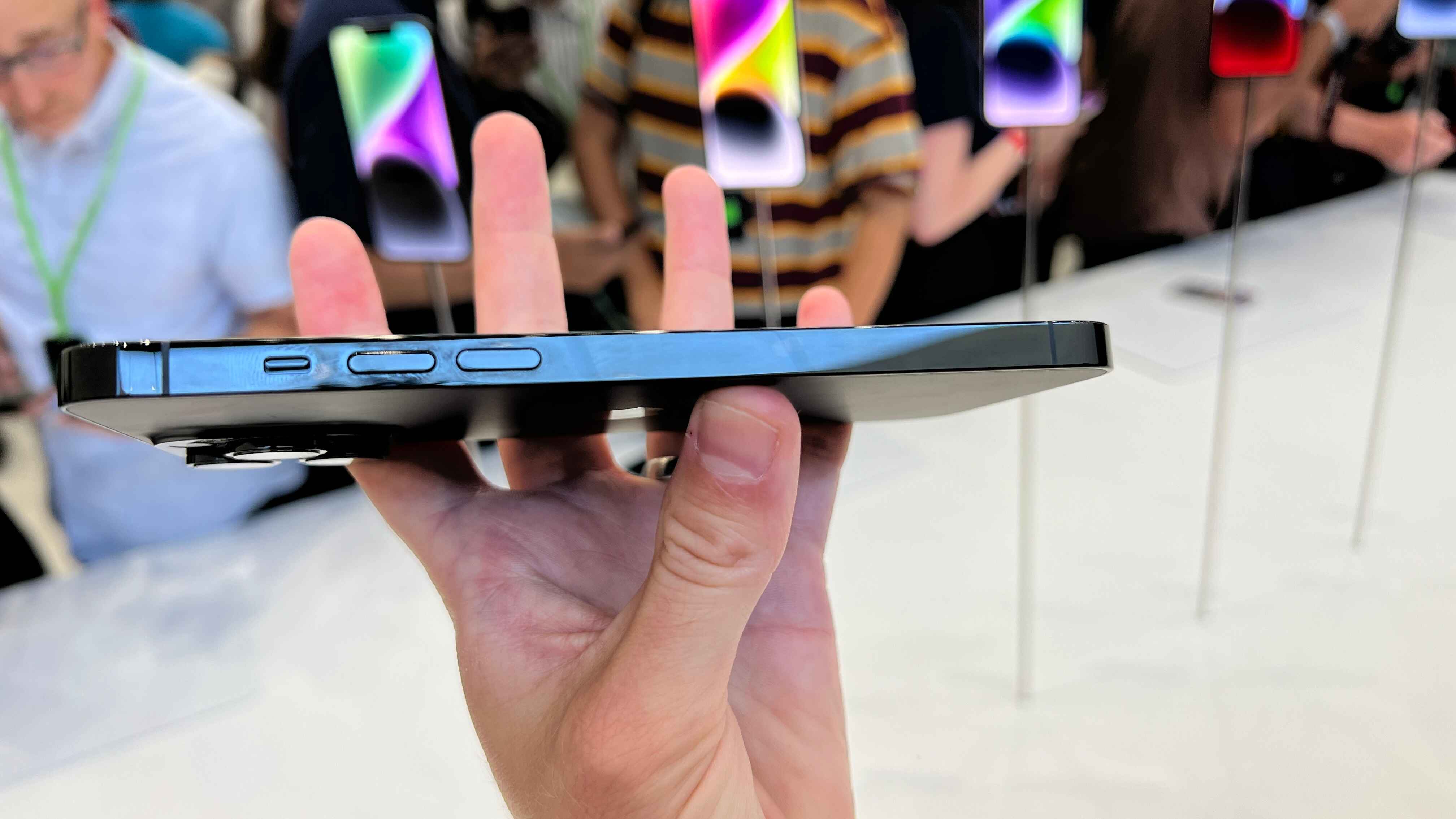
Modern Android phones almost exclusively use external SIM trays, making the slot easy to find without removing any covers. On newer Samsung Galaxy phones, particularly the S21 through S25 series, the SIM card slot is located at the bottom edge of the device, alongside the charging port and speaker grille. For Google Pixel phones (Pixel 4 and later), the SIM tray is on the left edge of the phone. Some older Android models may have the SIM card slot located under a removable back cover, often next to the battery, but this design is largely outdated for contemporary smartphones.
Before You Start: Physical SIM vs. eSIM
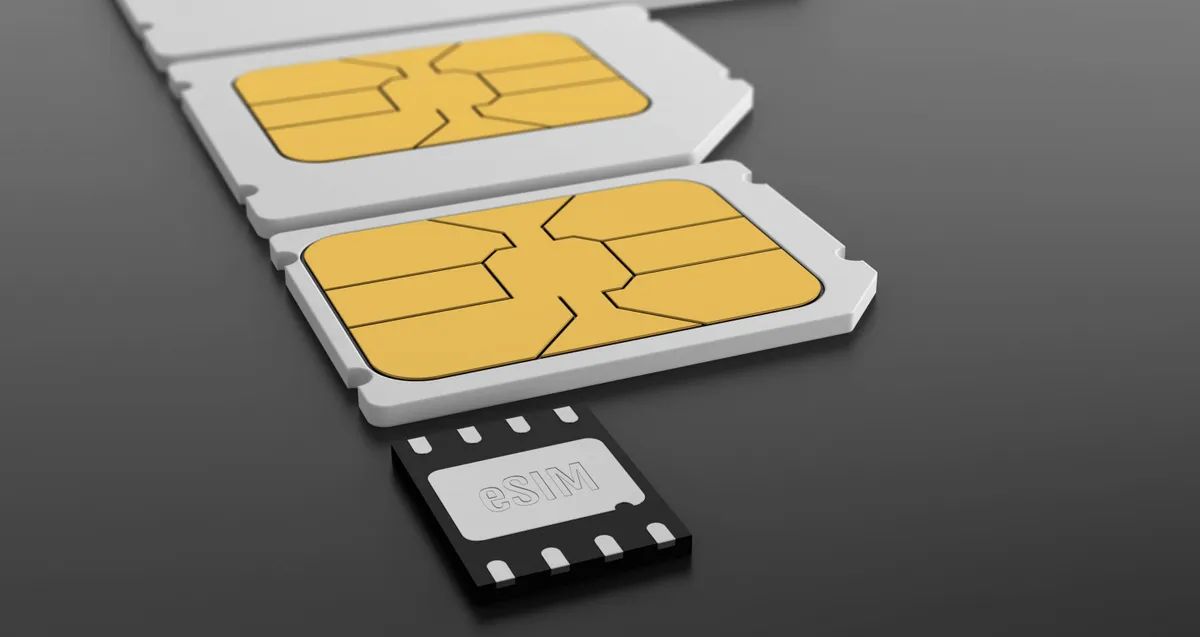
This guide covers locating and handling a physical nano SIM card, which is the smallest and most common SIM card size used in modern Android smartphones. Many newer Android phones also support eSIM (embedded SIM), a digital alternative built directly into the device that eliminates the need for a physical slot entirely. If your phone supports eSIM, you may not need to access a physical tray at all. Additionally, many Android devices offer dual SIM capabilities, allowing the use of two phone numbers or carriers simultaneously, either with two physical SIMs, one physical SIM and one eSIM, or two eSIMs. If you plan to move your physical card to an Apple device later, see this guide on switching SIM card from Android to iPhone for a smooth transfer. Once you have accessed the card, you can also back up your contacts by saving data to SIM card on Android.
How to Safely Remove and Insert a Nano SIM Card
Always power off your Android phone before inserting or removing a physical SIM card to prevent damage to the card or device. Follow these verified steps:
- Locate the small pinhole next to the SIM tray on your phone's edge.
- Insert the SIM ejector tool (or a small paperclip) gently but firmly into the pinhole until the tray pops out, then carefully pull it out.
- Place the nano SIM card into the tray, ensuring the notched corner aligns and the gold contacts are correctly oriented (direction may vary by model; check the tray or device manual).
- Gently slide the SIM tray back into the slot until it is fully inserted and flush with the phone's body.
- Power on your phone and verify that the network is detected.
This process is essential whether you are inserting a SIM card for the first time, switching carriers, or replacing a damaged card.
Troubleshooting SIM Card Problems
If the tray does not eject easily, or if your phone displays a "SIM card not detected" error after following the steps above, the issue may be a stuck tray, debris in the slot, or improper alignment. For detailed guidance on resolving these specific problems, including how to handle a stuck tray and fix detection issues, refer to the dedicated troubleshooting guides available on this site.