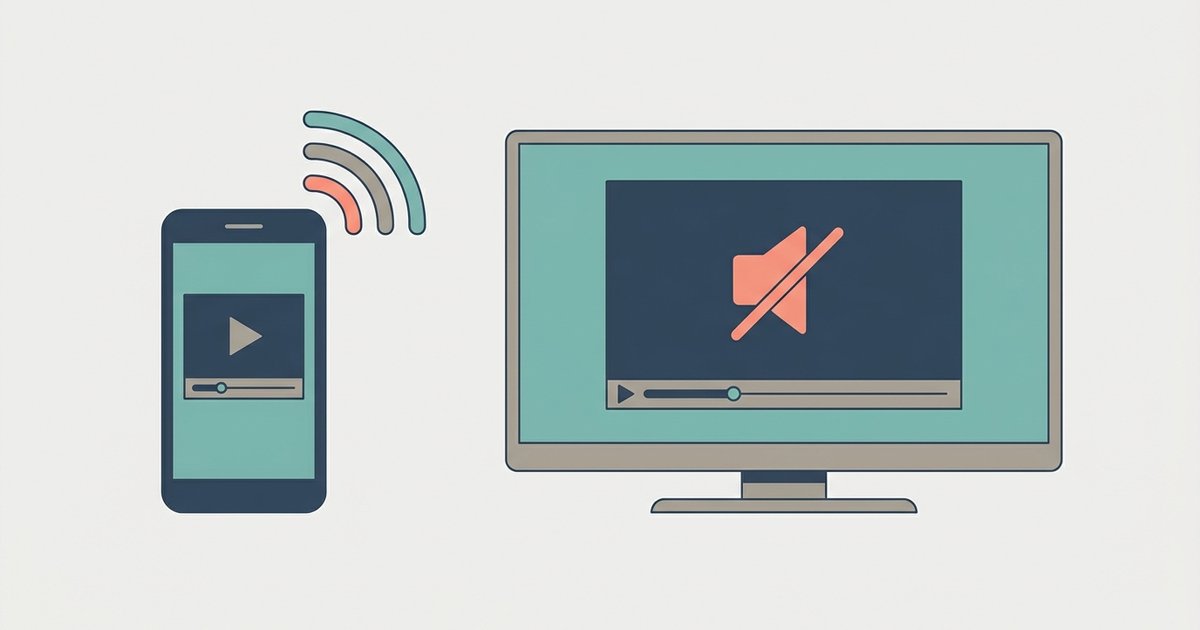
Your TV likely lacks support for the specific audio codec your phone is sending, or the mirroring protocol is routing audio to the phone by default. Switch to a casting method that hands off playback entirely, like using the cast icon inside an app instead of screen mirroring.
The codec mismatch causing no sound screen mirroring
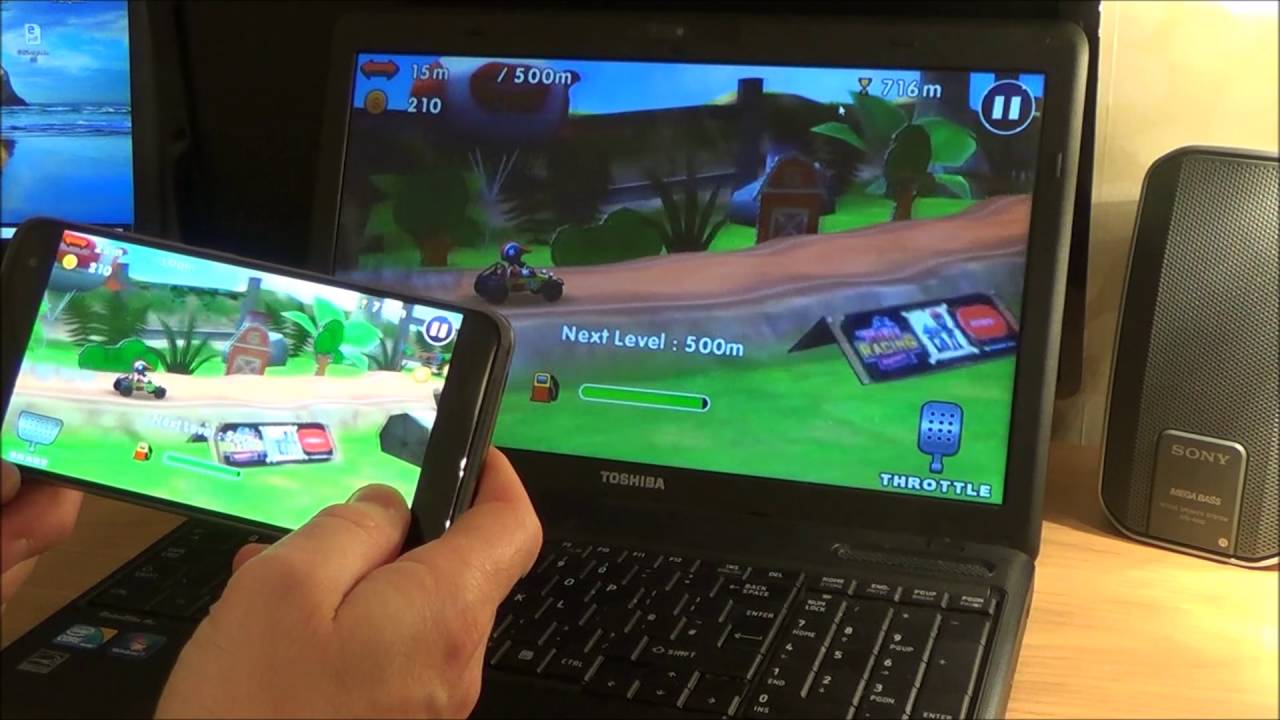
When you mirror your phone to a TV, the phone encodes every frame and every millisecond of audio on the fly. Video codecs like H.264 are nearly universal. Virtually every modern TV decodes them without issue. Audio is a different story. Your phone may be sending audio in a format the TV simply cannot process, such as a codec the TV's decoder does not recognize. During screen mirroring, the phone does not negotiate audio codecs the way a dedicated streaming app does. It just blasts whatever format the OS chooses. If the TV’s audio decoder does not recognize that format, it stays silent. Before troubleshooting further, verify that your devices are properly set up for screen mirroring to a TV, as an unstable connection can also degrade audio delivery. You can test this by playing a simple stereo MP4 file from your phone’s gallery while mirroring. If that audio works but streaming apps do not, the codec mismatch is almost certainly the culprit.
When screen mirroring deliberately silences your TV
Protocols such as AirPlay and Miracast are designed to send video and audio as separate streams. They sometimes route audio exclusively to the phone speaker because the TV lacks the decryption keys required for DRM-protected content. For example, when you use screen mirroring to watch a subscription video service, the app often marks the audio track as “protected.” The mirroring protocol then refuses to forward that audio to the TV, because the TV lacks the decryption keys required to play it. The result is perfect video on the big screen and audio only from your phone’s tiny speaker. This behavior is intentional. It prevents the TV from recording or redistributing the audio stream. If you want to connect your phone to your TV and hear sound from the TV, you must avoid this DRM trap by using a method that hands the entire playback job to the TV. The same limitation applies if you try to screen mirror on a TCL smart TV, screen mirror an Amazon Fire tablet 10, or screen mirror on a Philips smart TV. All of these devices treat mirrored audio as a secondary, often silenced, channel when DRM is involved.
The quick fix that beats troubleshooting
Instead of debugging codec tables or digging into TV audio settings, switch to native in-app casting. Open the streaming app, tap the cast icon, and select your TV. This sends a URL or playback token to the TV, which then fetches and decodes the audio itself using its own codec support. The phone becomes a remote control, not a real-time encoder. This bypasses the audio handshake problem entirely. The TV chooses the correct audio format from the server, and DRM content plays normally since the TV has its own license. The same principle applies to local media. Use apps like Plex or VLC with built-in casting support rather than screen mirroring. Once you do this, the audio will come from your TV speakers every time. No muting, no codec errors, and no phone speaker interference.
Screen mirroring sends a real-time feed that your TV must decode instantly, but native casting sends a link to the stream and lets the TV handle its own audio decoding.