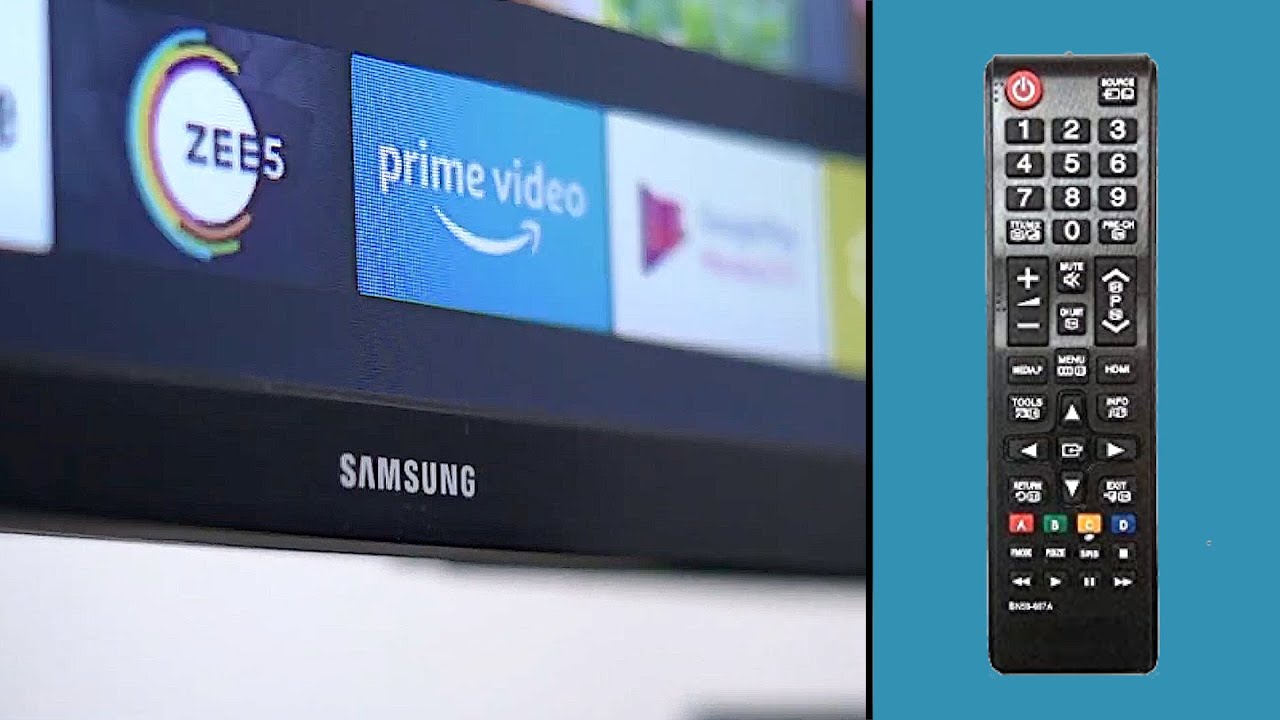
To find Samsung smart TV remote quickly, start with a systematic physical search of the most common hiding spots before moving on to digital solutions. The frustration of a misplaced remote is real, but these practical steps will help you locate it or regain control of your TV within minutes.
Check between and under couch cushions
This is the most common hiding spot for a lost remote. To search thoroughly, remove all cushions from your couch and chairs. Reach your hand into the crevices between the seat and the backrest, feeling for the remote. Check the sides and back of the furniture where the remote may have slipped. If you have a recliner or sectional, examine each section separately, including under footrests and chaise lounges. Run your hand along the upholstery folds and seams where remotes often get wedged.
Look under and behind furniture
Remotes frequently get knocked off tables or fall to the floor and slide under furniture. Use a flashlight to see into dark areas under sofas, coffee tables, end tables, and TV stands. If the furniture is too heavy to move, use a broomstick or the handle of a mop to probe underneath. Check the narrow gaps between furniture and walls, as remotes can slide into these tight spaces. Be thorough and check neighboring pieces of furniture, as the remote may have rolled after being dropped.
Search in unusual places
Think beyond the obvious spots. Check these unconventional locations:
- Clothing pockets, especially if you often use the remote while lounging
- Toy boxes or bins where children may have hidden the remote
- Inside blankets or between pillow folds
- Bookshelves or between stacked books
- Near other electronic devices like game consoles, DVD players, or streaming devices
- Behind or inside sofa cushions beyond the main crevices
Use the SmartThings app as a temporary remote
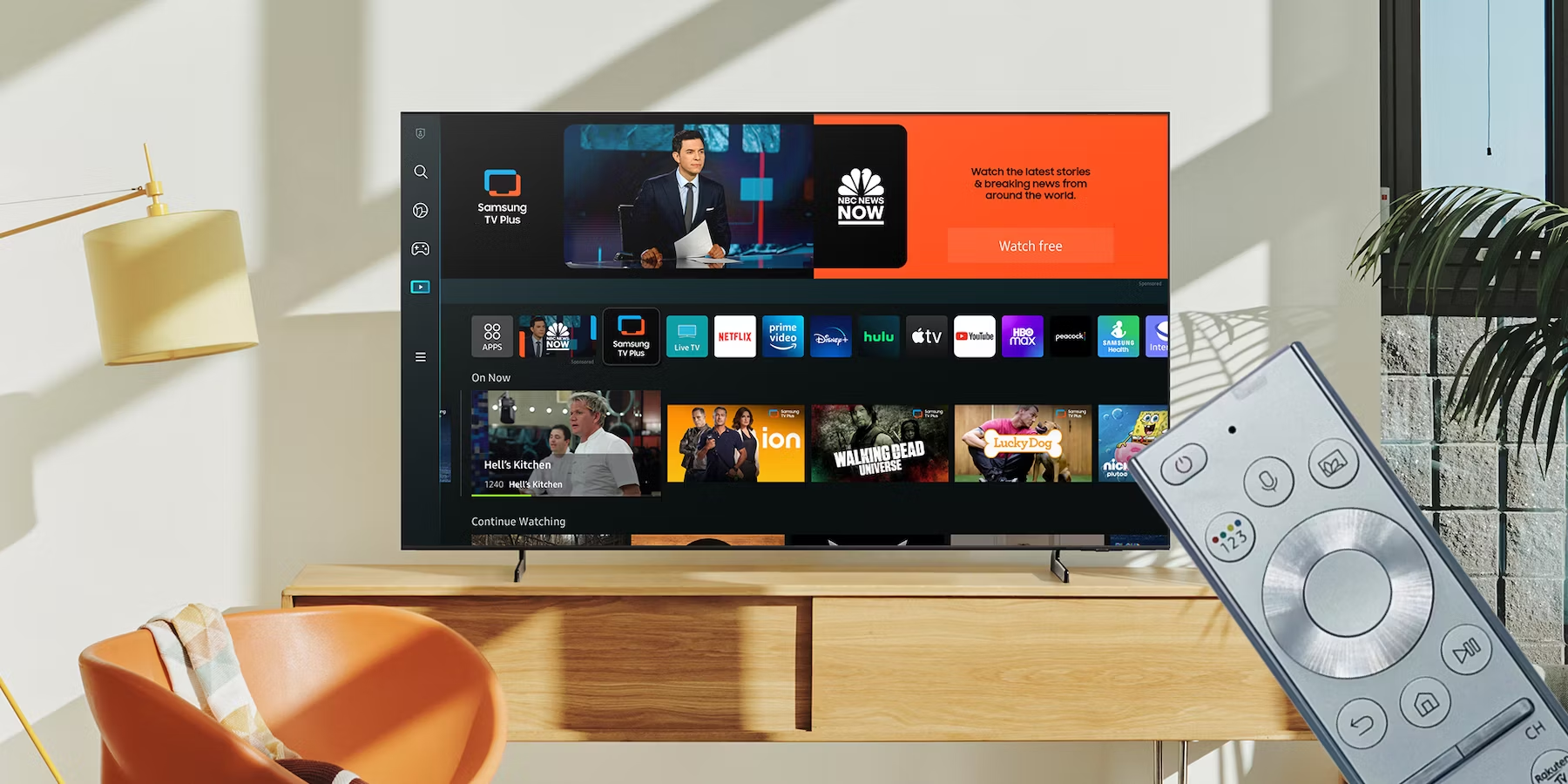
If your physical search fails, the official Samsung SmartThings app on your smartphone can control your TV. Both your Samsung Smart TV and smartphone must be connected to the same Wi-Fi network. A Samsung Account and an internet connection are required for network-based smart services. To set it up, open the SmartThings app, tap "Menu" or the "+" icon, select "Add device," then "TV" under Samsung devices, and follow the on-screen instructions. For Samsung TV models manufactured before 2020, a PIN displayed on the TV screen may be required to complete the connection. The app provides a virtual remote control that allows you to adjust volume, change channels, launch apps, switch between inputs, and navigate menus. You can also find mac address on Samsung smart TV within the app’s device information if your network requires it for access. This is the recommended solution for comprehensive and reliable control of your Samsung Smart TV.
Use the TV's physical buttons for basic control
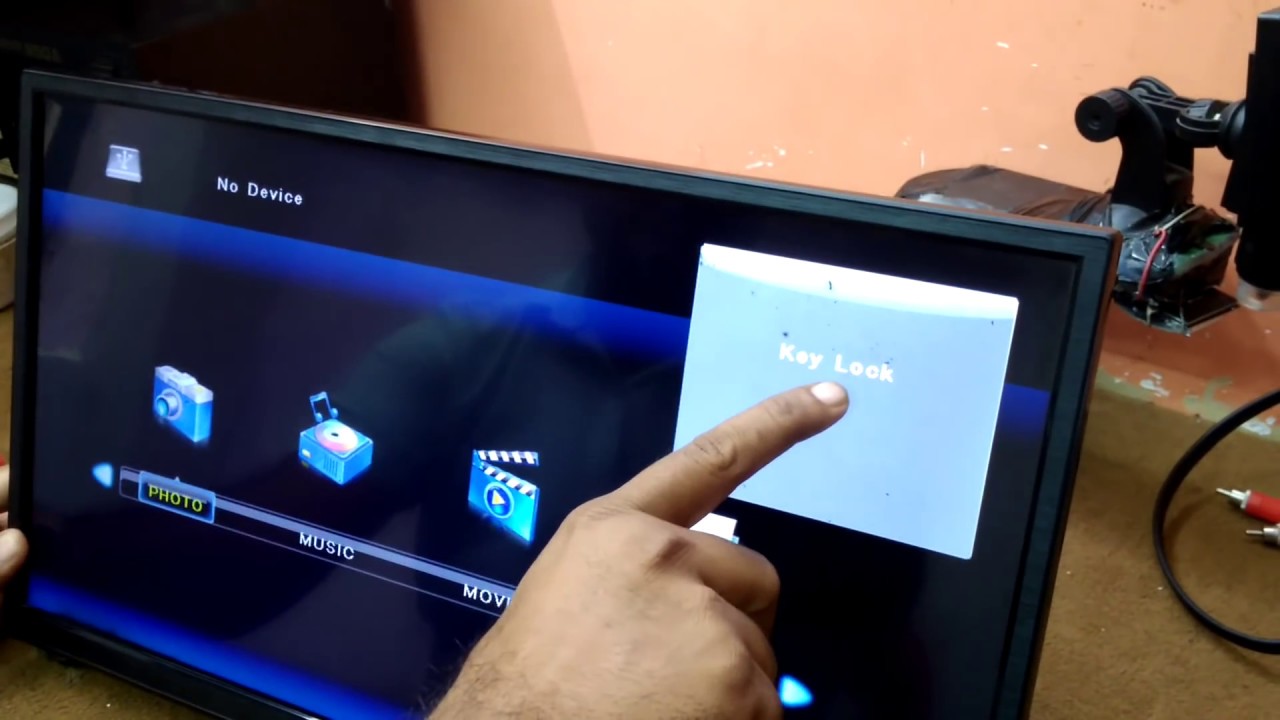
All Samsung TVs include built-in physical control buttons. Their location varies by model but is typically on the back (bottom-right corner), front panel (center), front bezel (center), or side (bottom of the bezel). These buttons allow for basic functions such as powering the TV on/off, adjusting volume, changing channels, and switching input sources. To operate the TV, you typically long-press a control stick or center button to power on or select an option, and single-press to navigate through menus. This method provides limited functionality compared to a full remote control.
Try an old Samsung remote as a quick fix
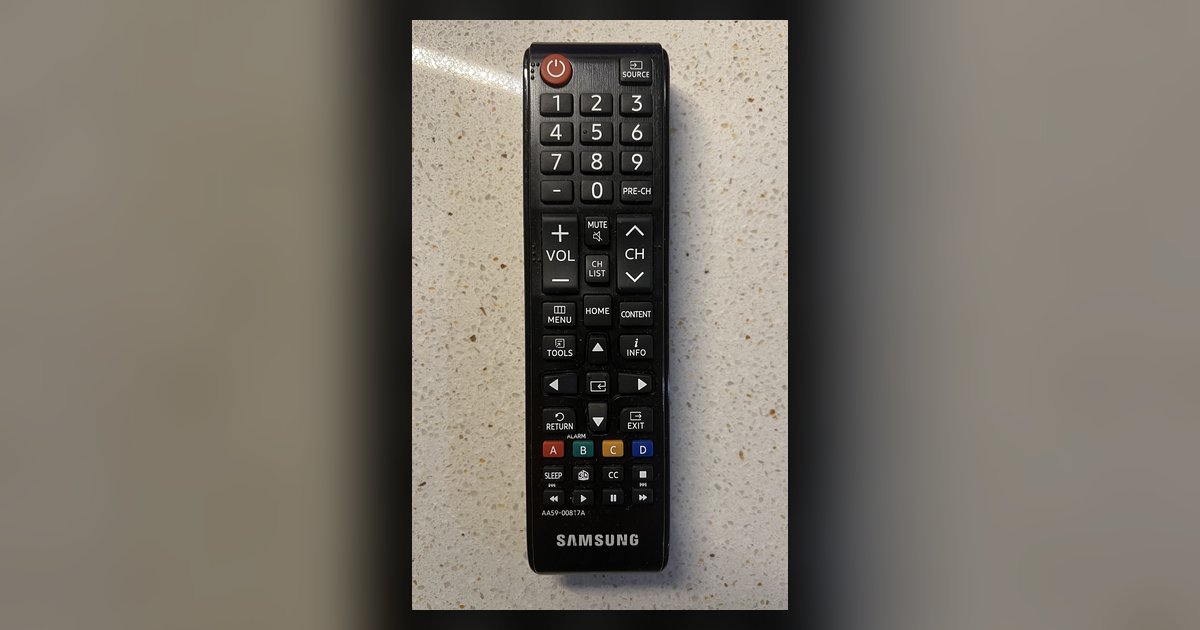
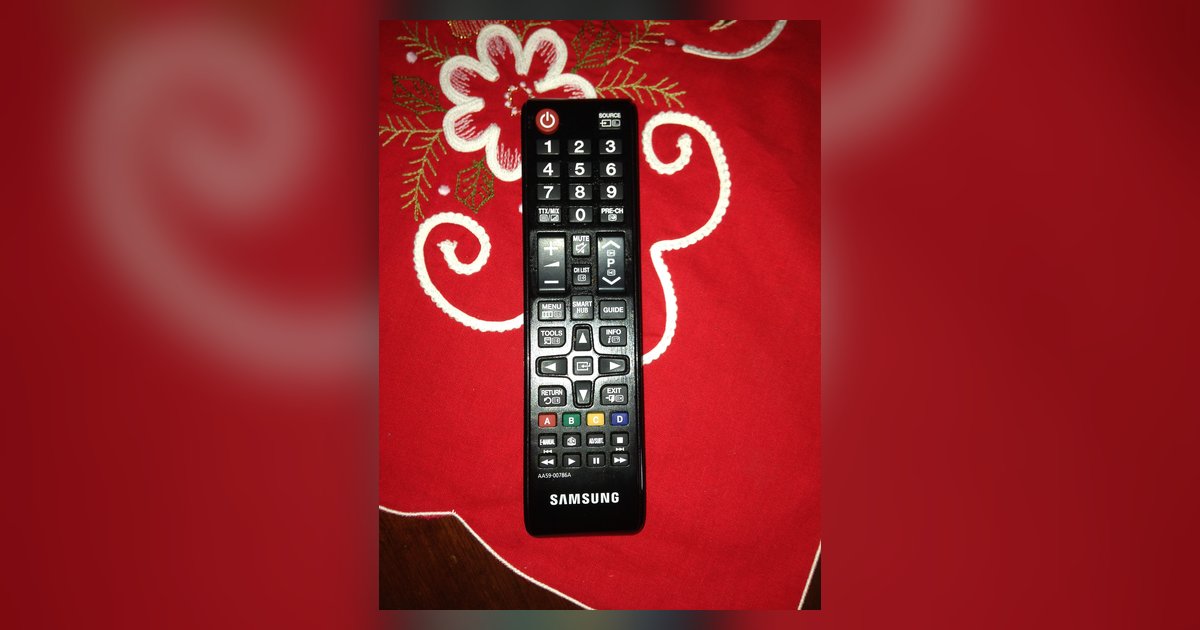
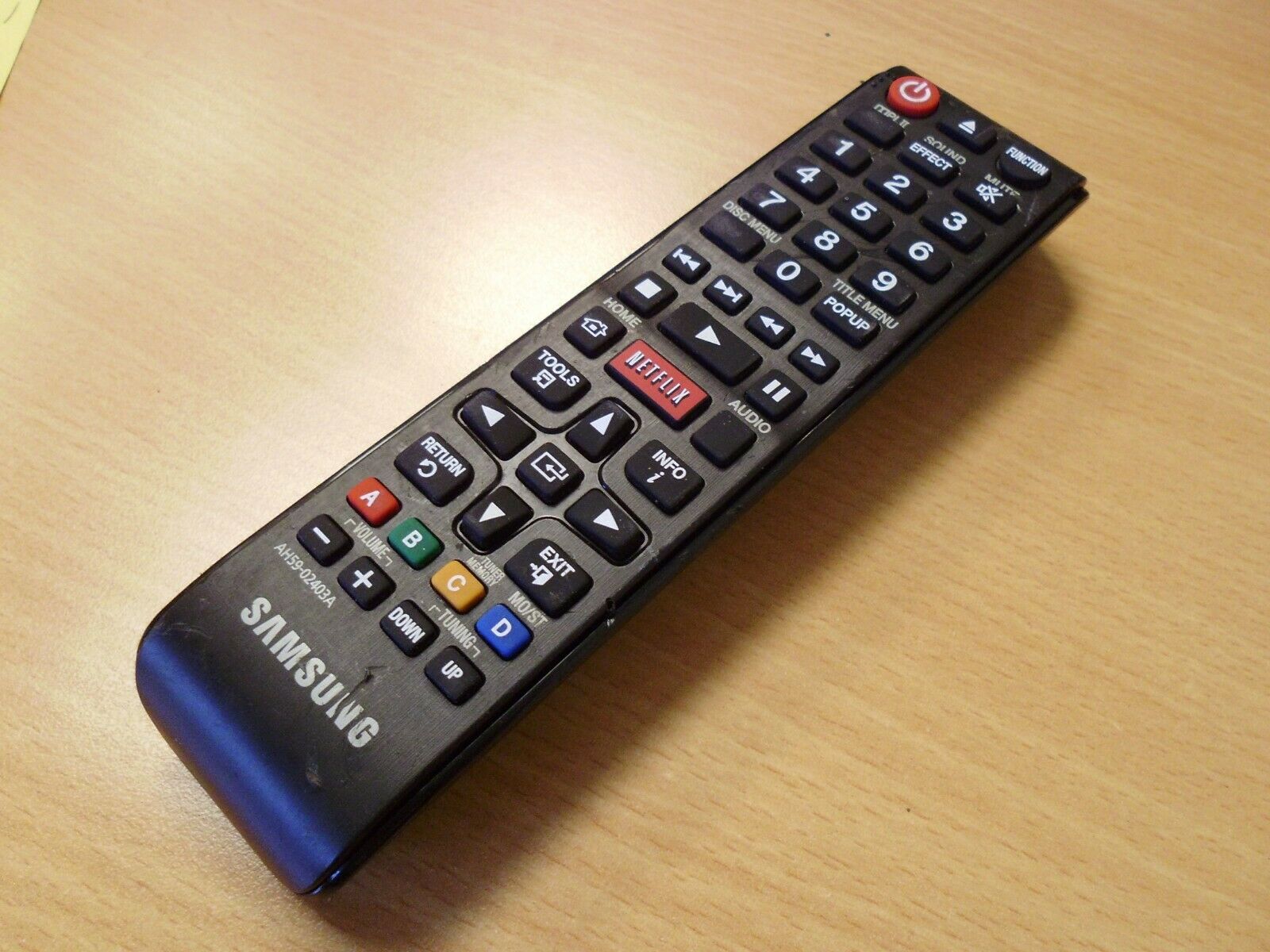
An older infrared (IR) remote from any Samsung TV can perform basic functions such as turning the TV on/off, increasing/decreasing volume, changing channels, and accessing the settings menu on your Samsung Smart TV. This offers an immediate, no-cost solution for many users. If you have an old Samsung remote in a drawer or closet, it will likely work for basic control while you continue searching for your lost remote. This is a simple way to connect an old remote to your Samsung smart TV without any setup or programming.
Buy a replacement remote if it's truly lost
If you have exhausted all search methods and cannot locate your remote, you can find the exact replacement by searching for your TV's model number on samsungparts.com or through authorized retailers. This ensures compatibility and full functionality. Once you purchase a new remote, designate a specific spot for it, such as a bowl or tray on your coffee table, to prevent future loss. This is the final step if you need to set up your Samsung smart TV without a remote permanently or simply want to turn on your Samsung smart TV without a remote using a dedicated replacement.
For the wider topic, see use my Samsung smart TV remote.