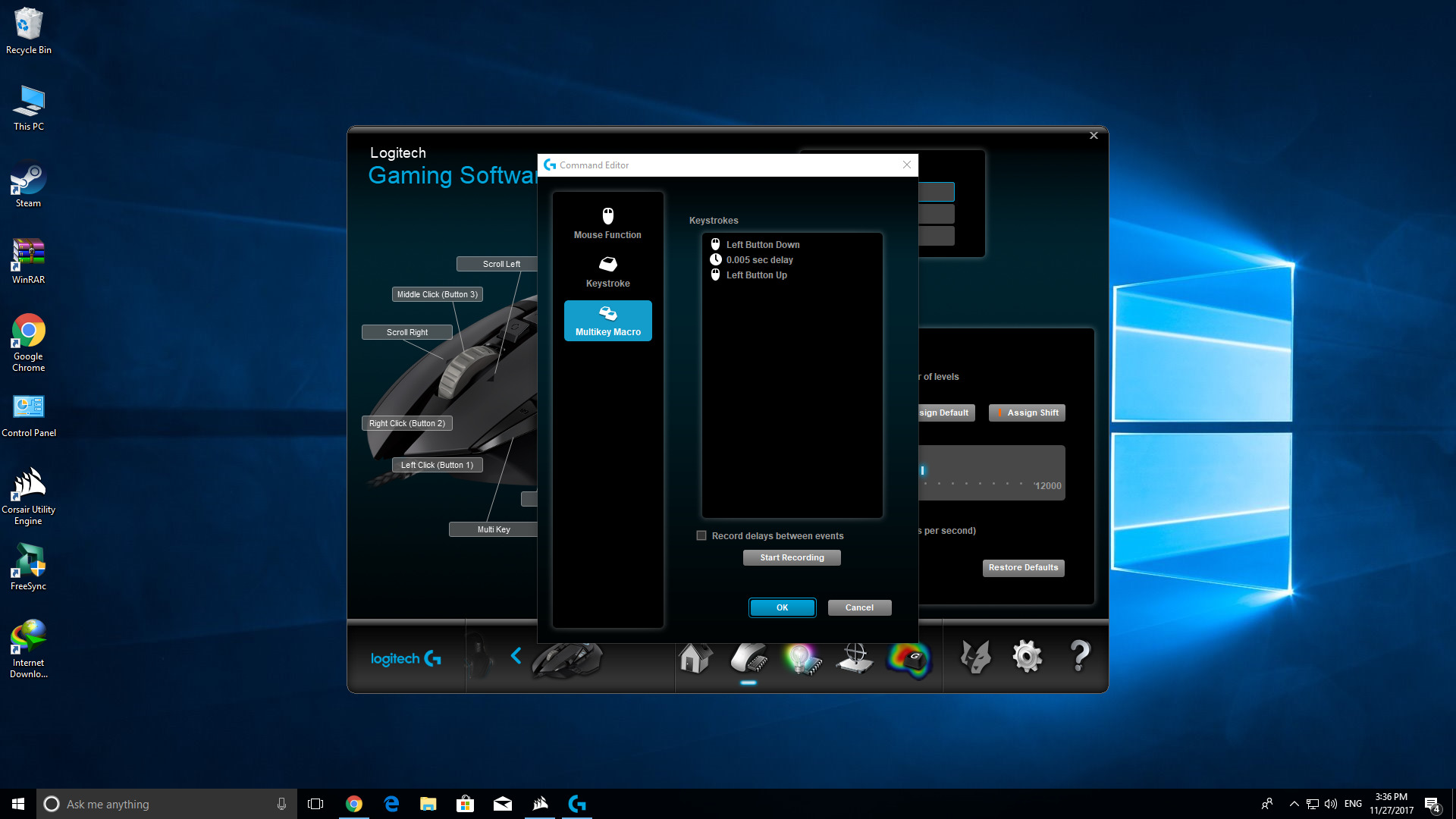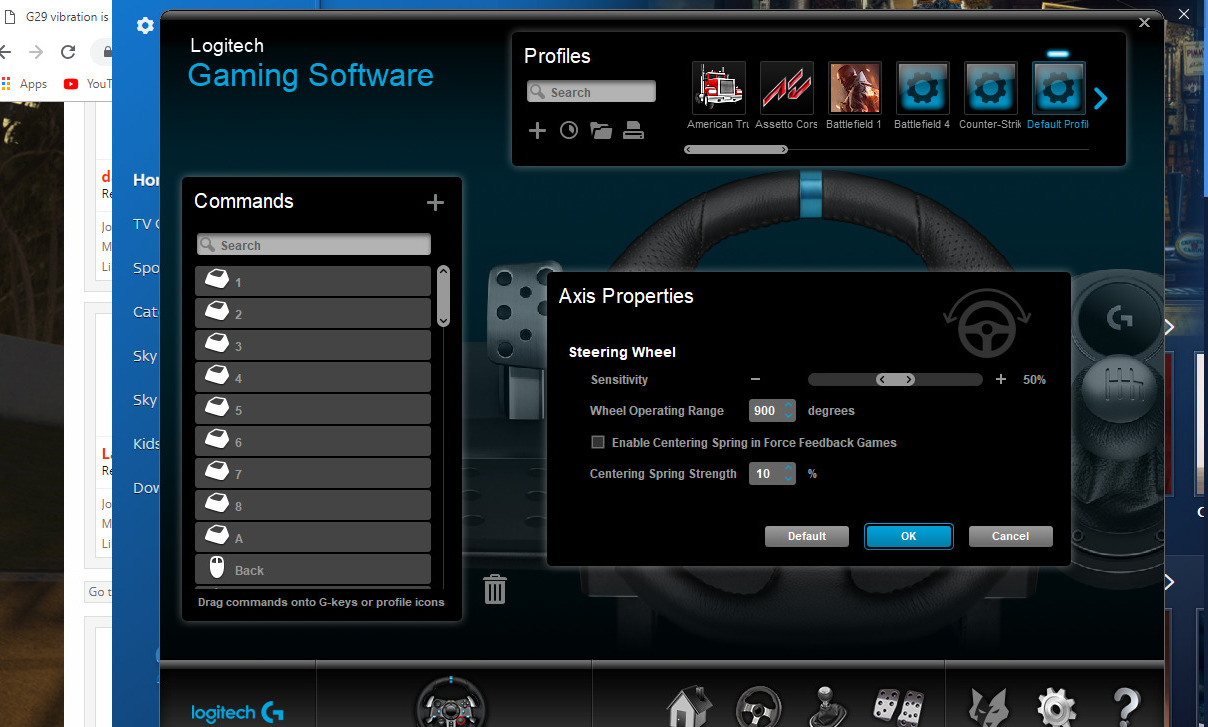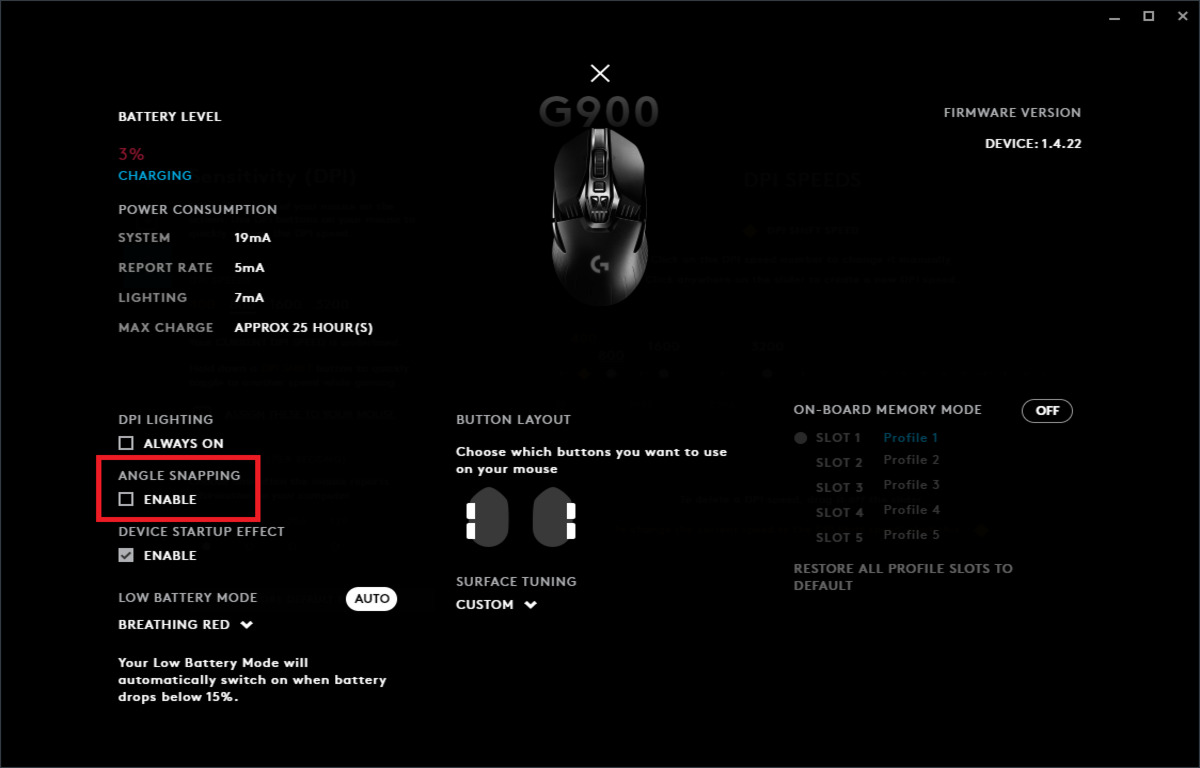
To turn on angle snapping Logitech, open Logitech G HUB and select your mouse, then navigate to the Sensitivity tab and check the box for "Angle Tuning." This setting is Logitech's name for angle snapping and is the only way to enable the feature in the current software.
How to turn on angle snapping on your Logitech mouse
Follow these steps to enable angle snapping using Logitech G HUB, the current software for Logitech gaming peripherals. Note that the feature is labeled "Angle Tuning" and is found under the Sensitivity tab.
- Open Logitech G HUB on your computer. If you have not installed it, download it from the Logitech website and complete the installation.
- Select your Logitech mouse from the list of detected devices at the top of the G HUB window. If you have multiple Logitech devices connected, ensure you choose the correct mouse model.
- Click the "Sensitivity" tab in the left-hand menu. This opens the DPI and tracking settings for your mouse.
- Look for the option labeled "Angle Tuning" within the Sensitivity settings. It appears as a checkbox below the DPI slider.
- Check the box next to "Angle Tuning" to enable the feature. No further adjustment is typically needed; some mouse models may offer additional options.
- Your changes should save automatically in G HUB. The setting remains active as long as the software is running and On-Board Memory Mode is disabled.
Angle snapping works by detecting the direction of your mouse movement and correcting any deviations to make movements straighter. This can be helpful for tasks requiring straight lines or consistent movement, such as checking corners in games or aligning elements in documents.
Why is angle snapping missing from my Logitech mouse?
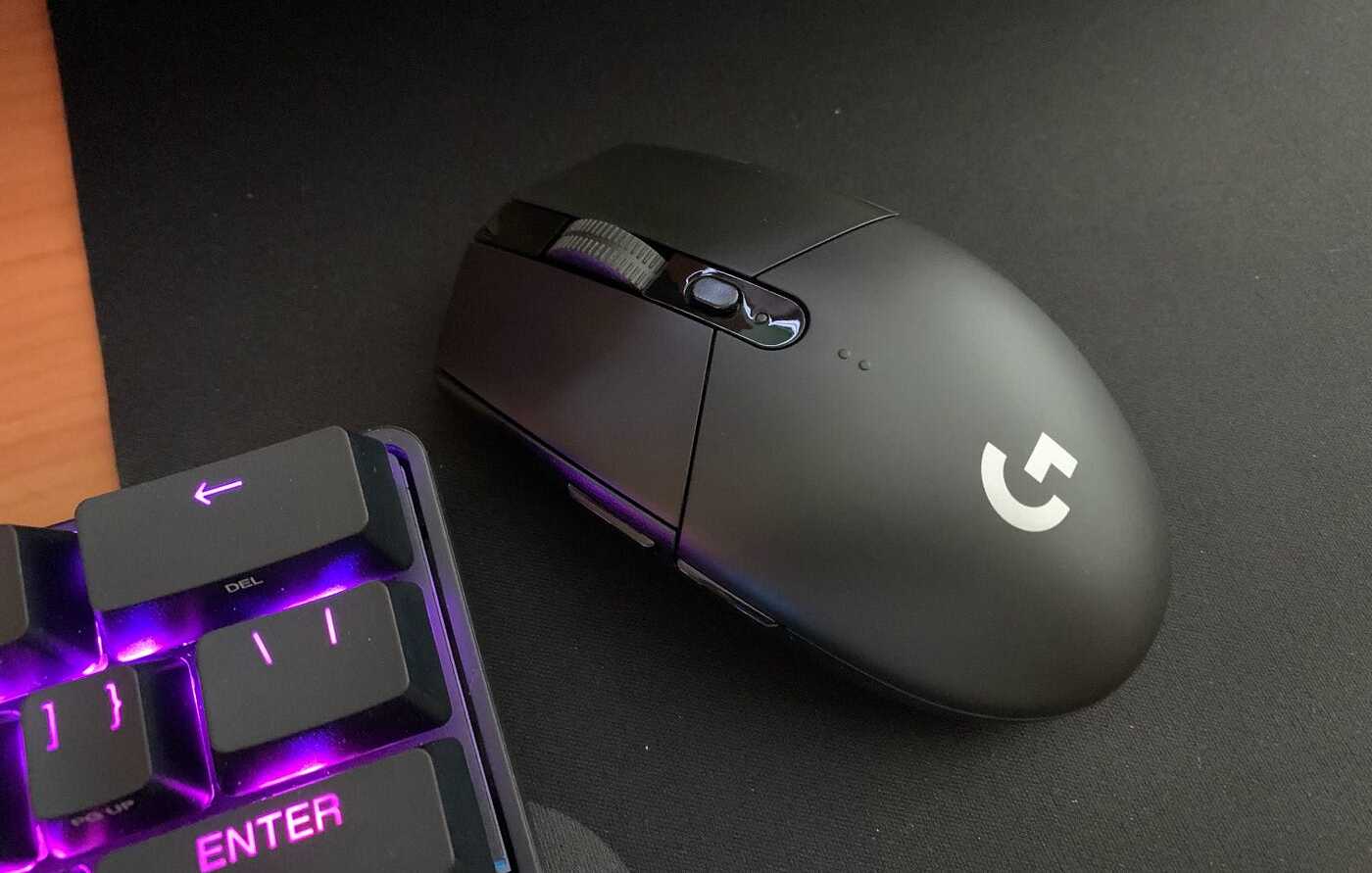
Some modern Logitech gaming mice, particularly those with HERO sensors, may not have the "Angle Snapping" feature implemented or visible in G HUB. This is a hardware limitation, the sensor itself does not support the correction algorithm, so no option appears in the software. Additionally, angle snapping does not work when "On-Board Memory Mode" is enabled on some mice. If you see no "Angle Tuning" checkbox, first check that On-Board Memory Mode is turned off in G HUB (look for a toggle at the top of the mouse settings page). If the option remains absent, your mouse likely lacks the feature entirely, but you can still fine-tune its performance through the DPI settings for the Logitech G305 to better suit your aim style.
A potential workaround exists for a bug where the setting is hidden despite the mouse supporting it: one user reported being able to toggle it by temporarily enabling and then disabling "On-Board Memory Mode". This may force the software to reload the full settings list. If the checkbox appears after this process, leave On-Board Memory Mode off to keep angle snapping active.
What is angle snapping and when should you use it?
Angle snapping is a mouse tracking feature that automatically adjusts the cursor's path to follow a straight line or a predefined angle, compensating for small jitters or deviations in hand movement. It uses advanced algorithms to analyze motion data and predict your intended direction, then corrects any unintended curves. For example, in a drawing application, angle snapping helps you draw perfectly horizontal or vertical lines without a steady hand. In first-person shooters, it can assist with tracking enemies along a straight path, such as when peeking a corner.
However, angle snapping can also interfere with micro-adjustments and natural mouse movement, potentially reducing true accuracy in fast-paced games. In competitive shooters where pixel-perfect aim is required, the correction may fight against your intent to make tiny, precise adjustments. The feature is best used for productivity tasks or casual gaming where straight-line consistency matters more than granular control. For high-level play in games like Valorant or Counter-Strike, most players disable it to maintain full control over their aim.
\nRelated reading: How To Make Rapid Fire Macro Logitech G502.