Use a fingernail or a thin plastic spudger to apply sideways pressure in the original sliding direction, not inward toward the screen. If the shutter is a non-retractable stick-on cover, it must be peeled off by warming the adhesive with a hairdryer and lifting from one corner.
Why forcing a camera privacy shutter straight down breaks the mechanism
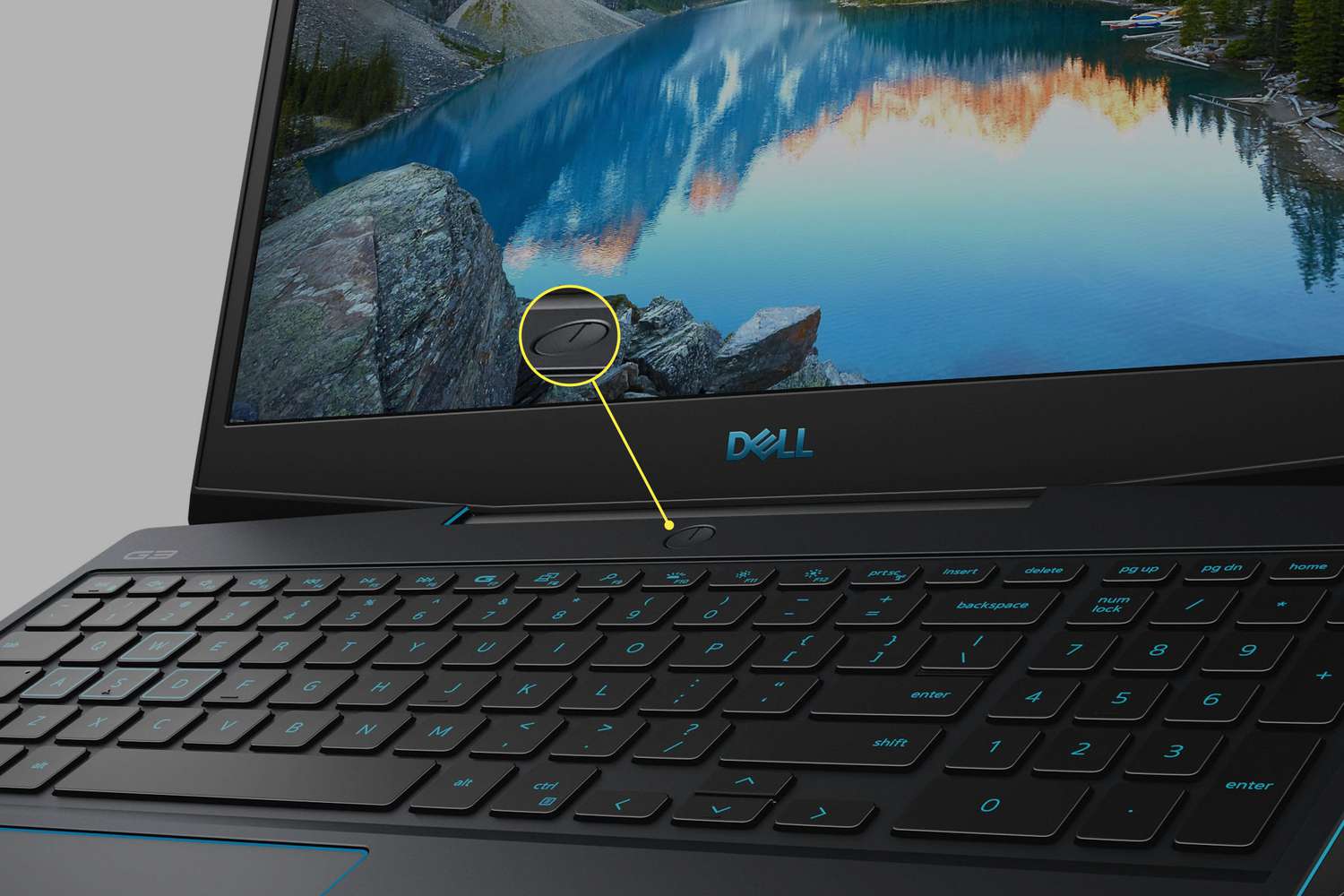
On ThinkPad and Dell models, the integrated shutter slides left or right along a tiny plastic rail embedded in the bezel. When you press inward, toward the screen, you are not sliding the shutter. You are pushing it against the rail’s locking tab, which snaps under roughly three pounds of force. If you hear a click followed by a loose rattle, the rail is already broken and the shutter will never slide again. To check if yours is broken, try tilting the laptop. If the shutter moves freely without your finger touching it, the internal track has failed. A working shutter will resist movement until you apply deliberate lateral force.
Sliding a stuck integrated shutter without scratching the lens
For HP, Lenovo, and Dell built-in shutters, the correct technique is to place the pad of your thumbnail or a plastic spudger flat against the shutter’s edge. Then push sideways, parallel to the lens surface, with steady, even pressure. Do not dig the tip into the gap between shutter and bezel, because that gouges the plastic. If the shutter is jammed by dust, use a can of compressed air to blow along the track from the opposite side, then reapply sideways pressure. If a warped bezel is pinching the shutter, gently flex the bezel outward with your thumb while sliding. The gap will open just enough to free the mechanism. Never use a metal tool, a scratched lens cannot be repaired without replacing the entire camera module.
Removing a third-party stick-on shutter that won’t slide
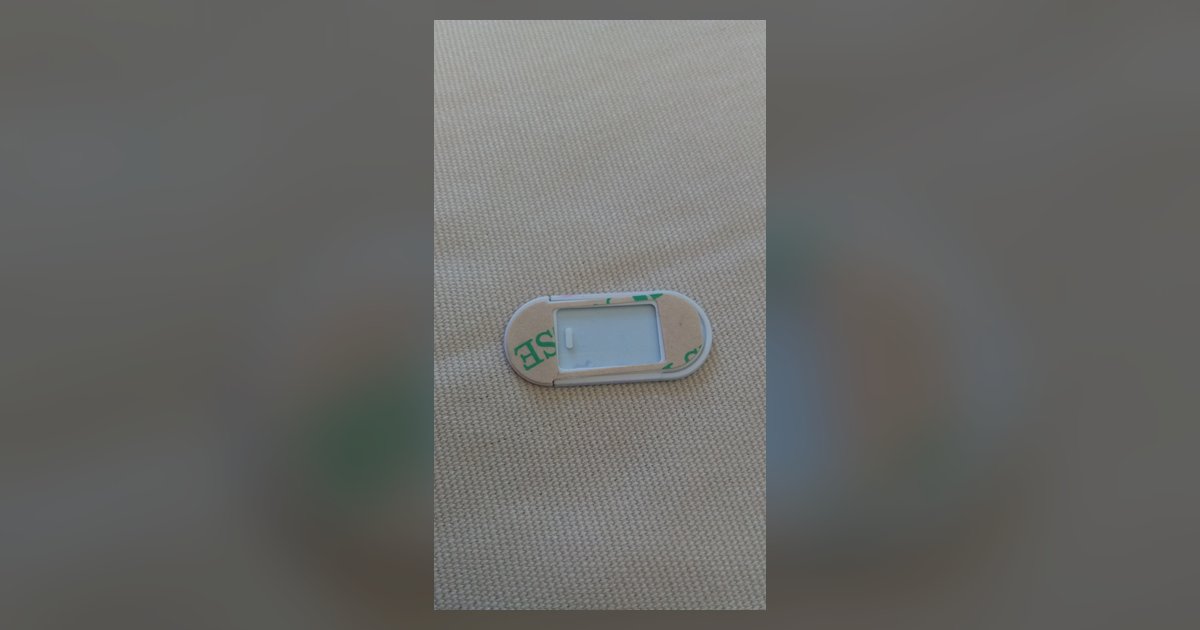
Aftermarket sliding covers that attach with adhesive are not integrated into the laptop and cannot be fixed by sliding harder. If the cover has been on for months, the adhesive bonds to the glass. To remove it safely, warm the cover for 30 seconds with a hairdryer on low heat, holding the nozzle six inches away to avoid delaminating the screen coating. Then lift from one corner with a plastic spudger or a piece of dental floss sawed underneath. If residue remains, dab it with a microfiber cloth barely moistened with isopropyl alcohol, never acetone or nail polish remover, which will strip the lens anti-reflective layer. A stick-on cover that resists heating and prying is likely a permanent plastic clip. Those require sliding the clip off the hinge, not peeling, and forcing it will crack the bezel.
When the shutter is not a shutter at all
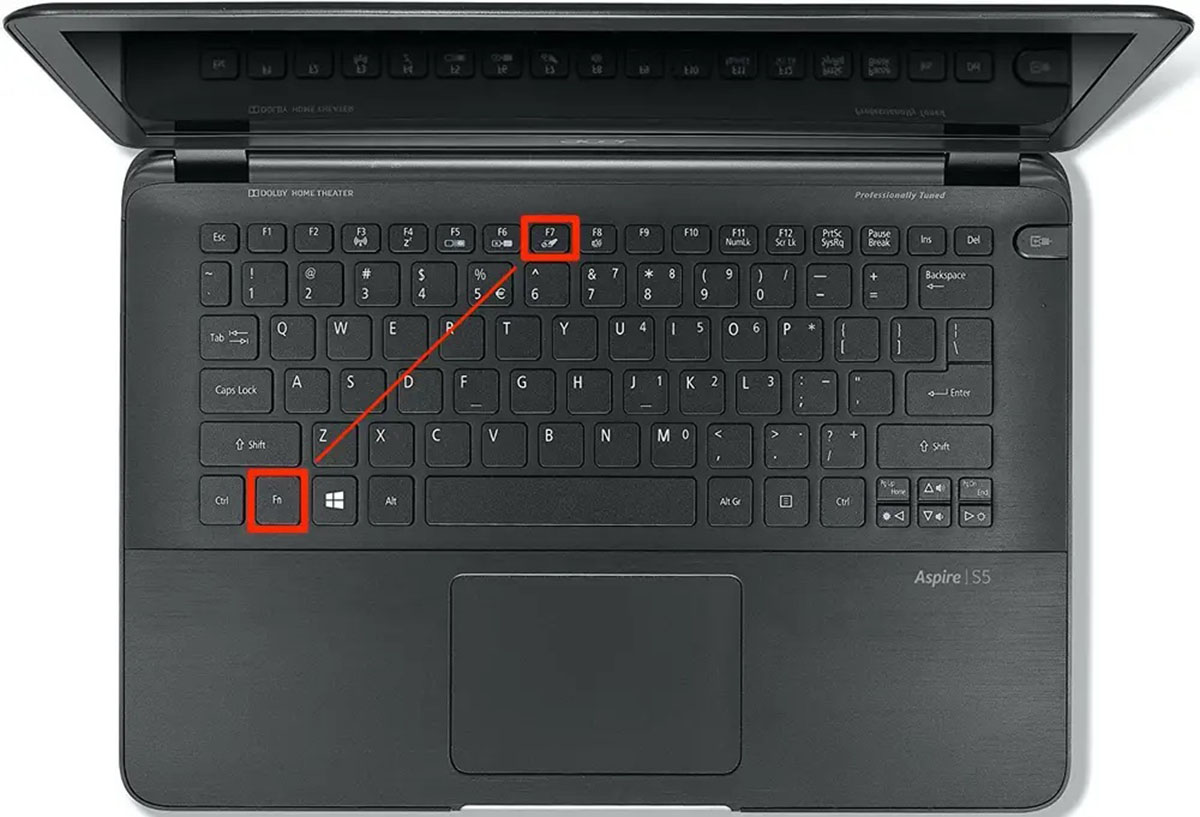
Some laptops, particularly recent HP and Lenovo business models, have no physical shutter at all. The camera is disabled by a firmware kill switch or a keyboard shortcut like F8 or Fn+F4. If you slide your finger across a smooth bezel and feel no ridge or notch, there is no shutter. Pressing on that area with force will dent the plastic and may crack the camera’s infrared emitter. Instead, check the keyboard for a camera icon key. Press it once and look for an on-screen overlay that says “Camera on” or “Camera off.” On Windows 11, also open Settings > Privacy & security > Camera and verify that “Camera access” is toggled on. On Windows 10, open Settings > Privacy > Camera and ensure “Camera access for this device” is on. If the camera still shows a black feed in an app, you may need to turn on camera permissions for your browser or allow camera access in your browser in Chrome or Edge. For HP models specifically, the driver may be disabled in Device Manager. Run the HP Support Assistant to re-enable it, which is the correct way to turn on the webcam on an HP laptop. Sliding a non-existent shutter does nothing but damage your bezel. No amount of prying will hack a webcam that is already blocked by software.
The mechanism is designed to slide parallel to the lens, not push into the display bezel. Applying force inward will almost certainly crack the internal track or break the shutter itself. This is the only repair guide that distinguishes between integrated sliding shutters, stick-on covers, and firmware-based camera locks so you never force the wrong mechanism.