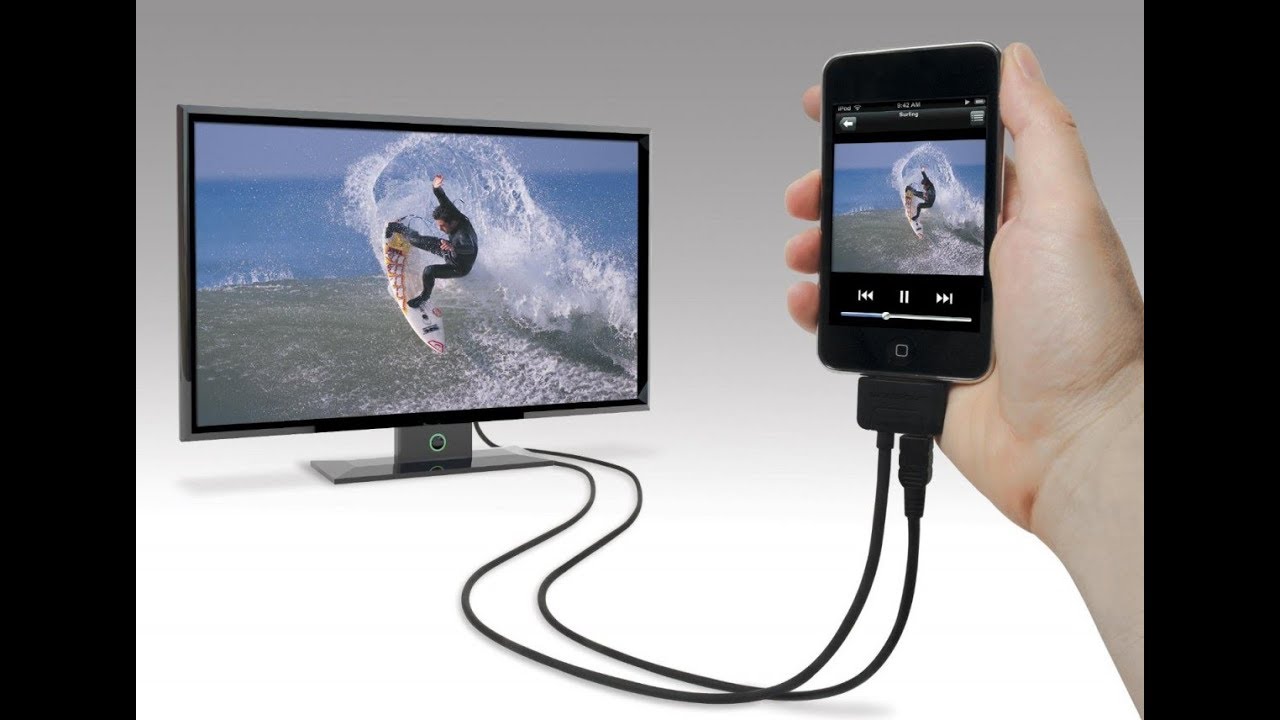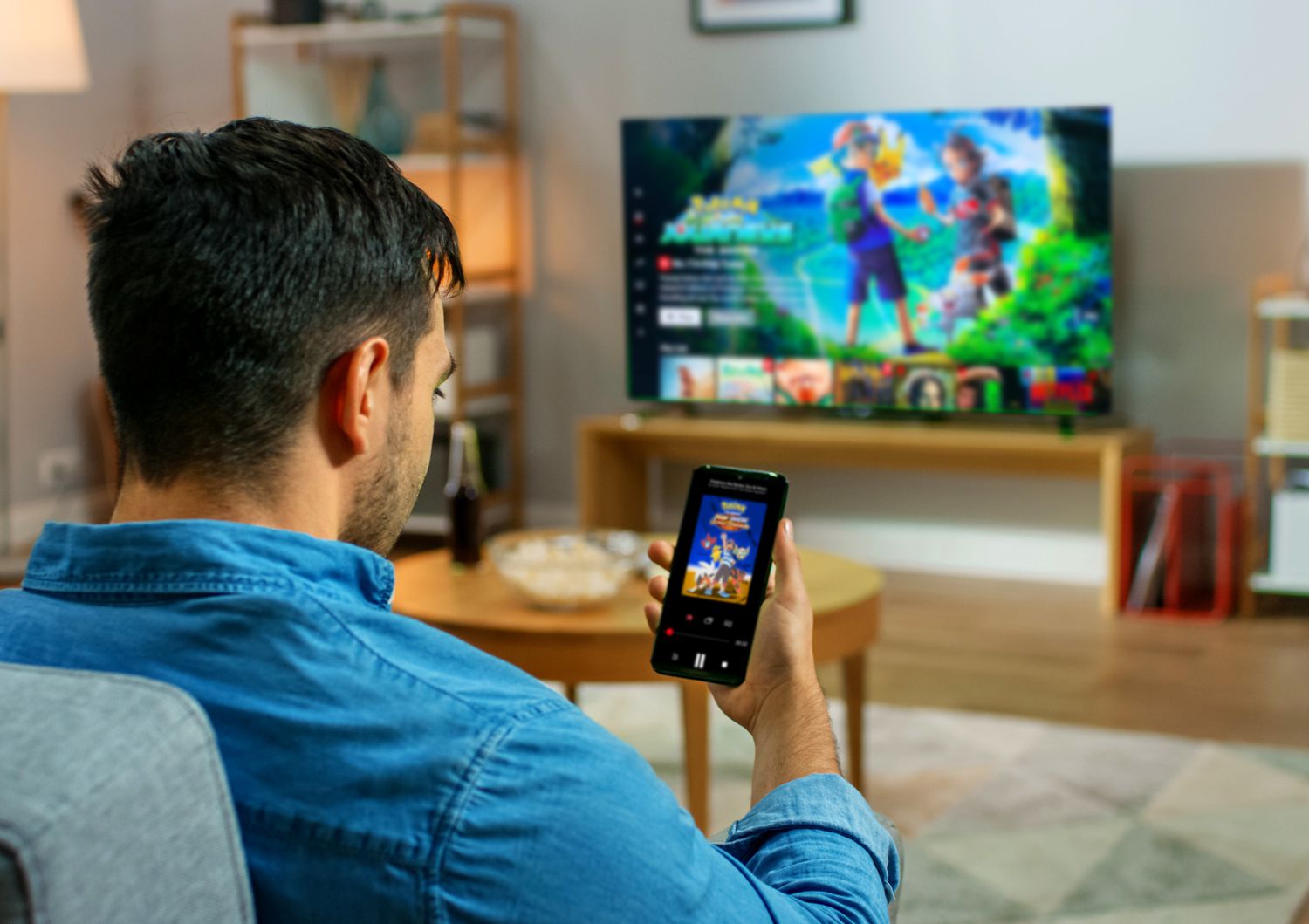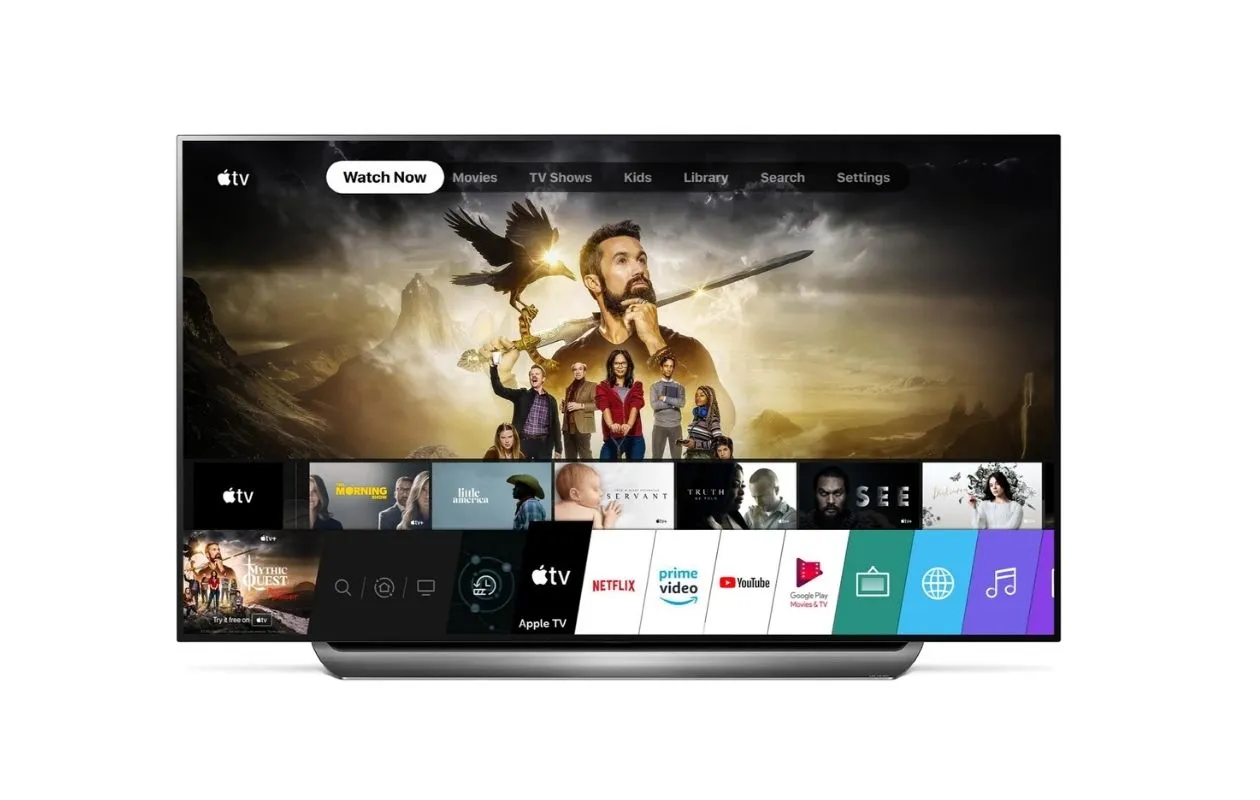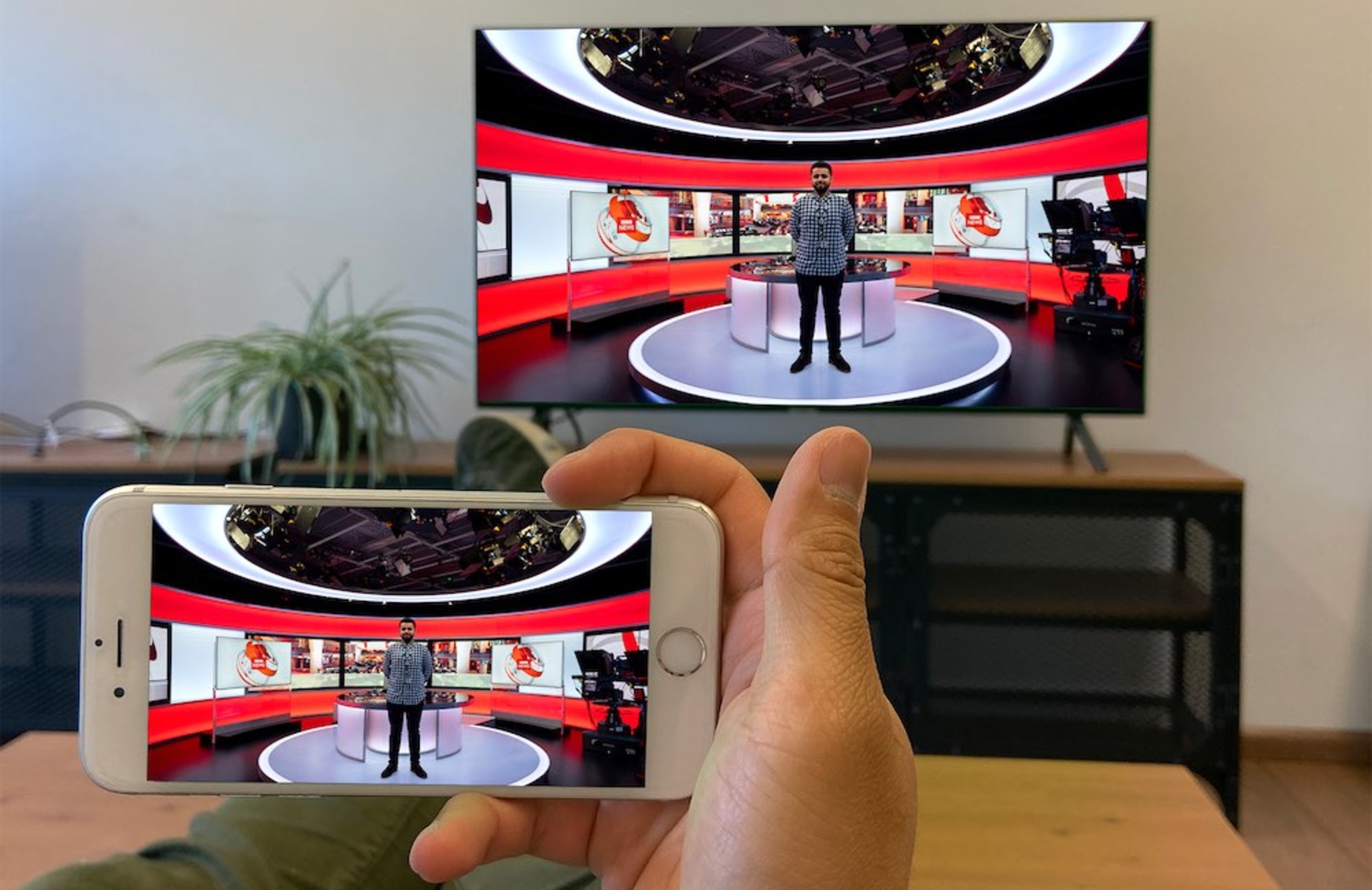
To get your iPhone full screen on TV HDMI, you need to connect it with an Apple Digital AV Adapter and an HDMI cable, then adjust your TV's aspect ratio to eliminate black bars. This wired connection provides a stable, lag-free picture that is ideal for watching videos or playing games without the delays of screen mirroring to a TV.
What you need to make your iPhone full screen on TV HDMI
- An iPhone with a Lightning or USB-C port.
- The correct Apple Digital AV Adapter: a Lightning Digital AV Adapter for iPhones with a Lightning connector, or a USB-C Digital AV Multiport Adapter (or a compatible USB-C to HDMI cable) for iPhone 15 and later models.
- An HDMI cable.
- A TV with an available HDMI input.
Step 1: Connect the HDMI cable to your TV
Plug one end of the HDMI cable into an available HDMI port on your television. Note the port number or label (such as “HDMI 1” or “HDMI 2”) so you can select it later on the TV’s input menu.
Step 2: Connect the HDMI adapter to your iPhone
Take the Apple Digital AV Adapter that matches your iPhone’s charging port. For iPhones with a Lightning connector, use the Lightning Digital AV Adapter. For iPhones with a USB-C connector (iPhone 15 and later), use a USB-C Digital AV Multiport Adapter or a compatible USB-C to HDMI cable. Insert the adapter firmly into your iPhone’s charging port.
Step 3: Connect your iPhone to the adapter
Connect the free end of the HDMI cable (the end not plugged into the TV) to the HDMI port on the adapter attached to your iPhone. Your iPhone should automatically detect the connection. If prompted, tap “Trust” on your iPhone to authorize the device.
Step 4: Turn on your TV and select the HDMI input
Power on your television. Use your TV remote to press the “Input” or “Source” button, then navigate to and select the HDMI port number you noted in Step 1. Your iPhone’s screen should now appear on the TV.
Step 5: Adjust your TV’s aspect ratio for a full screen
This is the crucial step to eliminate black bars. This forces the TV to display the iPhone’s image without cropping or adding black borders, making the content fill the entire screen.
Step 6: Use the app’s full-screen controls on your iPhone
Even after the TV is set correctly, video apps like YouTube and Netflix require you to tap the in-player full-screen button on your iPhone. This button scales the video properly to the TV’s dimensions. Without tapping it, the video may appear with black bars on the sides or top and bottom.
Troubleshooting tips
No Signal: Ensure the HDMI cable is securely connected at both ends. Try disconnecting and reconnecting the cable, or restarting your iPhone.
iPhone not recognized: Verify you are using an Apple-certified Digital AV Adapter. Disconnect and reconnect the adapter, or restart your iPhone.
Persistent black bars: Double-check your TV’s aspect ratio setting. Also confirm that the video app on your iPhone is in full-screen mode.