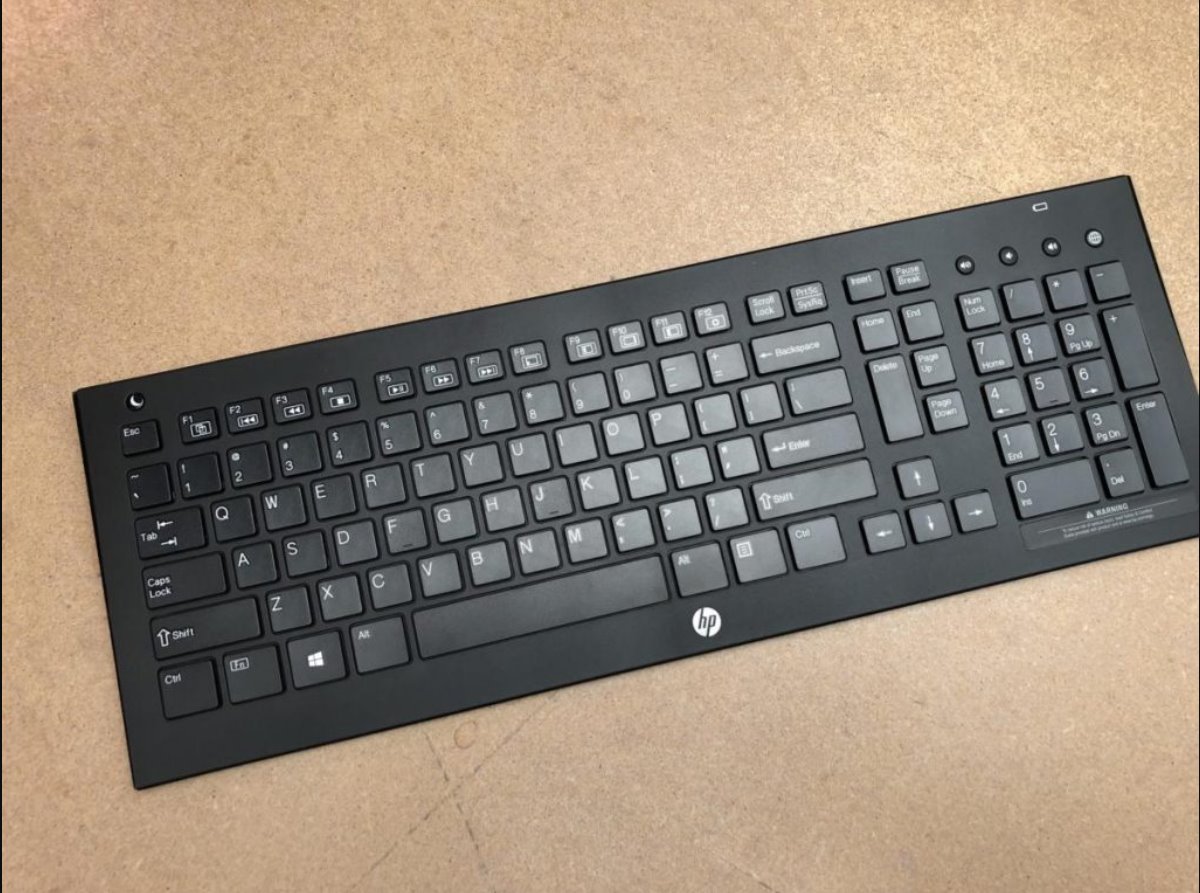
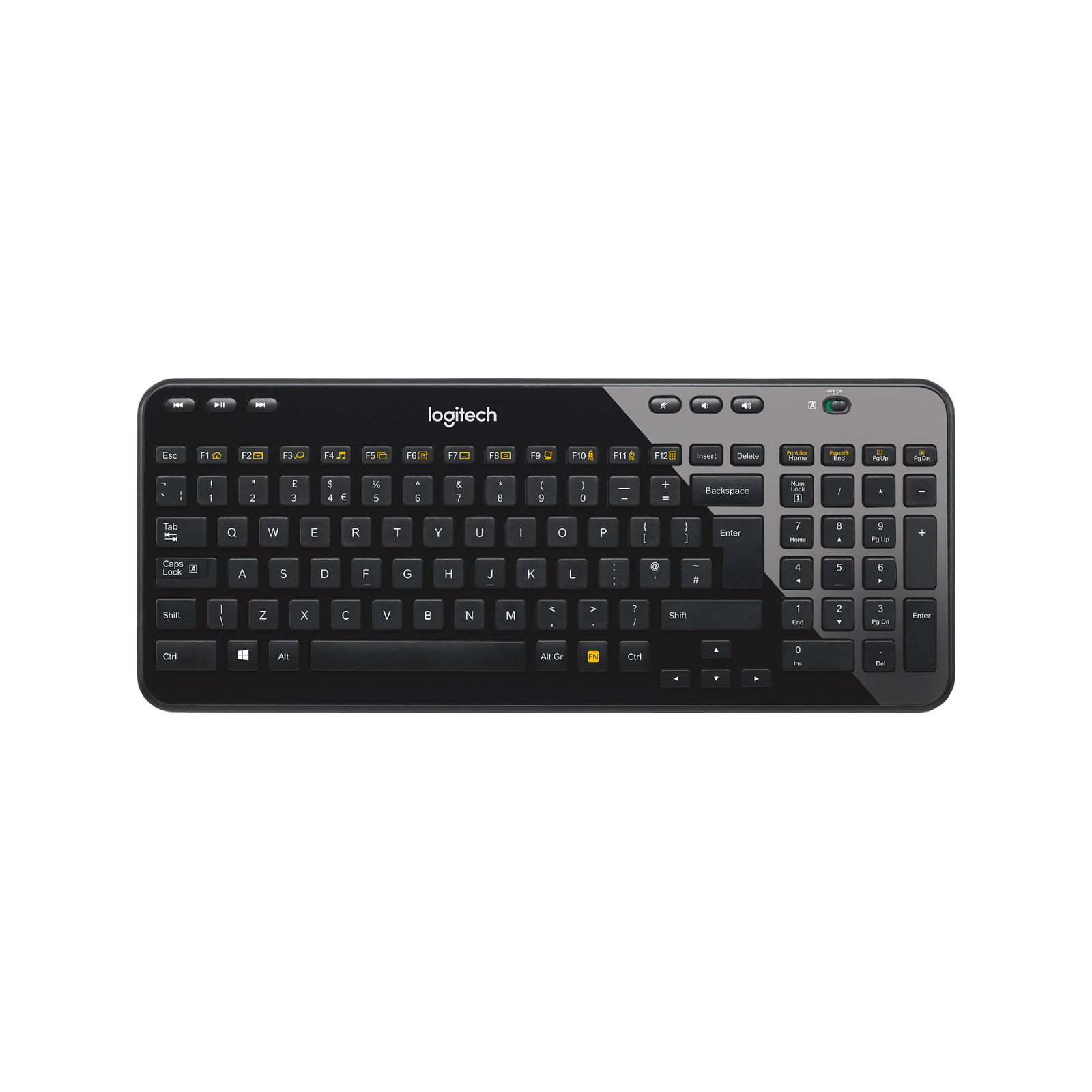
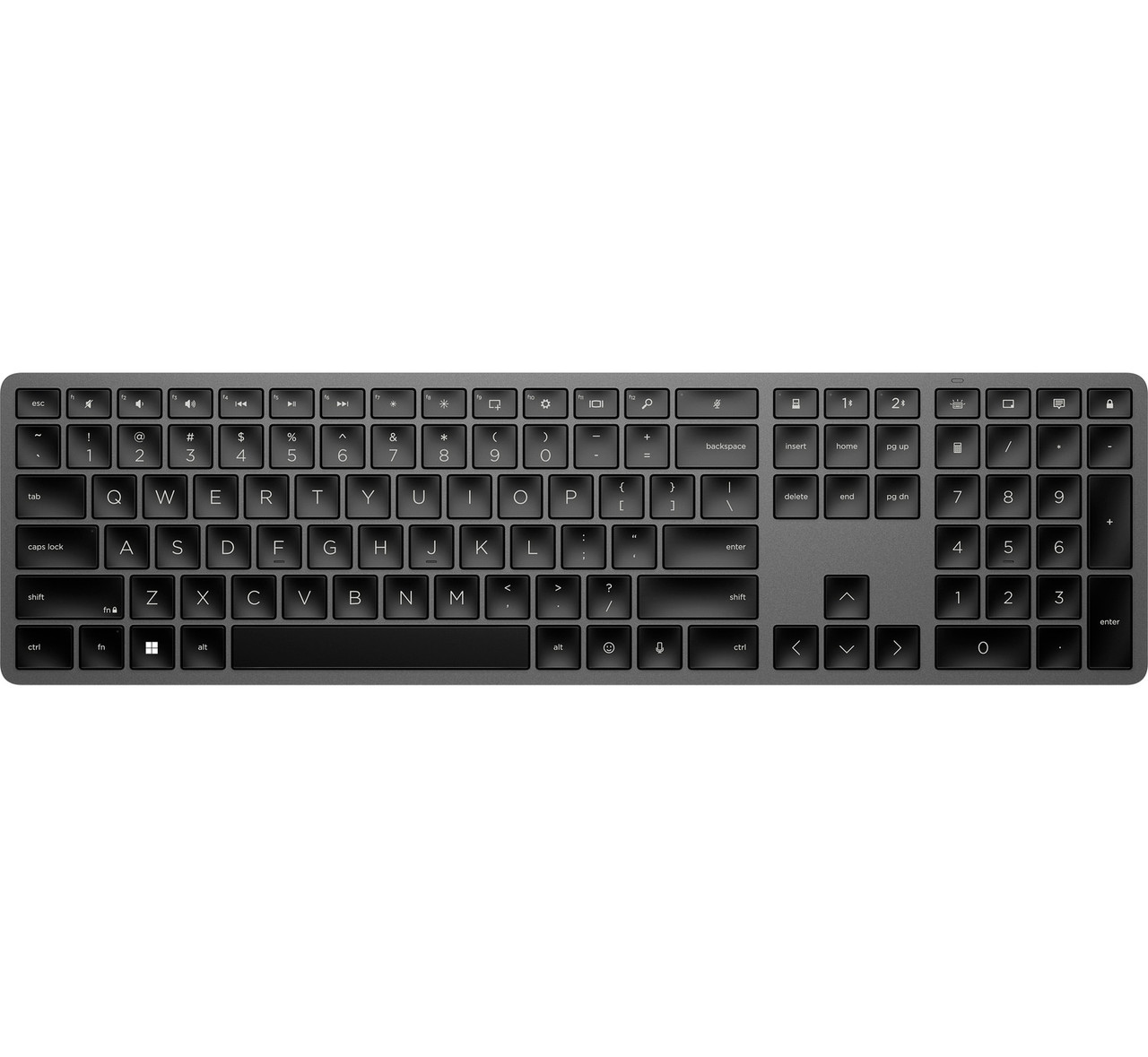
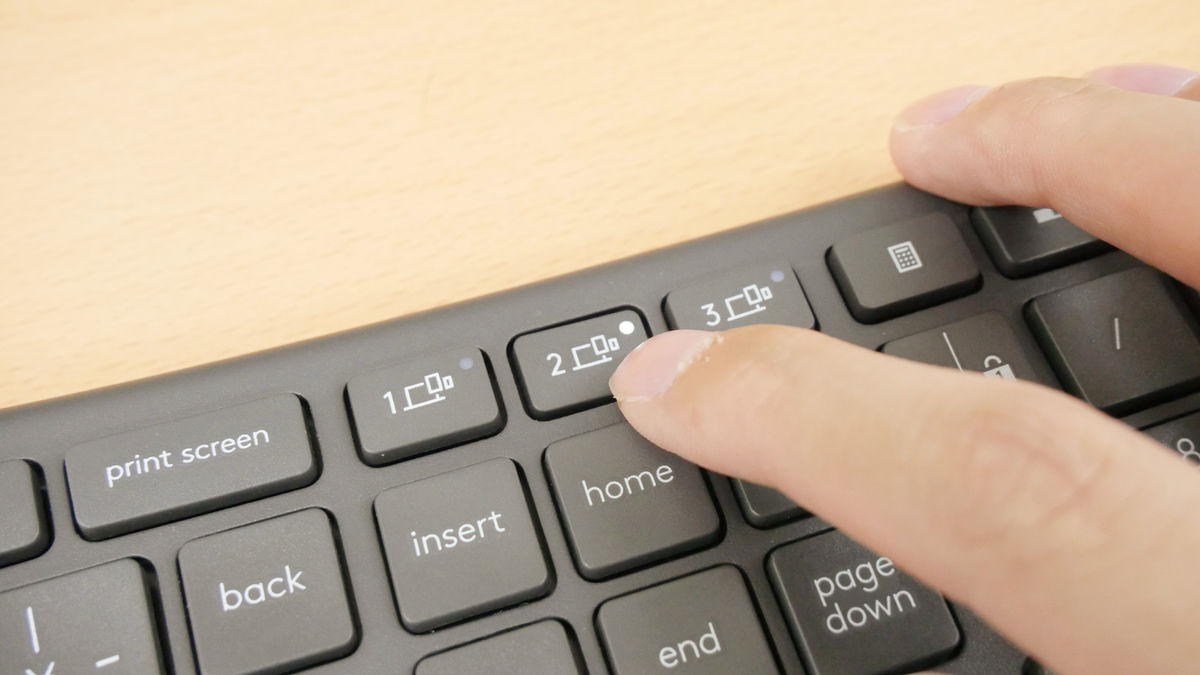
Step-by-step guides for anyone setting up, maintaining, or troubleshooting a wireless keyboard, whether it’s a new purchase, a spare from a drawer, or a model that has suddenly stopped responding. These articles are written for everyday users, not IT professionals, and assume no prior technical knowledge. If you have ever stared at a keyboard that will not type, or a receiver that has gone missing, this is the starting point for practical fixes you can try at home.
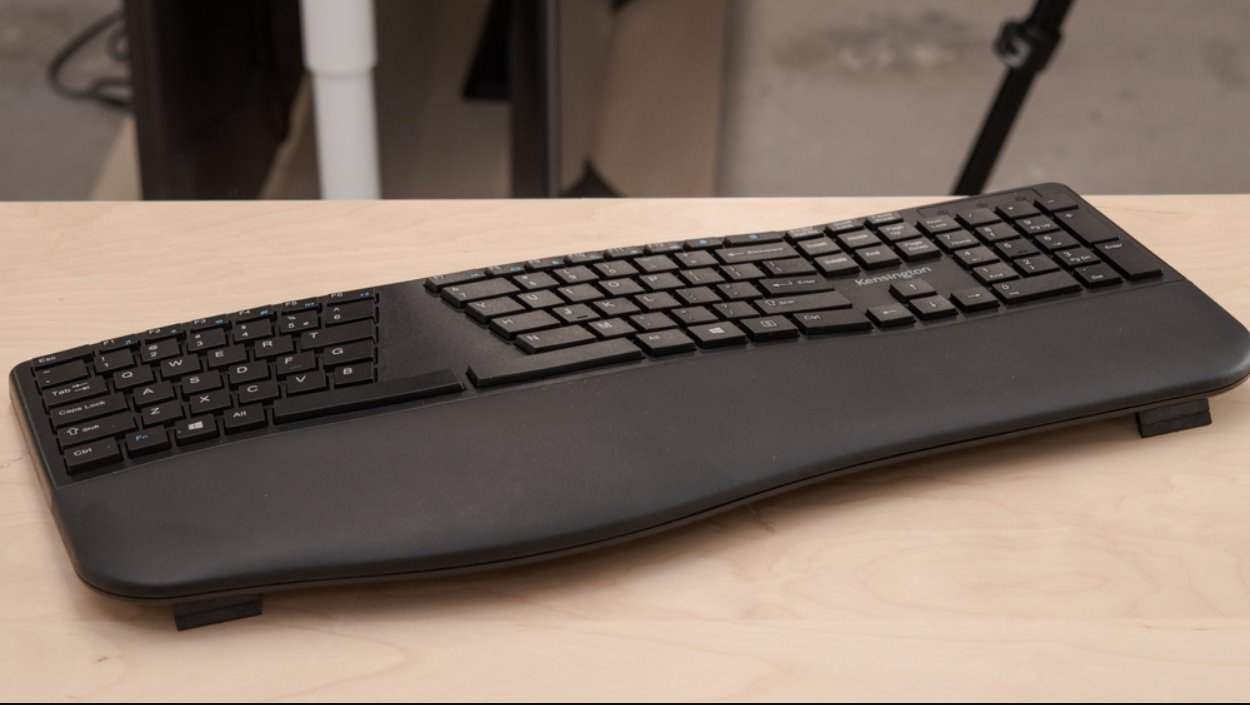
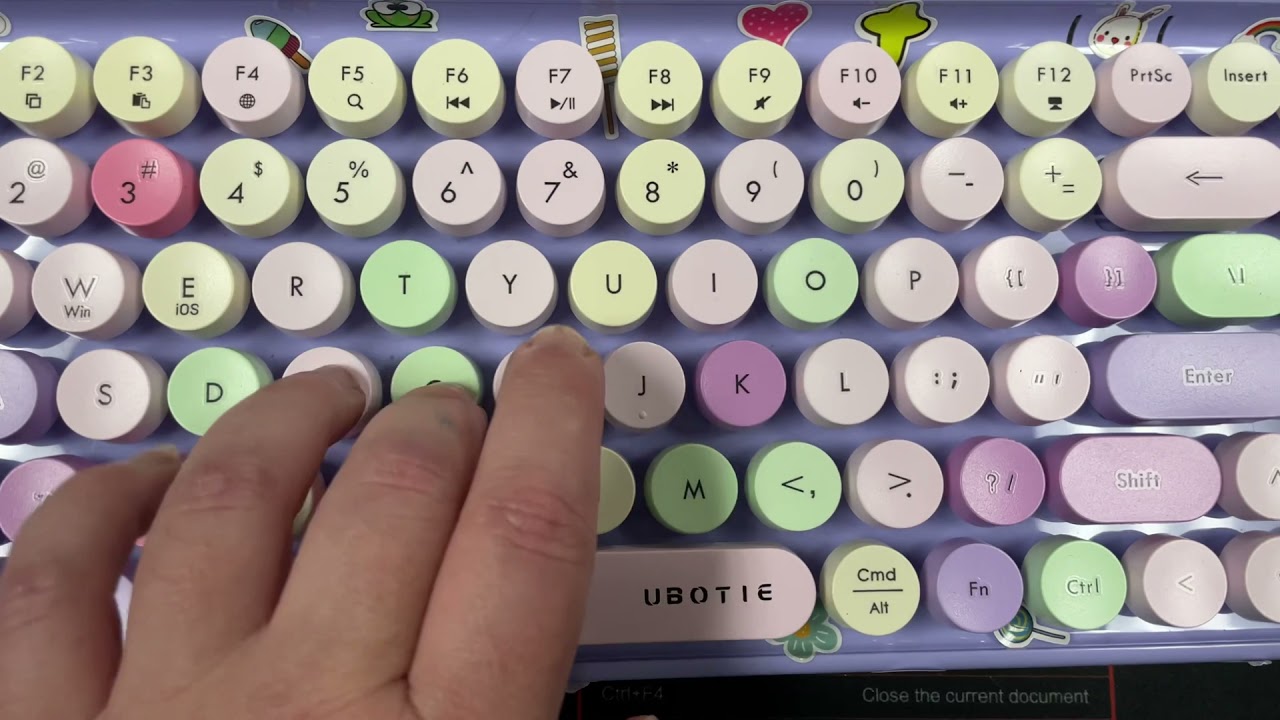
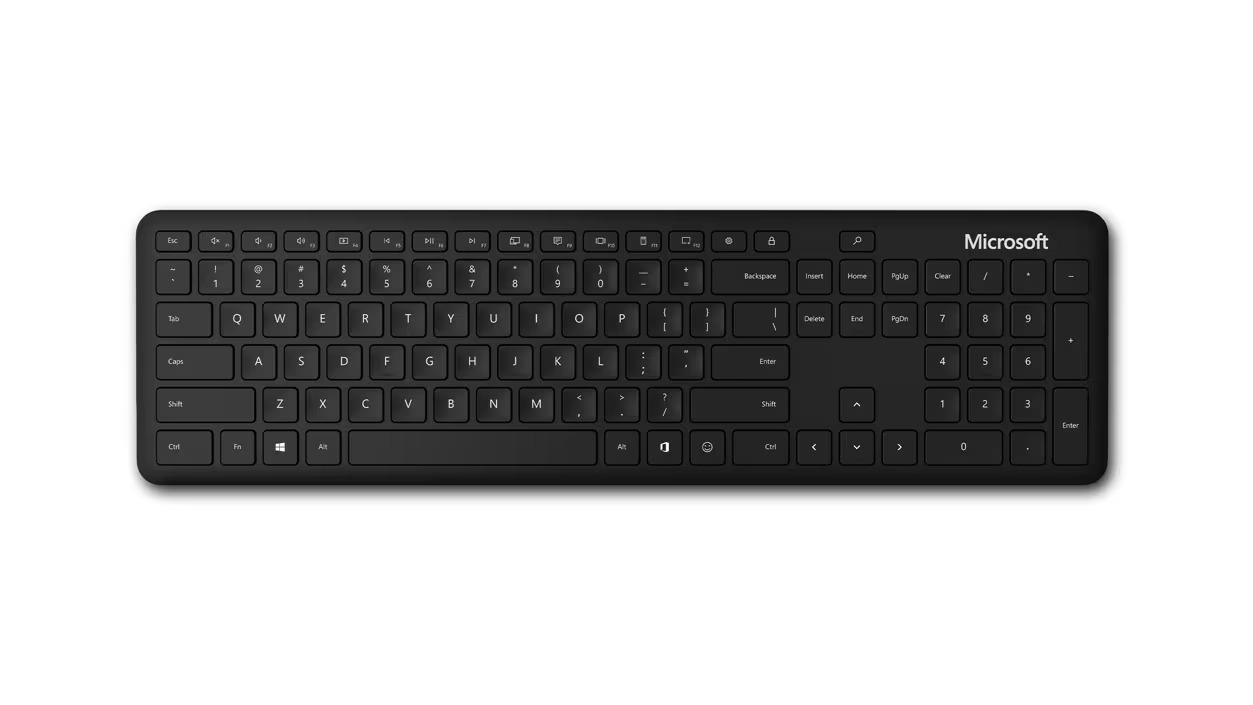
The guides break down into a few clear themes. The first is connection and pairing: you will find instructions for linking specific brands and models, Logitech, Dell, Microsoft, HP, Kensington, Seenda, Omoton, and Ubotie, to a computer, monitor, or even an Xbox. This includes how to make a keyboard discoverable, how to pair without a receiver, and how to connect a keyboard that uses a shared USB dongle. The second theme is everyday operation and settings, such as turning on the keyboard, enabling Num Lock, using the Print Screen key, and charging the battery. The third theme covers recovery and troubleshooting: what to do when the keyboard flashes, how to reset a Logitech model, and how to unlock a keyboard that has stopped responding. Several articles also address the common problem of a lost USB receiver, explaining your options for replacing it, using a different receiver, or connecting via Bluetooth, without ever venturing into unsafe or unauthorized workarounds.
Across all these articles, the goal is to help you get your keyboard working again with clear, safe, and legitimate methods. Whether you are reviving an old HP model, setting up a Microsoft Wireless Keyboard 800 for the first time, or trying to figure out why your Logitech is flashing, the tag points you to the right guide for the job.