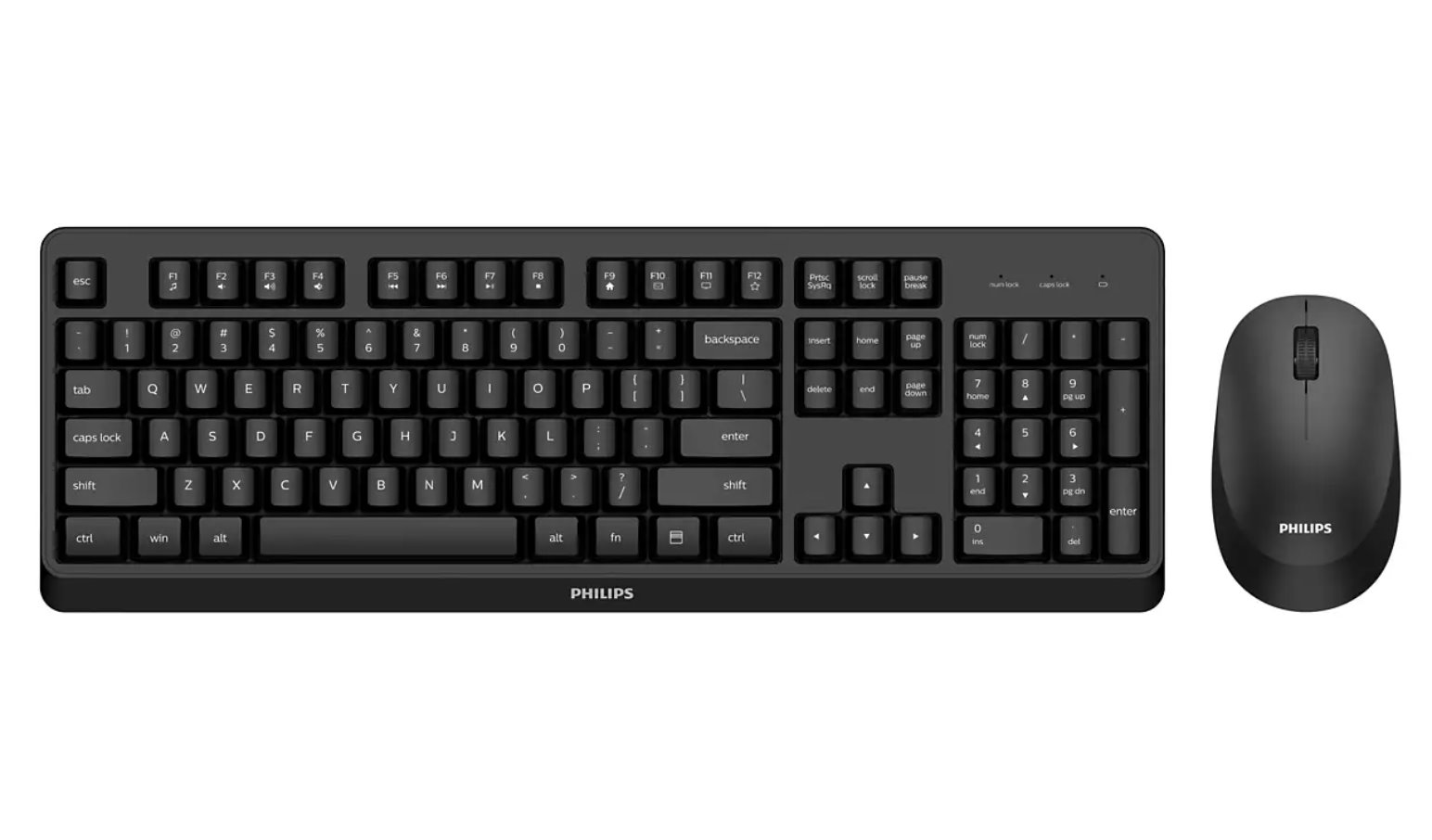
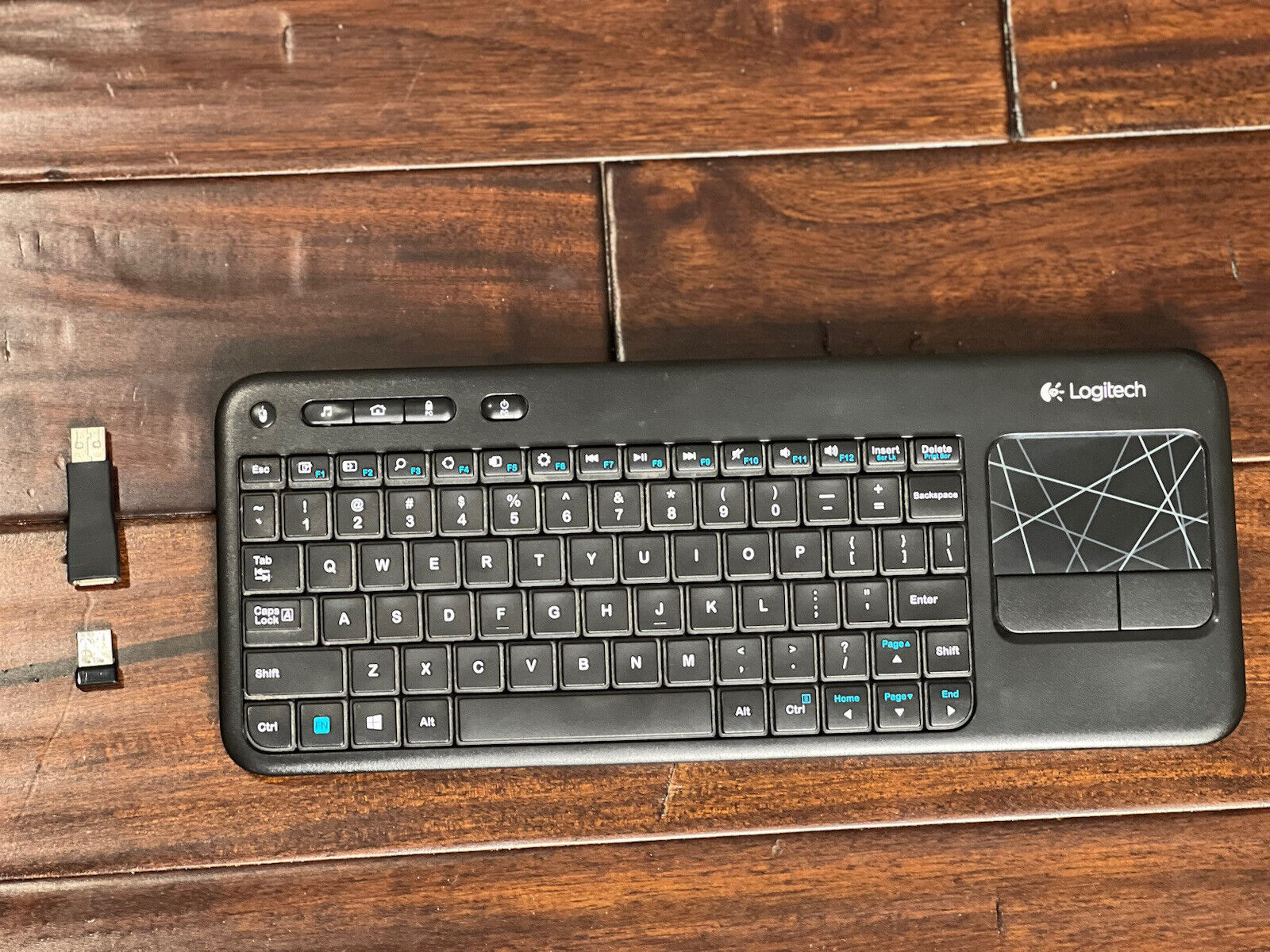
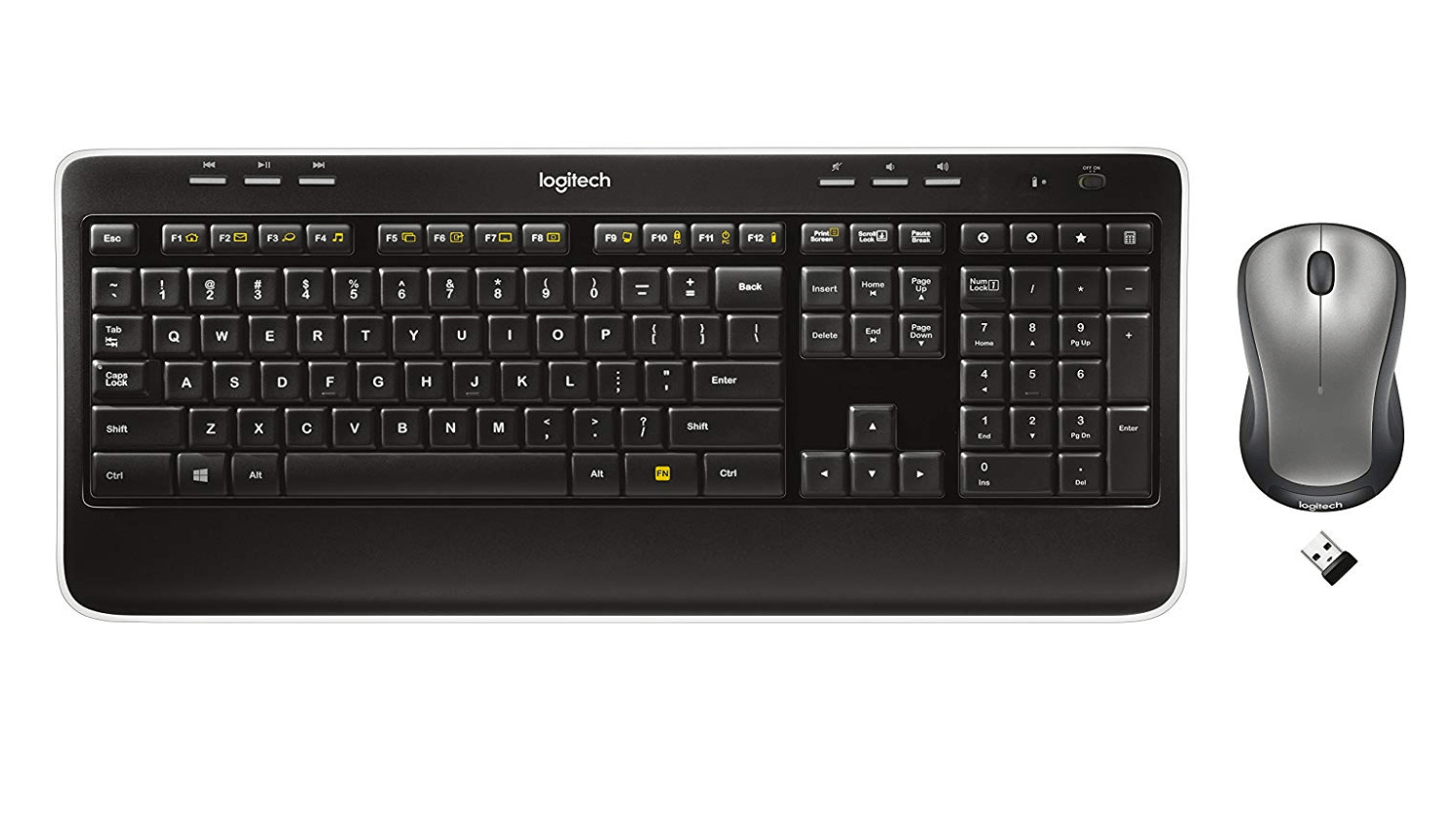
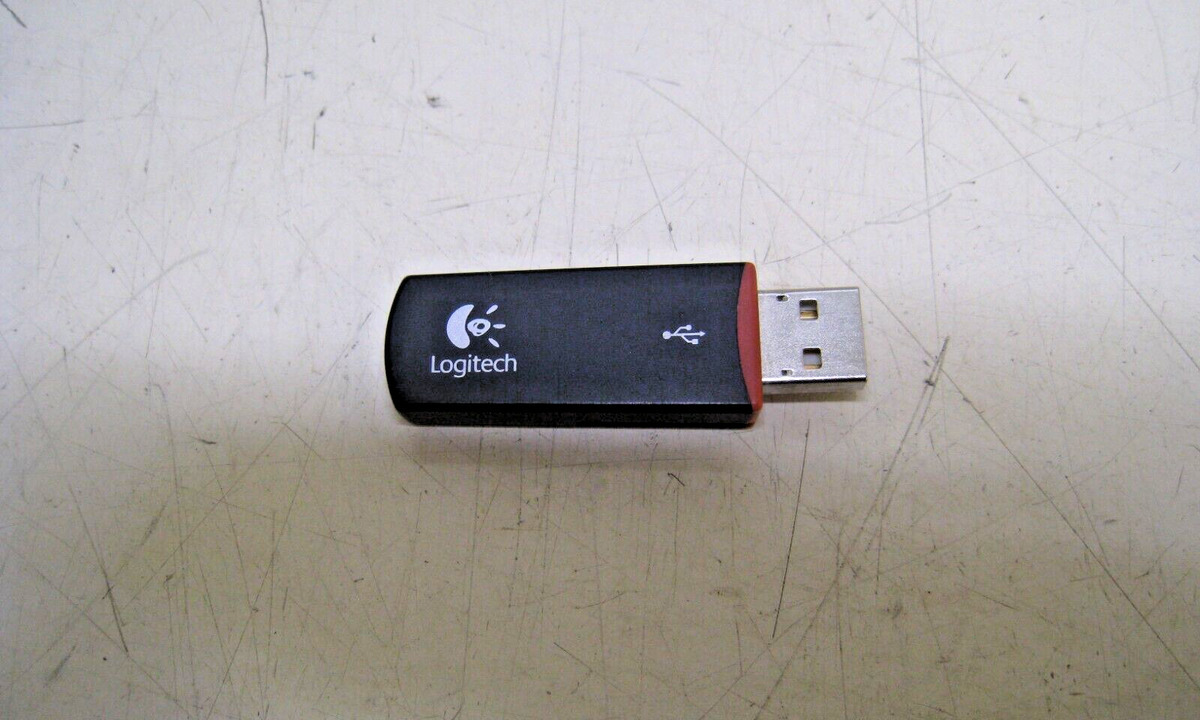
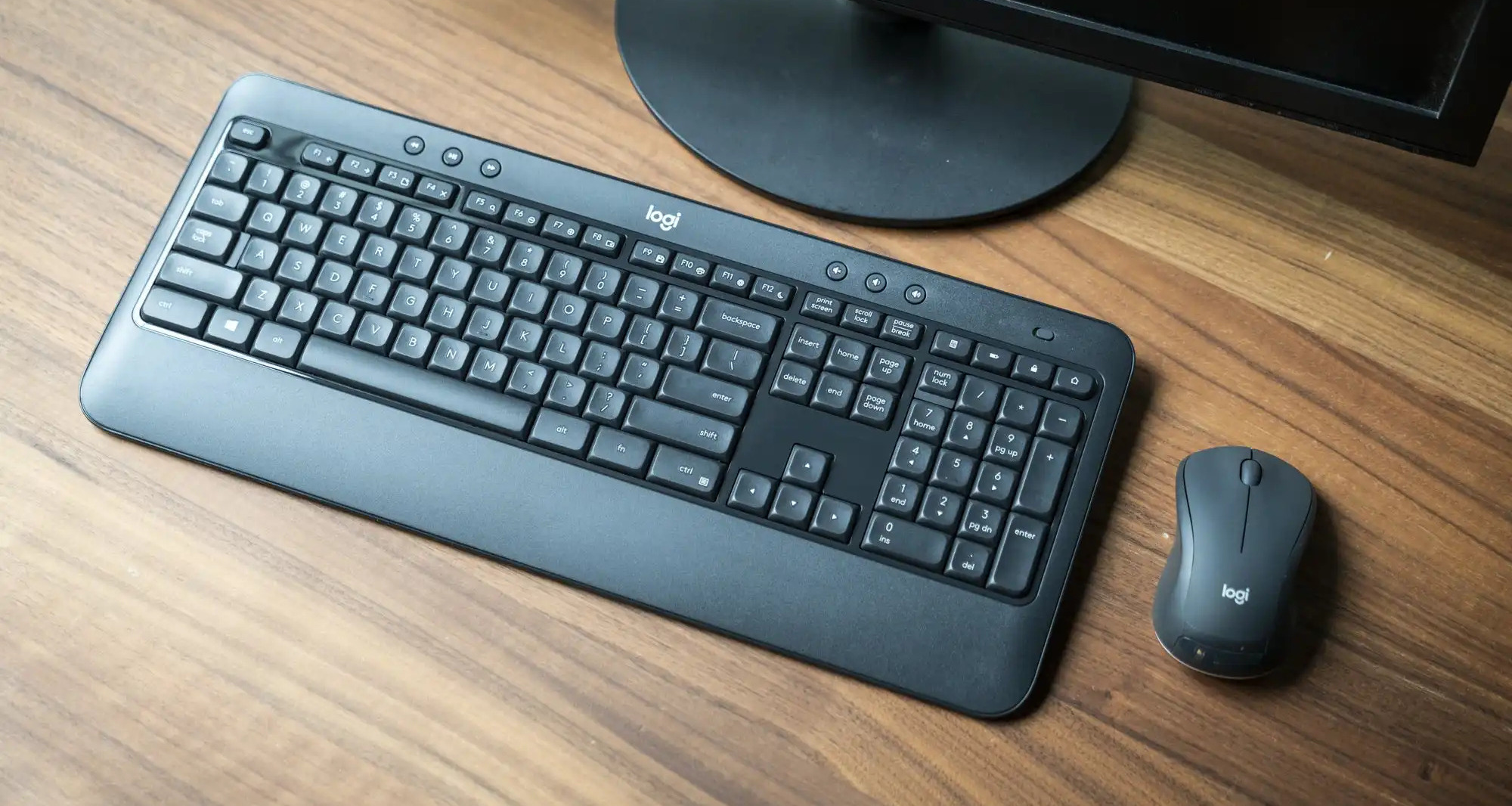
This tag collects our guides on USB receivers, the small wireless dongles that connect keyboards and mice to your computer. It is intended for anyone who has just bought a wireless peripheral, is setting one up for the first time, or is troubleshooting a connection that has stopped working. The articles here are practical, written for a general audience, and assume no prior technical knowledge.

The majority of the articles solve one of two common problems. The first is initial pairing and connection: how to make a specific device, such as a Logitech MX Keys, a Dell wireless keyboard, or an HP model, recognize its receiver and establish a stable link. The second is recovery and reset. Several guides address what to do when you have lost the original USB dongle, how to reset a Logitech wireless keyboard that has stopped responding, or how to make a wireless keyboard discoverable again after it has dropped its connection. These pieces focus on legitimate repair and re-pairing steps, such as using the manufacturer’s own software or following the device’s documented reset procedure, so you can get your hardware working again without buying a replacement.

Beyond the basic setup, a few articles cover the practical side of managing multiple devices, like connecting a Logitech G305 mouse to a Mac or using a wireless keyboard with a monitor. Others address the specific quirks of budget or less common brands, including Ubotie, Seenda, and Onn. Throughout, the emphasis is on clear, safe instructions for everyday tasks, never on circumventing protections. The goal is simply to help you connect, pair, and keep your wireless gear working reliably.
How To Pair A Dell Wireless Keyboard

To pair a Dell wireless keyboard, you can use either the included USB receiver for an instant plug-and-play connection or Bluetooth for a cable-free setup, though you may need lost...

How To Turn On A Wireless Keyboard

To turn on a wireless keyboard, press the power button or slide the power switch, then look for the LED indicator light to confirm the keyboard has power. This single...

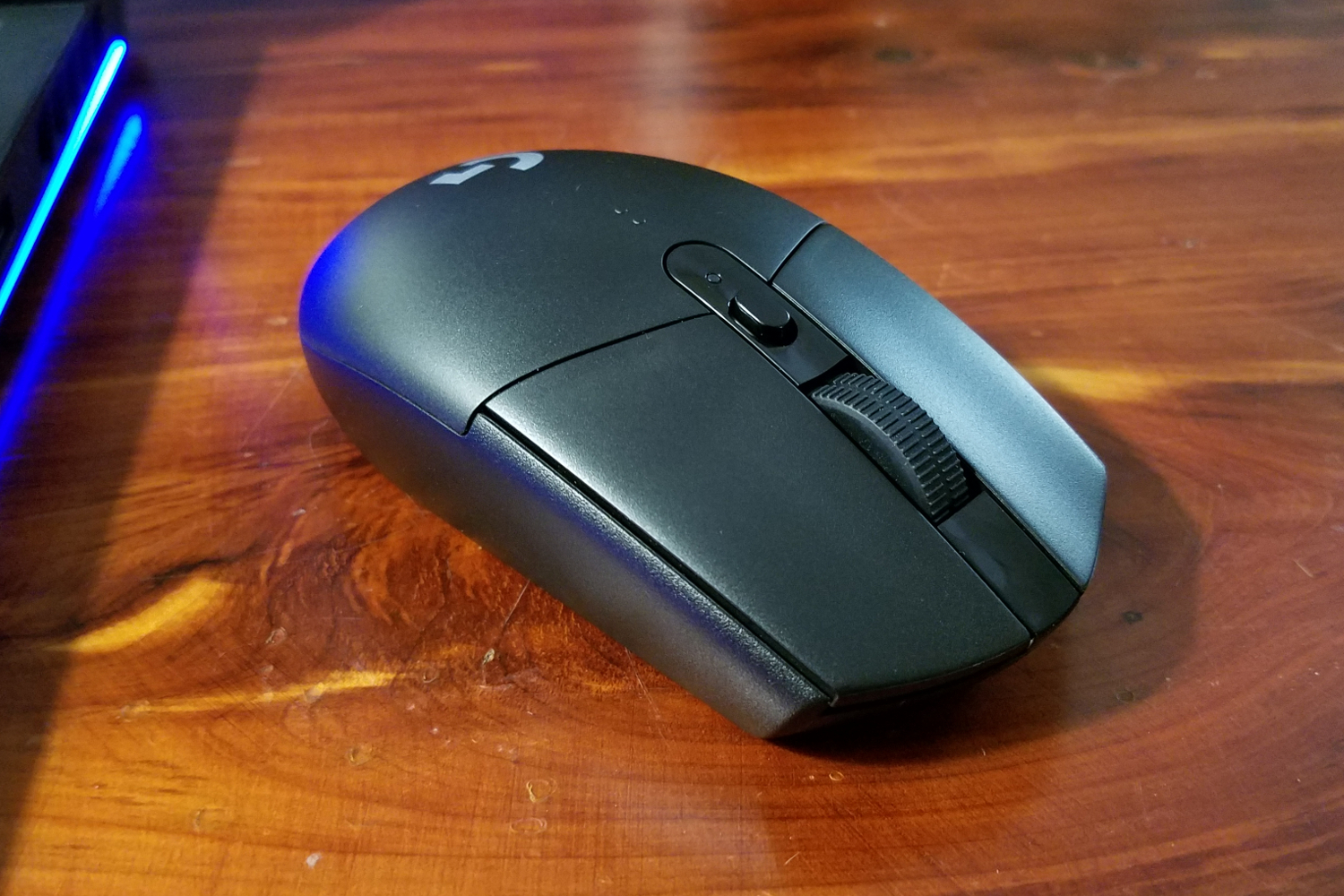
How To Connect Logitech G305 Mouse To Mac

To connect Logitech G305 to Mac, you don't need to pair anything manually, the mouse comes pre-paired with its included USB receiver, so setup is just plugging in the receiver...

How To Pair Logitech Keyboard K400R

To pair Logitech keyboard K400R with your computer, insert the included Unifying Receiver into a USB-A port and turn on the keyboard, the connection happens automatically. If your keyboard has...

How To Pair Logitech K520 Keyboard

To pair your Logitech K520 keyboard, you must use the included Logitech Unifying USB receiver and Logitech software, as this keyboard does not support Bluetooth. The process involves plugging in...

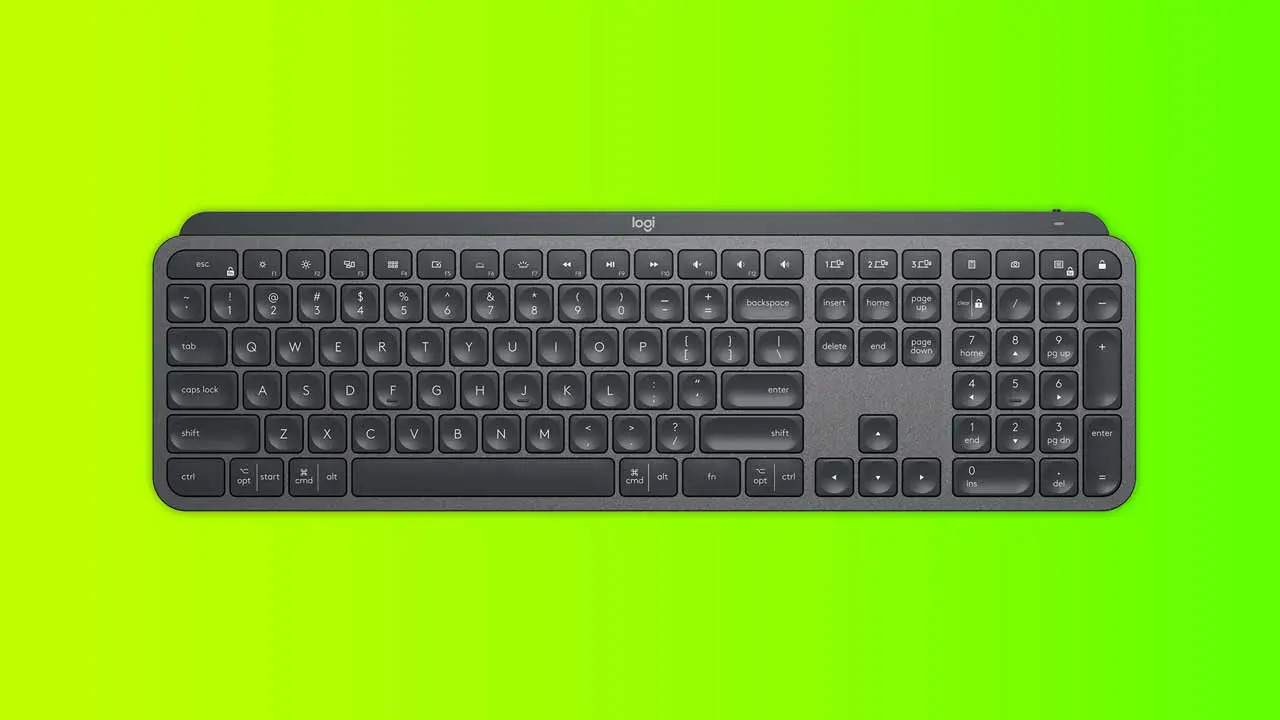
How To Connect Logitech Mx Keys

To connect Logitech MX Keys, you can use either Bluetooth Low Energy or a Logi Bolt USB receiver. This keyboard features Easy-Switch buttons that let you pair it with up...

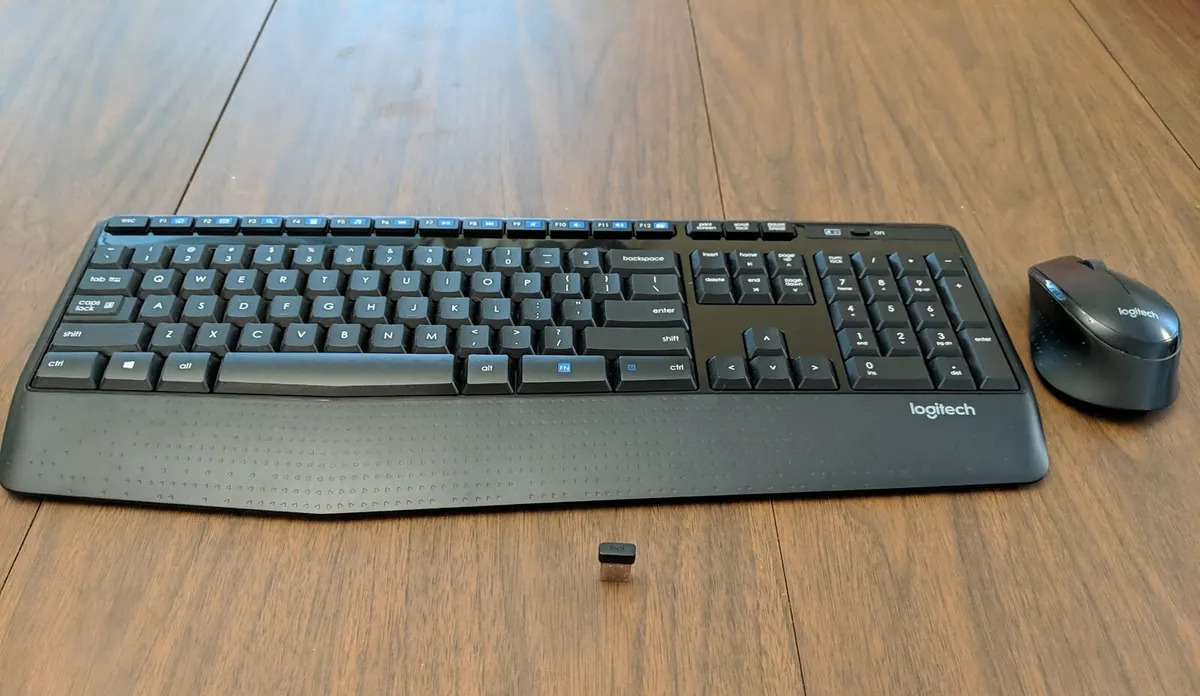
How To Connect Logitech Keyboard K345

To connect your Logitech keyboard K345, you must use the included USB receiver, as the keyboard does not support Bluetooth. This guide provides the exact steps to establish a reliable...

How To Connect Logitech Keyboard K540

To connect Logitech Keyboard K540, insert the included Unifying USB receiver into your computer's USB port, then turn on the keyboard, the two are pre-paired and will connect automatically. This...

How To Connect Logitech K350 Keyboard

To connect your Logitech K350 keyboard, simply insert the included Unifying Receiver into a USB port on your computer. This guide covers the instant setup that usually works automatically, and...

What To Do If I Lost My Logitech Usb

If you lost your Logitech USB receiver, the first thing to do is check whether your device uses a Unifying receiver or a dedicated non-Unifying receiver. Look for the orange...