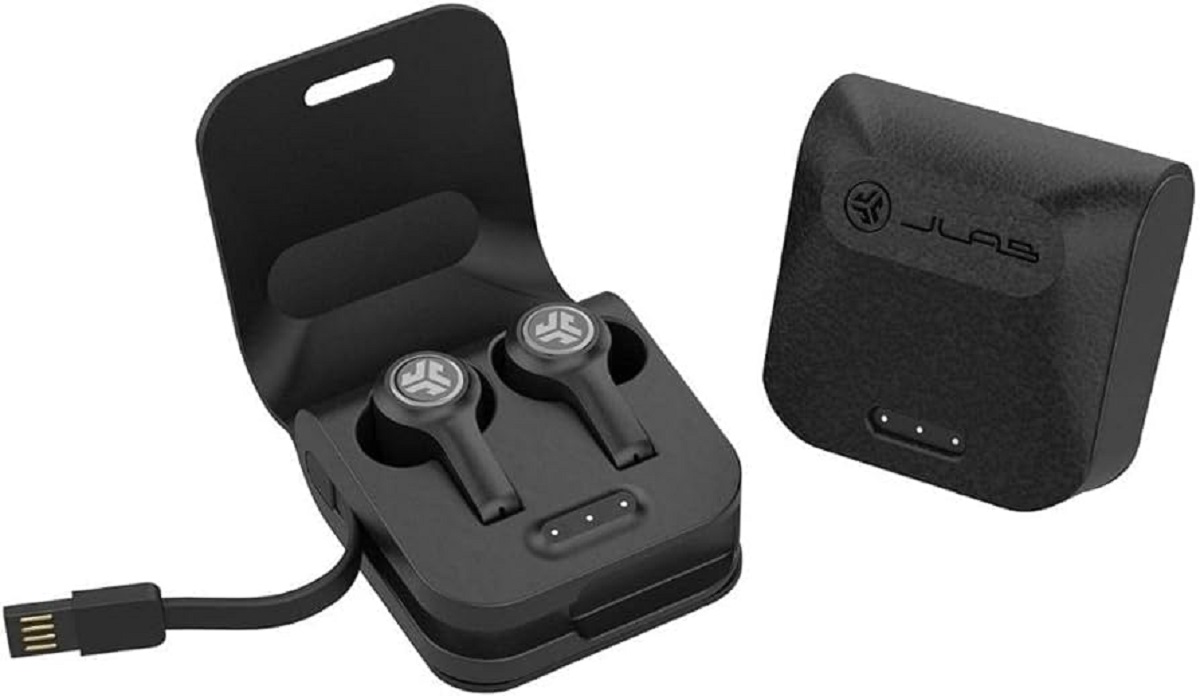
To pair JLab wireless earbuds, start by removing both earbuds from their charging case. For most true wireless models, one earbud will automatically begin blinking blue and white, signaling it...
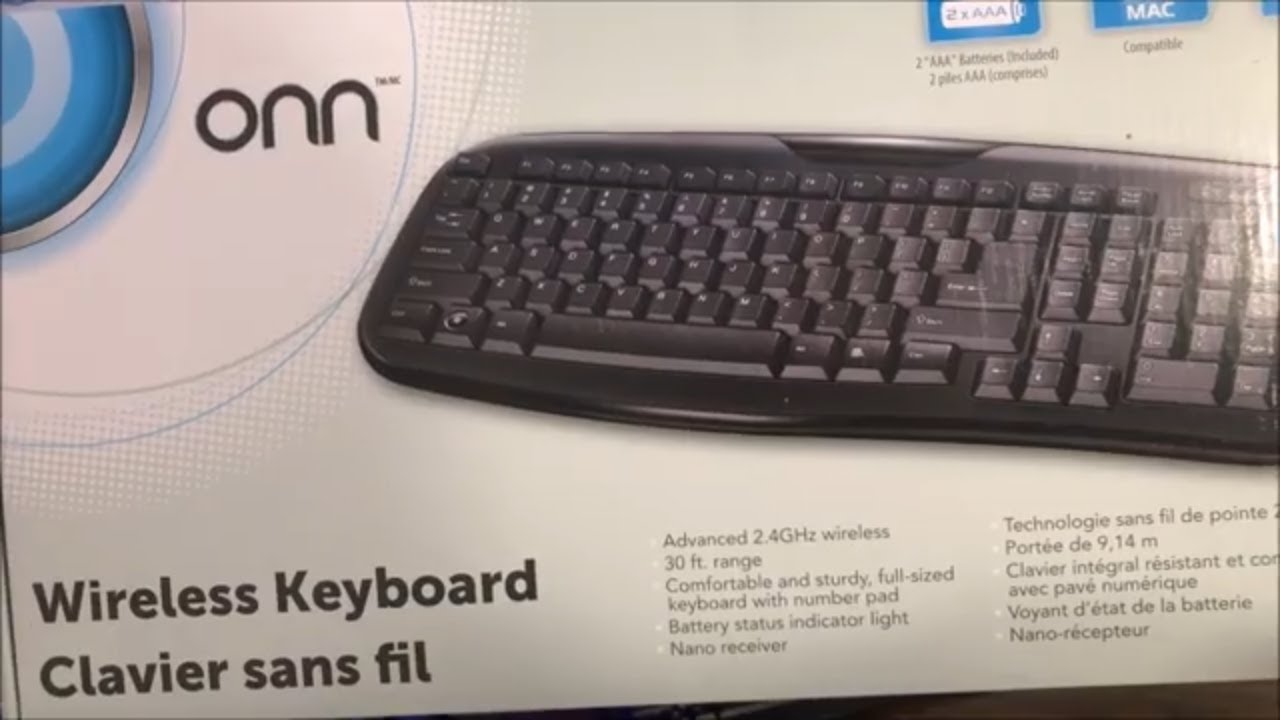
To connect an Onn wireless keyboard, you have two straightforward options: plug in the included 2.4GHz USB nano receiver for instant plug-and-play, or pair it via Bluetooth on devices without...
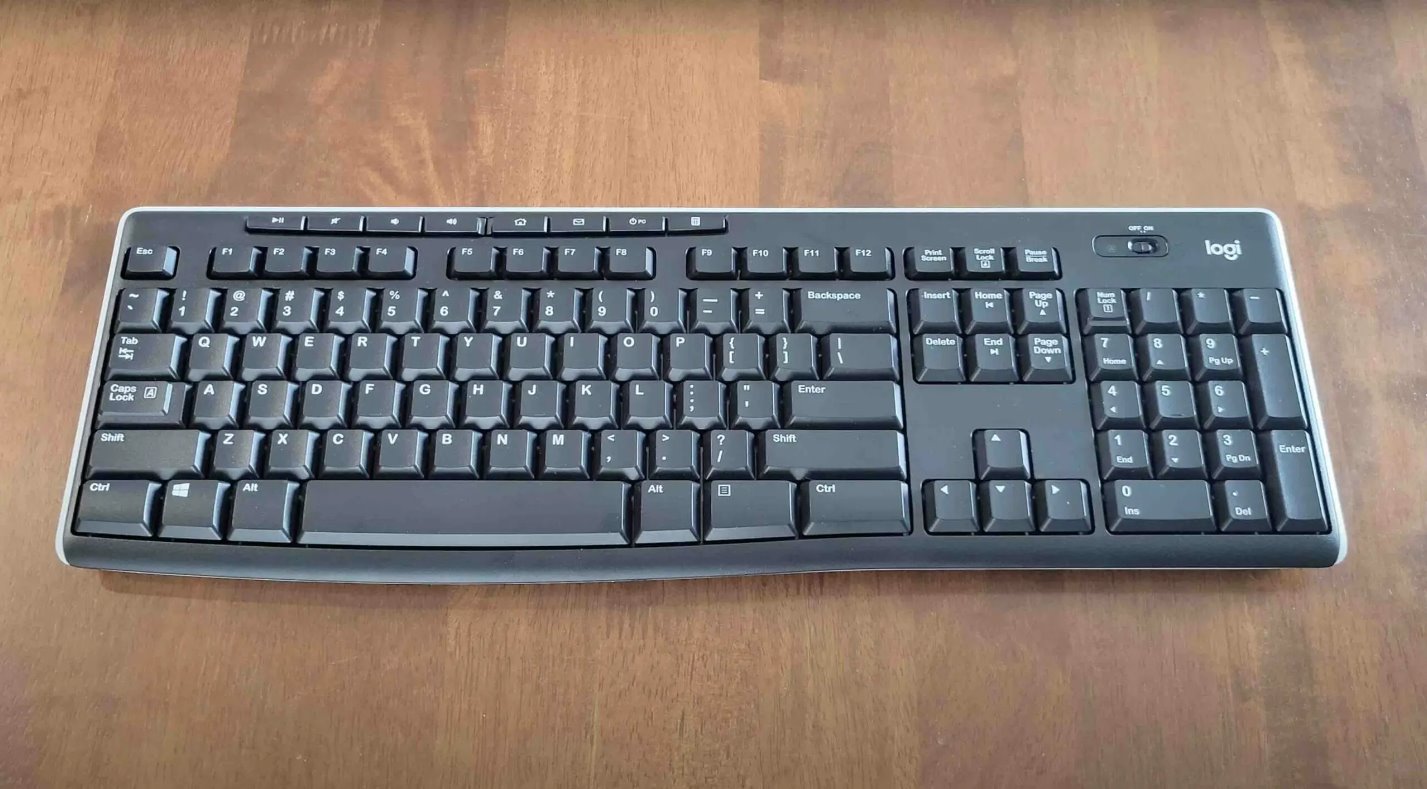
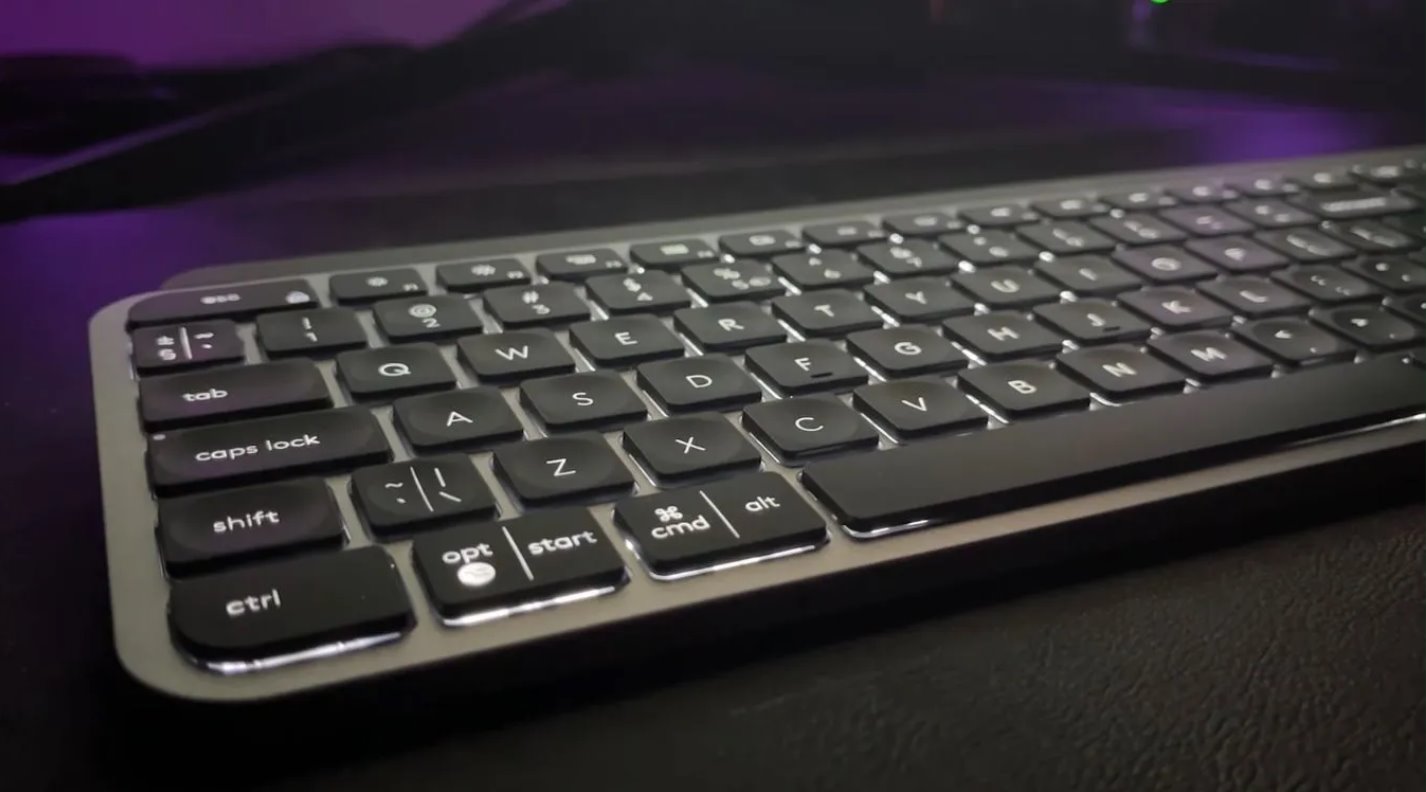
You cannot connect a Logitech K270 without a receiver because the keyboard lacks Bluetooth and relies entirely on a Logitech Unifying USB receiver to function. To connect keyboard models like...
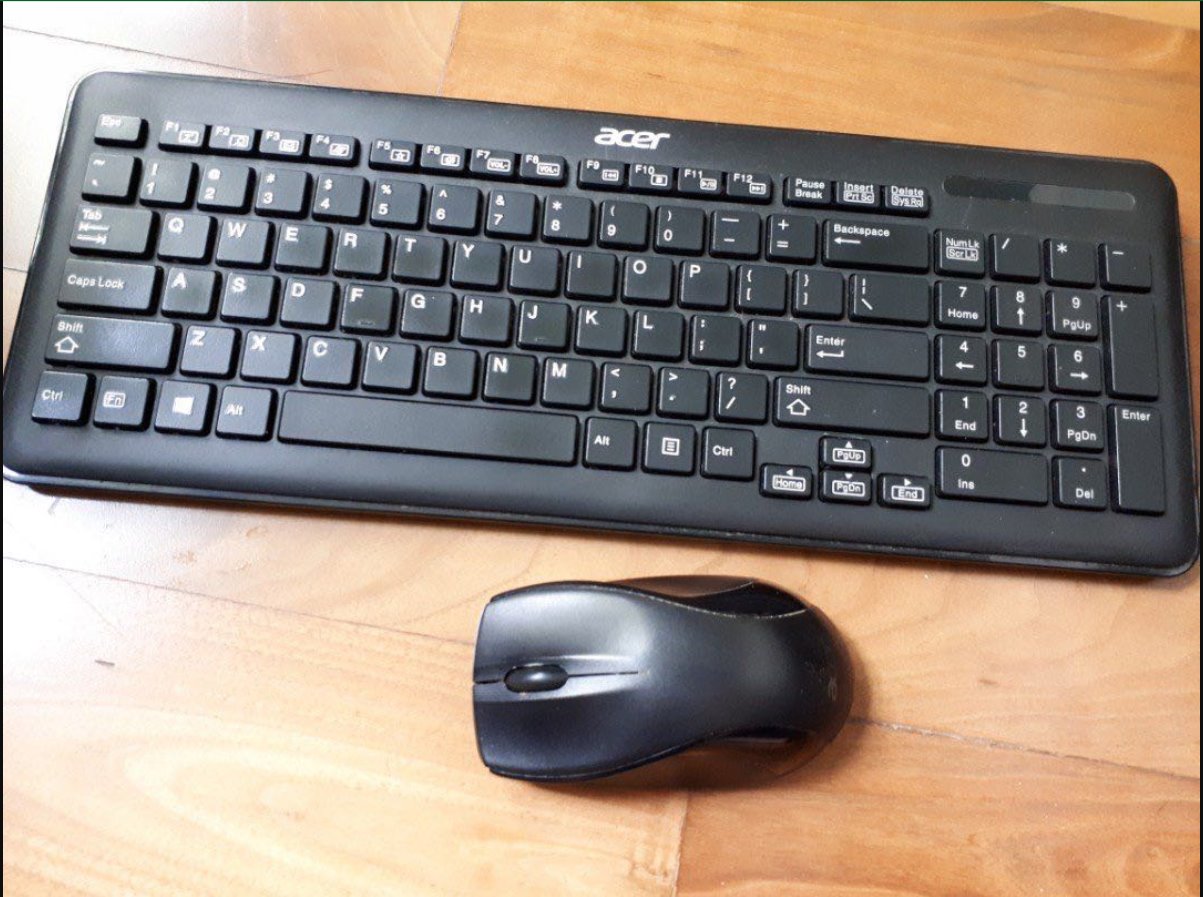
The fastest way to connect Acer wireless keyboard and mouse is to plug the included USB receiver into your computer, turn on both devices, and let them pair automatically. Most...
Fix an unresponsive or locked keyboard To reset a Logitech wireless keyboard that has stopped typing, seems frozen, or is displaying a blinking light, the problem is almost always a...
To connect your Omoton wireless keyboard, first turn it on and then enter Bluetooth pairing mode using one of three methods depending on your model. This guide covers the exact...
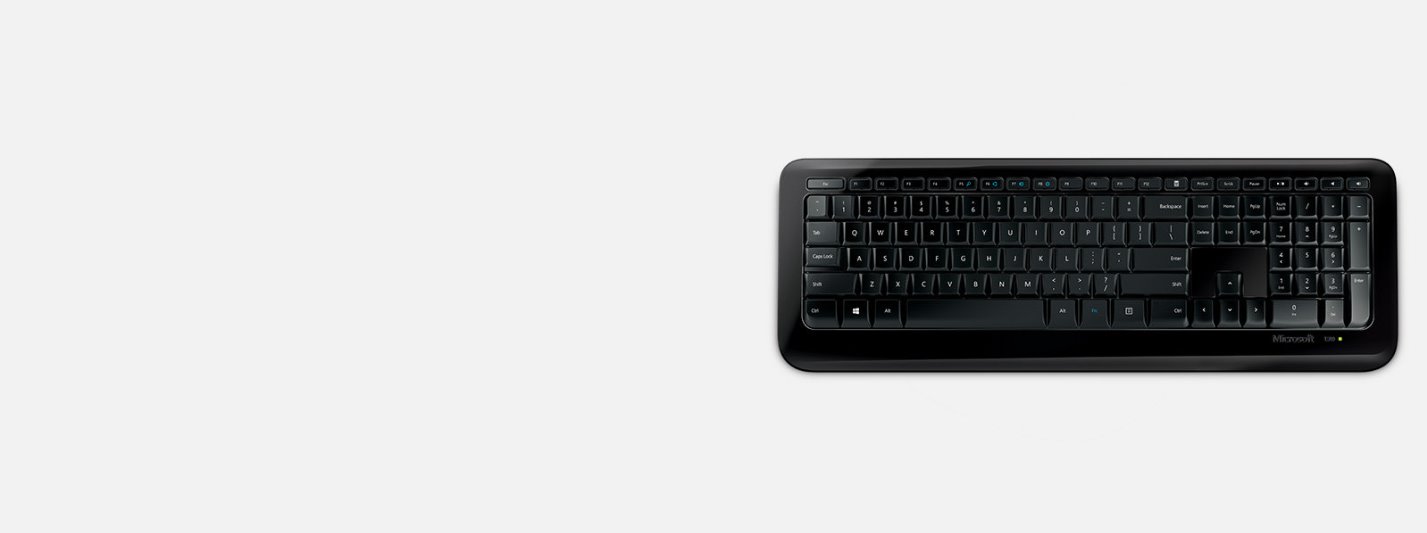
To setup Microsoft Wireless Keyboard 800, plug the USB receiver into your computer and insert two AAA batteries, that's the entire core process, with no software needed. The keyboard connects...
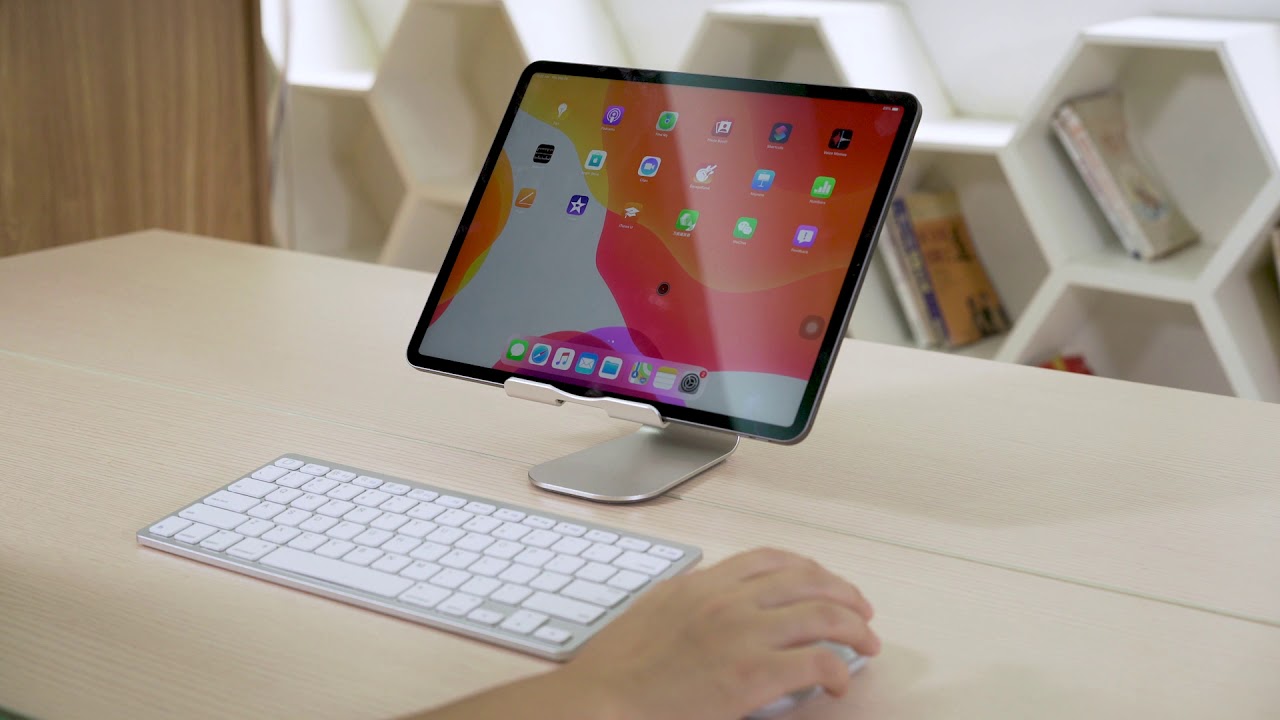
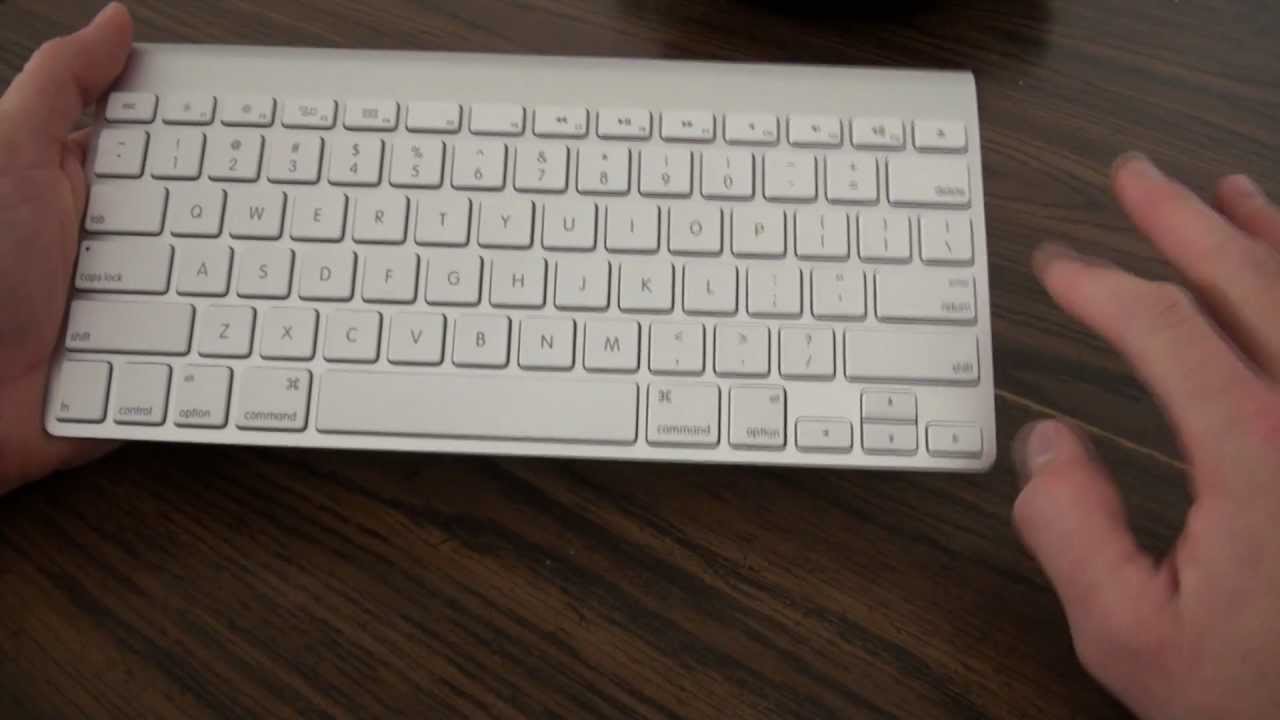
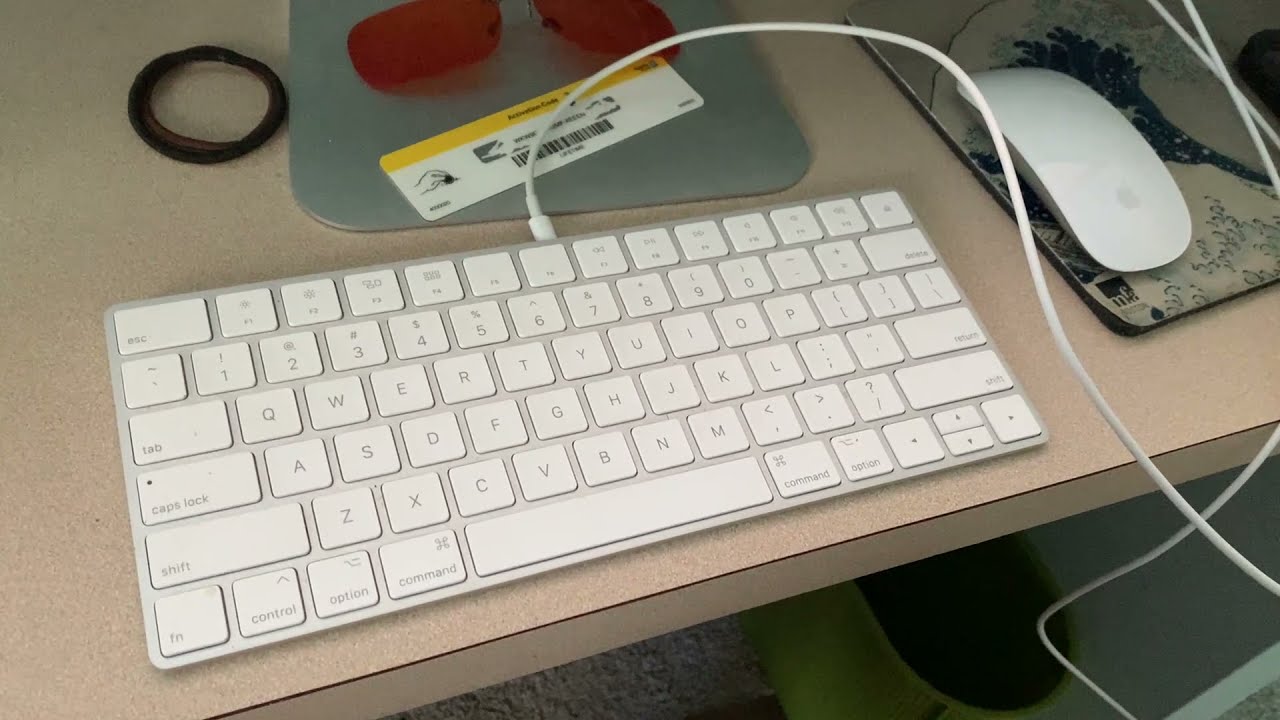
To find the PIN for your Apple wireless keyboard, you need to look at the screen of the device you are pairing it with, not at the keyboard itself. The...
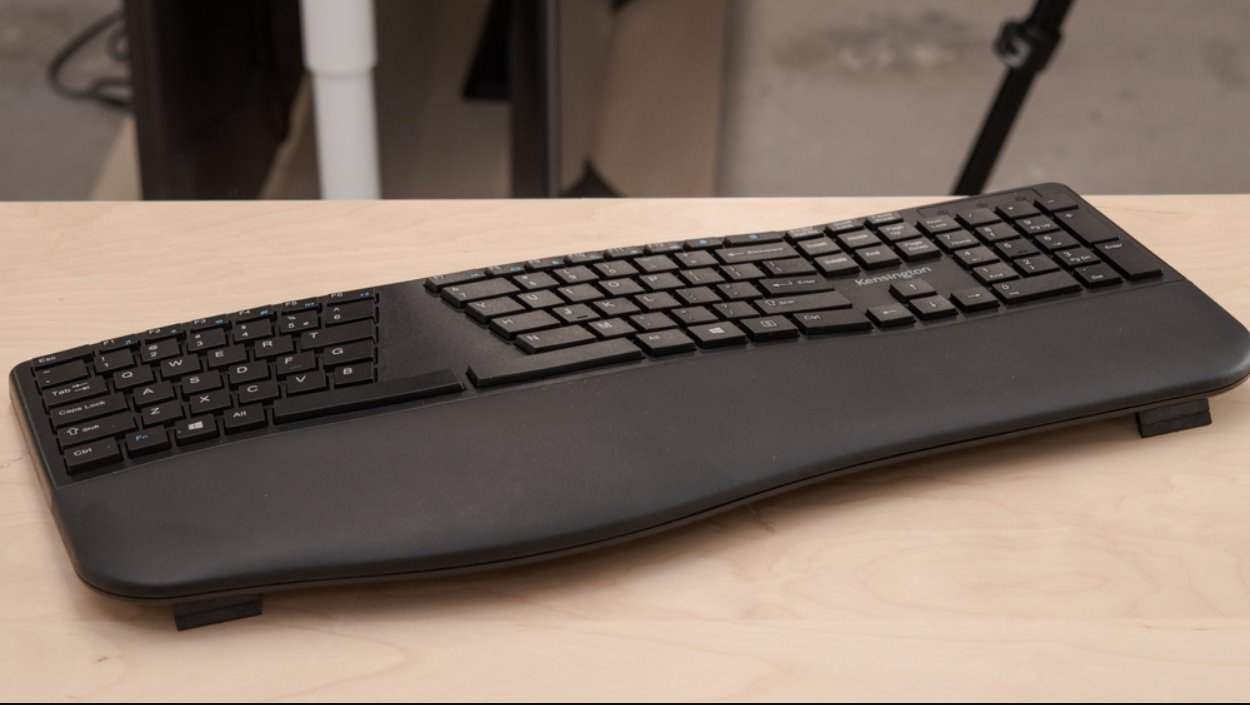
To connect a Kensington wireless keyboard to your computer, first identify whether your model uses a 2.4GHz USB receiver or Bluetooth. This guide will show you exactly how to connect...
To connect wireless keyboard to monitor, plug the keyboard's USB receiver into a USB port on the monitor, or pair the keyboard via Bluetooth if the monitor is a smart...
To connect your Seenda wireless keyboard, first identify whether your model uses a 2.4G USB receiver, Bluetooth, or both. Once you know your connection method, follow the specific steps below...
To charge a wireless keyboard, connect its charging cable to the keyboard and then plug the other end into a power source like a computer or USB wall adapter. This...
This website uses cookies so that we can provide you with the best user experience possible. Cookie information is stored in your browser and performs functions such as recognising you when you return to our website and helping our team to understand which sections of the website you find most interesting and useful.
Strictly Necessary Cookies
Strictly Necessary Cookie should be enabled at all times so that we can save your preferences for cookie settings.
If you disable this cookie, we will not be able to save your preferences. This means that every time you visit this website you will need to enable or disable cookies again.