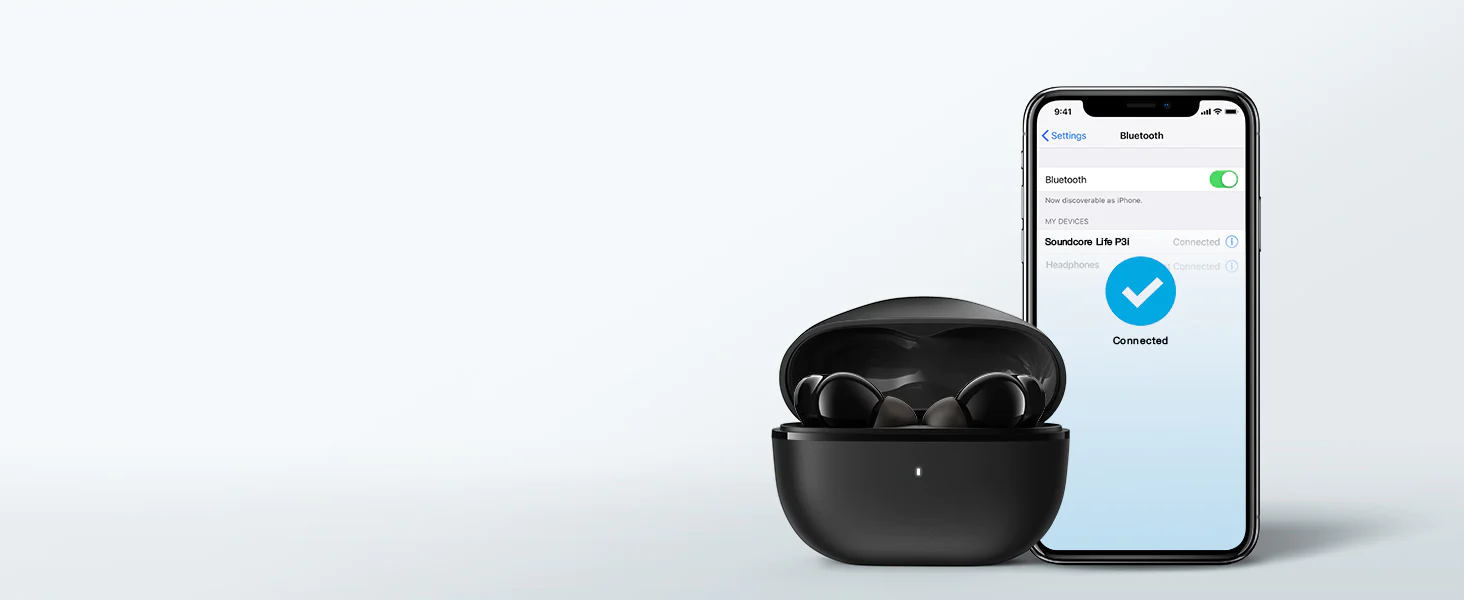
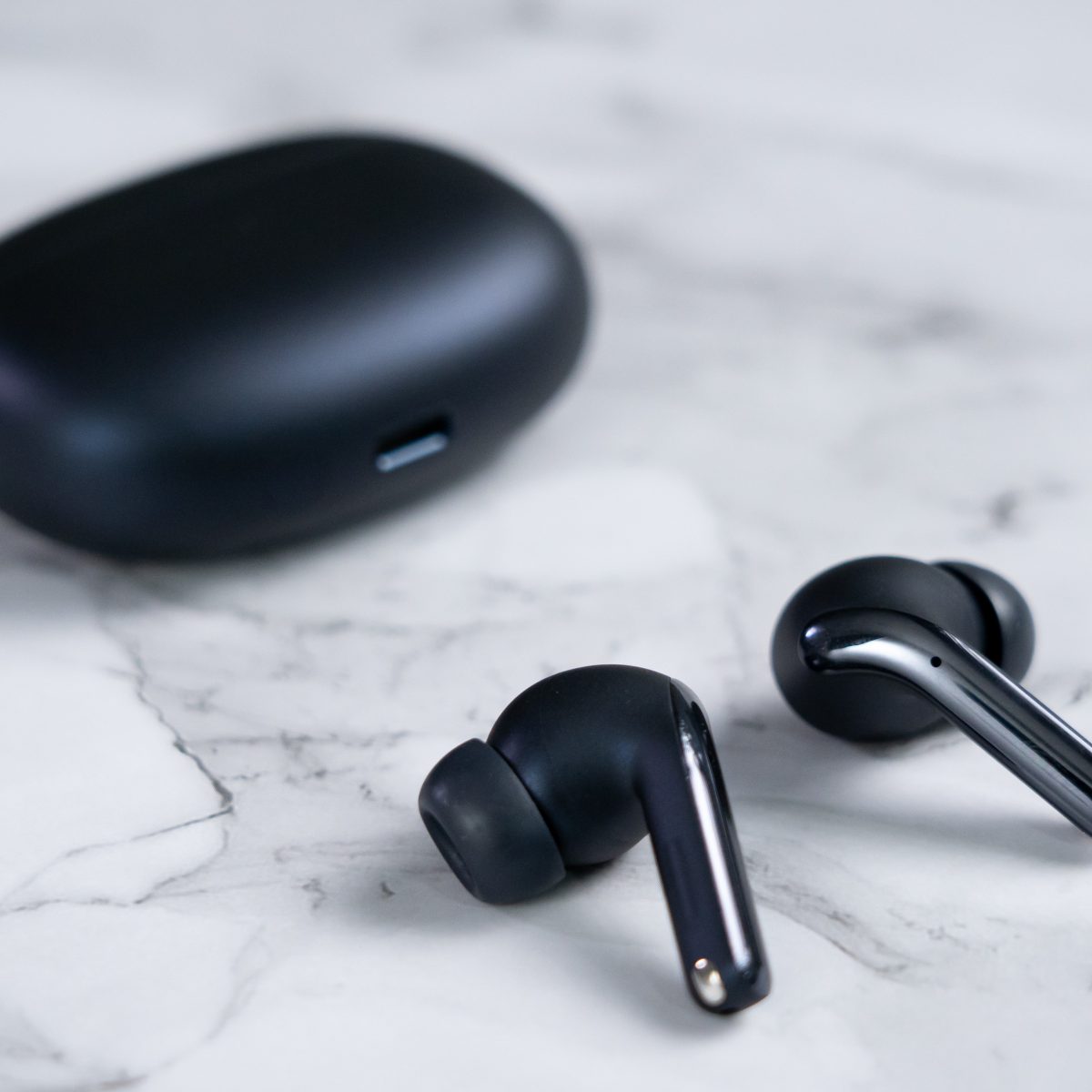
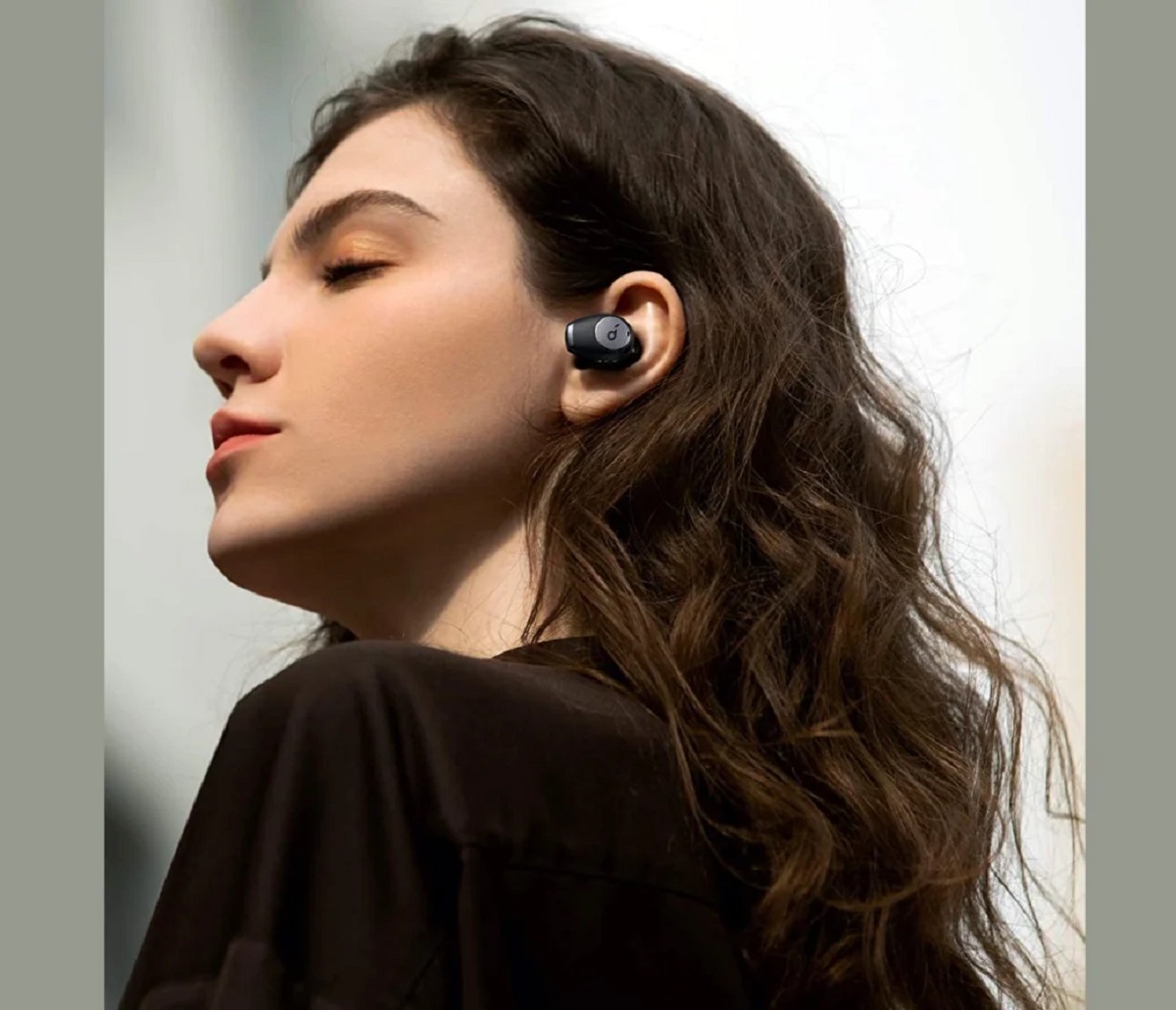
To pair Soundcore wireless earbuds, open the charging case with the earbuds inside and keep it near your phone, they’ll enter pairing mode automatically. If nothing happens, press and hold...
Most wireless earbuds have a standard wireless earbuds range of about 10 meters (33 feet) from your smartphone. This is the typical limit for Bluetooth Class 2 devices, which is...
To fix wireless earbuds delay, you need to address the Bluetooth latency that causes the audio to lag behind the video. Standard Bluetooth using the SBC codec introduces a noticeable...
To pair Bytech wireless earbuds, remove both earbuds from the charging case, they power on automatically and enter pairing mode, which is the fastest way to connect them to your...
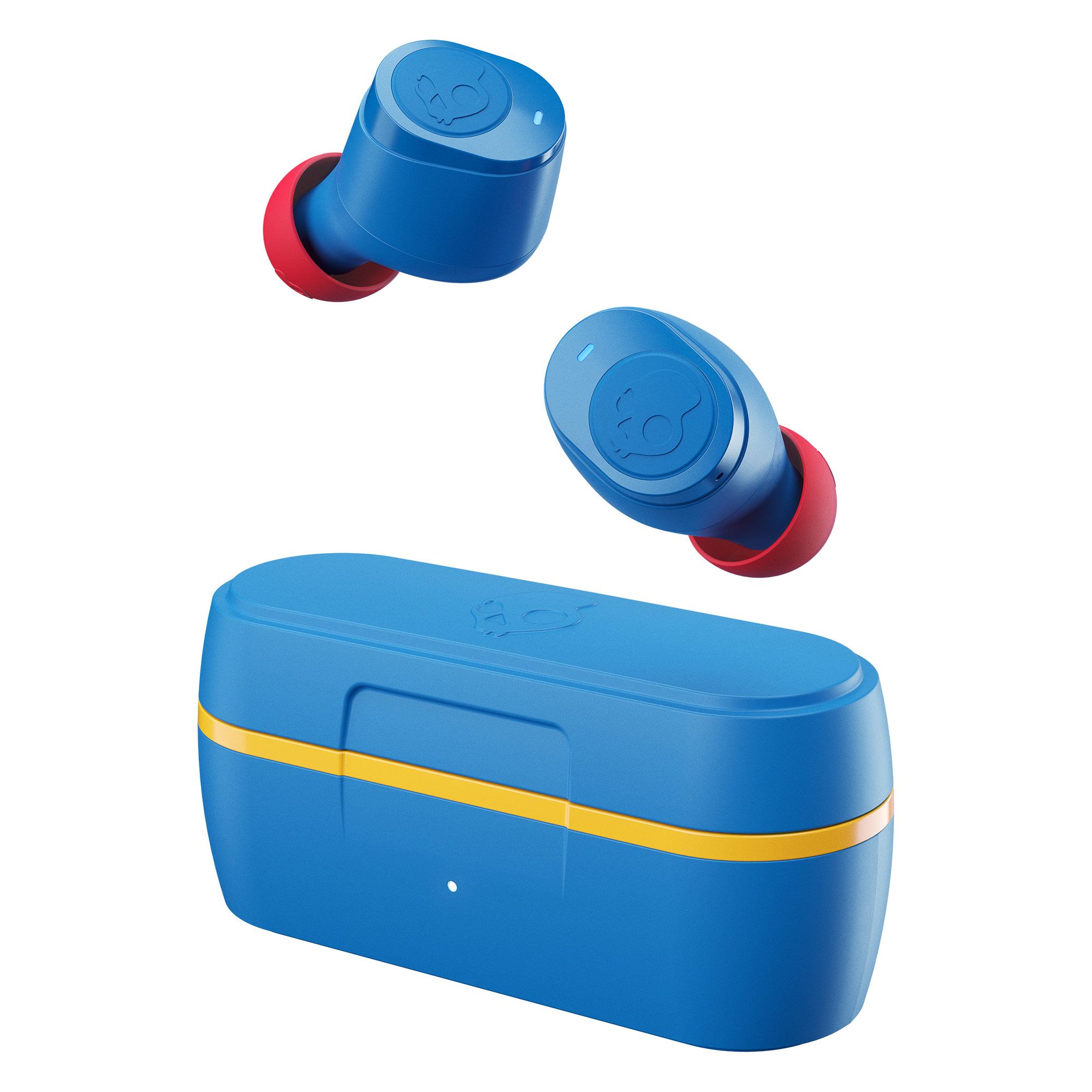
The quickest way to find lost Jib True Wireless Earbuds depends entirely on which model you own: the original Jib True has no built-in tracking, while the Jib True 2...
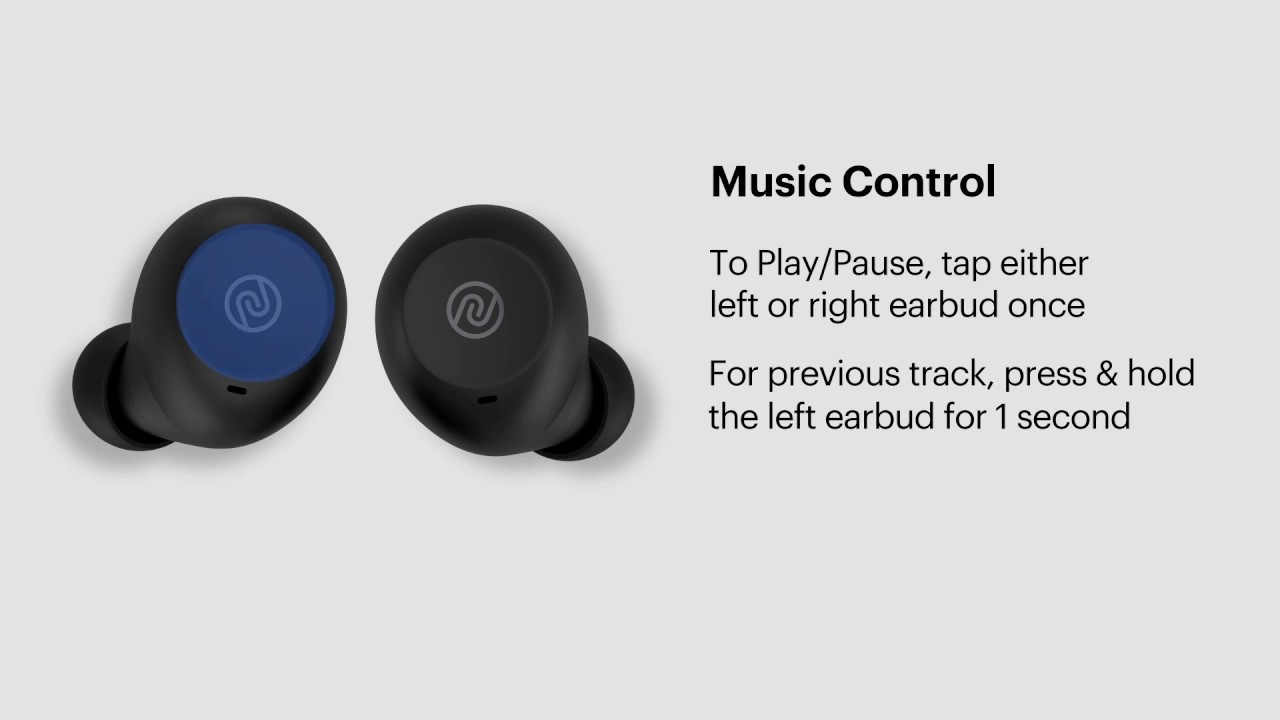
To turn up volume on wireless earbuds, use the touch controls or physical buttons on the earbuds themselves, adjust the volume on your connected phone or tablet, or use a...
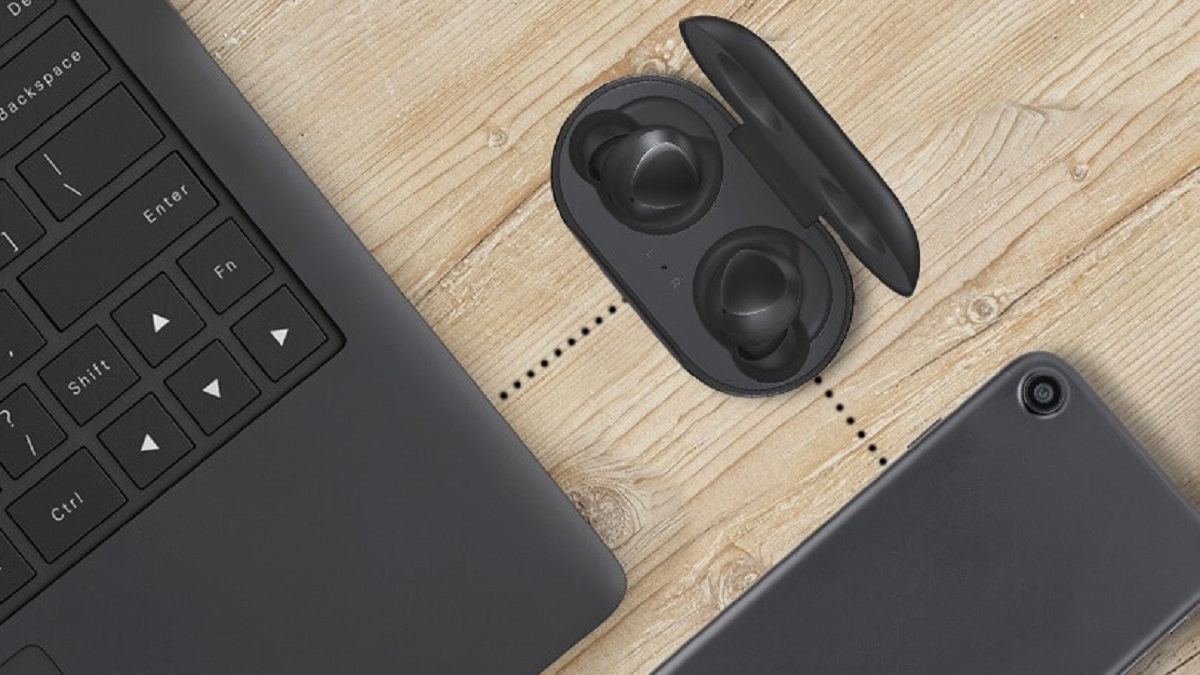
To connect wireless earbuds to a laptop, you must first enable Bluetooth on your computer, put the earbuds into pairing mode, and then select them from the list of discovered...
To make wireless earbuds stay in ear, you need to fix the seal, adjust insertion, and add support where your ear shape demands it. The fastest path to a secure...
To find missing wireless earbuds fast, start by retracing your steps and checking the pockets, bags, and surfaces where you last used them. If your earbuds have a tracking app,...
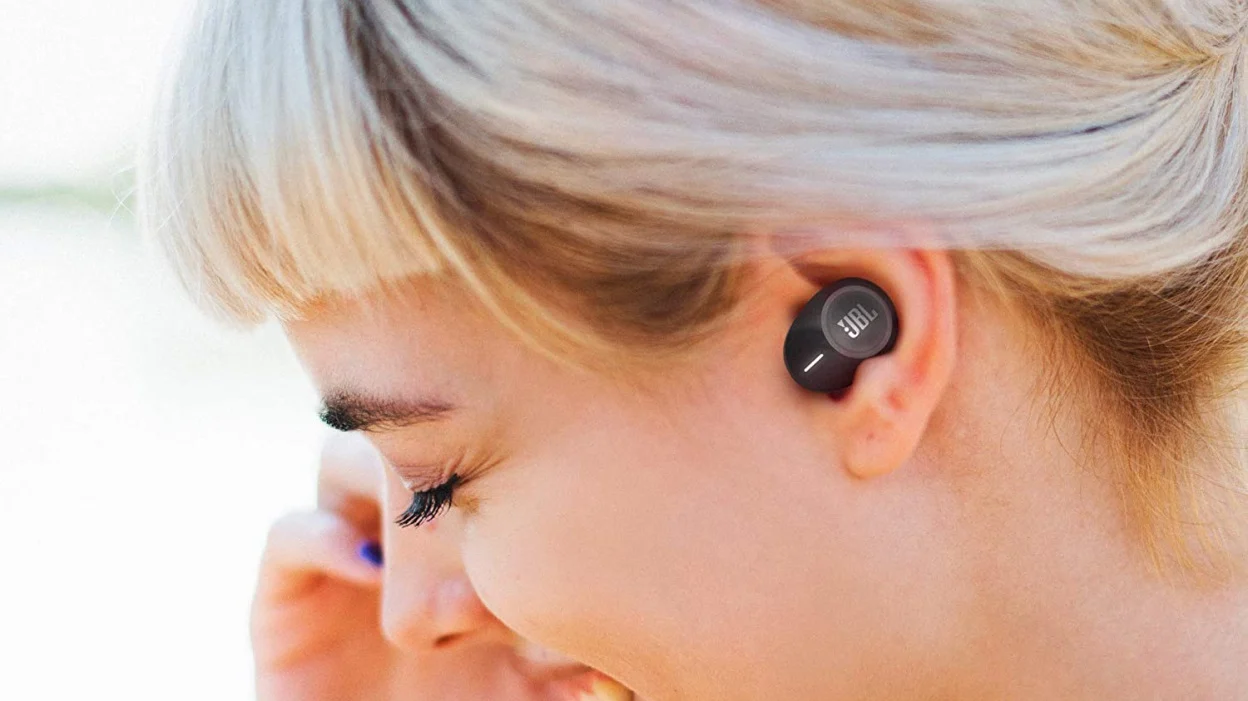
First-time setup and pairing your JBL earbuds To use JBL wireless earbuds, start by taking both earbuds out of the charging case and removing any plastic stickers covering the charging...
To connect Biconic wireless earbuds, ensure they are charged and inside the charging case, then open the lid to automatically enter pairing mode. On your phone or tablet, enable Bluetooth...
To hook up wireless earbuds, first ensure both the earbuds and their charging case have at least 20% battery, and confirm your phone or computer has Bluetooth turned on. Then,...
This website uses cookies so that we can provide you with the best user experience possible. Cookie information is stored in your browser and performs functions such as recognising you when you return to our website and helping our team to understand which sections of the website you find most interesting and useful.
Strictly Necessary Cookies
Strictly Necessary Cookie should be enabled at all times so that we can save your preferences for cookie settings.
If you disable this cookie, we will not be able to save your preferences. This means that every time you visit this website you will need to enable or disable cookies again.