To change location in Safari, you need to use the browser’s built-in developer tools on a Mac, Safari itself has no dedicated GPS spoofer, and the process differs completely between desktop and mobile. The only accurate way to fake a GPS coordinate in Safari is through the Web Inspector’s Sensors panel, which overrides the location reported to any website you visit. If the option is grayed out, you may first need to enable location permission in my browser at the system level.
How to change location in Safari: what’s really possible
Safari does not include a simple “set fake location” button or a built-in GPS spoofer. What you can do depends on the device. On a Mac, you can simulate a custom latitude and longitude using the Develop menu and Web Inspector, this is the only true location override. On iPhone or iPad, there is no native on-device spoofing; you must connect the device to a Mac and use the Mac’s developer tools to change the location for the connected Safari session. Disabling Location Services or changing your IP address does not give you a precise fake GPS position, it only removes or approximates location data, which is not the same as simulating a specific spot.
Manage Safari’s Location Services on Mac and iOS
Before attempting any override, understand how Safari normally gets your location. On both Mac and iOS, Safari relies on the operating system’s Location Services, which combines cellular, Wi-Fi, and GPS data. To control whether Safari can access your real location at all, you adjust system-level settings, not anything inside the browser.
On a Mac, open the Apple menu, go to System Settings (or System Preferences on macOS 12 or earlier), then select Privacy & Security and click Location Services. From there, you can turn Location Services on or off globally, and you can grant or revoke access for individual apps, including Safari. If you want Safari to use only an approximate position, you can also disable the “Precise Location” toggle for Safari in the same list.
On an iPhone or iPad, go to Settings > Privacy & Security > Location Services. You’ll see a list of apps; tap Safari to choose “Never,” “Ask Next Time,” or “While Using.” Below that, you can toggle off Precise Location to share only a general area. Remember: these settings control whether Safari knows where you are, they do not let you pick a fake coordinate.
Enable the Develop menu on Mac Safari
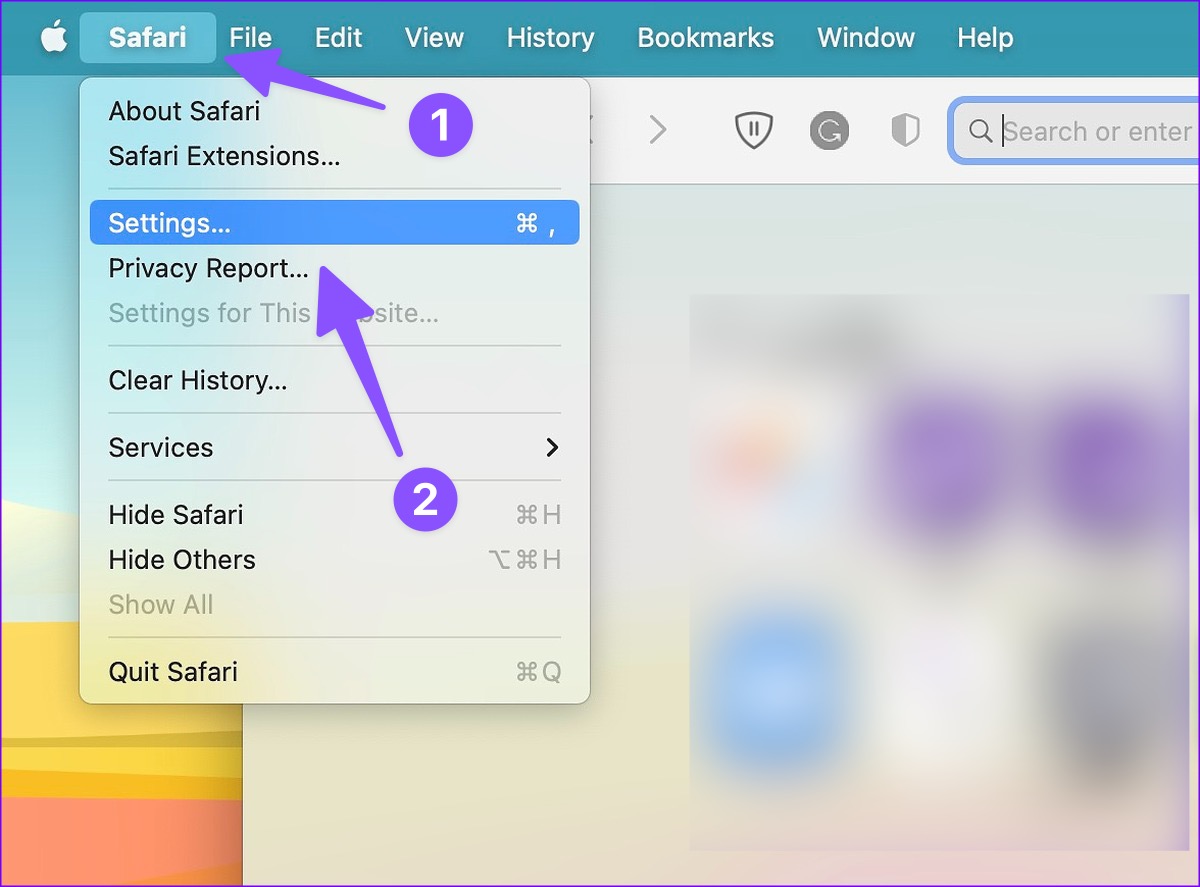
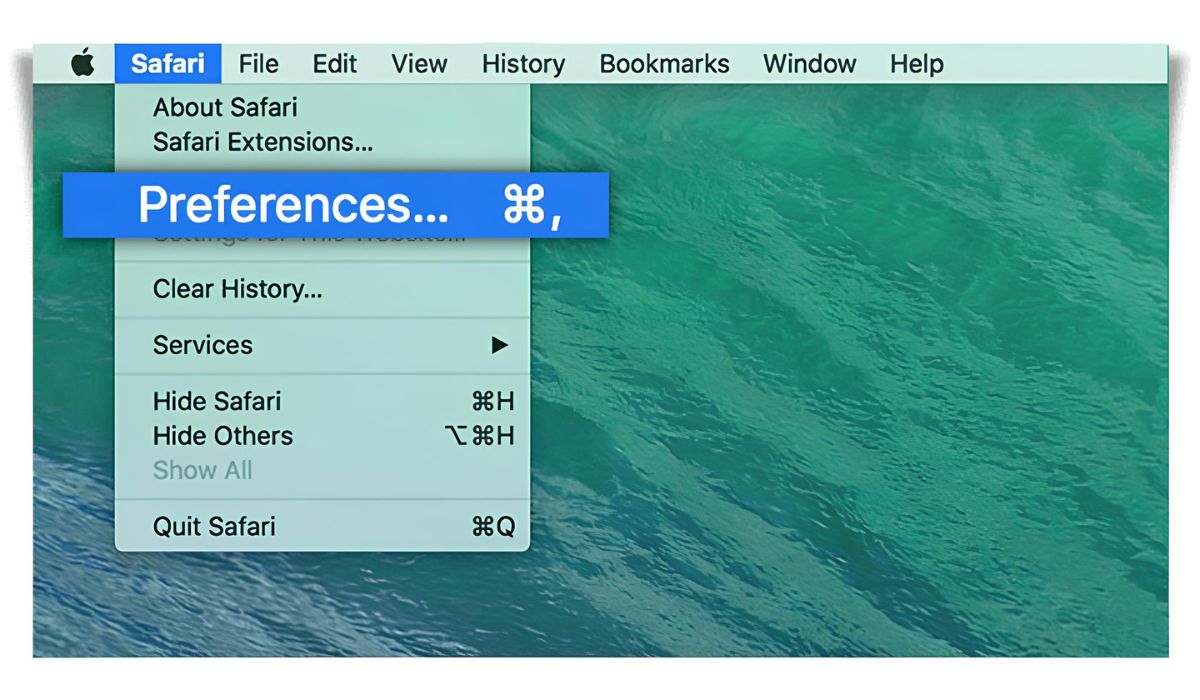
To access the tools that allow a custom location, you first need to turn on the Develop menu. Open Safari on your Mac, then click Safari in the menu bar and select Preferences. Go to the Advanced tab and check the box labeled Show Develop menu in menu bar. A new “Develop” menu will appear in the top menu bar, giving you access to Web Inspector and other debugging features.
Simulate a custom GPS location using Web Inspector
With the Develop menu visible, you can now override your location for any website you visit. This is the accurate, Mac-only method:
- Open the website you want to test in Safari.
- Click Develop in the menu bar and select Show Web Inspector.
- In the Web Inspector panel, find and click the Sensors tab (sometimes labeled with a location icon).
- Check the box to override the location, then enter the latitude and longitude you want to simulate.
- Refresh the page or interact with the site to see the new location take effect.
This method changes the geolocation data that Safari reports to that specific website, so the site sees your chosen coordinates instead of your real position. It works for any site that requests location via the browser’s geolocation API, such as maps, weather services, or location-aware web apps.
Can you spoof your location on iPhone or iPad Safari?
On iOS and iPadOS, there is no built-in way to fake your GPS location directly in Safari. Apple does not provide a native location override for mobile browsers. The only workaround is to connect your iPhone or iPad to a Mac via USB and use the Mac’s developer tools to control the mobile Safari session.
To do this, first enable Web Inspector on your iOS device: go to Settings > Safari > Advanced and turn on Web Inspector. Then connect the device to your Mac with a USB cable. On the Mac, open Safari, go to the Develop menu, and you’ll see your connected device listed. Choose the website open on your iPhone or iPad, then open the Web Inspector for that page. From there, use the same Sensors tab to enter a custom latitude and longitude. The location override applies to the page on your mobile device, allowing you to test location-based features in iOS Safari, but only while the device is connected to the Mac and the inspector is active.
How Safari actually detects your location
Safari determines your location using several signals, and understanding them explains why a simple IP change or disabling Location Services won’t fake a precise position. On a Mac, Safari primarily uses information from local Wi-Fi networks to estimate your location. On iPhone and iPad, it combines cellular tower data, Wi-Fi positioning, and GPS for a more accurate fix. Even if you turn off Location Services for Safari, websites can still approximate your location using your internet connection’s IP address. That means disabling location access only makes your position less precise, it does not let you choose a different city or country. To truly simulate a specific spot, you need the Web Inspector override, which replaces the geolocation data at the browser level.
Test your new virtual location
After setting a custom coordinate, verify that it actually works. Open a location-sensitive site like Google Maps or a weather service and see if the content matches the coordinates you entered. For example, if you set a latitude and longitude in Tokyo, a weather site should show Tokyo’s forecast, and a map should center on that area. You can also visit a location-testing webpage that displays the exact latitude and longitude your browser is reporting, if it matches what you entered, the override is successful. For developers, test any geolocation-dependent features, such as nearby searches or location-based recommendations, to confirm they respond to the simulated position. This validation step ensures the override is influencing the site as intended and not just changing a setting on your screen.
\nRelated reading: How To Find Settings In Safari and How To Add Trusted Sites In Safari.