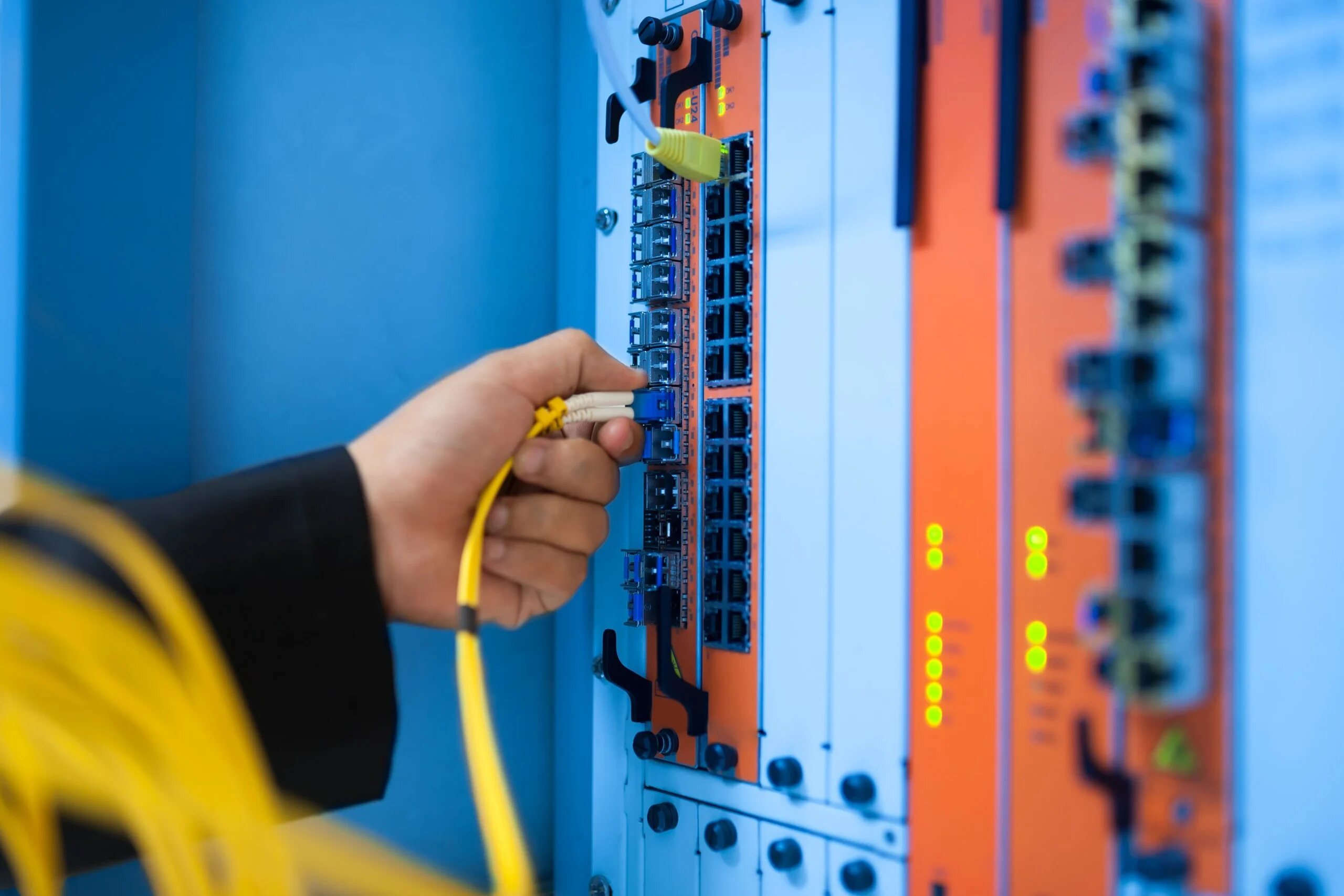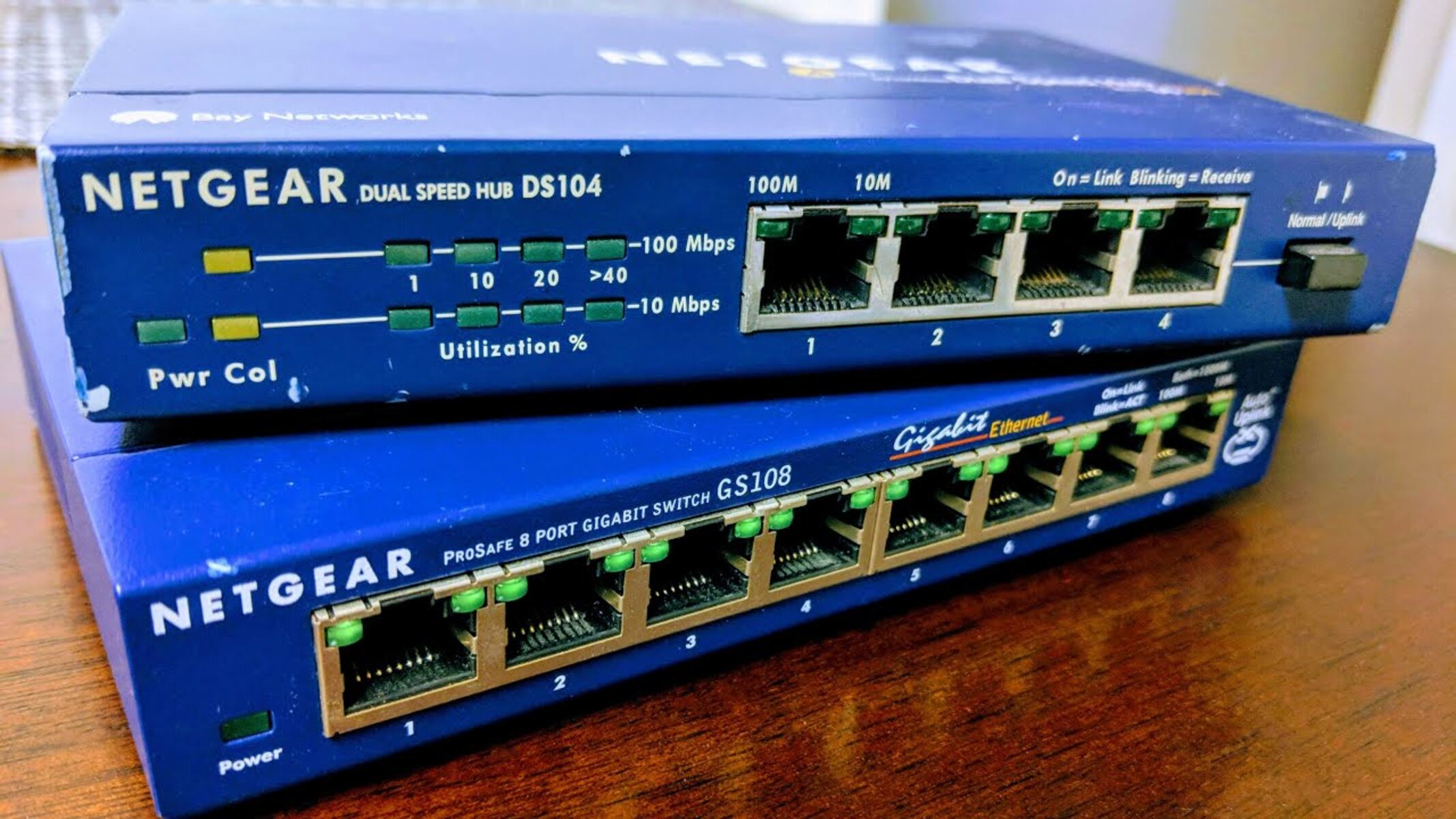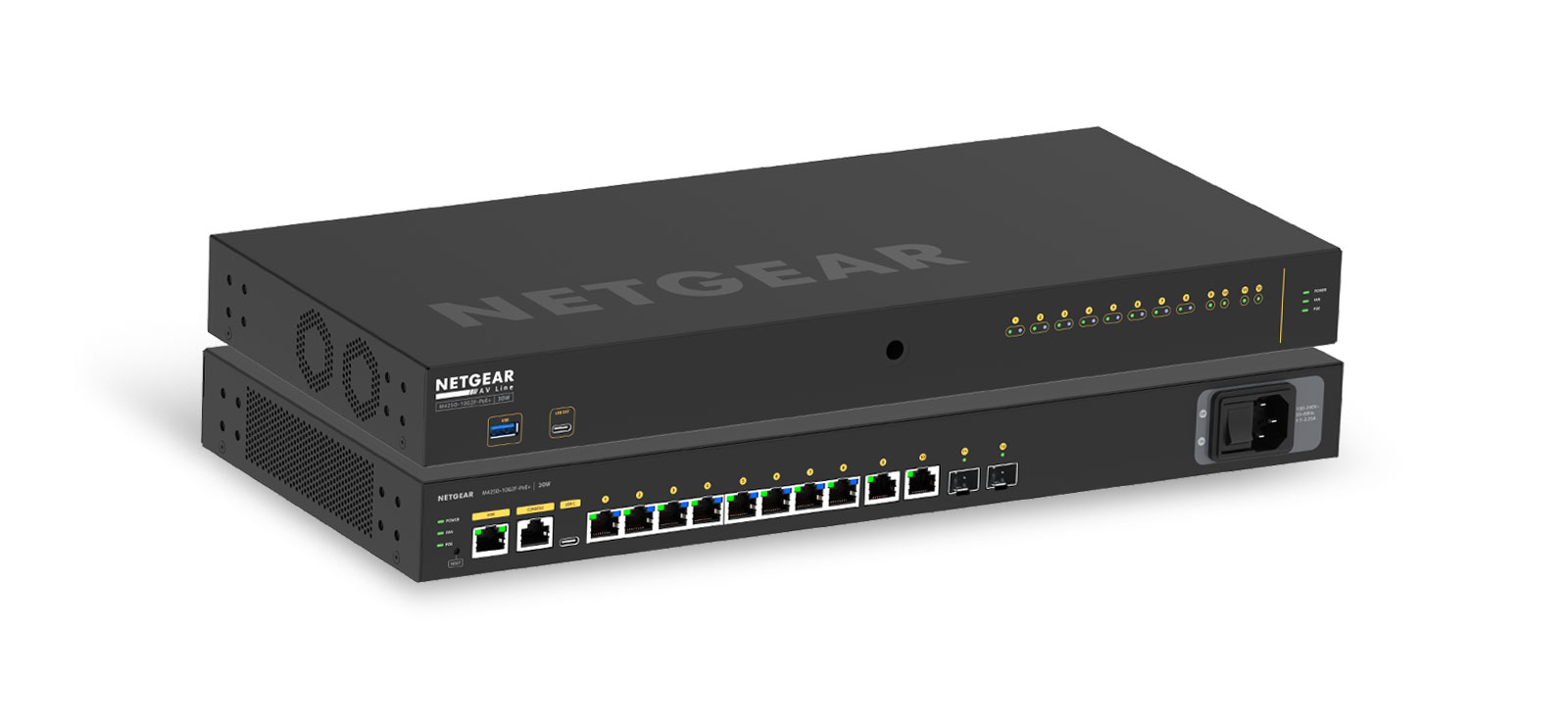
To access a Netgear network switch, you first need to determine if you have a managed switch that has a web interface, or an unmanaged plug-and-play model that does not. For managed switches, you can log in through a web browser using the switch's IP address to configure settings like VLANs, QoS, and security features.
Do you need to access your Netgear network switch?
Unmanaged Netgear switches are plug-and-play devices that do not require any software or configuration to operate, meaning they have no management interface to access. If your switch is unmanaged, simply connect power and Ethernet cables, and it will work automatically. Managed Netgear switches, on the other hand, can be accessed via a web browser interface (GUI), a command-line interface (CLI) through a console port, or using Netgear discovery tools.
Find the switch's IP address
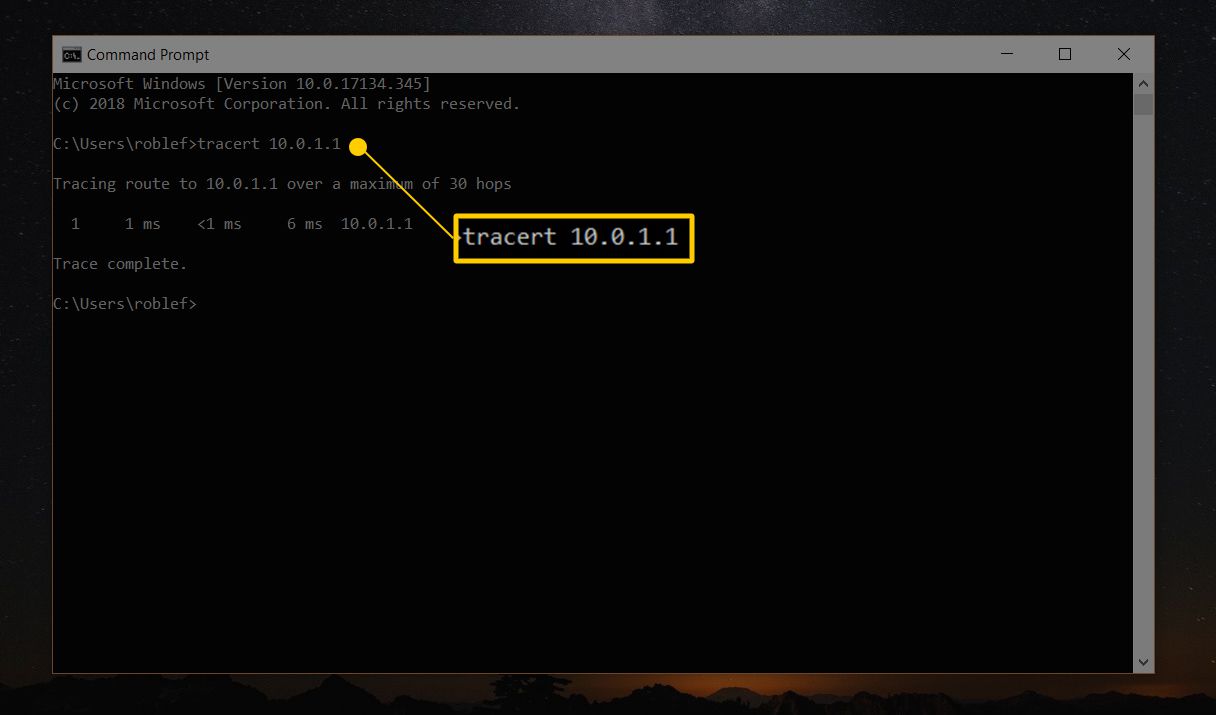
Before you can log into the web interface, you need the switch's IP address. Common default static IP addresses for Netgear switches include 192.168.0.239, 192.168.1.1, or 192.168.0.1. For some models, if no DHCP server is available, the switch may default to 169.254.100.100. If you don't know which address applies, you can use Netgear's utilities to find switch IP address automatically. The NETGEAR Switch Discovery Tool (for Mac or 64-bit Windows) and Smart Control Center (for Windows) scan the network and display the switch's current IP. Download one of these tools, run it on a computer connected to the same network as the switch, and note the IP address shown.
Set a static IP on your computer if needed
If you cannot reach the switch using its default IP address, you may need to temporarily configure your computer with a static IP address in the same subnet as the switch's default IP. For example, if the switch defaults to 192.168.0.239, set your computer's IP to 192.168.0.x (where x is a number between 1 and 254, but not 239), with a subnet mask of 255.255.255.0. This ensures your computer and the switch can communicate directly. Once you have logged into the switch, you can change your computer back to automatic (DHCP) settings.
Log into the web interface
Open a web browser on a computer connected to the same network as the switch. Enter the switch's IP address in the address bar and press Enter. You will be taken to a login page. The default username is typically "admin," and the default password is often "password" or left blank for the first login. Upon first login to some Netgear switches, you will be required to specify a new password. After entering the credentials, you will gain access to the switch's configuration dashboard.
Access the switch via console port (alternative method)
If the web interface is unreachable, you can use the console port for direct CLI management. Console port access for managed switches typically uses a mini-USB or DB9 serial port on the switch. Connect your computer to the switch using the appropriate cable (mini-USB or DB9 serial). Open a terminal emulation program (e.g., HyperTerminal on Windows) and configure it with these settings: Baud rate 115200 bps, 8 data bits, 1 stop bit, and no parity. Once connected, you can manage the switch through the command line. This method is useful if you want to use a network switch with 2 routers and need to adjust routing or VLAN settings at the CLI level.
Configure basic switch settings
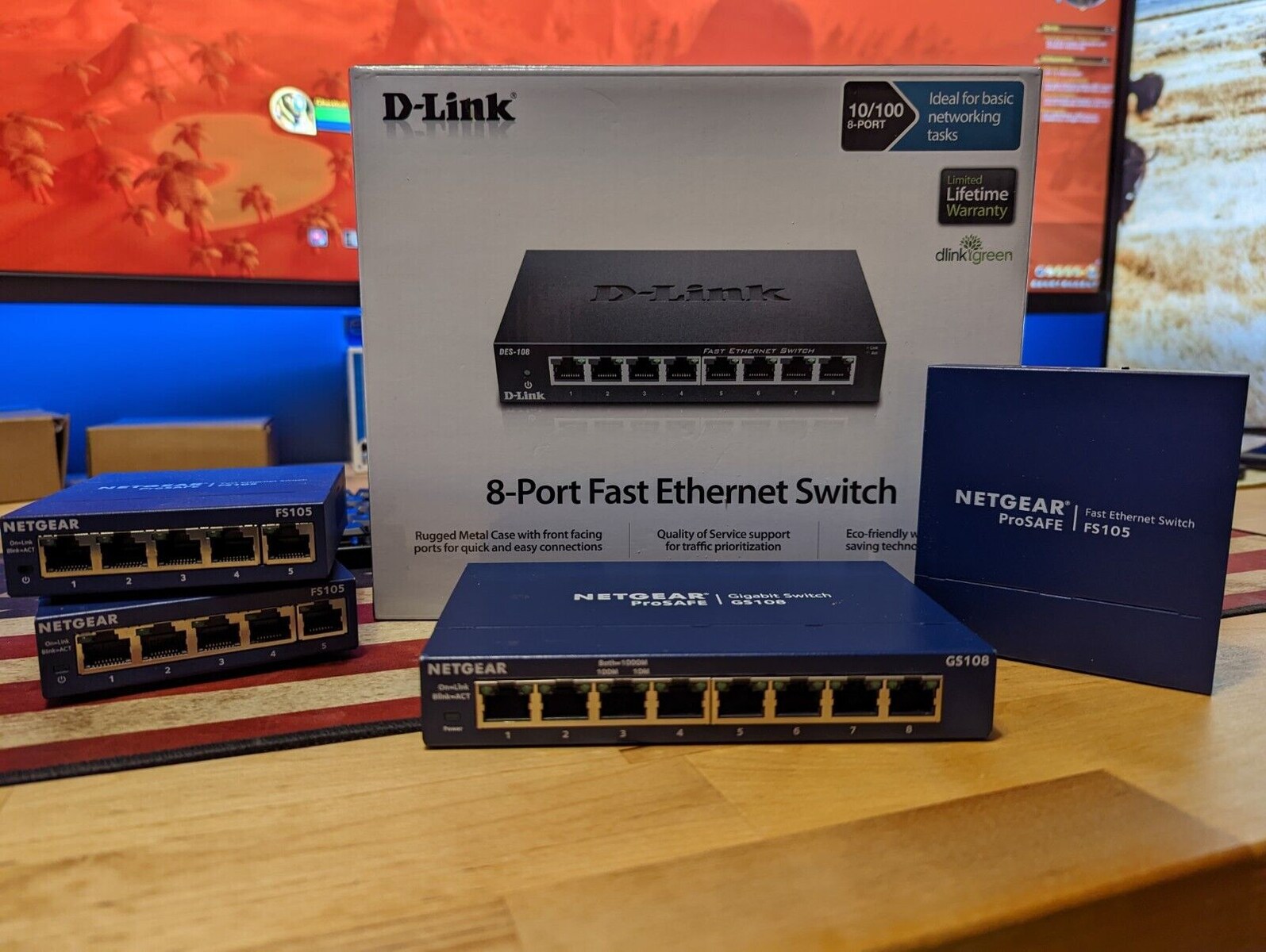
Now that you have successfully accessed the interface, you can configure a managed network switch to meet your network's needs. Start with port configuration: set port speeds, enable or disable ports, and configure port-based VLANs to segregate traffic. Next, set up VLAN settings to create logical network partitions, improving security and efficiency. Configure Quality of Service (QoS) to prioritize critical traffic like voice or video. Enable security features such as port security, MAC address filtering, and access control lists. If you are working with simpler hardware, you can set up TP-Link 5-port gigabit Ethernet network switch for a quick plug-and-play deployment. Finally, check for firmware updates in the maintenance section to keep the switch running with the latest patches and features.
Troubleshoot access issues
If you have forgotten the password or the switch becomes unreachable, you can factory reset it. To factory reset a Netgear Smart Switch via the web interface, navigate to Maintenance > Reset > Factory Default, check the confirmation box, and click Apply. To factory reset using a physical button, insert a straightened paper clip into the reset hole and hold it for more than 5 seconds (some models may require 10 or 15 seconds). This will restore the switch to its default IP and credentials, allowing you to start the access process again.
For the wider topic, see use a network switch with 2 routers.