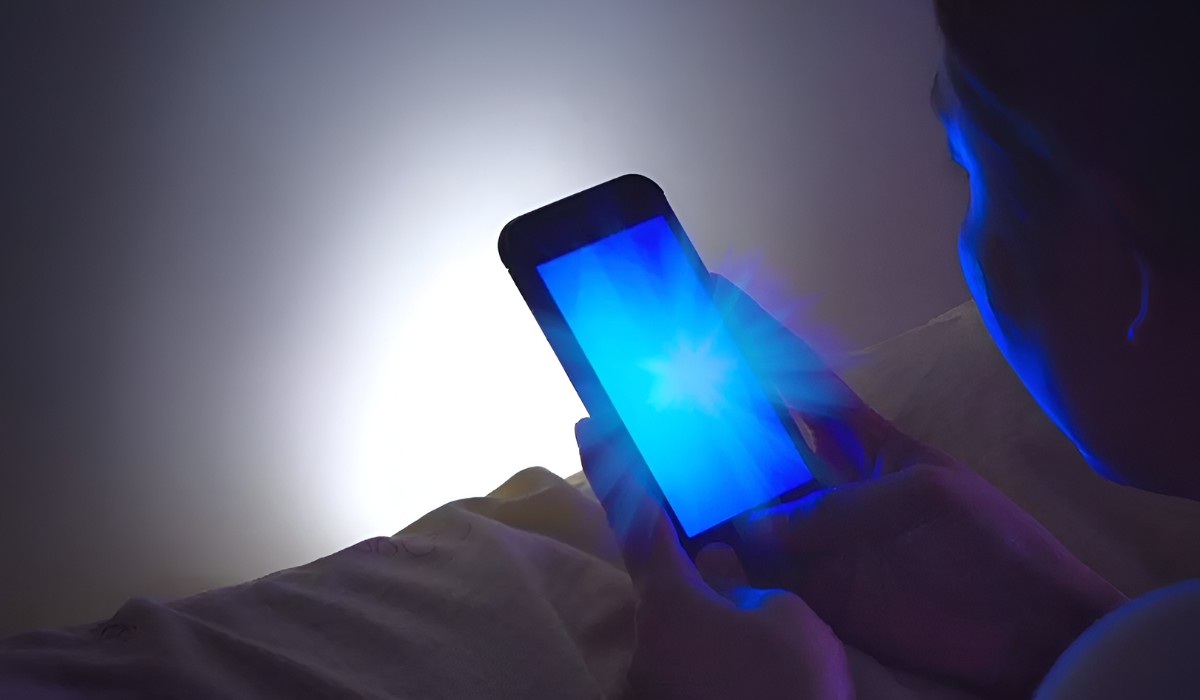
Turning off blue light on your iPad
To turn off blue light on your iPad, you need to enable Night Shift, which shifts your screen’s colors to the warmer end of the spectrum. This is the built-in feature designed to reduce blue light emission, and you can activate it in just a few taps from Settings or Control Center. Note that Night Shift doesn’t literally turn blue off; it rebalances the display toward warmer tones, which is what makes it easier on your eyes in low light, and reducing this exposure is also a smart step toward shielding your skin from the effects of blue light. Applying the same principle to your larger screens can make evening viewing much more comfortable, so you may also want to explore tips for disabling or minimizing blue light emission on your TV.
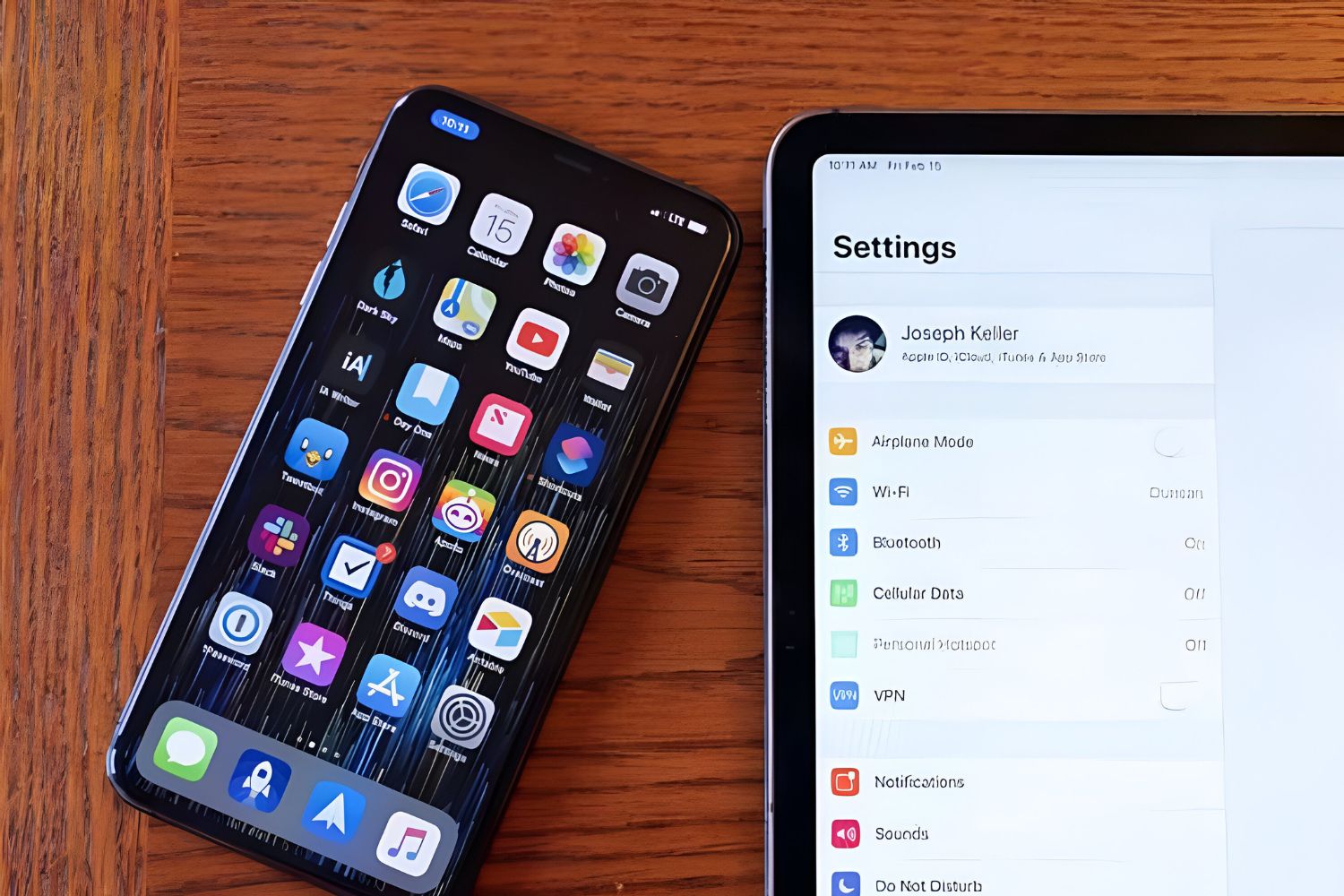
- Open the Settings app on your iPad.
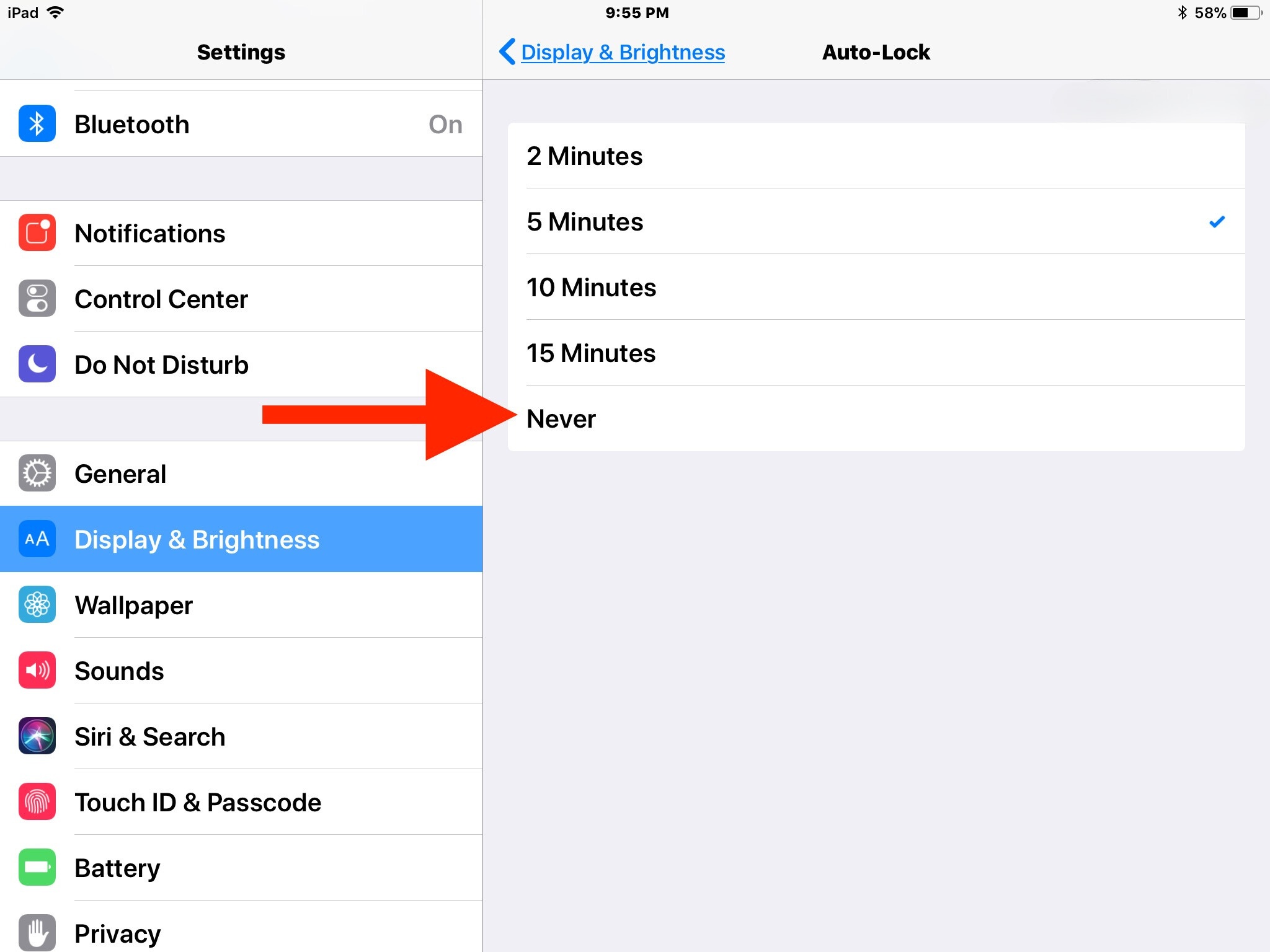
- Tap Display & Brightness.
- Tap Night Shift.
- Choose Manually Enable Until Tomorrow to turn it on immediately, or set a schedule (see below).
You can also toggle Night Shift from Control Center: swipe down from the top-right corner (or up from the bottom on older iPads with a Home button), touch and hold the brightness slider icon (the sun), then tap the Night Shift button (a sun/moon icon). This is the quickest way to turn off blue light on your iPad when you’re in the middle of reading or working and want instant relief, but if glare is still washing out your screen, you may need to read a tablet in the sun by adjusting your display brightness and positioning.
Customizing Night Shift for your schedule and warmth
Night Shift isn’t a one-size-fits-all feature. You can set it to activate automatically based on your location’s sunrise and sunset times, or you can define a custom schedule that matches your routine. For example, if you tend to use your iPad late into the night, a custom schedule from 9 PM to 7 AM might work better than sunset-based timing.
To schedule: go to Settings > Display & Brightness > Night Shift, then toggle on Scheduled. From there, choose either Sunset to Sunrise or Custom Schedule and set your preferred start and end times. When scheduled, Night Shift will automatically shift your display to warmer colors during those hours, so you don’t have to remember to turn it on manually.
Beyond scheduling, you can fine-tune how warm the display gets. Use the Color Temperature slider within Night Shift settings. Drag it toward More Warm to reduce more blue light, or toward Less Warm for a subtler shift. A warmer setting is generally more comfortable in dark rooms, but it also makes colors look more orange or amber. Experiment to find the balance that feels best for your eyes without distorting content too much.
Using True Tone for natural viewing
True Tone is a separate feature from Night Shift, though both affect display color. True Tone automatically adapts the color and intensity of your iPad’s screen to match the ambient light in your environment. If you’re in a room with warm incandescent lighting, the screen will look warmer; under cool fluorescent light, it will look cooler. The goal is to make the display appear as natural as a piece of paper under different lighting conditions.
To turn True Tone on or off: go to Settings > Display & Brightness, then toggle the True Tone switch. You can also access it from Control Center by touching and holding the brightness slider icon, then tapping the True Tone button. True Tone works continuously in the background, so you don’t need to schedule it. It’s a good complement to Night Shift because it adjusts for your surroundings, while Night Shift specifically targets blue light reduction in the evening.
Keep in mind that True Tone is available only on supported iPad models, including iPad Pro, iPad (9th generation and later), iPad Air (M2, 1st through 4th generations), and iPad mini (5th generation and later). If your iPad doesn’t support True Tone, you won’t see the toggle in Settings or Control Center.
When Night Shift or True Tone won’t work
There are a few situations where Night Shift or True Tone might not activate, even if you’ve turned them on. Certain display accessibility settings can override these features. If you have Invert Colors, Grayscale, or Increase Contrast enabled, Night Shift or True Tone may automatically turn off. This is because these accessibility features change the display in ways that conflict with color temperature adjustments. If you notice Night Shift isn’t working, check Settings > Accessibility > Display & Text Size and disable any of these options that are active.
Another override is Reference Mode, which is designed for professional color-critical work like photo or video editing. When Reference Mode is enabled on your iPad, both True Tone and Night Shift are disabled to ensure accurate color reproduction. To use Night Shift, you’ll need to turn off Reference Mode in Settings > Display & Brightness > Reference Mode.
Finally, Night Shift requires iOS 9.3 or later, and it’s available on iPad Pro, iPad (5th generation and later), iPad Air or later, and iPad mini 2 or later. If your iPad is older than these models, you won’t have the Night Shift option. True Tone, as noted, is limited to specific newer models. If your device doesn’t support these features, you’ll need to rely on other methods to reduce blue light, such as adjusting brightness or using external filters.
Better viewing habits for iPad users
While Night Shift and True Tone are powerful tools, they work best when combined with good viewing habits. One of the simplest additions is Dark Mode, which uses a dark color scheme system-wide. In low-light environments, Dark Mode reduces the overall brightness of the screen and can make reading more comfortable, especially in apps like Safari, Mail, or Notes. To enable it, go to Settings > Display & Brightness and select Dark under Appearance.
Another habit worth adopting is the 20-20-20 rule: every 20 minutes, look at something at least 20 feet away for 20 seconds. This gives your eye muscles a chance to relax and reduces the fatigue that comes from staring at a fixed distance for long periods. It’s especially useful if you use your iPad for reading, writing, or watching videos.
Screen brightness also matters. In bright environments, increase brightness to avoid squinting; in dark rooms, lower it to prevent glare. The iPad’s auto-brightness feature can handle this for you, but you can also adjust it manually from Control Center. Keeping brightness at a comfortable level reduces eye strain and complements Night Shift’s warm tone.
If you want extra protection, consider blue light-filtering accessories. Screen protectors with blue light filters or specialized eyewear designed to block blue light can further reduce exposure, especially if you use your iPad for long stretches. These accessories work alongside Night Shift, adding another layer of defense against blue light.
Finally, take regular breaks from your iPad altogether. Stand up, stretch, and give your eyes a rest from any screen. This not only helps your vision but also reduces the risk of headaches and neck strain from prolonged hunched posture. By combining Night Shift, True Tone, Dark Mode, and mindful habits, you can significantly reduce blue light exposure and make your iPad viewing experience more comfortable for your eyes and your sleep.