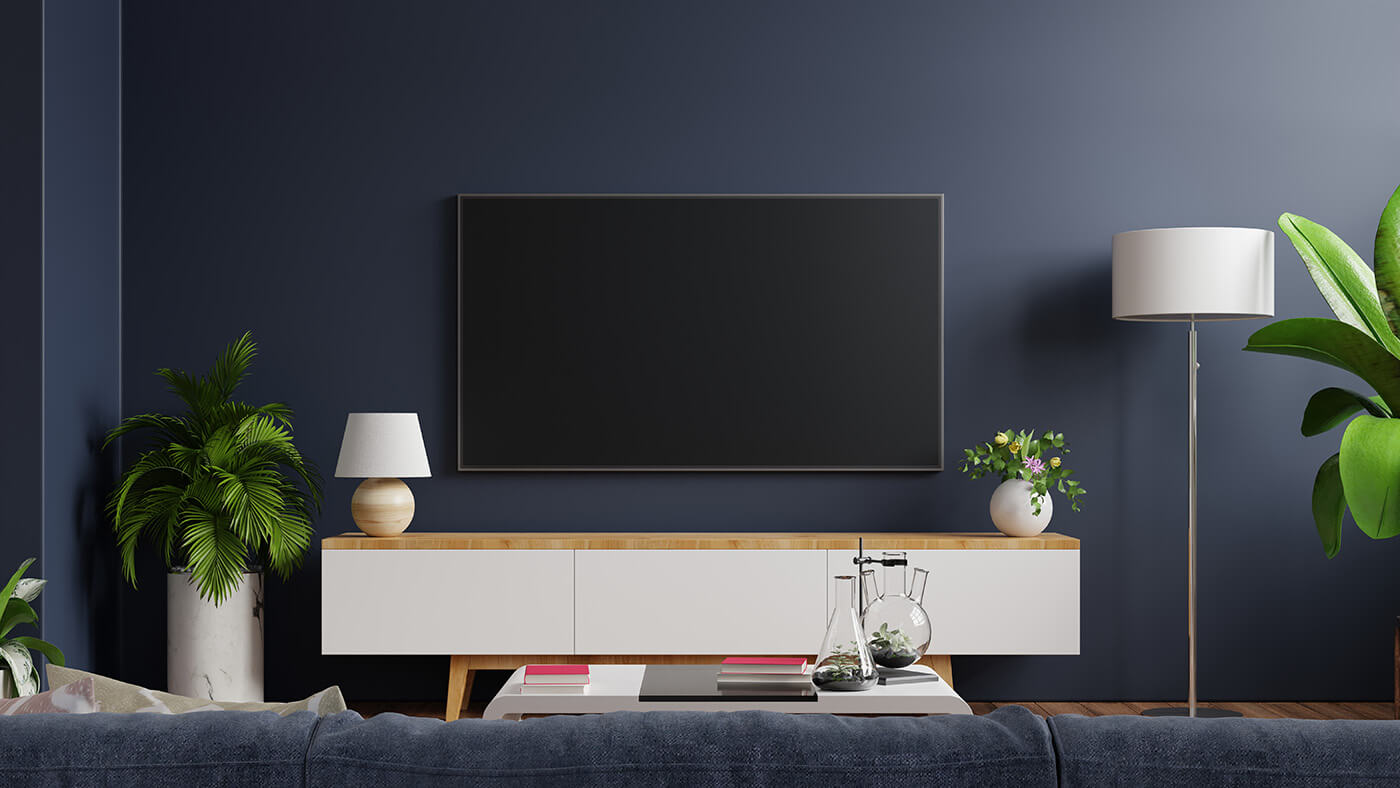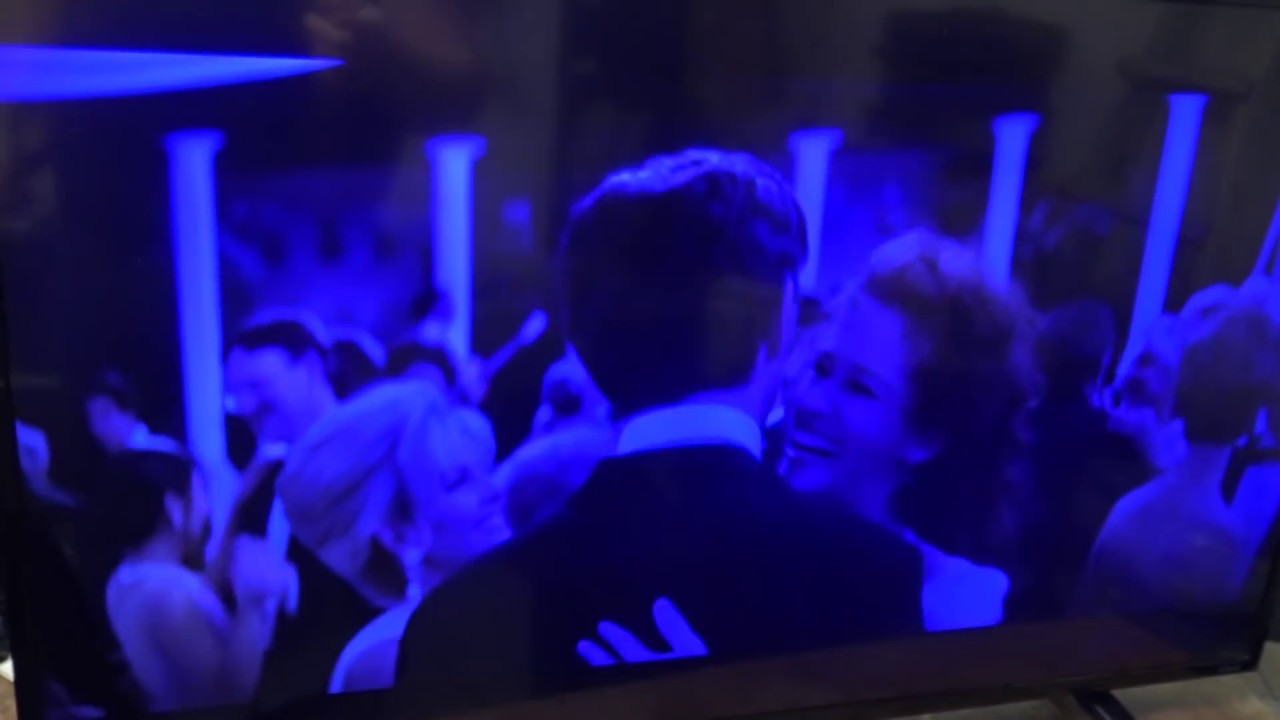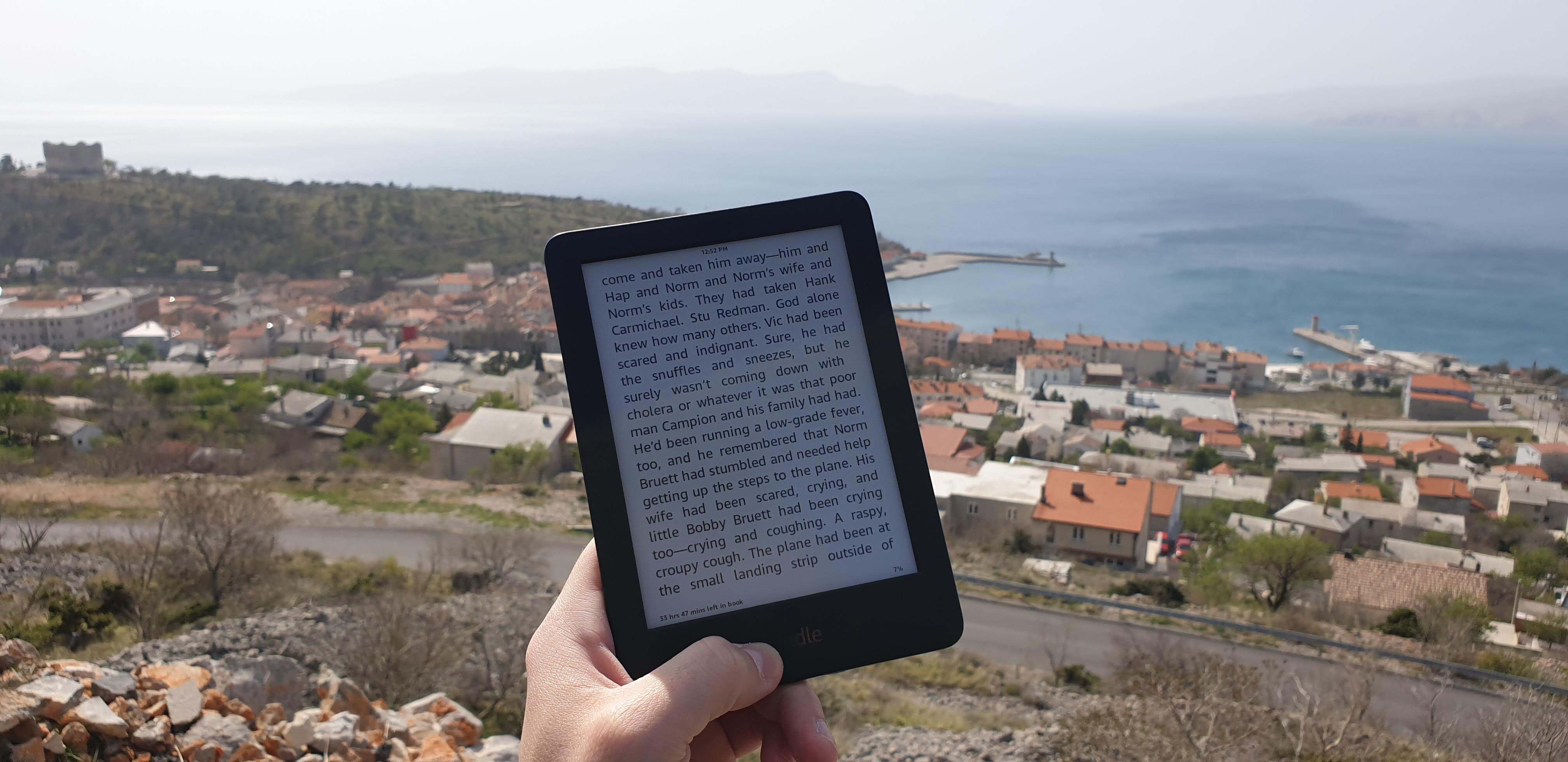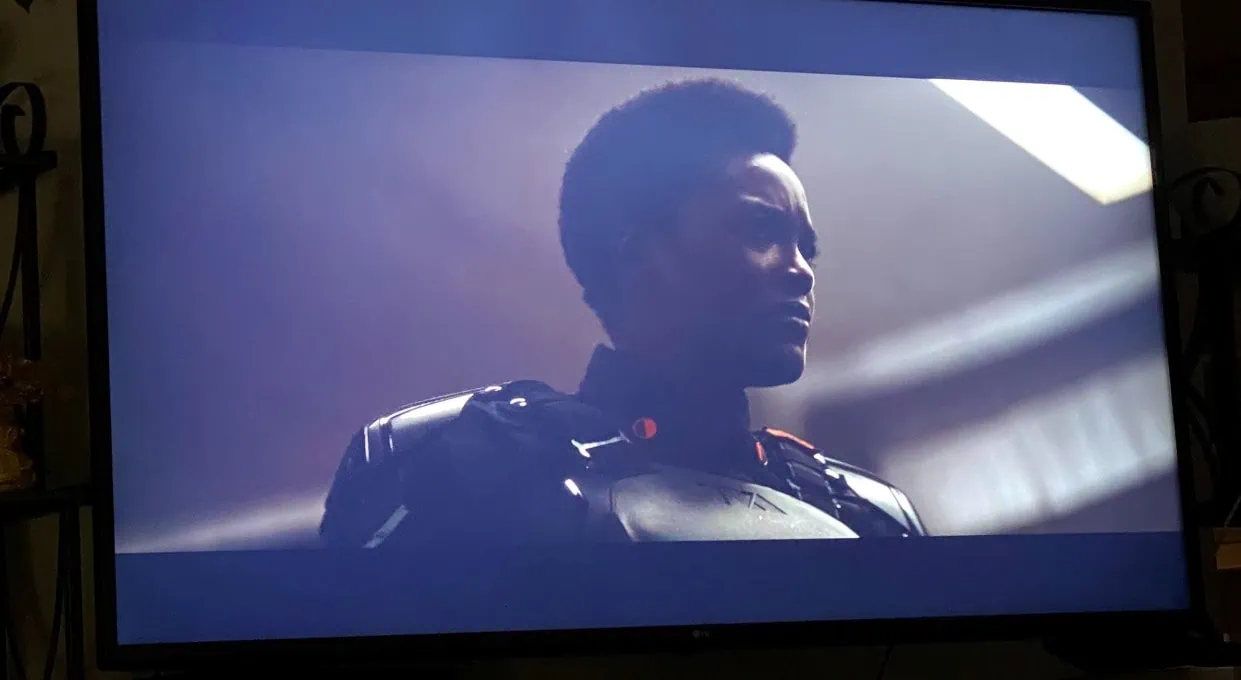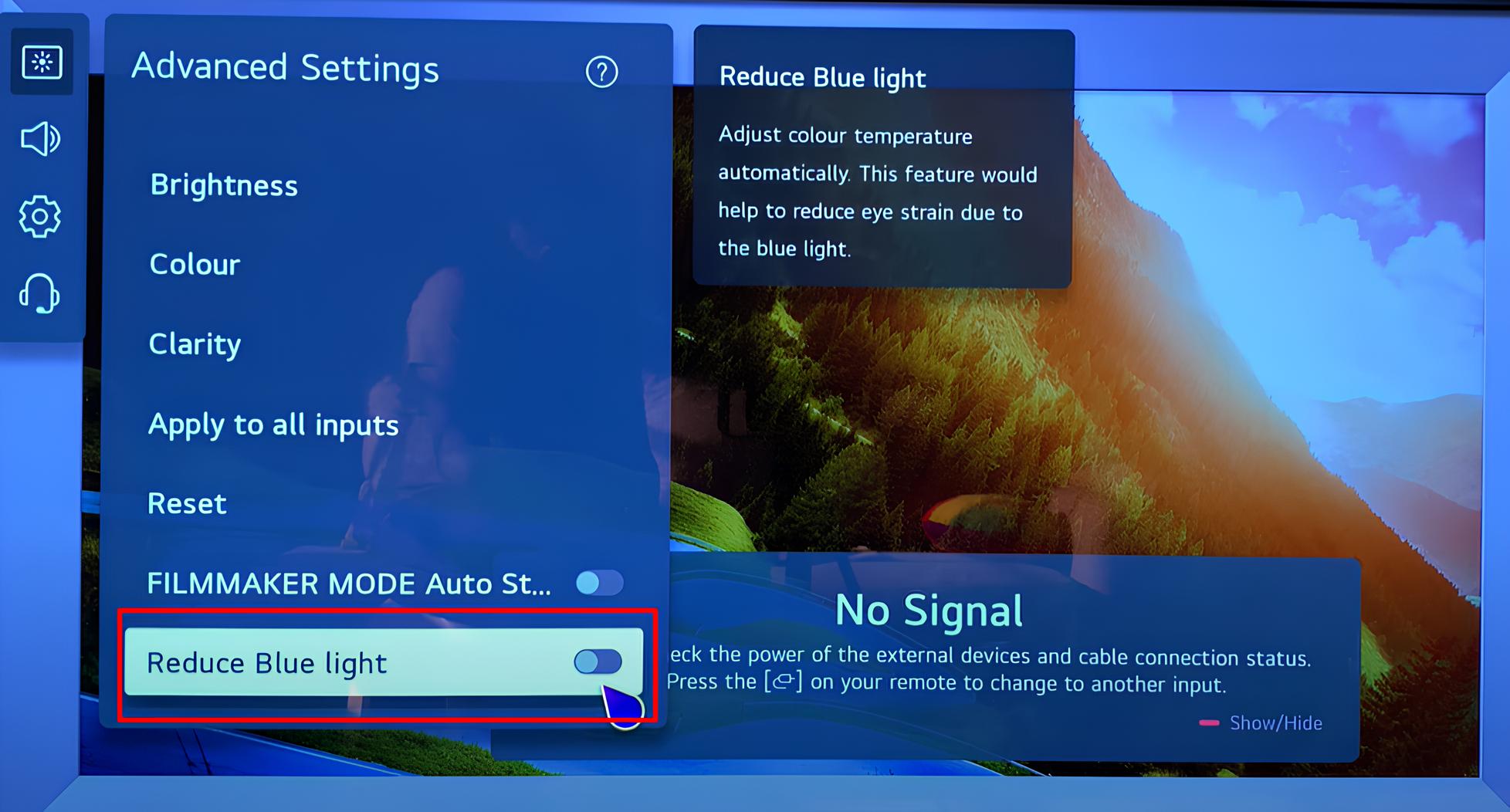
To find your TV blue light settings, look for a built-in blue light filter, often labeled Eye Comfort, Eye Care, or Blue Light Filter, in your TV's picture or general settings menu. Most modern smart TVs include this dedicated mode to reduce blue light output, making it the quickest fix for easing eye strain and improving sleep, a habit that also pairs well with shielding your skin from the effects of blue light. Managing screen glare is just as crucial for comfort when you read a tablet in the sun.
Enable EyeComfort Mode on Samsung TVs
On Samsung TVs from 2022 and newer, EyeComfort Mode automatically adjusts brightness and color tone based on ambient light and time of day, reducing blue light at night. To enable it, navigate to Settings > General & Privacy > Intelligent Mode Settings, toggle Intelligent Mode on, then go to Adaptive Picture and select EyeComfort. For a consistent experience across your devices, you can also apply turning off blue light for better viewing on your iPad. Note that the "Blue Only Mode" found on some Samsung TVs is for calibration purposes only and does not serve as a blue light reduction feature for general viewing.
Turn on Eye Comfort Mode on LG TVs
LG TVs offer an Eye Comfort Mode to reduce blue light output. Press the Settings button, then select All Settings > Picture > Advanced Settings (or Additional Settings) and choose Eye Comfort Mode (or Reduce Blue Light). As an alternative path, you can find Eye Care Mode under Settings > All Settings > General > Family Settings, which also helps minimize blue light emission.
Activate the blue light filter on TCL TVs
For TCL TVs, activate the blue light filter by pressing the Settings button and navigating to Display & Sound (or Picture) > Picture > Eye Health Protection. Once there, enable the Blue Light Filter to reduce blue light output and ease eye strain during extended viewing sessions.
Manual picture adjustments to reduce blue light
If your TV lacks a dedicated blue light filter, you can still reduce blue light through universal picture adjustments. Lowering overall screen brightness and changing the color temperature preset to 'Warm' or a low setting will reduce blue light output. These manual tweaks work on any TV brand and help create a more comfortable viewing experience, especially in the evening.
Good viewing habits to complement your settings
Pair your TV settings with good viewing habits to further reduce eye strain. Use ambient lighting in the room to balance the screen's brightness and minimize glare. Consider time-based auto-adjustments if your TV offers them, as they gradually reduce blue light as the day progresses. Finally, follow the 20-20-20 rule: every 20 minutes, look at something 20 feet away for 20 seconds to give your eyes a break.