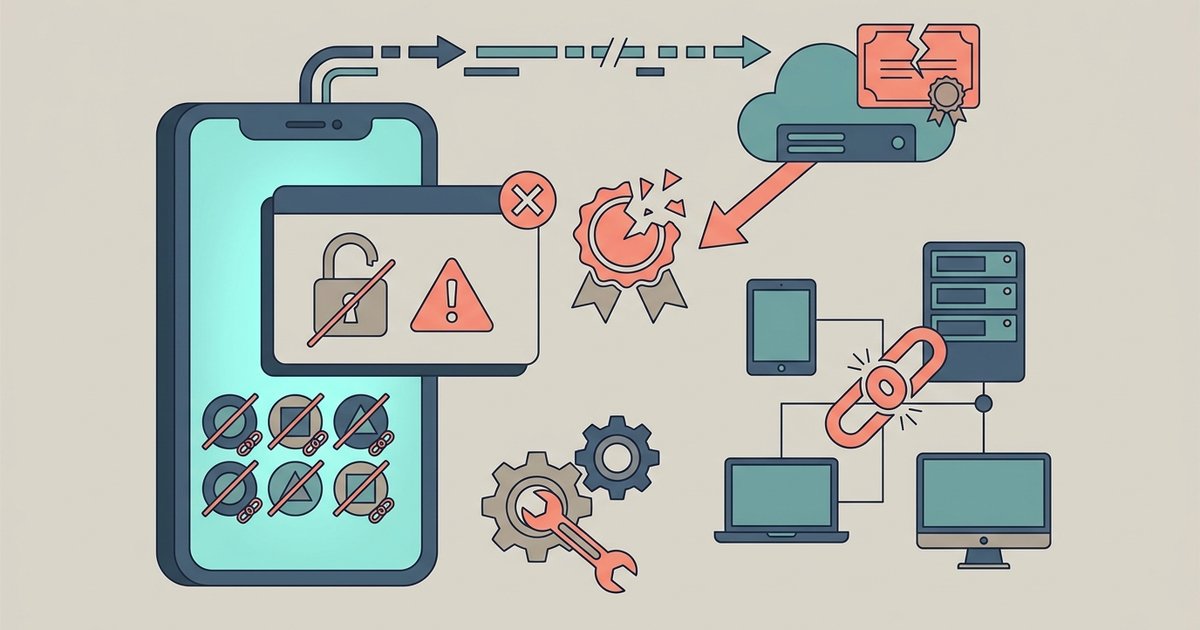
The app immediately crashes on launch or shows a 'Untrusted Developer' message and won't open, but your personal app data remains saved on the device and is not lost.
The exact apple enterprise certificate error you see on screen
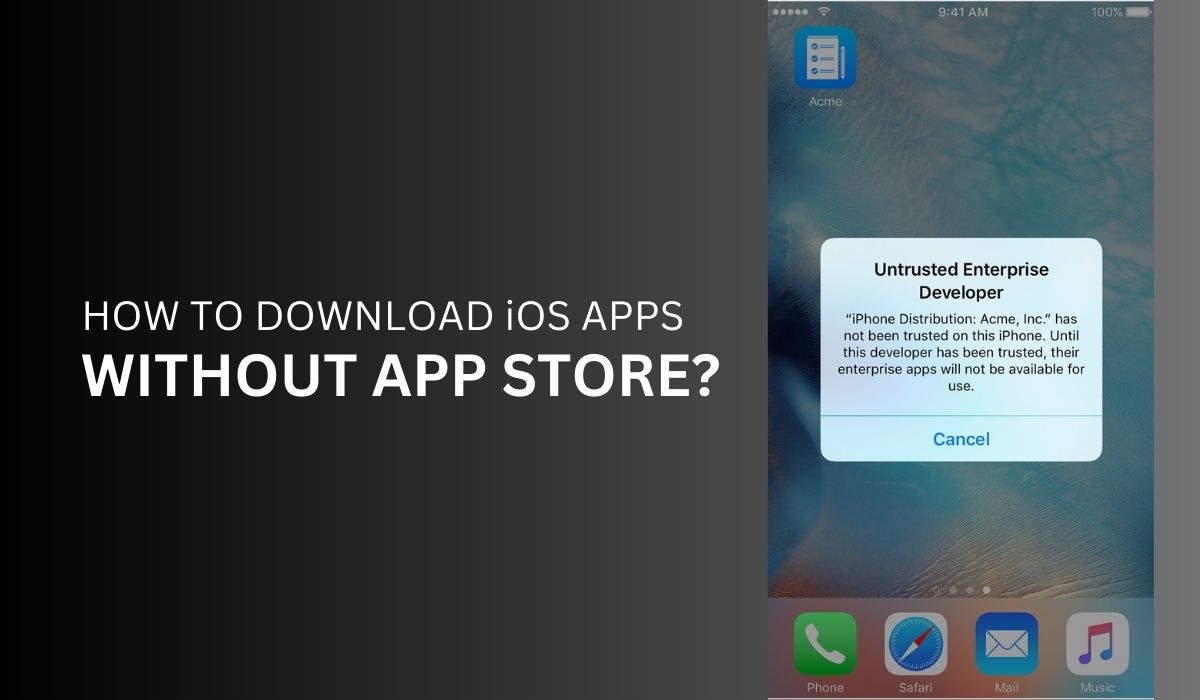
The first time you tap a revoked app, iOS displays a pop-up. It reads: "Unable to Verify App, An internet connection is required to verify the app developer. You must have a network connection to verify the app." If you tap "Cancel," the app does nothing. If you tap "Verify," the phone attempts to check the certificate online. It fails. Then it shows a second pop-up: "Untrusted Developer, This app has not been trusted on this iPhone." The "Trust" button in Settings under General > VPN & Device Management simply does not appear for the revoked certificate. It simply does not appear for the revoked certificate. You cannot tap "Trust" again. The certificate has been removed from Apple’s approved list. The option to manually trust it is no longer offered. The only way to bypass this block is to have the developer issue a new certificate and re-sign the app, which means you will need to use a single Apple ID to sideload on multiple iPhones again with the fresh certificate.
Your data is trapped, not deleted
When the app is blocked, its container folder remains intact on your phone. This folder is located in the app's data container on the device. It holds your login tokens, saved preferences, cached files, and any documents the app created. The common misconception that revocation wipes your files is false. Apple’s revocation mechanism only prevents the executable code from running. It does not touch the associated data. Your data is trapped, not deleted. To access it again, you must install a version of the app signed with a new, valid enterprise certificate. If you install that new version from the same developer, iOS will reuse the existing data container. Your login state and documents will be restored. If you delete the app before reinstalling, that container is erased permanently. The data is lost.
When reinstalling doesn’t fix it
If you simply delete the blocked app and re-download the same .ipa file, the reinstallation will fail. The underlying certificate is still revoked. iOS will show the same "Unable to Verify App" pop-up immediately after the download finishes. The app icon will remain greyed out with a "Waiting…" or "Cannot Install" label. This failure case is common among users who try to fix the problem by reinstalling from the same third-party store. The only solution is to obtain a fresh .ipa file. It must be signed with a different, currently valid enterprise certificate. This is why some third-party app installers rotate their certificates every few weeks. They need to stay ahead of Apple’s revocation sweeps. If you are looking for alternative ways to get software, you might search for how to download the app store. Those methods will not bypass certificate revocation. On Android, you can download Android apps without Google account and sideload them without facing this same certificate issue. None of those techniques circumvent the core certificate validation check. The only reliable fix is a new certificate from the developer.
The app immediately crashes on launch. Or it shows an "Untrusted Developer" message and won't open. Your personal app data remains saved on the device. It is not lost. When Apple revokes an enterprise certificate, the operating system performs a remote validation check at launch time. If the certificate is no longer valid, the app is blocked from executing. This is the same mechanism that prevents malware from running after a certificate is pulled. Your data is trapped, not deleted: Apple’s revocation mechanism only prevents the executable code from running, not the associated data.