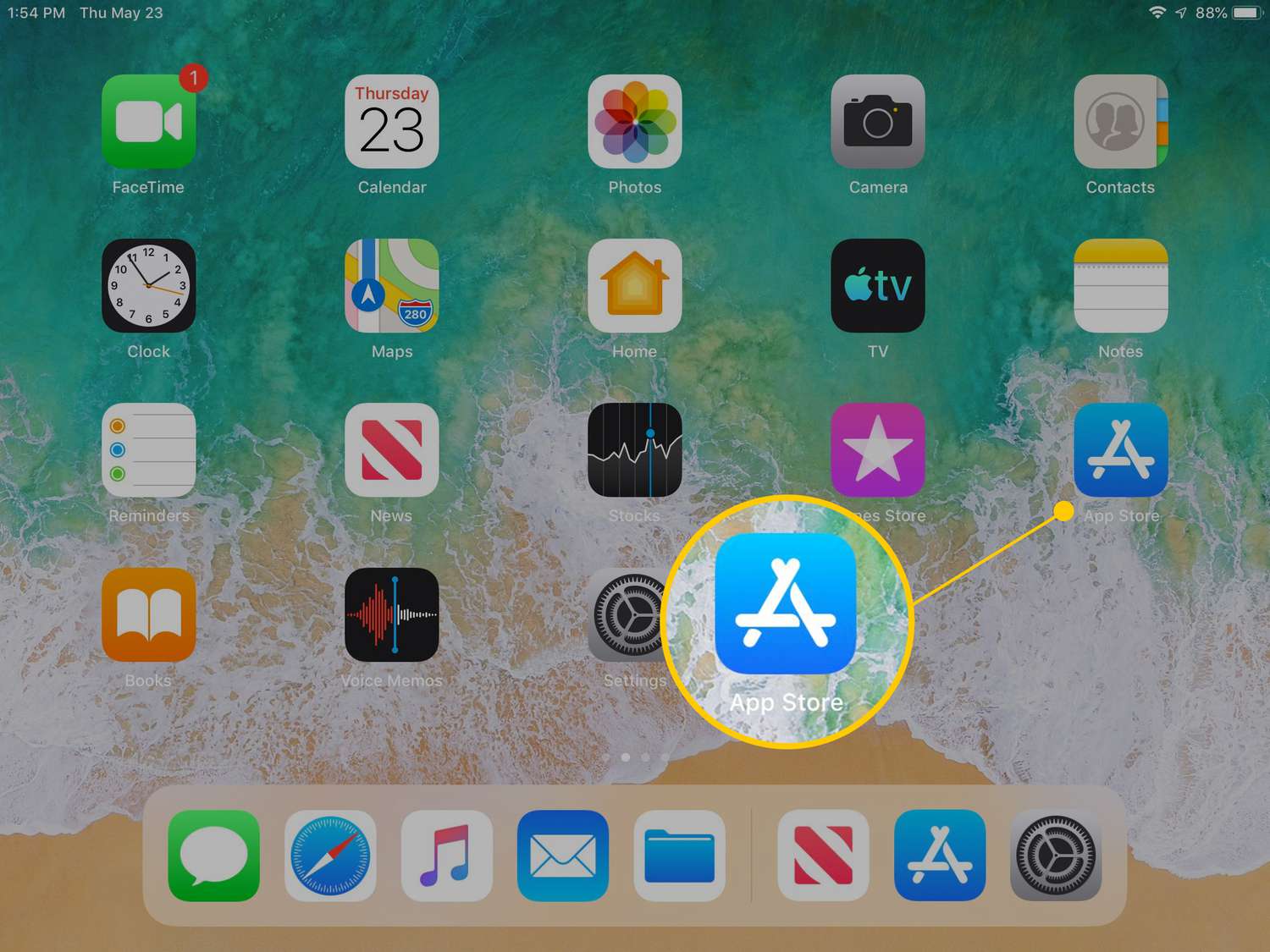
You can download older versions of apps on iPad, but only for apps you have previously downloaded with your Apple ID. This is a critical limitation: if you have never downloaded the app before, you cannot access an older version through the App Store, and iPads running iOS 10 or older may be severely limited, only able to use pre-installed apps and unable to download new apps from the App Store at all.
Why you might need an older app version
There are two core, practical reasons to seek an older version of an app. First, app incompatibility after an iOS update: when you update your iPad's operating system, some apps may stop working because the developer optimized the latest version for a newer iOS. Second, poor performance on older iPad hardware: newer app versions often demand more processing power and memory, causing lag or crashes on aging devices. An older version, built for your iPad's capabilities, can restore smooth performance.
How to download older versions of apps on iPad
The single, verified method uses the App Store's Purchased section. Follow these steps exactly:
- Open the App Store app on your iPad.
- Tap on your profile icon (your picture or initials) located in the upper-right corner of the App Store screen.
- Tap on "Purchased" from the menu that appears.
- Tap on "My Purchases" to view a list of all apps previously downloaded or purchased with your Apple ID.
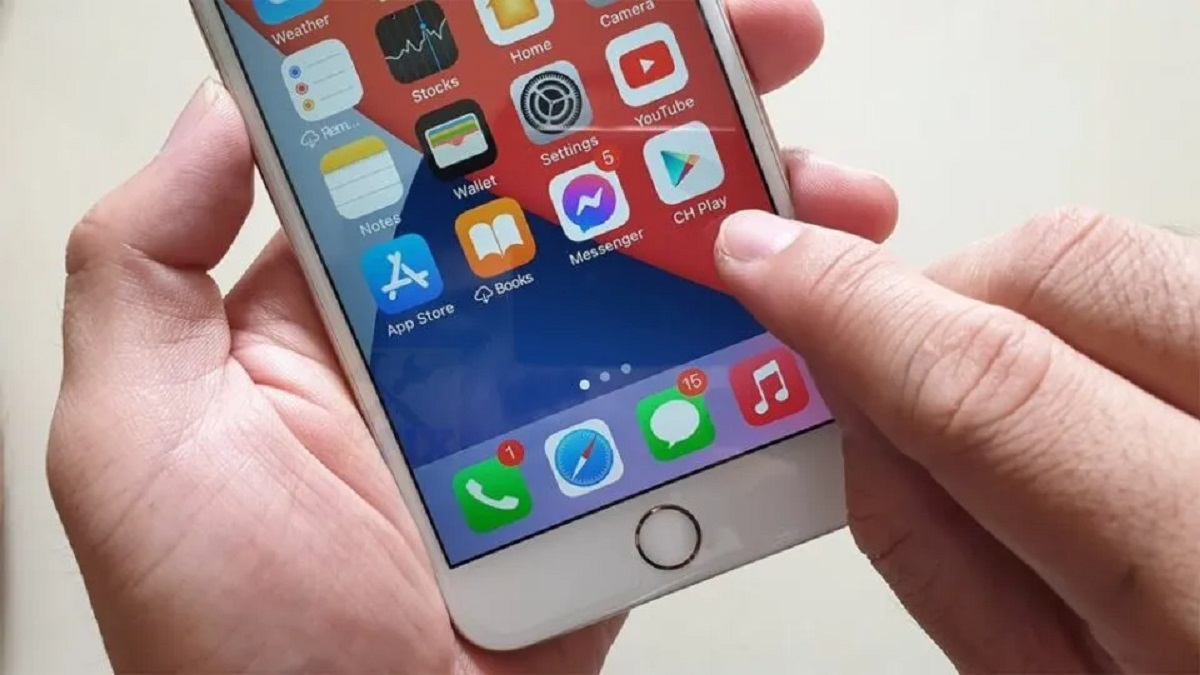
- Locate the app you want an older version of. If a compatible older version is available, you will see a cloud icon with a downward arrow next to it. Tap that icon to download the older version.
This method only works for apps you have downloaded before. The App Store automatically offers the last compatible version for your iPad's iOS when you tap the download icon.
What to do if the older version isn't available
Manage your expectations: developers often remove old versions from the App Store when they release updates. If you do not see a download icon in the Purchased section, the older version is no longer hosted by Apple. The only safe recourse is to contact the app developer's support directly. They may provide a direct download link or confirm that no older version exists. Avoid third-party websites promising older iOS apps, these pose security risks and are not endorsed by Apple.
How to stop the app from updating again
Once you have installed the older version, you must disable automatic updates for that specific app so the older version isn't overwritten. Here is how:
- Open the App Store on your iPad.
- Tap your profile icon in the upper-right corner.
- Tap "Purchased" and then "My Purchases".
- Find the app in the list and tap on it to open its details page.
- Locate the toggle labeled "Automatic Updates" and turn it off.
This prevents the App Store from automatically downloading and installing newer versions of that app. Remember that you will not receive security patches or bug fixes for the older version, so check periodically for critical updates from the developer.
\nRelated reading: How To Download Free Apps On iPhone Without Payment Method and How To Download Minecraft For Free iOS.